


 Video Converter Ultimate
 Grabador de pantalla
 Reparación de vídeo
 Descarga segura
Web Launch Recorder: 4 formas gratuitas de capturar actividades en pantalla sin descargar
¿Existe una manera fácil de grabar videos, como videos de juegos populares, registros de videollamadas, videos de conferencias, y guardarlos como su colección? Las grabadoras de lanzamiento web gratuitas son siempre la opción inicial para capturar videos en pantalla, que son servicios basados en la web para capturar actividades en pantalla. Solo obtenga más información sobre las excelentes grabadoras de inicio web para iniciar la función de grabación de pantalla en línea.

Parte 1: Los 4 mejores grabadores de lanzamiento web gratuitos en línea
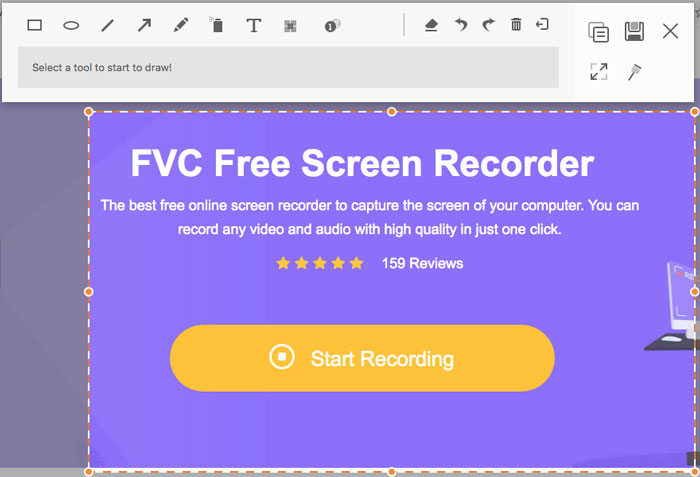
Top 1: Grabador de pantalla gratuito FVC
FVC Free Screen Recorder es un grabador de pantalla gratuito basado en la web disponible en cualquier navegador. Te permite grabar cualquier vídeo y audio sin añadir marcas de agua. Puedes personalizar el área de grabación, como la pantalla completa o solo una parte del área para la grabación de vídeo. Además, exporta las grabaciones a diferentes formatos de archivo, como MP4 y WMV.
1. Grabador de pantalla en línea gratuito sin registro u otros límites.
2. Agregue líneas y texto en tiempo real para anotar la grabación de la pantalla.
3. Ponga el audio de la cámara web y el micrófono en su screencast.
4. Vea todos los archivos de grabaciones anteriores de la lista del historial de grabaciones.
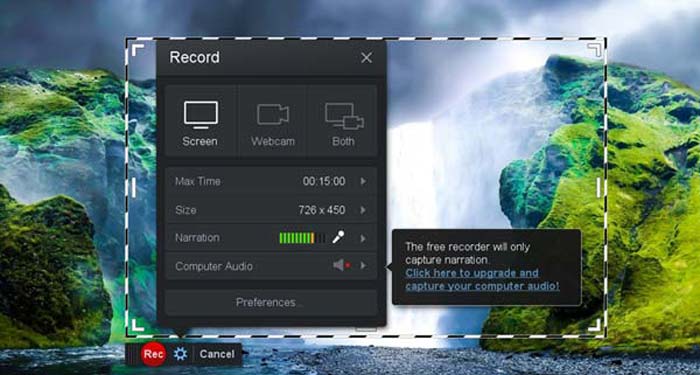
Top 2: Screencast-O-Matic
Screencast-O-Matic es un grabador de pantalla online que permite grabar fácilmente cualquier zona de tu pantalla. Te permite subir el vídeo directamente a la plataforma de alojamiento de vídeo. Además, puedes usar las herramientas de guion, subtítulos automáticos y muchas otras funciones.
Pros
- 1. Personalice el área de grabación, como toda la pantalla o parte de ella.
- 2. Sube las grabaciones a Screencast-O-Matic, Google Drive, etc.
- 3. Agregue narración de audio, música de archivo y subtítulos, y más fácilmente.
Contras
- 1. La calidad de la grabación no es lo suficientemente buena.
- 2. Esta grabadora de pantalla en línea tiene una limitación de tiempo.
Top 3: Clipchamp
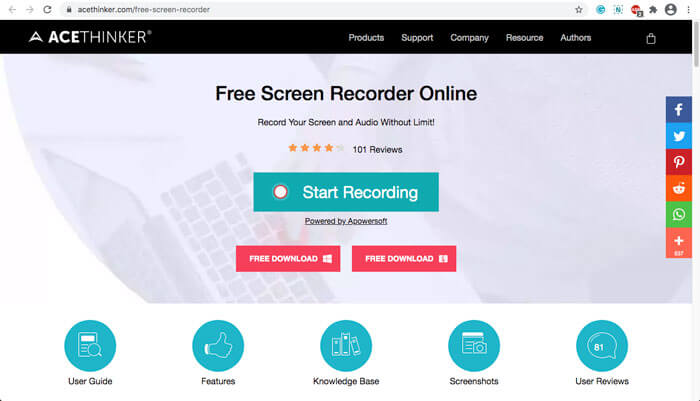
Clipchamp es un grabador online gratuito muy práctico. Puedes utilizarlo para grabar y subir vídeos, y puedes comprimir vídeos sin perder la calidad original. También está equipado con muchas funciones, como micrófono externo, distintas resoluciones, etc.
Pros
- 1. Grabe toda la pantalla, un área de grabación preestablecida o una personalizada.
- 2. Le permite convertir videos grabados a otros formatos de video populares.
- 3. Puede capturar video con narración y voz en off desde un micrófono.
Contras
- 1. Tiene que actualizar a la versión Pro para tener todas las funcionalidades.
- 2. No se puede editar la grabación directamente en la biblioteca multimedia en línea.
Parte 2: Cómo capturar la pantalla con Web Launch Recorder
Cuando se trata de cómo capturar vídeos de pantalla con un grabador web, toma simplemente FVC Free Screen Recorder como ejemplo. Conoce a continuación el proceso detallado.
Paso 1: Cuando necesites capturar la pantalla de forma gratuita, ve al grabador web y haz clic en el botón Start Recording de la página de inicio. Se descargará un lanzador para el grabador web. Instala el programa e inícialo en tu ordenador.
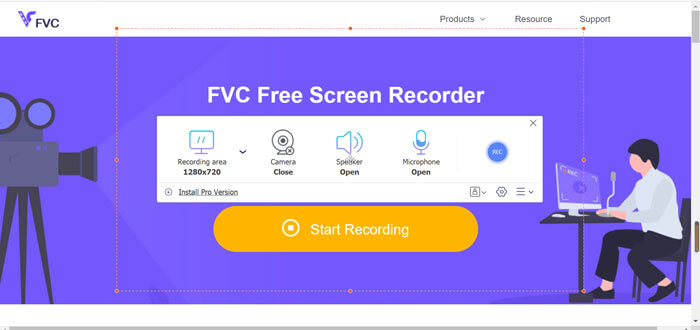
Paso 2: Después de iniciar la aplicación, podrás ver los ajustes de grabación. Aquí puedes hacer clic en la opción Recording area para seleccionar la grabación de pantalla completa o parcial, o activar el menú Speaker para grabar archivos de audio. Para grabar un vídeo con narración, solo tienes que activar la opción Webcam.
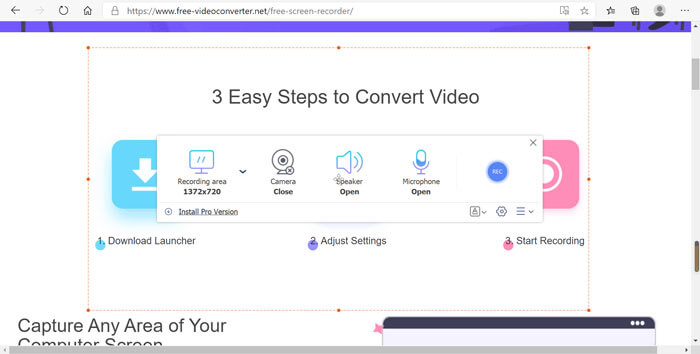
Paso 3: Si necesitas cambiar más parámetros de archivo, haz clic en el icono de Gear en la esquina inferior derecha del grabador web para personalizar las opciones. Te permite cambiar la ubicación de almacenamiento del archivo grabado y el formato del archivo de salida en la ventana emergente de configuración.
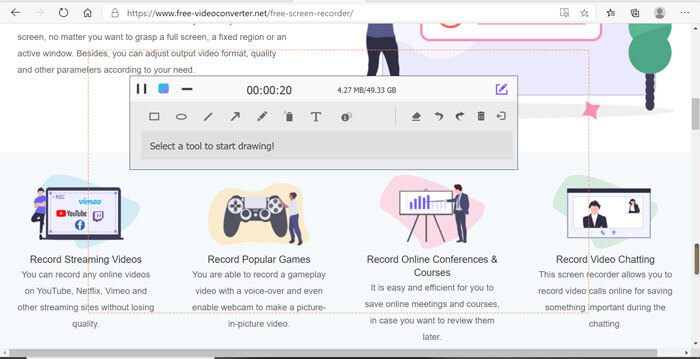
Paso 4: A continuación, haz clic en el botón REC para empezar a grabar. Cuando termine la grabación, haz clic en el botón Stop para finalizar todo el proceso. Haz clic en el icono de tres líneas en la parte inferior del grabador web para abrir y gestionar la lista de vídeos grabados.
Parte 3: Preguntas frecuentes sobre Web Launch Recorder
1. ¿Cómo puedo grabar la pantalla con la cámara web?
Cuando el grabador web esté activado, puedes encontrar y activar la función de cámara web en la interfaz, luego ajustar el tamaño de la ventana de la cámara web, volver a la interfaz principal y hacer clic en el icono REC, de modo que puedas empezar a grabar las imágenes a través de la cámara web integrada.
2. ¿Por qué mi grabación de pantalla no tiene sonido?
Hay opciones para el sonido del sistema y el micrófono en la interfaz principal del programa. Puede que olvide encenderlos antes de grabar. Antes de grabar, asegúrese de que esta opción esté habilitada para que pueda obtener un video grabado con sonido.
3. ¿Cómo subir mis videos a YouTube?
Inicie la grabadora de lanzamiento web gratuita, busque y haga clic en el icono de tres líneas en la esquina inferior derecha de la interfaz. Luego, busque el video que desea cargar en la lista de grabación emergente y haga clic en el ícono de compartir a continuación. Finalmente, seleccione el video de la plataforma de medios y el video grabado se puede compartir fácilmente en cualquier plataforma.
Conclusión
Como resumen, este artículo presenta las 4 grabadoras de lanzamiento web en línea gratuitas más populares del mercado, y presenta en detalle el método de grabación de video de FVC Free Screen Recorder, una de las mejores aplicaciones en línea. Puede ayudarlo a grabar video y audio de forma gratuita sin dañar la calidad.
-
 Las 6 mejores grabadoras WAV que no debe perderse en el escritorio y en línea
 El mejor software de grabación WAV que compartimos en este artículo tiene una variedad de funciones útiles, que lo ayudan a capturar audio y voz como profesionales.
-
 Grabación de pantalla QuickTime - Grabe video con audio en Mac y PC
 La pantalla de grabación con audio en Mac es útil. El reproductor integrado QuickTime Player puede hacerlo. Lea su publicación y sepa cómo capturar la pantalla con sonido en Mac y PC.
-
 Revisión de DU Recorder 2021: seguridad, precio, funciones, uso y calificaciones
 DU Recorder es un grabador de pantalla y audio para iPhone y Android. ¿Vale la pena descargarlo? ¿Es seguro? Lea la revisión completa para ver si la aplicación es adecuada para usted.
