


 Video Converter Ultimate
 Grabador de pantalla
 Reparación de vídeo
 Descarga segura
Cómo tomar capturas de pantalla en Samsung S23 como un profesional en poco tiempo
En el panorama digital actual, los smartphones se han vuelto indispensables. Sirven para capturar momentos inolvidables, almacenar información vital, mantener conversaciones significativas y compartir contenido divertido con nuestros seres queridos. Por ello, saber cómo hacer capturas de pantalla de esos momentos forma parte de una experiencia universal. Smartphones como el Samsung Galaxy S23 son potentes dispositivos capaces de hacer grandes cosas y mucho más que simples capturas. En este artículo, veremos varios métodos para hacer capturas de pantalla en el Samsung S23 aprovechando funciones de gama alta; te proporcionaremos los conocimientos necesarios para maximizar las capacidades de captura de pantalla de tu dispositivo con precisión y facilidad. ¿A qué estás esperando? ¡Sigue leyendo este artículo para mejorar tus habilidades con las capturas de pantalla y desbloquear todo el potencial de tu Samsung Galaxy S23 en muy poco tiempo!

Parte 1. Cómo tomar una captura de pantalla en Samsung S23 con la herramienta predeterminada
Realizar una captura de pantalla en su Samsung S23 es un proceso simple. La herramienta predeterminada proporcionada por el dispositivo facilita la realización de capturas de pantalla. Al igual que con otros teléfonos inteligentes, la funcionalidad de tomar capturas de pantalla se basa en el uso del botón de encendido y las teclas de volumen. Esta función le permite tomar capturas de pantalla directamente desde su teléfono en solo cuestión de segundos.
Paso 1. Abre la aplicación o ve a la página de la que quieres hacer la captura de pantalla.
Paso 2. Pulsa al mismo tiempo los botones físicos de tu teléfono Encendido y Bajar volumen para capturar la pantalla.
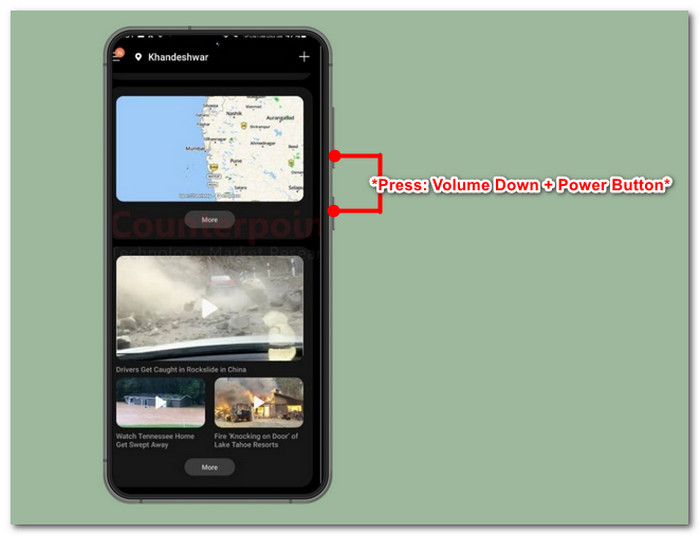
Paso 3. Has realizado correctamente una captura de pantalla usando la herramienta predeterminada. Para ver tu captura, ve a tu Galería.
Este método se aplica a todos los teléfonos Android para realizar una captura de pantalla.
Desde combinaciones de botones clásicas hasta controles de gestos avanzados, dominar el arte de hacer capturas de pantalla en tu Samsung S23 usando la herramienta predeterminada es muy sencillo. Ya sea que quieras guardar un mensaje importante, capturar un momento memorable o compartir contenido divertido con amigos, el Samsung S23 puede hacerlo.
Parte 2. Cómo tomar capturas de pantalla en Samsung S23 sin botón de encendido
No necesariamente tienes que usar el botón físico. Hay otros métodos disponibles, como tomar capturas de pantalla desde el propio teléfono. Esto se puede lograr mediante el uso de Bixby o el Asistente de Google, así como gestos de Palm Swipe. En esta parte, nos centraremos específicamente en cómo utilizar Palm Swipe para capturar la pantalla.
Paso 1. Para poder usar la captura de pantalla con Deslizar la palma, primero debes activarla desde los Ajustes de tu teléfono.
Paso 2. En los Ajustes del teléfono, ve a Funciones avanzadas > Movimientos y gestos.
Paso 3. Una vez en los ajustes de Movimientos y gestos, activa la opción Deslizar la palma para capturar.
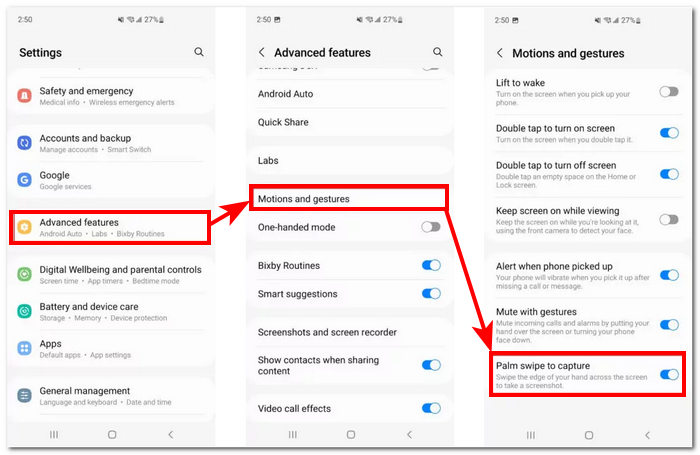
Paso 4. Una vez que hayas activado la función, para probarla desliza el lateral de tu mano por el borde de la pantalla.
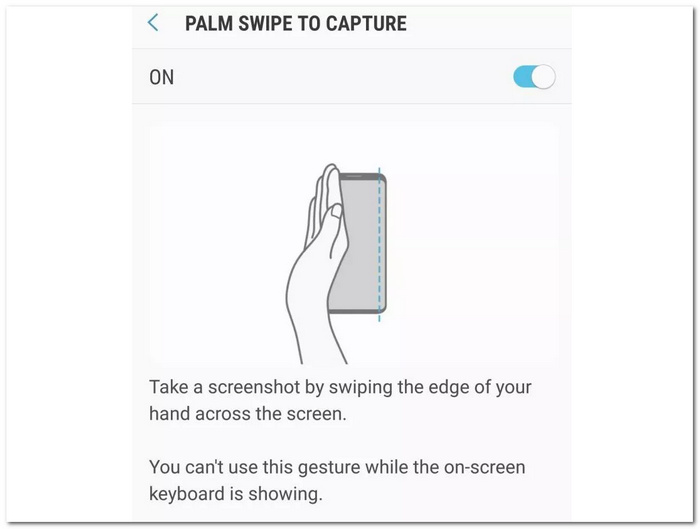
Es posible que no todos prefieran la función de gesto Palm Swipe para tomar capturas de pantalla, pero es una adición bien pensada de Samsung. Esta función soluciona el problema de no poder tomar una captura de pantalla si el botón de encendido o uno de los botones de volumen deja de funcionar. Por lo tanto, esta función garantiza que la capacidad del usuario para realizar capturas de pantalla no se vea comprometida.
Parte 3. Cómo tomar capturas de pantalla en Samsung S23 con software de escritorio
Tomar capturas de pantalla mediante un software de escritorio es un método interesante cuando quieres obtener más detalles y un gran control sobre tus capturas. Si utilizas tu buque insignia Samsung S23, lo lógico es usar también un software a la altura de tu dispositivo. Este software es el Screen Recorder seleccionado por FVC. Este programa te permite duplicar la pantalla de tu smartphone en el ordenador para hacer capturas de pantalla o, mejor aún, grabarla, ya que el software es ideal para hacer capturas, grabar la pantalla, audio, vídeo y juegos. Al usar este software para capturar la pantalla del Samsung S23, obtienes la ventaja de poder ajustar la resolución de la captura, algo que encaja perfectamente con dispositivos de gama alta como el S23.
Paso 1. Instala el software de captura de pantalla para el teléfono en tu ordenador y ejecútalo cuando termine la instalación.
Descarga gratuitaPara Windows 7 o posteriorDescarga segura
Descarga gratuitaPara macOS 10.7 o posteriorDescarga segura
Paso 2. Haz clic en el botón Teléfono de la interfaz y, a continuación, selecciona Android Recorder, ya que estás usando un dispositivo Samsung S23.
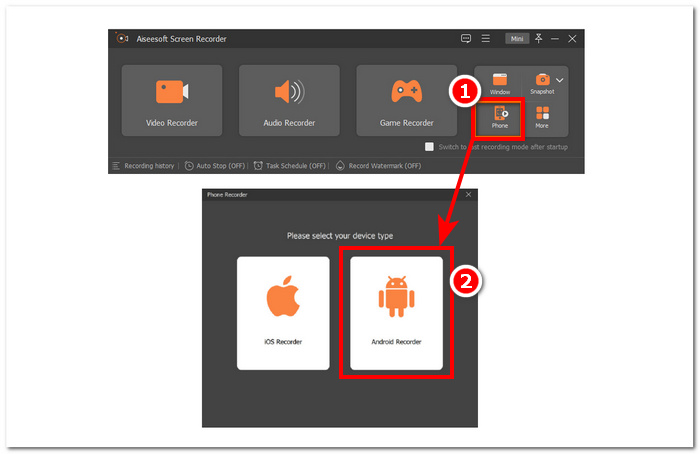
Paso 3. Asegúrate de haber descargado FoneLab Mirror en tu smartphone y de que tanto tu Samsung S23 como el ordenador estén conectados a la misma red WLAN para poder duplicar la pantalla del móvil en tu equipo.
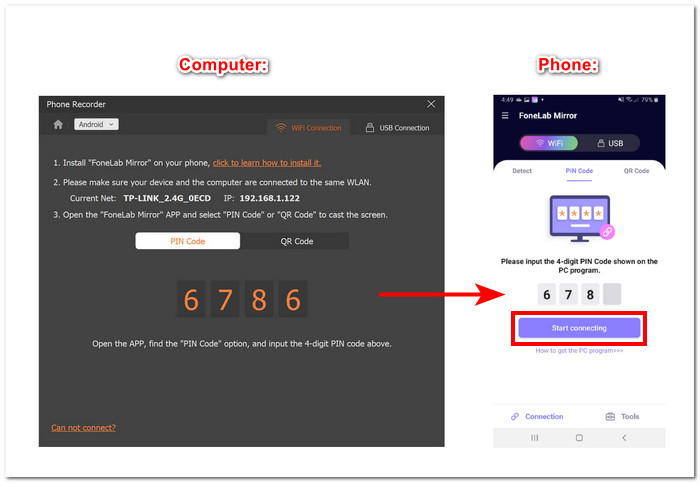
Paso 4. Una vez que hayas duplicado la pantalla correctamente, puedes hacer clic en el botón Snapshot para hacer una captura de la pantalla de tu Samsung S23.
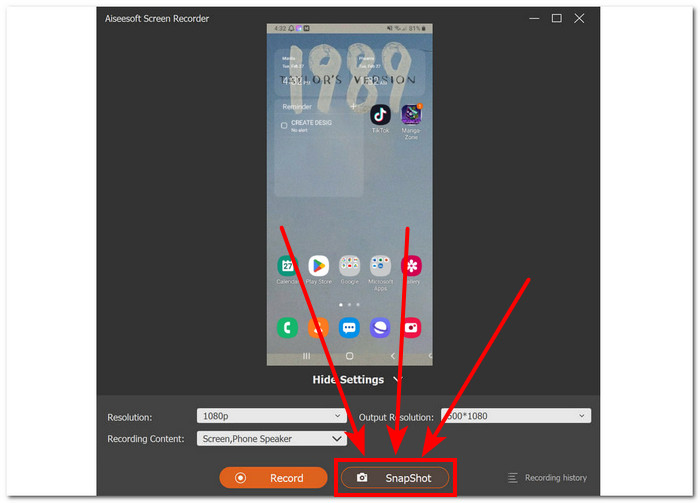
Screen Recorder resulta ser una herramienta fiable y profesional no solo para hacer capturas de pantalla normales. Esta herramienta ofrece a sus usuarios una alta calidad de salida en cada captura. Mientras utilizas el software, también te permite cambiar la resolución para evitar resultados borrosos, lo que podría obligarte más adelante a recurrir a una herramienta para aumentar el tamaño de la imagen para solucionar ese problema.
Parte 4. Preguntas frecuentes sobre cómo tomar capturas de pantalla en Samsung S23
¿Puedo personalizar la configuración de captura de pantalla en mi Samsung S23?
Sí, puedes personalizar la configuración de captura de pantalla en tu Samsung S23. Puede ajustar opciones como dónde se guardan las capturas de pantalla, si incluyen una vista previa o no y si capturan información adicional como contenido desplazable.
¿Cómo accedo a las capturas de pantalla que tomé en mi Samsung S23?
Después de tomar una captura de pantalla, podrás acceder a ella inmediatamente desde el panel de notificaciones. Además, puede encontrar todas sus capturas de pantalla en la carpeta Capturas de pantalla dentro de la aplicación Galería o en el álbum Capturas de pantalla si está utilizando un administrador de archivos.
¿Puedo realizar capturas de pantalla con desplazamiento en mi Samsung S23?
Varios modelos de Samsung S23 ofrecen la capacidad de realizar capturas de pantalla con desplazamiento. Para tomar una captura de pantalla de este tipo, primero puede tomar una captura de pantalla normal utilizando el método predeterminado. Luego, ubique la opción Capturar más o una función similar que le permitirá desplazarse y capturar contenido adicional que quizás no haya estado visible en la pantalla en el momento de la captura de pantalla inicial. Esta función puede resultar muy útil para capturar páginas web, chats y otros contenidos más largos.
¿Por qué mi Samsung S23 no toma capturas de pantalla?
Si su Samsung S23 no realiza capturas de pantalla, asegúrese de estar usando la combinación de botones o gesto correcto y de que el software de su dispositivo esté actualizado. Si el problema aún no se resuelve, intente reiniciar su dispositivo o comuníquese con el soporte técnico de Samsung para obtener más ayuda.
¿Puedo editar o compartir capturas de pantalla directamente después de tomarlas en Samsung S23?
Después de tomar una captura de pantalla, puede editarla o compartirla rápidamente sin tener que navegar por la Galería de su dispositivo. Una vez que tomes la captura de pantalla, aparecerá una notificación en tu pantalla. Simplemente toque la notificación y lo llevará directamente a la captura de pantalla. Desde allí, puedes realizar las modificaciones necesarias o compartirlo con otras personas sin demora.
Conclusión
Al comprender y aprovechar al máximo las funciones de captura de pantalla de tu Samsung Galaxy S23, podrás capturar y compartir recuerdos memorables, información importante y contenido divertido con facilidad. Esta guía te proporciona conocimientos para utilizar las combinaciones de botones predeterminadas y explorar funciones avanzadas como los gestos de deslizamiento de la palma y las soluciones mediante software de escritorio. Con esta información, podrás mejorar tus capturas de pantalla y desbloquear todo el potencial de tu Samsung Galaxy S23 en muy poco tiempo.
-
 Cómo realizar capturas de pantalla en una computadora portátil Toshiba sin esfuerzo y de forma gratuita
 Descubra las tres formas sencillas de tomar una captura de pantalla en una computadora portátil Toshiba y capturar todo su contenido favorito en su computadora portátil Toshiba de forma gratuita.
-
 Cómo recortar capturas de pantalla en Mac [Guía para principiantes de 2025]
 ¡No te conformes con capturas parciales! Conozca los sencillos pasos para realizar capturas de pantalla con desplazamiento en Mac. Capture páginas web o documentos completos con facilidad y en poco tiempo.
-
 Cómo tomar capturas de pantalla con desplazamiento en Firefox sin esfuerzo
 ¿Busca formas de recortar capturas de pantalla en su Mac? ¡Lo tenemos cubierto! En este artículo, aprenderá los 3 métodos que puede utilizar para cambiar el tamaño de las capturas de pantalla con facilidad.
