


 Video Converter Ultimate
 Grabador de pantalla
 Reparación de vídeo
 Descarga segura
Formas más simples de cómo arreglar fotos HEIC usando las mejores herramientas
Las fotos HEIC son formatos de imagen que Windows no puede abrir. Aunque son imágenes muy utilizadas por su alta resolución y su reducido tamaño de archivo, solo puedes abrirlas de forma nativa en dispositivos Apple. Además, si tu imagen ha perdido datos o está dañada, necesitas una herramienta que te ayude a reparar la imagen y recuperar los datos perdidos. Este artículo te ayudará a conocer la mejor herramienta para abrir tu imagen HEIC en tu PC con Windows y te explicará cómo reparar fotos HEIC sin esfuerzo.

Parte 1. Cómo corregir y ver su imagen HEIC en su PC con Windows
No puede ver su imagen HEIC en su PC con Windows aunque su imagen no esté dañada. Entonces, la mejor opción para usted es usar herramientas que puedan ver su imagen HEIC o convertirla a otros formatos de imagen compatibles con Windows, como JPG y PNG. Entonces, le presentaremos las mejores herramientas para ver una imagen HEIC en su PC con Windows y cómo convertir su imagen HEIC al formato de imagen JPG.
usar un convertidor
Aiseesoft HEIC Converter es un convertidor HEIC en línea que le permite convertir su imagen HEIC a formato de imagen JPG o PNG. Esta herramienta tiene una interfaz de usuario simple que la convierte en una herramienta fácil de usar. Además de eso, puede cambiar la calidad de su imagen al convertir su imagen HEIC. También puede conservar los datos EXIF de su imagen mientras los convierte a otros formatos de imagen. Además, puede usar esta herramienta para convertir imágenes HEIC a JGP sin pagar nada.
Paso 1. Descarga Aiseesoft HEIC Converter en tu PC. Sigue el proceso de instalación y abre la aplicación.
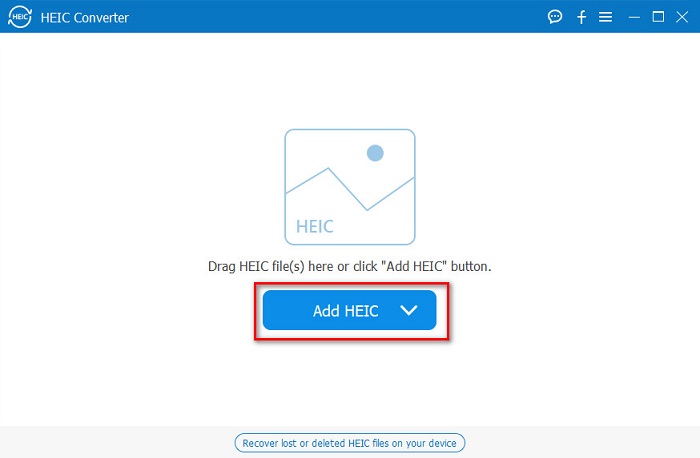
Paso 2. Haz clic en el botón Add HEIC para cargar tu imagen HEIC en la interfaz principal del software.
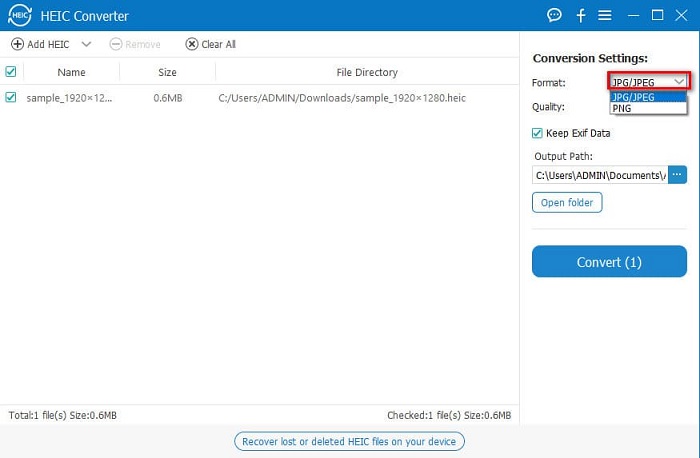
Paso 3. A continuación, selecciona el formato de salida haciendo clic en el botón desplegable junto a Format. Después, selecciona el formato de imagen JPG/JPEG.
Paso 4. Por último, haz clic en el botón Convert para convertir tu imagen HEIC al formato de imagen JPG.
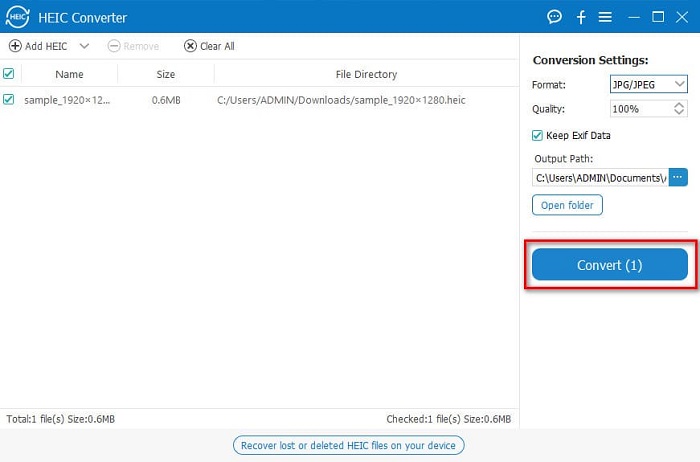
Siguiendo estos sencillos pasos, puede convertir su imagen HEIC a formato de imagen JPG para verla en su dispositivo Windows.
También puedes probar FVC HEIC Converter, que tiene funciones tan potentes como el Aiseesoft Converter:
Descarga gratuitaPara Windows 7 o posteriorDescarga segura
Descarga gratuitaPara macOS 10.7 o posteriorDescarga segura
Relacionado:
usar un visor
1. HEIC Image Viewer Decoder
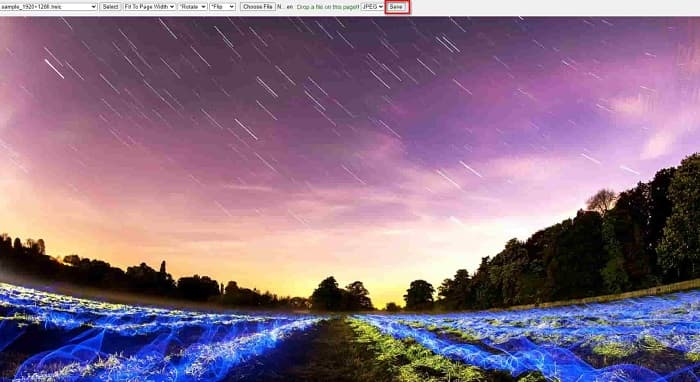
HEIC Image Viewer Decoder es una aplicación para ver archivos HEIC que te permite visualizar tu imagen HEIC en línea. Después de ver o decodificar tu imagen HEIC, puedes guardarla en formato de imagen PNG o JPG. Además, tiene una interfaz sencilla para ver fácilmente tu imagen HEIC.
Paso 1. En el navegador que utilices, busca HEIC Image Viewer Decoder. Y en la interfaz principal del software, suelta tu imagen HEIC en el cuadro rectangular o haz clic en el botón Choose Files.

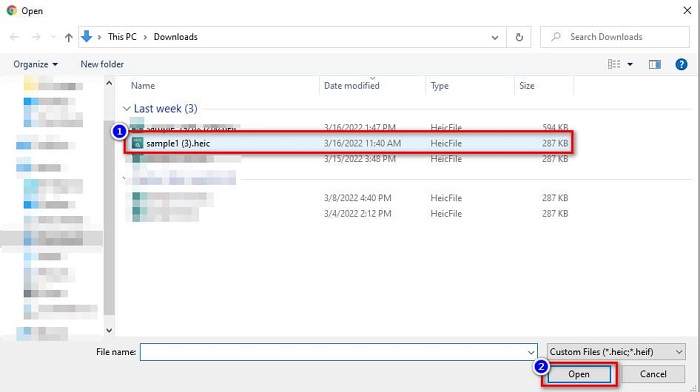
Paso 2. A continuación, aparecerán las carpetas de tu ordenador, donde localizarás tu imagen HEIC; luego selecciónala y haz clic en Open.
Paso 3. Cuando hayas terminado de cargar tu imagen HEIC, ya podrás verla. Después, haz clic en el botón Save para guardar tu imagen HEIC en formato de imagen JPG.
2. CompressJPG.net
CompressJPG.net es un visor HEIC en línea que cuenta con una interfaz de software intuitiva. Está disponible en dispositivos móviles, Windows o tabletas. Además, no tiene límite de tamaño de archivo para ver tu imagen HEIC. Sin embargo, al ser una aplicación basada en la web, puede que experimentes un proceso de carga lento si tu conexión a Internet es lenta. Aun así, muchas personas utilizan esta herramienta en línea para ver sus imágenes HEIC.
Paso 1. Busca CompressJPG.net en tu navegador y luego haz clic en el sitio de la herramienta que aparecerá en la página de resultados de búsqueda. En la interfaz principal del software, haz clic en el botón Choose Files.

Paso 2. Después, aparecerán los archivos de tu ordenador; localiza tu imagen HEIC y selecciónala. Una vez seleccionada tu imagen HEIC, haz clic en el botón Open para cargarla.
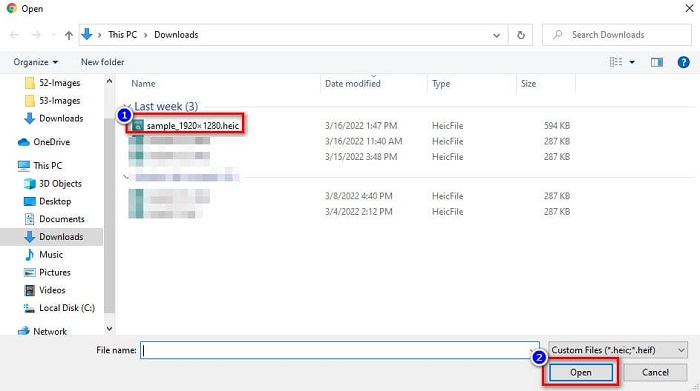
Paso 3. Finalmente, ya podrás ver tu imagen HEIC en tu PC con Windows.

¿No es fácil? Al seguir y utilizar las herramientas en línea mencionadas anteriormente, puede ver fácilmente su imagen HEIC en su PC con Windows.
Parte 2. Repare la imagen HEIC que está dañada
Si su imagen HEIC no se puede abrir en su dispositivo Apple, algo anda mal. El problema más común que encuentra mucha gente es la pérdida de datos. Cuando esto sucede, significa que su archivo de imagen está dañado. Entonces, lo que debe hacer es usar una herramienta que pueda recuperar sus datos perdidos. En esta parte, aprenderá cómo restaurar los datos de su imagen HEIC.
Utilice el asistente de recuperación de datos de EaseUS
EaseUS Data Recovery Wizard es una herramienta de software que te permite recuperar hasta 2 GB de datos perdidos. Esta herramienta es fácil de usar porque solo tiene una interfaz de usuario sencilla. Además, puede escanear el almacenamiento de tu dispositivo y buscar una lista de archivos perdidos. Aunque puedes utilizarla de forma gratuita, la versión de prueba solo puede localizar los archivos dañados, pero no puede recuperarlos. Por lo tanto, todavía necesitas comprar la versión Pro de la aplicación. Aun así, es una de las herramientas de recuperación de datos más utilizadas que encontrarás en Internet.
Pros
- Puede recuperar hasta 2 GB de sus datos perdidos.
- Tiene una interfaz de usuario intuitiva.
- Disponible en casi todas las plataformas multimedia, incluidas Windows y Mac.
Contras
- Debe comprar la versión pro para recuperar los datos perdidos.
Usa Recuva
Otra herramienta de recuperación de datos que debes utilizar es Recuva. Esta aplicación tiene una interfaz de software fácil de usar, lo que la convierte en una herramienta adecuada para principiantes. Lo impresionante de esta herramienta es que puede recuperar archivos eliminados permanentemente, que el sistema operativo ha marcado como espacio libre. Además, puede recuperar datos de tus unidades flash USB, discos duros, tarjetas de memoria y otros dispositivos. También cuenta con versiones de 32 bits y 64 bits.
Pros
- Tiene una GUI simple.
- Le permite recuperar datos en unidades flash USB, discos duros, tarjetas de memoria y otros dispositivos de almacenamiento.
- Puede escanear en profundidad sus archivos que son difíciles de encontrar.
Contras
- Compra la aplicación premium antes de acceder a sus características únicas.
Parte 3. Preguntas frecuentes sobre cómo arreglar fotos HEIC
¿Qué puede abrir una imagen HEIC sin usar una herramienta de terceros?
Dado que Apple desarrolla imágenes HEIC, puede ver las imágenes HEIC de forma nativa en cualquier dispositivo Apple.
¿Puedo recuperar los datos de mi imagen HEIC en Mac?
Sí tu puedes. También puede usar las herramientas mencionadas anteriormente para recuperar los datos perdidos de su imagen o si su imagen HEIC está dañada.
¿Puedo convertir otros formatos de imagen a una imagen HEIC?
Sí. Algunas herramientas le permiten convertir otros formatos de imagen como JGP y PNG a HEIC. Entonces, es posible convertir imágenes JPG y PNG a imágenes HEIC.
Conclusión
En resumen, no es tan complicado reparar fotos HEIC cuando utilizas las herramientas que se muestran arriba. Usando esas herramientas, puedes recuperar los datos perdidos de tu imagen y reparar los daños. Pero si tu imagen HEIC está completamente bien y solo quieres verla en tu dispositivo Windows, entonces la mejor opción es convertir tu imagen HEIC a un formato de archivo JPG utilizando Aiseesoft HEIC Converter.
-
 Convierta fácilmente HEIC a RAW utilizando los mejores convertidores
 ¿Cómo convertir HEIC a RAW? Este artículo le brinda las mejores formas de convertir HEIC a RAW utilizando los mejores convertidores en línea y fuera de línea.
-
 Revisión, características y alternativas de CopyTrans HEIC
 Si desea saber qué puede hacer CopyTrans HEIC, le brindamos las características, ventajas y alternativas de la herramienta.
-
 El mejor visor HEIC en línea y fuera de línea [Gratis]
 Si está buscando el mejor visor HEIC, entonces tenemos lo que está buscando. Vea su imagen HEIC de forma gratuita utilizando estas herramientas.
