


 Video Converter Ultimate
 Grabador de pantalla
 Reparación de vídeo
 Descarga segura
Cómo imprimir fotos HEIC con una salida de imagen de alta calidad en un minuto
A pesar de tener menos compatibilidad con otros dispositivos, Apple sigue afirmando que utilizará el formato HEIC para hacer una captura rápida y almacenar la imagen junto con una imagen hiperespectral que no te costará nada y te ahorrará espacio. Sin embargo, si quieres imprimir, ver o transferir una imagen a otro dispositivo que no sea de Apple, solo recibirás una notificación de que el formato no es compatible. Pero si eres usuario de Mac, puedes aprender rápidamente cómo imprimir fotos HEIC con la misma calidad que tienes en el archivo original. Así que, si quieres conocer los pasos para imprimirlas, debes seguir leyendo los detalles que encontrarás a continuación.

Parte 1. 2 formas efectivas de cómo imprimir fotos HEIC en Mac
A medida que exploramos y probamos cómo imprimir fotos HEIC en Mac, notamos que hay dos formas de hacer una copia impresa del archivo HEIC sin convertir el formato. Entonces, si desea saber cómo hacer una copia impresa de la imagen HEIC que tiene, debe seguir leyendo los dos métodos a continuación.
Compruebe amablemente si la impresora está instalada correctamente en la Mac y solucione el problema antes de continuar con los pasos. SI todo está listo y preparado, ahora debe continuar.
1er método: usar una tecla de acceso directo
Si desea menos clic, debe usar la tecla de acceso directo para imprimir una imagen en Mac. Siga los pasos y las teclas hacemos clic en b para imprimir sin esfuerzo el archivo HEIC en su Mac.
Paso 1. Haz clic en el archivo HEIC que está almacenado en tu Mac y ábrelo.
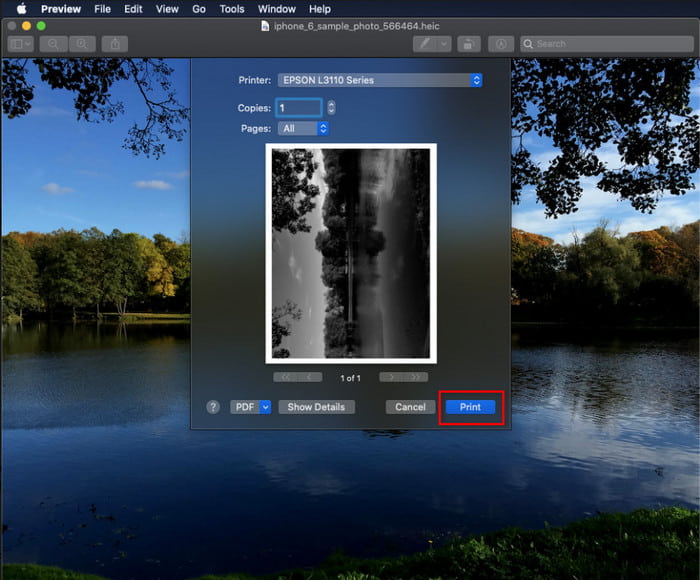
Paso 2. Una vez abierto, pulsa las teclas Comando + P en tu teclado.
Paso 3. En el cuadro de diálogo de impresión, podrás ver la vista previa de la imagen y ajustar las opciones de impresión; haz clic en Imprimir para obtener una copia en papel de la imagen HEIC con alta calidad.
2do método: usando el menú Archivo
Si cree que la tecla de método abreviado no puede ayudarlo a imprimir el documento, debe intentar usar el menú Archivo. Con este menú, puede hacer clic fácilmente en el botón Imprimir y realizar algunos cambios antes de tener una copia impresa de la imagen HEIC. Comencemos a imprimir el HEIC que tiene en su macOS sin usar las teclas de acceso directo sin más preámbulos.
Paso 1. Abre el archivo HEIC en tu Mac antes de hacer cualquier otra cosa.
Paso 2. En la parte superior, haz clic en el menú Archivo y aparecerá una lista de opciones en la pantalla. Ahora elige la última opción, que es Imprimir.
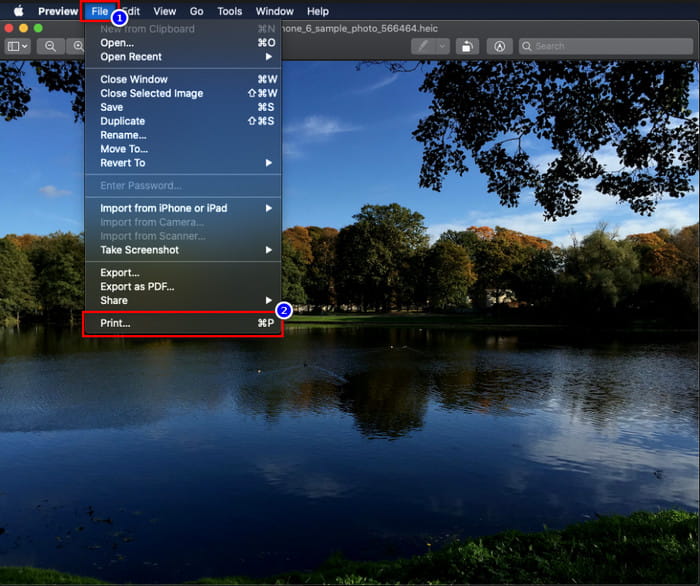
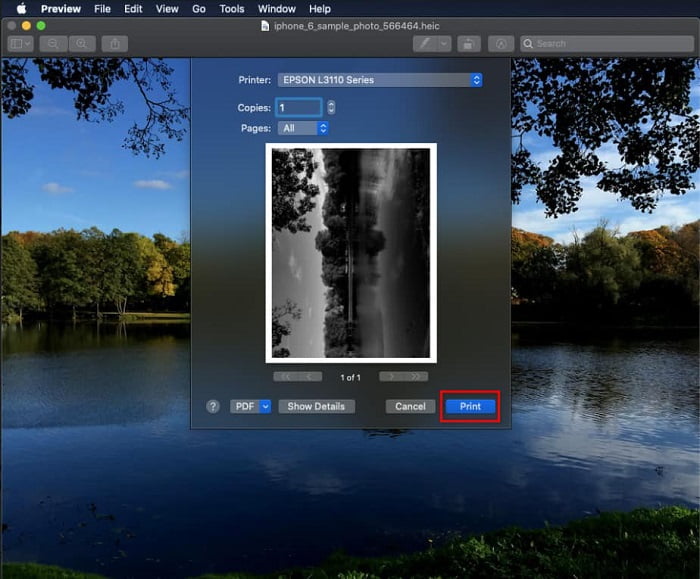
Paso 3. Ahora verás en la pantalla que se abre el cuadro de diálogo de impresión. En la parte central verás una muestra de cómo quedará tu archivo HEIC al imprimirse en papel y, en el otro lado, podrás hacer algunos ajustes antes de imprimir. Cuando todo esté configurado, haz clic en Imprimir para empezar a imprimir el documento.
Parte 2. ¿Por qué no puedo cargar mis fotos HEIC para imprimirlas?
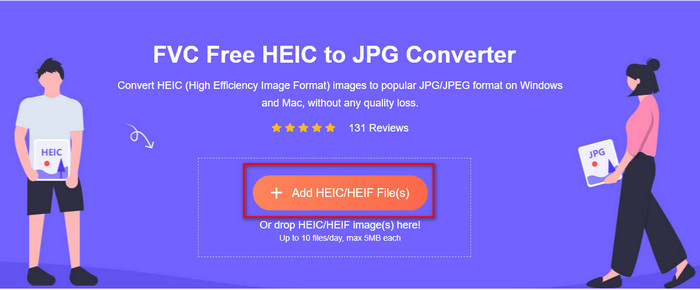
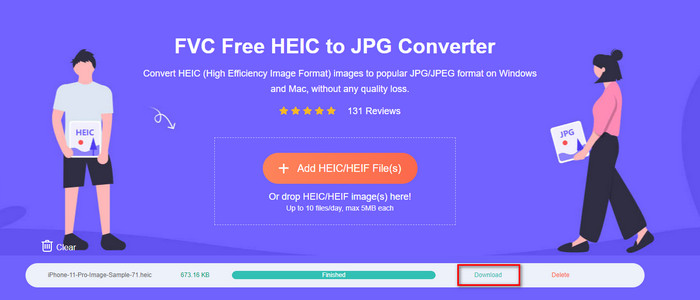
¿Eres uno de los usuarios a los que les cuesta manejar el archivo HEIC porque no puedes obtener una copia en papel? En ese caso, permítenos presentarte una herramienta web específica que puede ayudarte a resolver el problema: FVC Free HEIC to JPG Converter. Esta herramienta web puede convertir tu HEIC a JPG con facilidad. Ahora puedes subir el archivo para imprimirlo cambiando el formato a JPEG, ya que este formato es más reconocible que HEIC. Aunque estás limitado a convertir hasta diez veces al día con archivos de 5 MB o menos, sigue siendo un conversor web fiable incluso con esas limitaciones. Así que, sin perder más tiempo, veamos los pasos para utilizar el mejor conversor web de código abierto a tu alcance.
Paso 1. Puedes hacer clic en este enlace para acceder al conversor web, y se abrirá una nueva pestaña de inmediato.
Paso 2. Inserta el archivo HEIC haciendo clic en este botón, localiza el archivo HEIC en tu carpeta y haz clic en Abrir para subirlo por completo.
Paso 3. El proceso de conversión comenzará en breve y, después, haz clic en Descargar para guardar el archivo en tu escritorio. Ahora estará listo para imprimirse, y podrás hacer copias de la imagen HEIC con tu impresora con la misma calidad que el archivo original, pero en un formato diferente.
Parte 3. Preguntas frecuentes sobre la impresión de fotos HEIC
¿Puedo imprimir fotos HEIC en Windows?
Lamentablemente, Windows no es compatible con HEIC, lo que significa que no puede hacer una copia impresa del HEIC de alta calidad. Pero no pierda la esperanza porque incluimos una forma de convertir el HEIC en un formato JPEG reconocible en la segunda parte. Puede leerlo libremente para saber cómo hacerlo, luego imprima el archivo HEIC que tiene en Windows, pero la extensión del archivo es diferente.
¿Por qué la impresora no reconoce HEIC?
Debido a la compresión y la estructura del formato, aunque puede contener imágenes de alta calidad en archivos de menor tamaño, incluso más pequeños que los JPEG, todavía es difícil de reconocer porque se ha introducido recientemente en el mercado. Pero aún puedes convertir el formato al tipo de imagen más compatible que cualquier impresora puede interpretar, y que sin duda sigue siendo la mejor imagen de alta resolución en uso hoy en día: el JPEG. Si necesitas un conversor, ya hemos añadido uno arriba, pero puedes hacer clic en este enlace para conocer otras herramientas que puedes usar para convertir HEIC a JPEG, ya que las analizamos todas para ti.
¿Qué es el archivo HEIC?
El Moving Picture Expert Group desarrolló HEIC como posible formato estándar de imagen alternativo a JPEG o JPG. Aunque ellos crearon ambos formatos, siguen siendo diferentes; si quieres saber más sobre qué es HEIC, haz clic en este enlace y lee los detalles que hemos investigado.
Conclusión
Entonces, ahora que tenemos la idea de cómo imprimir fotos HEIC con los pasos anteriores, todos los usuarios de Mac pueden hacer una copia impresa. Sin embargo, si es un usuario de Windows, no puede imprimir una sola imagen HEIC en su impresora porque el formato no es compatible con Windows. Pero esto no significa que perderá la esperanza de imprimir la imagen HEIC. Aunque no podemos ayudarlo a imprimir el archivo HEIC original, todavía es posible si primero convierte el formato a JPEG/JPG antes de publicarlo.
En la segunda parte, incluimos el mejor convertidor de HEIC a JPG en línea al que puede acceder en la web, y también está libre de virus. ¿Aún no está seguro de si puede hacer el trabajo de convertir correctamente? Entonces, ¿por qué no le das una oportunidad haciendo clic en este enlace? Seguramente te impresionará porque la herramienta puede convertir los archivos HEIC que tienes sin esfuerzo.
-
 Convierta HEIC a PDF usando las 4 formas mejoradas principales en 2022
 Para obtener más información sobre el mejor convertidor de HEIC a PDF, puede descargar este 2022. Puede leer este artículo ya que proporcionamos una revisión sobre ellos.
-
 5 de las mejores selecciones de convertidores de HEIC a JPG este 2022
 Con el convertidor HEIC a JPC, puede cambiar fácilmente el formato de la imagen a un JPG portátil. ¿Quieres saber cuáles son estas 5 herramientas? Lee este artículo.
-
 El mejor convertidor HEIC gratuito y de pago que debe conocer [Actualizado en 2022]
 ¿Quieres saber qué es el conversor HEIC? Si es así, incluimos los 5 principales convertidores HEIC gratuitos y de pago que puede usar para cambiar el formato HEIC.
