


 Video Converter Ultimate
 Grabador de pantalla
 Reparación de vídeo
Guía simplificada de cómo convertir DV a WMV en Windows y PC
Los archivos DV son formatos estándar de vídeo en bruto para radiodifusión, utilizados habitualmente en videocámaras. Después de que apareciera como formato estándar de videocámara, Sony y Panasonic introdujeron un formato más profesional, diferente del formato DV. Aunque este archivo DV es excelente para la edición, para reproducirlo en Windows necesitarás usar un programa de software para ver el vídeo. Por ello, a continuación presentamos dos conversores que puedes usar para convertir DV a WMV y verlo sin ninguna complicación.

Parte 1. Utilice el convertidor más increíble para convertir DV a WMV
FVC Video Converter Ultimate puede ayudarte a convertir el formato a una nueva versión. Esta herramienta admite diferentes tipos de funciones además de la conversión. Así que, si eliges este conversor, puedes esperar hacer mucho más y no limitarte solo a convertir. Además, si necesitas un proceso de conversión inmediato, esta es la mejor opción para convertir DV a WMV, AVI, MOV, MP4, MKV y más de 200 formatos multimedia. ¿Quieres probar un nuevo tipo de conversor que ofrece resultados profesionales sin complicaciones? Si es así, esta demostración te ayudará a distinguir cómo convertir el archivo a un nuevo formato WMV.
Pasos sobre cómo convertir DV a WMV con FVC Video Converter Ultimate:
Paso 1. Descarga FVC Video Converter Ultimate en el disco de tu ordenador, haz clic en el botón de descarga, sigue los pasos de instalación y, a continuación, ejecuta la herramienta.
Descarga gratuitaPara Windows 7 o posteriorDescarga segura
Descarga gratuitaPara macOS 10.7 o posteriorDescarga segura
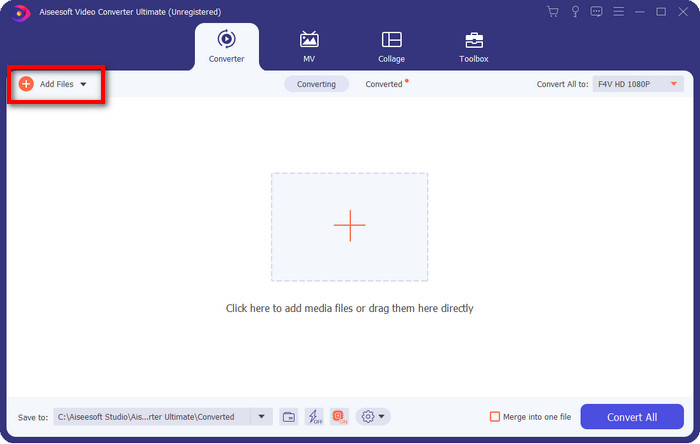
Paso 2. Cuando tengas todo configurado, inserta el archivo en el conversor haciendo clic en Add Files, busca el archivo DV guardado en tu ordenador en la carpeta que aparecerá y pulsa Open.
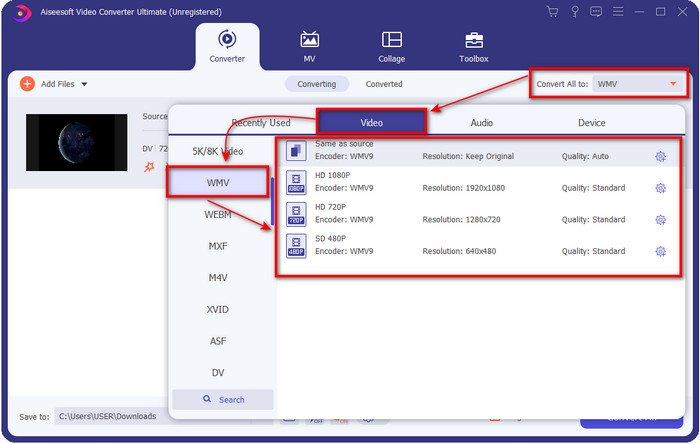
Paso 3. Cambia el formato haciendo clic en el botón drop-down en la parte superior derecha de la interfaz de usuario. Luego elige el formato WMV en la lista que aparecerá, y ahora podrás seleccionar la calidad del vídeo de salida.
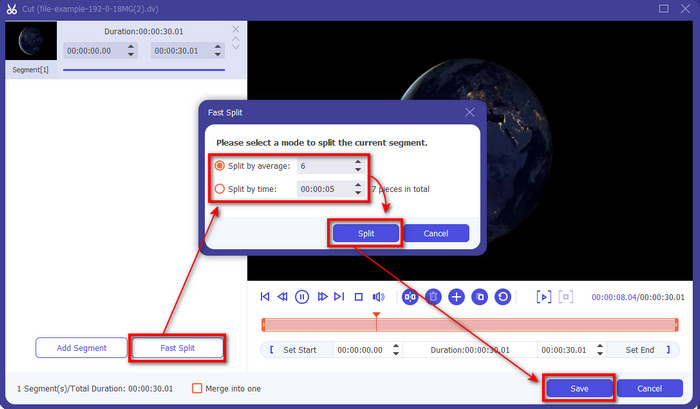
¿Quieres dividir tus vídeos en varios segmentos? Si es así, pulsa el botón con forma de tijeras, haz clic en Fast Split para establecer el número de segmentos que deseas y la duración de cada segmento, y pulsa Split para continuar. Para guardar el resultado de la división que has realizado, haz clic en Save.
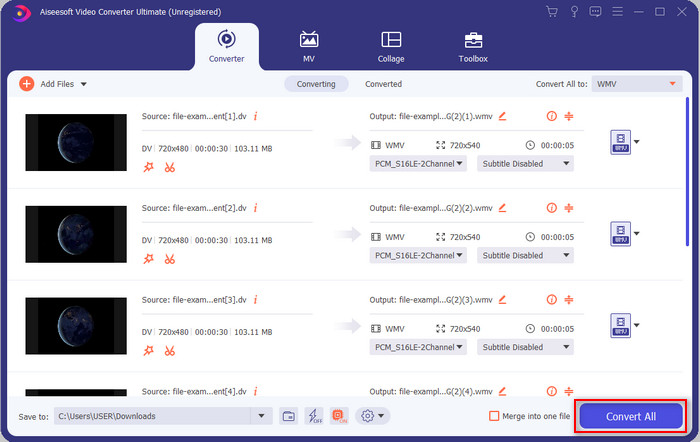
Paso 4. Haz clic en Convert All para que comience el proceso de conversión del archivo DV. Al finalizar el procedimiento, aparecerá en pantalla una nueva carpeta con el nuevo archivo WMV.
Parte 2. Utilice el convertidor en línea para convertir DV a WMV en línea
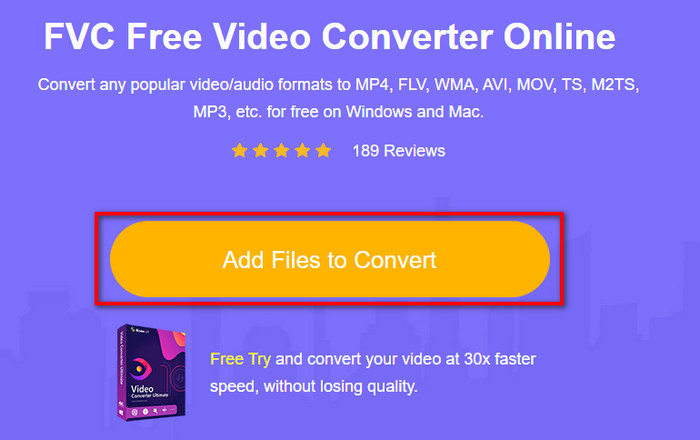
¿Buscas una solución online para convertir DV a WMV, y que además sea sencilla? Entonces FVC te lo pone fácil con el FVC Free Video Converter Online. Este conversor web te ayudará a convertir, pero tendrás que acceder a la herramienta desde el navegador en lugar de descargarla. Además, es fácil, gratuito y seguro para mejorar tu experiencia de conversión. ¿Quieres saber cómo usar esta herramienta online? Entonces sigue los pasos que encontrarás a continuación para aprender a hacer la conversión en línea.
Paso 1. Puedes hacer clic en este enlace para abrir el conversor web y se abrirá una pestaña.
Paso 2. Haz clic en Add Files to Convert en la página web; aparecerá directamente una carpeta en tu pantalla, selecciona el archivo DV y pulsa Open.
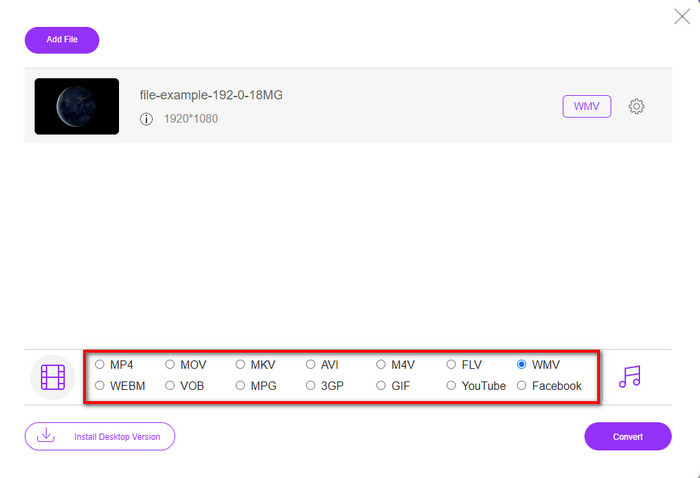
Paso 3. Una vez que el archivo se haya subido, elige el formato en el catálogo que se muestra abajo o haz clic en WMV para guardarlo en formato WMV.
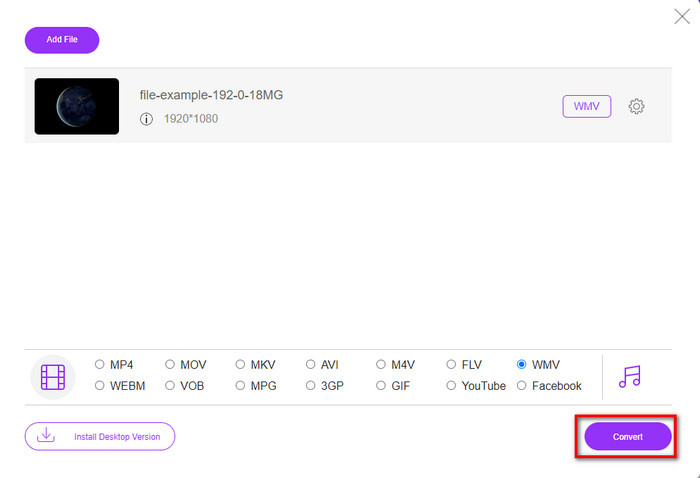
Paso 4. Al hacer clic en Convert, comenzará el proceso de conversión. Cuando termine, el archivo se descargará automáticamente en el disco de tu ordenador.
Parte 3. ¿Cuál es la diferencia entre DV y WMV?
La diferencia entre DV y WMV es fácil de entender de muchas maneras. Entonces, si desea saber cuáles son, debe leer la información en la lista a continuación.
Al grabar video en una videocámara, DV es la mejor opción porque puede almacenar este tipo de contenido. Además, este formato puede contener detalles esenciales como metadatos, subcódigo, hora y codificación de fecha. Además, este formato utiliza una compresión intracuadro dentro de cada cuadro y, por eso, es ideal para la edición detallada. Aunque el formato es excelente y está almacenado en cintas DV, la compatibilidad que obtiene este formato es pobre y su tamaño de archivo es enorme en comparación con WMV. Por otro lado, WMV es el mejor formato para usar como reproducción de video en Windows. Y ahora adapta el formato de la versión 9 para HD DVD y Blu-ray Disc, ahora se conoce como VC-1.
Parte 4. Preguntas frecuentes sobre la conversión de DV a WMV
¿Por qué no puedo usar DV en el software de Mac?
El formato DV no es compatible en Mac, especialmente en iMovie y QuickTime Player. Pero puedes convertir tu archivo DV a formato MOV para que funcione en tu macOS. Si no sabes cómo convertir DV a MOV, deberías dedicar 5 minutos o menos a leer este artículo para aprender cómo hacerlo.
¿Siguen siendo los archivos DV el mejor formato para editar?
Los formatos DV son conocidos por ser uno de los mejores contenedores en edición. Porque DV almacena video de alta calidad y almacena cada fotograma para propósitos de edición más accesibles. Pero hoy, la capacidad de este formato ya ha sido adoptada por la mayoría de formatos. Entonces, si está preguntando si sigue siendo el ideal, entonces la respuesta es no debido a la mala compatibilidad de este formato.
¿Cómo hacer que mis archivos DV sean más pequeños?
Como ya sabrás, los archivos DV son enormes porque este formato utiliza un compresor especial. Así que es muy habitual buscar un compresor para reducir el tamaño del archivo y ahorrar espacio en tu unidad. ¿Tienes problemas para elegir y saber cómo comprimir archivos DV? Si es así, haz clic en este enlace.
Conclusión
Todos los conversores presentados arriba te ayudarán en tu proceso de convertir DV a formato WMV. Así que ahora, pongamos fin a nuestro viaje, porque esta es la última parada y ya hemos adquirido suficiente conocimiento sobre cómo convertir tus archivos DV. En este momento, tendrás que elegir qué conversor se adapta mejor a ti. La elección está en tus manos; uses el conversor que uses, estas herramientas de FVC seguramente garantizarán tu éxito. FVC Free Video Converter Online o FVC Video Converter Ultimate, dos conversores que harán que tu proceso de conversión sea sencillo y sin complicaciones.
-
 La mejor estrategia sobre cómo convertir un archivo DV a formato AVI con pasos detallados
 ¿Quieres convertir tu archivo DV a AVI? Luego lea este artículo para conocer la herramienta única que puede usar para convertir y un reproductor multimedia para reproducir su DV en su PC o Mac.
-
 Convertidores de DV a FLV útiles para convertir DV a FLV [2022]
 Si está buscando las mejores y más fáciles herramientas para convertir DV a FLV, este es el mejor artículo para que lea. Tenga una visión excelente, analizando toda la información de este artículo.
-
 Las 3 formas principales de convertir FLV a WMV en Windows y Mac
 ¿Está buscando la mejor manera de convertir FLV a WMV sin perder calidad en PC o Mac? Tienes suerte ya que aquí te compartimos tres métodos para hacer el trabajo fácilmente.
