


 Video Converter Ultimate
 Grabador de pantalla
 Reparación de vídeo
Convierta MPEG a AVI con 5 MPEG to AVI Video Converter accesibles
MPEG es uno de los mejores formatos que probablemente ya te has encontrado, ya que almacena archivos de vídeo y audio. Además, no es solo un contenedor, sino que también utiliza compresión MPEG‑1 y MPEG‑2. Sin embargo, MPEG‑1 y MPEG‑2 son formatos antiguos que solían guardarse en discos Blu‑ray. Así que ahora explicaremos cómo mejorarlo convirtiendo el formato a AVI. En la siguiente lista, presentamos diferentes herramientas que puedes usar para convertir MPEG a AVI y ofrecemos más detalles sobre MPEG y AVI.
Parte 1. Breve explicación sobre el formato de archivo MPEG y AVI
MPEG y AVI son uno de los mejores formatos que puede usar para almacenar un archivo multimedia. Aunque son excelentes, todavía hay algunas razones por las que necesita usar el convertidor de video MPEG a AVI. Pero por ahora, explicaremos muchos detalles sobre los dos formatos y tendremos una idea sobre MPEG y AVI.
Como se dijo anteriormente, MPEG no es solo un contenedor, sino que también tiene un compresor incorporado. Básicamente, es un formato de archivo de doble propósito. Además, este formato está siendo el formato más utilizado en Blu-ray por la calidad y la compresión que proporciona. Además, el formato MPEG se clasifica en 6, pero discutiremos los dos que se usan comúnmente y son MPEG-1 y MPEG-2. Además, MPEG-1 es la primera generación de MPEG. Este formato almacena una resolución basada en estándares, pero en comparación con la resolución del otro formato, el MPEG-1 es mucho menor. Si bien MPEG-2 ofrece una calidad mucho mejor que MPEG-1, funciona mejor en Blu-ray y DVD. Además, este formato es el más utilizado por la estación de TV para transferir y reproducir un video.
Pero AVI es muy diferente de los MPEG porque no está comprimido. Además, la calidad que ofrece este formato es alta porque no comprime el archivo que contiene. Aunque el formato ocupa mucho espacio, aun así tiene un amplio soporte en todas las plataformas en comparación con los archivos MPEG.
Parte 2. 2 del mejor convertidor utilizado para convertir MPEG a formato AVI sin conexión
1. FVC Video Converter Ultimate
Si estás buscando un conversor y descargador MPEG a AVI multipropósito, entonces FVC Video Converter Ultimate debe ser la herramienta indicada. Esta herramienta ya ocupa una posición destacada en este artículo por las funciones y la sencillez que ofrece. Aunque es fácil de usar, puedes conseguir el resultado fenomenal que siempre has querido. Además, a diferencia de otros conversores, este software sitúa el estándar a un nivel muy alto. Por lo tanto, si quieres lograr un éxito del 100% antes, durante y después de tu conversión, es imprescindible usar esta herramienta. Y ahora, pasemos al tutorial paso a paso sobre cómo usar FVC Video Converter Ultimate.
Paso 1. Para descargar la herramienta en tu ordenador, haz clic en el botón que se muestra a continuación. Instálala cuando termine la descarga, realiza la configuración rápida y haz clic en Start Now.
Descarga gratuitaPara Windows 7 o posteriorDescarga segura
Descarga gratuitaPara macOS 10.7 o posteriorDescarga segura
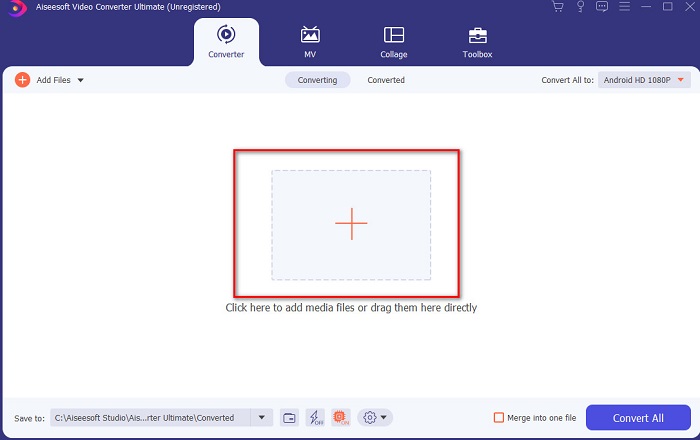
Paso 2. La interfaz de la herramienta debería verse así; luego haz clic en el signo + en la parte central. A continuación, aparecerá una carpeta en tu pantalla; selecciona el archivo de vídeo MPEG que quieras convertir y haz clic en Open.
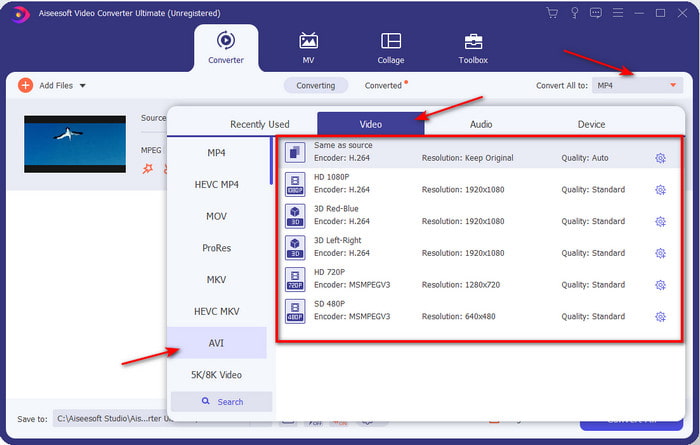
Paso 3. Si el archivo ya aparece en la interfaz, haz clic en Convert All to: y busca el formato AVI.
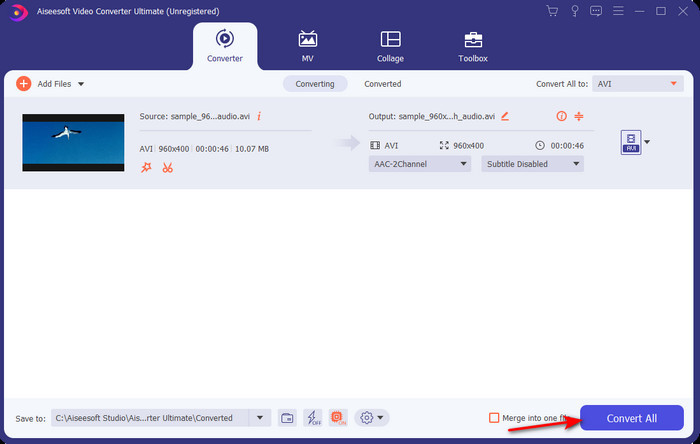
Paso 4. Ahora, para iniciar la conversión de películas MPEG‑4 al formato AVI, pulsa Convert All.
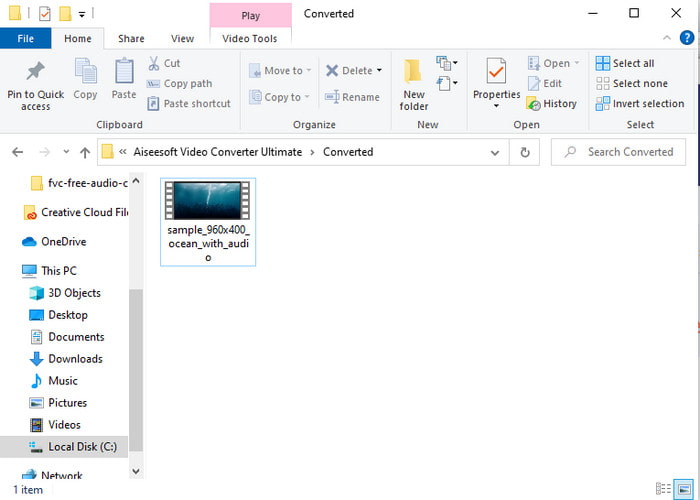
Paso 5. La descarga del archivo solo llevará unos minutos y, cuando termine, aparecerá una carpeta con el formato convertido. Entonces, haz clic en el archivo para ver el nuevo formato convertido de tu MPEG.
2. FFmpeg
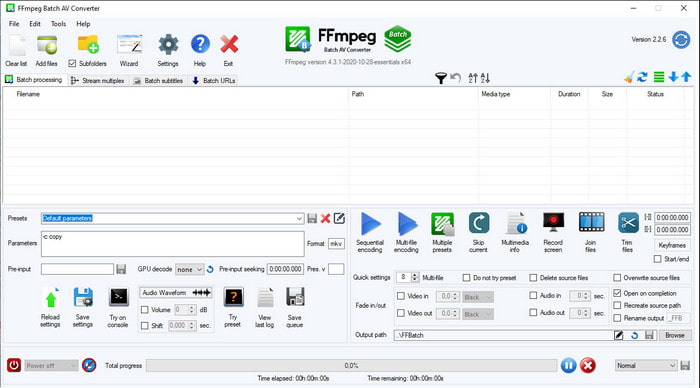
Otro software disponible en esta lista es FFmpeg. Si estás buscando un programa de código abierto, esta es una de las opciones que puedes encontrar en la web. Sin embargo, la interfaz de esta herramienta es difícil de entender, sobre todo para principiantes e incluso para usuarios avanzados. El proceso de conversión aquí es, en general, excelente y produce una alta calidad de salida como cualquier otro conversor. Así que, si quieres convertir con FFmpeg de MPEG a AVI, sigue estos pasos tal como los presentamos, ya que los hemos simplificado para que sean fáciles de entender.
Paso 1. Descarga FFmpeg en tu ordenador y crea una carpeta nueva; dentro de ella descomprime el archivo.
Paso 2. Busca CDM en tu Window y ábrelo.
Paso 3. Localiza el archivo usando el símbolo del sistema, luego introduce este código ffmpeg -i input.mpeg -vn -ar 44100 -ac 2 -b:a 192k output.avi y pulsa Enter en tu teclado para iniciar el proceso.
Parte 3. 3 del mejor convertidor utilizado para convertir MPEG a formato AVI en línea
3. Convertidor de video gratuito FVC
Si estás buscando el mejor conversor gratuito de MPEG a AVI en línea, FVC Free Video Converter es el conversor online que se ajustará a tus necesidades, gracias a la sencillez de la interfaz que ofrece esta herramienta web. Además, lo mejor de esta herramienta online es que puedes acceder a ella fácilmente desde tu navegador favorito. Asimismo, la conversión con esta herramienta no tiene limitaciones, lo que significa que puedes convertir cualquier formato en cualquier momento. Sin embargo, aquí no puedes hacer conversiones por lotes, a diferencia de FVC Video Converter Ultimate. Ahora bien, si quieres probar y usar esta herramienta online, sigue los pasos que se indican a continuación.
Paso 1. Para ir al sitio web principal del conversor FVC, primero debes hacer clic en este enlace.
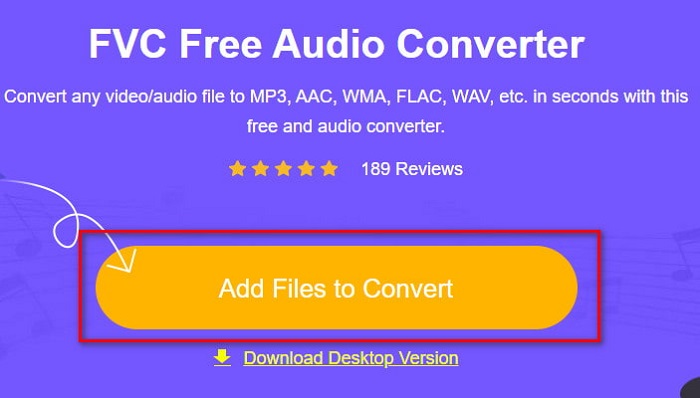
Paso 2. Haz clic en Add Files to Convert; entonces se iniciará la herramienta web y aparecerá una carpeta. Localiza el archivo y haz clic en Open.
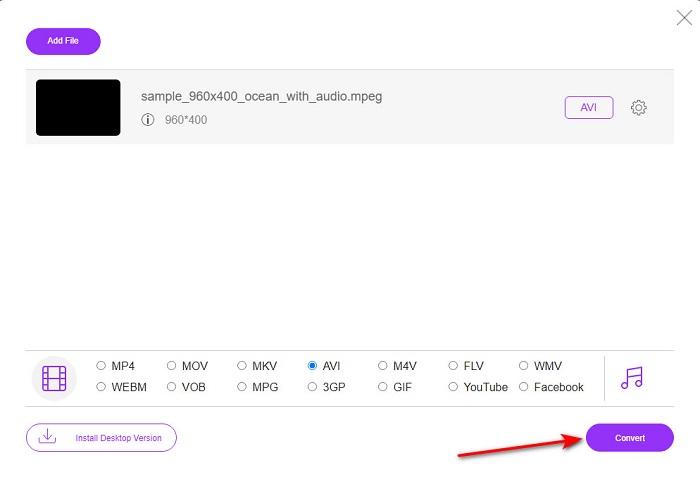
Paso 3. Cuando la herramienta web ya esté abierta, elige el formato que se muestra en esta sección.
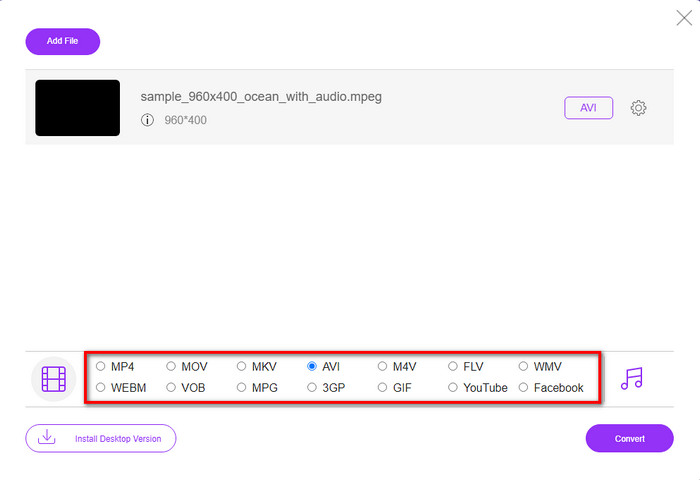
Paso 4. Si ya has seleccionado el formato, es el momento de convertirlo haciendo clic en el botón Convert.
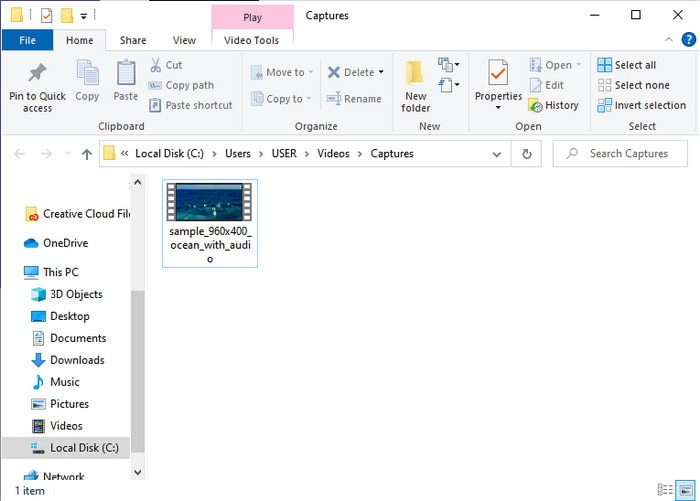
Paso 5. Espera un momento para que el proceso comience en breve. Cuando termine, aparecerá una carpeta con el archivo convertido que has creado antes.
4. Freeconvert.com
Al igual que la herramienta online mencionada anteriormente, esta es otra herramienta en línea que puedes usar, Freeconvert.com. Esta herramienta web ya ha ganado popularidad entre los usuarios en Internet. Además, muchos usuarios la elogian por lo fácil que es de usar y por sus otras funciones. No obstante, si eliges esta herramienta web, hay una desventaja importante: los formatos que admite son limitados. Otra desventaja es que el proceso de conversión aquí es algo más lento de lo esperado. Así que ahora, si quieres saber cómo usar este conversor online, sigue los pasos.
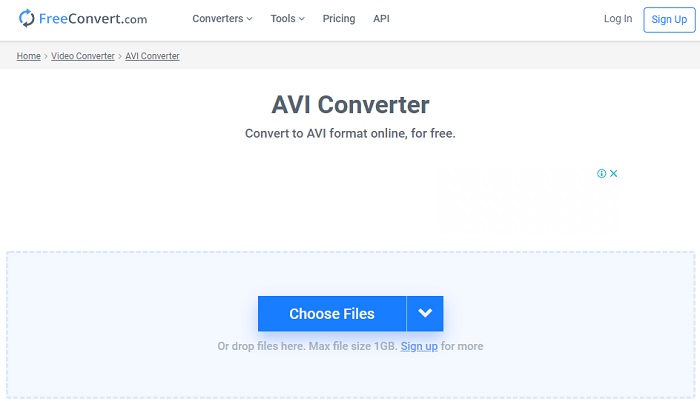
Paso 1. Busca en la web el sitio freeconvert.com. Luego haz clic en AVI en la sección Video Converters.
Paso 2. Pulsa Choose File y localiza el archivo MPEG en la carpeta que aparecerá a continuación. Tras seleccionar el archivo, haz clic en Convert To AVI.
Paso 3. Espera a que finalice el proceso de carga y luego haz clic en Download AVI para guardar el archivo.
Parte 4. Preguntas frecuentes sobre la conversión de MPEG a AVI
¿La conversión de MPEG pierde calidad?
Bueno, depende del formato en el que lo conviertas. Entonces, si cambia su MPEG a GIF, espere un cambio drástico porque admite una combinación de colores menor que el otro formato. Sin embargo, si usa otro formato que no sea el GIF, no espere pérdidas.
¿Son MPEG con pérdida o sin pérdida?
MPEG admite la compresión con pérdida, por lo que si usa este formato, espere un tamaño de archivo más pequeño, incluso si tiene un video y audio largos.
¿Es MPEG un buen formato?
Antes era uno de los mejores formatos que puede usar para almacenar datos en sus DVD. Sin embargo, en esta era, MPEG no es la mejor opción para almacenar datos. Pero si desea almacenarlo en DVD, CD o Blu-ray y transferirlos mucho más rápido, entonces esta debe ser una opción.
Conclusión
En resumen, todo el software en línea y fuera de línea presentado aquí es excelente para convertir el formato. Sin embargo, hay una herramienta que demuestra que puede lograr una conversión fenomenal fácilmente con FVC Video Converter Ultimate. De hecho, podemos explicarlo en 3 palabras y eso también es fácil de usar, efectivo y seguro. Entonces, si desea alcanzar la grandeza, descargue esta herramienta ahora mismo y pruébela.
-
 Cómo convertir archivos MPEG a MP4 gratis en Windows, Mac, en línea
 Lea y obtenga 3 formas gratuitas de convertir archivos MPEG a MP4 en su computadora. Puede usar convertidores de video en línea y de escritorio para convertir MPEG a formato MP4 con facilidad.
-
 [2021] Mejores herramientas y formas fáciles de convertir MPEG a MP3
 Este artículo habla principalmente sobre cómo puede convertir sus videos MPEG a MP3 con el uso de las herramientas más confiables de la lista.
-
 Tutorial para convertir archivos MP4 a AVI con 7 convertidores de video gratuitos
 ¿Quiere obtener todas las formas gratuitas de convertir AVI a video MP4? No debes perderte este artículo. Aquí hay 7 formas de convertir archivos AVI a MP4 gratis en Windows, Mac, iPhone, Android y en línea.
