


 Video Converter Ultimate
 Grabador de pantalla
 Reparación de vídeo
Proceso de conversión en línea y fuera de línea: SWF a WMV
SWF es un formato de archivo heredado creado por Adobe para el reproductor Shockwave Flash. Flash ya no es compatible con muchos navegadores, nunca fue compatible con los dispositivos iOS y el formato de archivo SWF apenas se utiliza hoy en día debido a problemas de rendimiento y seguridad. Por otro lado, WMV es un conjunto de códecs de compresión de vídeo creado para las primeras transmisiones de vídeo por Internet y para soportes físicos como HD-DVD y Blu-Ray. Los vídeos en este formato de archivo se pueden reproducir de forma nativa en dispositivos Windows, por lo que quizá quieras convertir archivos SWF a WMV, ya que los reproductores Flash cada vez dejan de ser compatibles y ya no puedes reproducir archivos SWF. Por ello, te ofrecemos dos opciones para convertir tu SWF a WMV.

Parte 1. Cómo convertir SWF a WMV en Windows y Mac fácilmente
Video Converter Ultimate es un conversor multimedia que convierte prácticamente todos los principales archivos de vídeo y audio al formato de salida que desees. Puede convertir archivos de vídeo por lotes, lo que lo hace más potente de lo que parece. No se limita a convertir; también permite a los usuarios modificar sus vídeos con la ayuda de prácticas herramientas de edición. Además, este conversor de vídeo es compatible con varios formatos, incluidos los más utilizados en la actualidad. Aún más importante, convierte a una velocidad mayor que otros programas similares. Para utilizar este software en concreto, sigue estos sencillos pasos:
Paso 1: Haz clic en el botón Descarga gratuita para descargar el archivo .exe que necesitarás para instalar el software. Espera a que termine, ábrelo y sigue el proceso de instalación. Haz clic en Empezar ahora y ejecuta el programa.
Descarga gratuitaPara Windows 7 o posteriorDescarga segura
Descarga gratuitaPara macOS 10.7 o posteriorDescarga segura
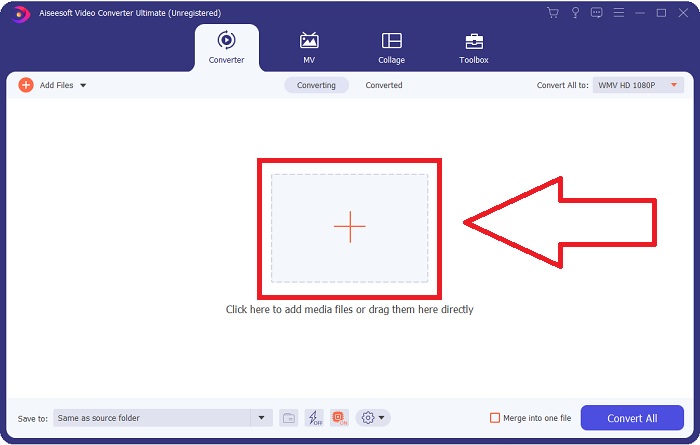
Paso 2: Sube el archivo de vídeo que deseas convertir haciendo clic en el botón + en el centro de la interfaz. Como alternativa, arrastra el archivo desde tu escritorio y suéltalo en la interfaz, y se importará automáticamente.
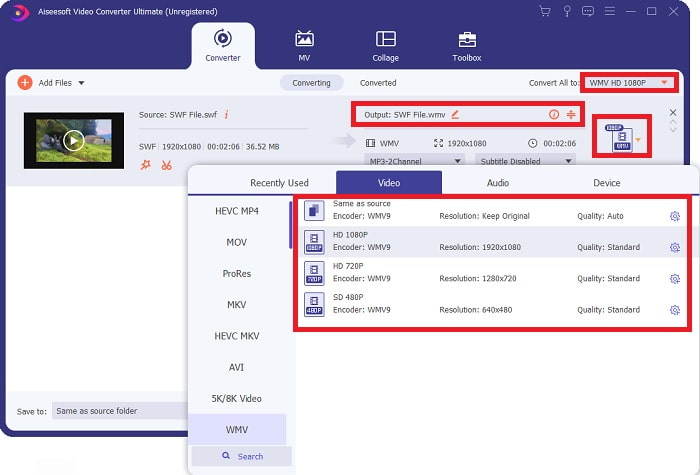
Paso 3: Haz clic en la flecha desplegable de la derecha, donde verás el formato actual de tu vídeo, y se mostrarán todos los formatos disponibles para elegir. En este caso, desplázate hacia abajo y selecciona WMV o simplemente escríbelo en la barra de búsqueda. También puedes elegir todas las calidades de vídeo disponibles en el panel derecho.
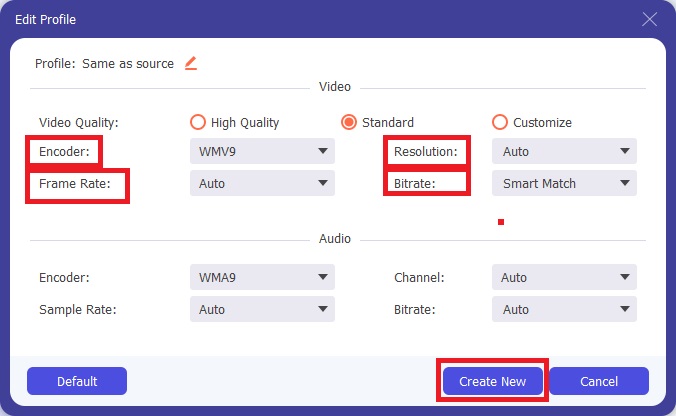
Paso 4: Para seguir editando tu vídeo, haz clic en el icono de engranaje de la derecha para mostrar todas las prácticas herramientas de edición. Desde ahí, puedes hacer todos los ajustes necesarios que mejor se adapten a tus necesidades. Solo tienes que hacer clic en el botón Crear nuevo cuando hayas terminado.
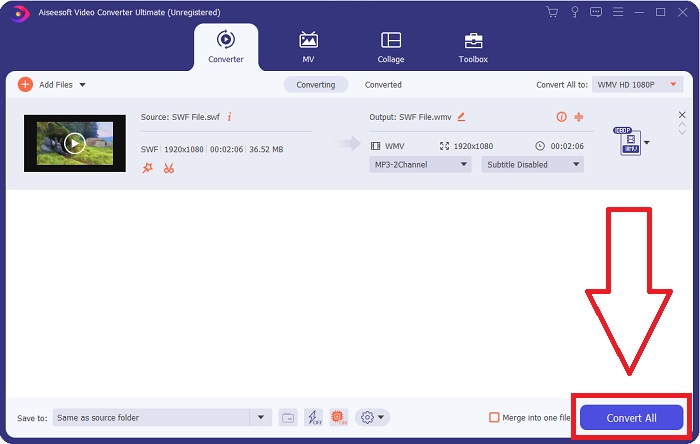
Paso 5: Finaliza el proceso de conversión haciendo clic por último en el botón Convertir todo en la esquina inferior derecha de la ventana y espera a que termine.
Parte 2. Otro consejo para convertir SWF a WMV en línea
FVC Free Video Converter siempre es gratuito y no requiere registro. Algunos convertidores de video en línea gratuitos restringen los plazos de conversión o el tamaño del archivo. Si usó todos sus tiempos de conversión gratuitos o su archivo es demasiado grande, deberá comprar un plan, incluso si rara vez convierte videos. Pero FVC Free Video Converter no tiene tales restricciones y puede convertir videos en cualquier momento.
Además, este servicio no necesita registro para convertir archivos más grandes, a diferencia de la mayoría de los convertidores de video en línea que requieren registro para convertir videos de más de 1 GB. Estos son los pasos que debe seguir para esta fantástica herramienta:
Paso 1: Para ir al sitio web, haz clic en este enlace. Luego, descarga rápidamente el lanzador haciendo clic en el botón Añadir archivos para convertir y espera a que termine.
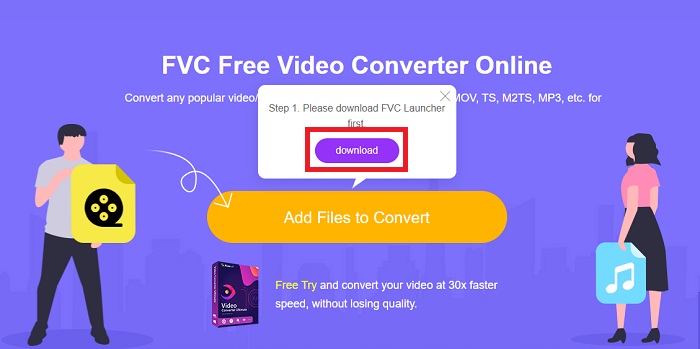
Paso 2: Haz clic de nuevo en dicho botón y, esta vez, te permitirá subir el archivo de vídeo que deseas convertir. Después de eso, selecciona WMV entre todos los formatos disponibles.
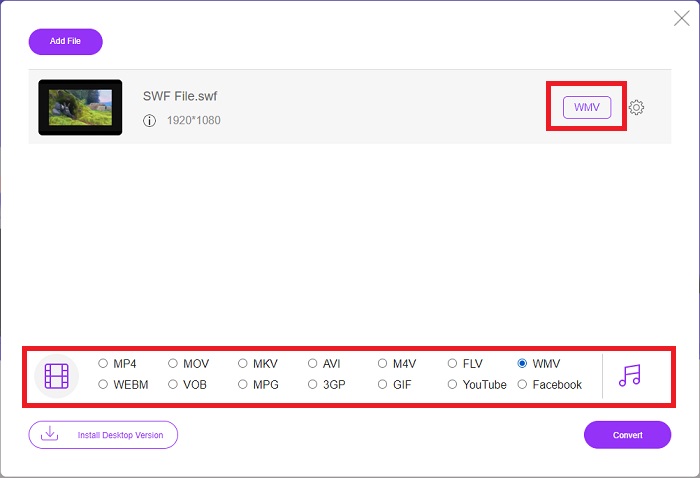
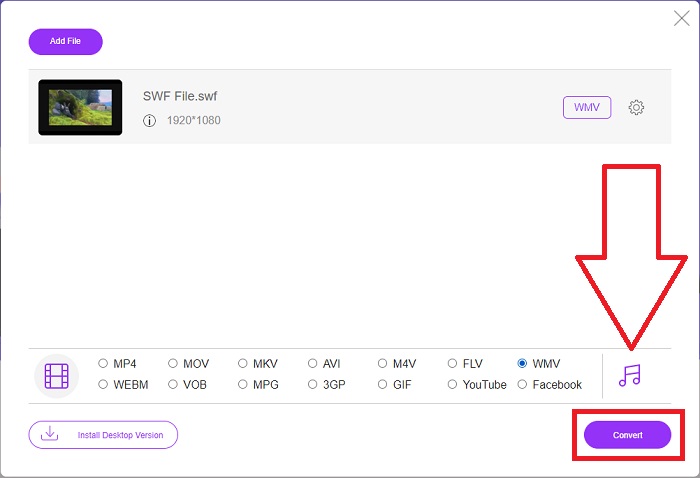
Paso 3: Puedes seguir utilizando prácticas herramientas de edición como en el propio software. Solo tienes que hacer clic en el icono de engranaje y se mostrarán todos los ajustes que puedes realizar. Para guardar los cambios realizados, haz clic en OK y, cuando termines de ajustar, haz clic en Convertir para iniciar el proceso.
Relacionado:
Parte 3. Amplio conocimiento sobre los formatos SWF y WMV
Si quieres saber más sobre los dos formatos, continúa leyendo este artículo. Proporcionamos toda la información necesaria y esencial que pueda necesitar como antecedentes.
Adobe utiliza el formato de archivo SWF para almacenar películas y animaciones basadas en vectores. Small Web Format es la abreviatura; sin embargo, también se conoce como formato ShockWave. Por lo general, se usa para transmitir videos a través de Internet, especialmente juegos basados en navegador. Desafortunadamente, Adobe declaró que dejaría de admitir el formato Flash a fines de 2020 debido a problemas de rendimiento y seguridad.
Por otro lado, un archivo WMV es un archivo de video de Windows Media que se puede comprimir utilizando uno o más formatos de compresión de video de Microsoft. Es un formato de almacenamiento de video popular en Windows, razón por la cual ciertas aplicaciones de terceros lo utilizan para cosas como animaciones cortas. Está diseñado para funcionar con reproductores multimedia de Microsoft, como Windows Media Player y Movies & TV. Para su uso con sistemas de gestión de derechos digitales (DRM), los archivos WMV pueden cifrarse.
| Pequeño formato web | Video de Windows Media | |
| Extensión de archivo | .swf | .wmv |
| Desarrollador | sistemas de Adobe incorporados | Microsoft |
| Programas de apoyo | ◆ Adobe Flash Player ◆ Flash de Adobe ◆ CC profesional ◆ Jugador GOM ◆ Adobe Dreamweaver 2020 | ◆ VLC Media Player ◆ MPplayer ◆ Reproductor multimedia clásico ◆ Reproductor de Windows Media |
Parte 4. Preguntas frecuentes sobre la conversión de SWF y WMV
¿Cuál es el uso de los archivos WMV?
Los archivos de video WMV son el mejor formato para vender materiales de video en línea o mediante discos HD DVD y Blu-ray.
¿Cuál es el uso del archivo SWF?
Los archivos Flash, o archivos SWF, a menudo se utilizan para la distribución eficiente de información multimedia a través de Internet.
¿Se pueden editar los archivos SWF?
Adobe Flash es un formato de archivo utilizado por Adobe. A diferencia de otros archivos multimedia, el archivo SWF requiere el complemento Flash Player para verlo en un navegador web. Además, los usuarios no pueden editar directamente archivos SWF.
Conclusión
FVC Video Converter Ultimate es la opción perfecta para usted si es un novato o simplemente un aficionado en lo que respecta a la conversión de video. No conviertes formatos de video con mucha frecuencia. Sus beneficios, como la conversión constante de formato de video, la conversión rápida de archivos de video en comparación con programas comparables, la operación simple, la compatibilidad con varios formatos, etc., lo ayudan a convertirse en el mejor conversor de video que existe. Cuando se trata de conversión de video, Video Converter Ultimate y su equivalente en línea son las opciones más aceptables.
-
 [2 soluciones] Cómo convertir archivos SWF a GIF fácilmente y gratis
 Cuando no puede exportar el formato GIF a través del software Flash, puede intentar guardar los archivos en formato SWF al principio. Luego, puede aprender 2 formas sencillas de convertir archivos SWF a GIF de este artículo.
-
 Top of the Line Los 5 mejores convertidores gratuitos de SWF a AVI [basados en la web y el escritorio]
 ¿Quieres saber cómo convertir tu archivo SWF a AVI? Entonces, si no es así, lea este artículo, ya que proporcionamos una solución para su conversión del problema de SWF.
-
 [Gratis y fácil] Herramientas excepcionales para usar en la conversión de SWF a MOV
 ¿Has intentado convertir SWF a MOV porque no puedes editar videos? ¿Quién tiene la culpa de la incompatibilidad de tu editor de vídeo'? Continúe leyendo para su solución.
