


 Video Converter Ultimate
 Grabador de pantalla
 Reparación de vídeo
Cómo agregar subtítulos a los videos que guarda en su escritorio
Subtitles are the best way to translate dialogues of other countries into your native language to a text. This is created for those who don't understand the dialogues of the actor or actresses. Also, they improve the overall engagement of the audience to the film, series, and movies as well. But in some cases, the video you download has no subtitles or has a separate file for it. So, the best way to add subtitles to videos is presented in this article. So, keep on reading this write-up as we provide steps on how to insert your subtitles and what are the different tools you can use.

Parte 1. 4 de las mejores herramientas que puede utilizar para agregar subtítulos a su video
1. Video Converter Ultimate (Windows y Mac)
Did you know that you can add subtitles to Video Converter Ultimate? This phenomenal converter has a lot of different features that keep us amaze every time. The overall performance of this software is phenomenal in the line of converting files, editing, making, adding and more. But for now, we will now be going to explain how to add subtitles to a video on a perfect sequence of text. In addition, this tool supports all of the subtitle formats you can use to add it to your video. So, without any more delays, let's proceed on how to add the subtitles by following this step provided only for you below.
5 Easy Steps on How to Add Subtitles on your Video with the Video Converter Ultimate
Step 1. Download the software into your Windows or Mac drive. Next, install it and do the quick set-up then click finish.
Descarga gratuitaPara Windows 7 o posteriorDescarga segura
Descarga gratuitaPara macOS 10.7 o posteriorDescarga segura
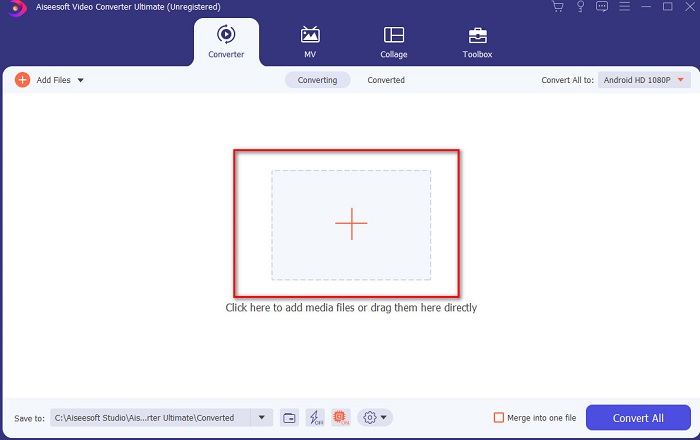
Step 2. Launch the tool, and click the plus button at the middle of the interface. Then locate the video on the folder and click Open.
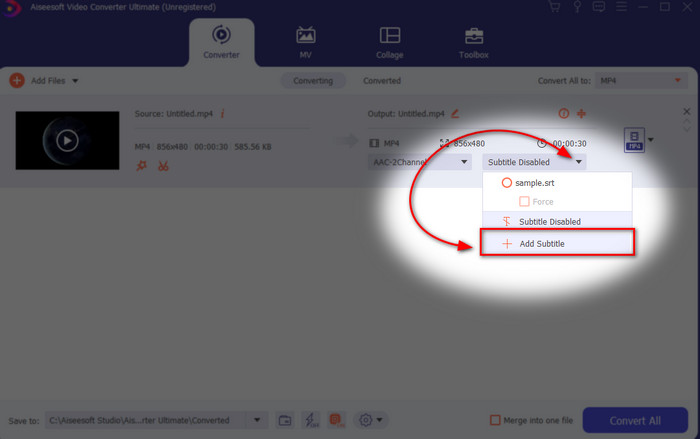
Step 3. On the interface, click the drop-down button for Subtitle and click Add Subtitle. Select the subtitle file on the file folder and click open.
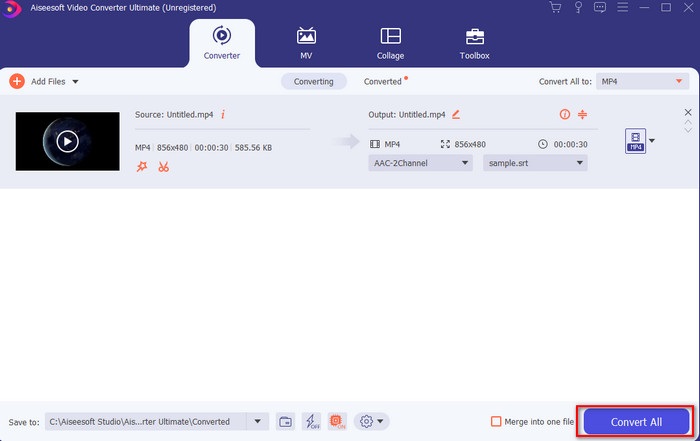
Step 4. After you add the subtitle you can now export it by clicking the Convert All.
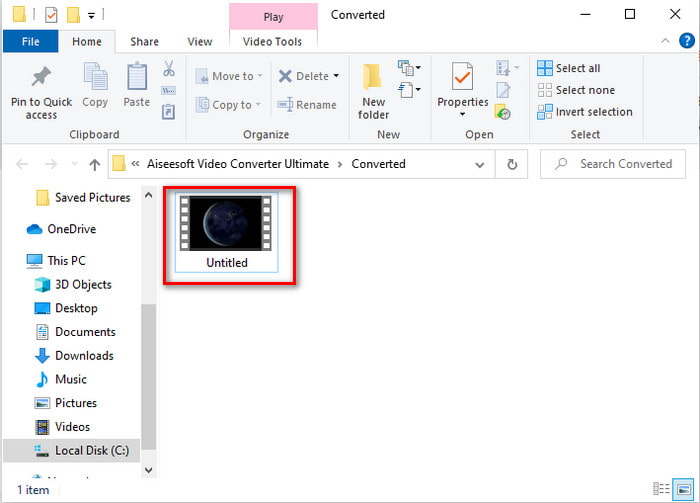
Step 5. The file explorer will pop up next to your screen with the video file that has a subtitle on it. Hit the file to watch and read the subtitle without delays.
Relacionado:
How to Cut and Merge Songs Online
2. iMovie (Mac y iPhone)
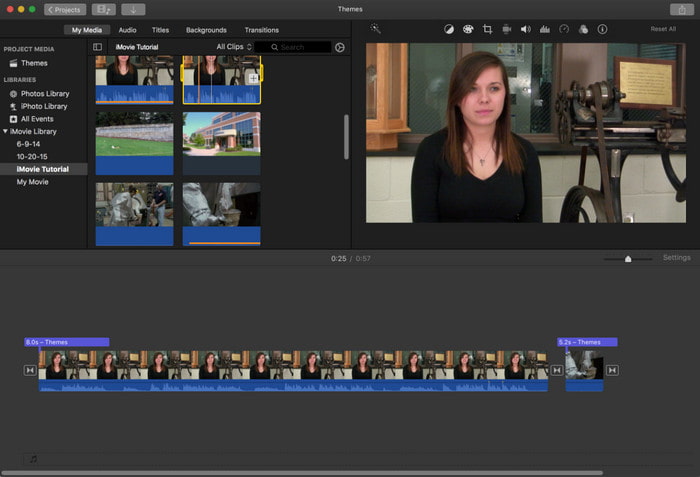
One of the best tools Apple can offer to their users, so adding subtitles to a video on iMovie is easy and free. This default tool is the best in editing and more on Mac, so adding subtitles here is easy as it is. But you can't use SRT subtitle format and add it to your video because this format is not supported by the iMovie. However, the overall performance of this Mac default editor is great to be used by anyone who is on a tight budget. Also, this tool offers a premium version that supports a lot of editing features you can use.
3. Adobe Premiere Pro (Windows y Mac)
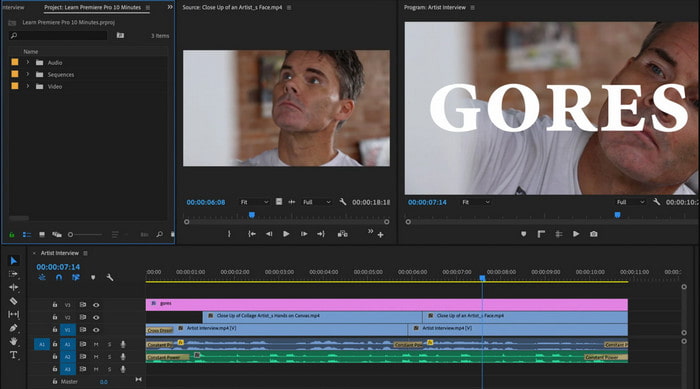
Adobe Premiere Pro offers the best editing features used by professionals in the editing industry. Also, this tool can add SRT subtitle format unlike on iMovie you can't. Moreover, this tool supports almost all of the subtitle formats you can use. Although the tool seems flawless, the price of it is enormous and if you just want to add subtitles to video on Adobe Premiere Pro this is an okay choice but not the best. Especially if you are on a tight budget and don't want to spend a lot. Also, if you are a beginner this is not the best choice because you will need a lot of time to study it first.
4. Clideo (en línea)
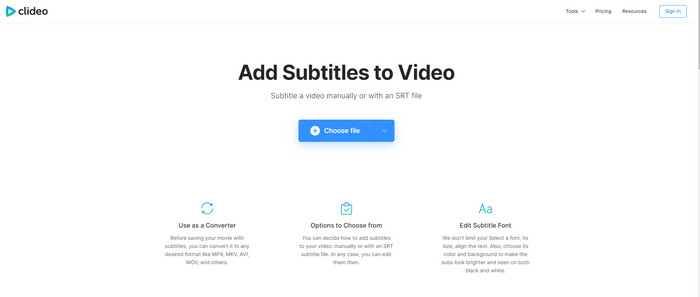
Clideo supports editing features you can use for free if you have an internet connection. This tool can be used in all devices as long as you have a browser. Although the tool is flexible the subtitle format it supports is only .srt. So, if your subtitle is not in the format of SRT then you must manually do it here which is a bit of a hassle for you. Also, the process of adding the video here will depend on your internet. With that being said, if you have a slow internet then expect a lot of time waiting than adding subtitles to video online.
Parte 2. Preguntas frecuentes sobre cómo agregar subtítulos a un video
¿Cuáles son los diferentes tipos de formato de subtítulos?
En la web, hay muchos formatos de subtítulos diferentes, pero el formato más utilizado que ya se encuentra es el formato de subtítulos SRT, WEBVTT y SBV. Porque estos son los mejores y flexibles formatos que puede usar fácilmente, pero existen SSA, TTML, DFXB, TXT y más. Aunque funcionan muy bien, el primer formato de subtítulos mencionado es el mejor que puede usar.
¿Cuál es la principal diferencia entre subtítulos y subtítulos?
Aunque usan el mismo formato, todavía existen principales diferencias entre los subtítulos y los subtítulos. En primer lugar, se incluyen subtítulos en el video para traducir el idioma hablado del actor o actriz al idioma del espectador. Esto se usa más comúnmente para aquellos que pueden escuchar el audio pero no pueden entender lo que están diciendo. Mientras que los subtítulos están hechos para describir lo que está sucediendo y a través de texto como efectos de sonido. Estos están hechos para aquellos que pueden ver videos pero no pueden escuchar el audio con claridad o son sordos.
Dub vs. Sub; ¿Cuál es mejor?
Algunos otros espectadores prefieren Dub que sub, mientras que otros son al revés. Aunque son una forma poderosa de traducir mejor el medio a las audiencias. Dub y subs tienen muchas diferencias, por ejemplo, los subtítulos son versiones traducidas del audio y se convierten en texto en el video. Mientras que los doblajes son utilizados por los espectadores que tienen dificultades para leer. Entonces, en lugar de leer el contexto, usan doblajes para enfocarse mejor en lo que están viendo. Por lo tanto, siempre depende de ti cuál prefieres usar, si puedes lograr leer mientras miras subs es lo mejor, pero si quieres tener un enfoque láser en el video en sí, entonces usa dub ..
Conclusión
Finally, we now understand and learn how to add subtitle files to your video permanently. As we make your searching easier and present different solutions for you to use. Still, it is undeniable that the Video Converter Ultimate is the best choice on the list. Because it supports all of the subtitle formats for you to use. So, instead of a huge amount of money to the other tool that has the same function or even better than the other tool. Then why don't you acquire it first and try it for yourself? To know what we are talking about.
-
 Tutorial: 4 formas gratuitas de fusionar videos en iPhone en uno nuevo
 Lea y obtenga 4 formas sencillas de fusionar videos en iPhone. Todos los modelos de iPhone y versiones de iOS son compatibles. Puede combinar 2 o más videos en iPhone en un nuevo video rápidamente.
-
 Cómo comprimir archivos M4V a un tamaño más pequeño (gratis y en línea)
 Si está buscando una forma sencilla de reducir el tamaño de su archivo M4V, debería venir y leer este artículo. Aquí compartiremos la forma más fácil de comprimir archivos M4V con usted.
-
 Comprimir WebM - Cómo comprimir un archivo WebM en línea
 ¿Cómo comprimir un archivo WebM en línea? ¿Cuál es la forma más rápida de comprimir archivos grandes? Esta publicación cuenta 2 formas gratuitas de comprimir WebM.
