


 Video Converter Ultimate
 Grabador de pantalla
 Reparación de vídeo
 Descarga segura
2 formas rápidas de reducir archivos OGV grandes [gratis y en línea]
Los archivos OGV se usan a menudo para reproducir contenido de vídeo en páginas web mediante la etiqueta HTML5

Parte 1. Forma en línea de comprimir archivos OGV con un compresor OGV
Free Video Compressor es una popular y útil herramienta online gratuita para comprimir archivos OGV disponible para los usuarios. A diferencia de muchas otras herramientas online gratuitas habituales, Free Video Compressor no impone restricciones ni en el número ni en el tamaño de los archivos subidos. Aún más importante, no habrá ninguna marca de agua en los archivos de vídeo exportados. Además, te permite comprimir archivos MP4, AVI, WMV, MOV y muchos otros formatos de vídeo habituales sin destruir la calidad.
Cómo comprimir archivos OGV usando Free Video Compressor
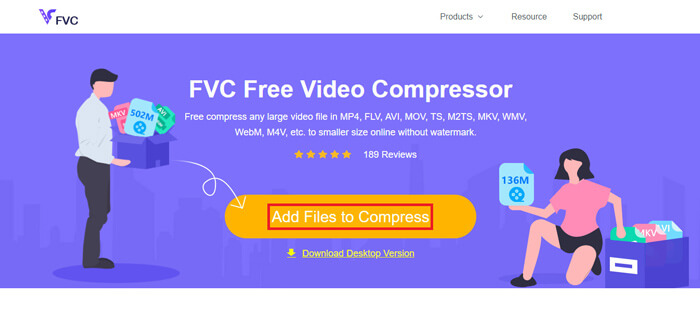
Paso 1. Ve al sitio web del compresor de vídeo OGV online introduciendo https://www.free-videoconverter.net/free-video-compressor/.
Paso 2. Localiza y haz clic en el botón Add Files to Compress y, a continuación, descarga su lanzador para activar el servicio. En la ventana que aparece, busca tus archivos OGV y pulsa Open para confirmar.
Paso 3. A continuación, debes definir los ajustes de compresión para hacer el archivo más pequeño. Puedes establecer el tamaño de tu vídeo, cambiar la resolución, seleccionar la tasa de bits y más.
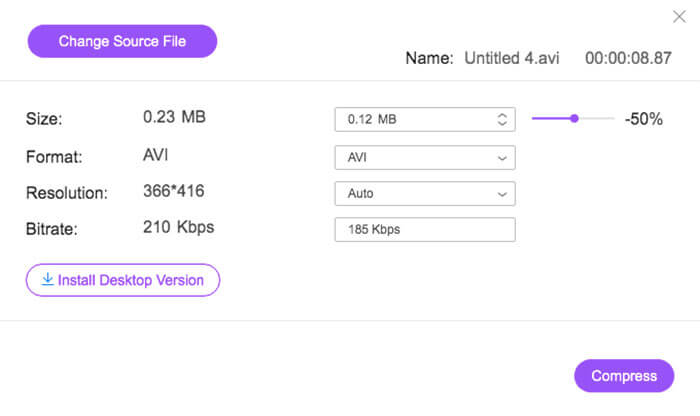
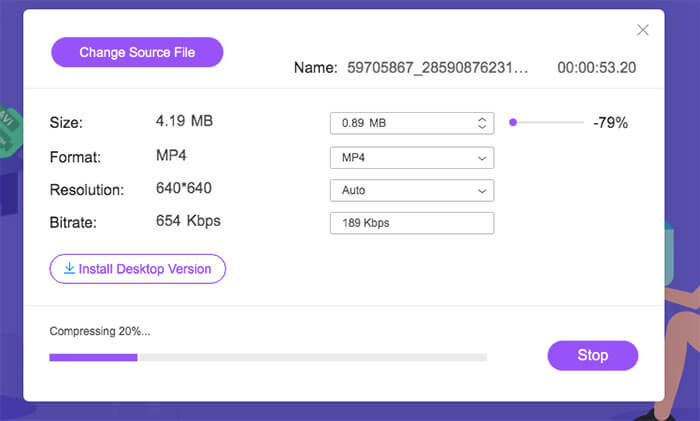
Paso 4. Haz clic en el botón Compress para iniciar el proceso. Una vez finalizado, el archivo se descargará automáticamente en tu ordenador.
Además, este compresor de video gratuito puede ayudarlo a resolver otros problemas de compresión de video. Solo revisa los siguientes artículos:
Cómo comprimir un vídeo para enviarlo por correo electrónico
Cómo comprimir gratis archivos de vídeo AVCHD en Windows y Mac
Parte 2. Cómo comprimir y optimizar un archivo OGV con Clideo
Clideo es un kit de herramientas de video todo en uno gratuito. Funciona con todos los formatos populares y se comprime rápidamente y no requiere ninguna descarga. Le permite comprimir un archivo OGV de hasta 500 MB de forma gratuita, pero no tiene un límite de cantidad. Ahora puede seguir los pasos a continuación para reducir el tamaño de su archivo OGV.
Paso 1. Visita https://clideo.com/compress-video y luego haz clic en el botón Choose file.
Paso 2. Sube desde tu ordenador el archivo OGV que quieras comprimir. También puedes seleccionar el archivo desde Dropbox o Google Drive haciendo clic en la flecha azul hacia abajo.
Paso 3. Cuando el archivo se haya subido, la herramienta empezará a procesar el vídeo. El tiempo de procesamiento depende del tamaño del vídeo.
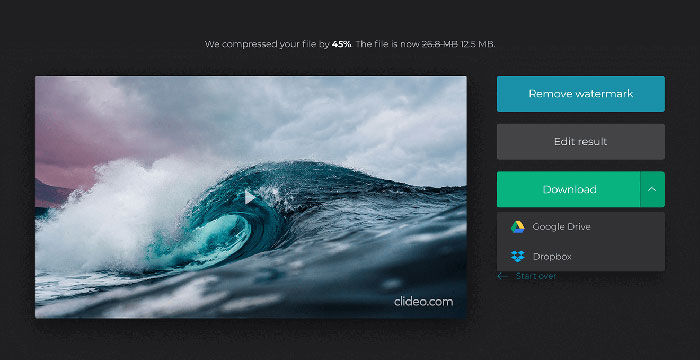
Paso 4. Cuando termine la compresión, podrás ver el tamaño inicial del archivo y el tamaño comprimido. Ahora puedes previsualizar el resultado para asegurarte de que se ve bien. Si estás satisfecho, puedes hacer clic en el botón Download para guardarlo en tu dispositivo o en el almacenamiento en la nube.
Parte 3. Preguntas frecuentes sobre la compresión de archivos OGV
¿Qué es un archivo OGV?
Un archivo OGV es un archivo de video guardado en el formato contenedor Ogg de código abierto Xiph.Org. Contiene transmisiones de video que pueden usar uno o más códecs diferentes, como Theora, Dirac o Daala. Los archivos OGV se pueden reproducir utilizando una variedad de reproductores multimedia.
¿Cómo funciona la compresión OGV?
Cuando se trata de la compresión de archivos OGV, es la compresión entre cuadros lo que lleva a reducir el tamaño del archivo al eliminar las similitudes que ocurren entre los cuadros de video.
¿Cómo comprimo el formato MP4 a OGV?
Puede utilizar la herramienta mencionada anteriormente - Free Video Compressor para comprimir sus archivos MP4 a OGV. O puede elegir una aplicación de conversión de video que lo ayude a hacerlo.
Conclusión
Los métodos en línea anteriores pueden ayudarlo a comprimir y reducir un video OGV de manera eficiente. ¿Cuál prefieres usar? ¡Puedes compartir tus recomendaciones en los comentarios a continuación!
-
 De 50 MB a 5 MB: cómo comprimir archivos MP4 en segundos
 ¿El video MP4 es demasiado grande para cargarlo? ¿Quiere reducir el tamaño del video? Aquí hay 3 formas eficientes de comprimir un archivo MP4 a un tamaño más pequeño sin límite.
-
 Tutorial - 7 formas de comprimir videos gratis sin perder calidad
 Lea y obtenga 7 formas de comprimir videos gratis en su computadora o teléfono. Puede reducir videos grandes a tamaños de archivo pequeños para correo electrónico, Twitter, Instagram, YouTube, WhatsApp y más con facilidad.
-
 Cómo comprimir archivos MOV en Windows, Mac, iPhone y Android
 Este artículo muestra cómo comprimir videos QuickTime MOV en su teléfono o computadora en detalle. Si su video MOV es demasiado grande para enviarlo, compartirlo o guardarlo, puede obtener 4 soluciones viables aquí.
