


 Video Converter Ultimate
 Grabador de pantalla
 Reparación de vídeo
 Descarga segura
Cómo invertir un video en un iPhone o Android haciendo que voltear sea fácil
Los videos estáticos son aburridos, ¿no? Con esta situación, desea agregar una nueva perspectiva a su contenido de video y cautivar a su audiencia. Si es así, es hora de comenzar a voltear sus videos en su dispositivo Android o iPhone. Voltear videos es una forma simple pero poderosa de transformar su contenido y crear una experiencia de visualización dinámica. Con los programas y técnicas correctos, puede voltear y rotar fácilmente sus videos para agregar un toque único a sus vlogs, publicaciones en redes sociales o cualquier proyecto de video que tenga en mente.
Al aprender cómo voltear un vídeo en un iPhone o en un dispositivo Android, te sorprenderá cómo invertir tus vídeos puede transformar tu contenido. Dicho esto, empecemos para aprender a voltear vídeos en dispositivos móviles como todo un profesional.

Parte 1. Guía sobre cómo voltear un video en un iPhone
InShot se puede descargar y usar de forma gratuita, y muchas de sus funciones están disponibles sin compras dentro de la aplicación. Además, la aplicación le permite voltear y rotar videos sin problemas. Puede voltear o reflejar videos horizontal y verticalmente. Además, es posible rotar los clips 90 o 180 grados con este programa. Para saber cómo voltear un video en un iPhone, siga los pasos dados:
Paso 1. Si aún no lo has hecho, ve a la App Store y descarga la app InShot.
Paso 2. Para voltear un vídeo, abre la app InShot y pulsa el icono más en la pantalla principal. La herramienta Flip, junto con otras opciones de edición, aparecerá. Al seleccionar la herramienta Flip, puedes elegir entre Horizontal y Vertical.
Paso 3. Solo tienes que elegir la opción deseada y tu vídeo se invertirá al instante. Con el botón Play, puedes ver una vista previa de tu vídeo volteado.
Parte 2. Tutorial Cómo voltear un video en un Android
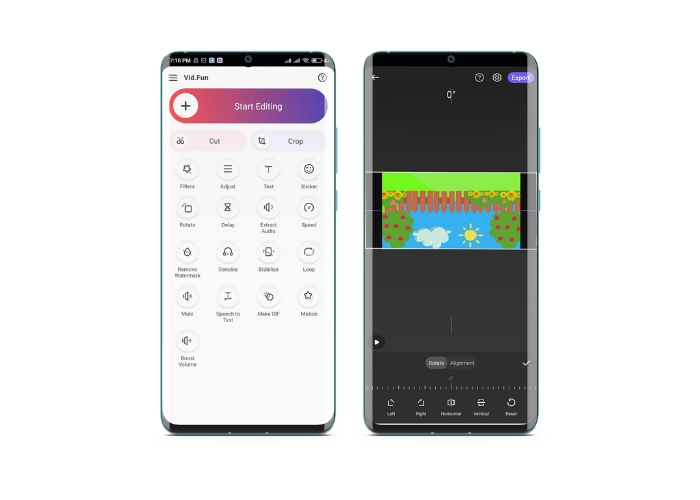
Vid.Fun es una potente app de edición de vídeo diseñada específicamente para dispositivos Android. Además de voltear vídeos en horizontal y vertical, tienes acceso a otras herramientas de edición útiles, como recortar, cortar, unir y dividir tus vídeos. Mientras tanto, puedes dar rienda suelta a tu creatividad usando la función de presentación de diapositivas de la herramienta. A continuación, se muestra una guía paso a paso sobre cómo voltear un vídeo en un dispositivo Android:
Paso 1. Inicia la app y toca el botón Start Editing para seleccionar el vídeo que quieres voltear. Pulsa Yes en la parte inferior de la pantalla para confirmar el vídeo seleccionado.
Paso 2. Después, toca All en la esquina inferior derecha y aparecerán diferentes opciones de edición. Ahora, toca la opción Motion.
Paso 3. Verás aparecer una serie de herramientas de edición, incluida la herramienta correspondiente. Pulsa las opciones adecuadas entre Horizontal y Vertical. Selecciona la opción que desees y tu vídeo se volcará en consecuencia. Puedes previsualizar tu vídeo volteado tocando el botón Play.
Paso 4. Si estás satisfecho con tu vídeo volteado, toca el botón Export para guardarlo en tu dispositivo o compartirlo directamente en redes sociales. Así es como se utiliza esta app para voltear vídeos.
Bono: Cómo voltear un video en una computadora
Si buscas una forma fácil y eficaz de voltear vídeos en tu ordenador, no hace falta que busques más: prueba FVC Video Converter Ultimate. Este popular software de edición de vídeo ofrece una gama de herramientas y funciones de edición, incluida la posibilidad de voltear y girar vídeos con solo unos clics. Permite voltear vídeos en horizontal y vertical o rotarlos. Además, el programa incluye una caja de herramientas que reúne una serie de herramientas de edición para tus necesidades.
Paso 1. Obtén el programa
Antes que nada, descarga el instalador del programa haciendo clic en el botón Free Download que encontrarás más abajo. Asegúrate de seleccionar el instalador adecuado para el sistema operativo de tu ordenador. Después, instálalo y ejecútalo.
Descarga gratuitaPara Windows 7 o posteriorDescarga segura
Descarga gratuitaPara macOS 10.7 o posteriorDescarga segura
Paso 2. Inicia el rotador de vídeo
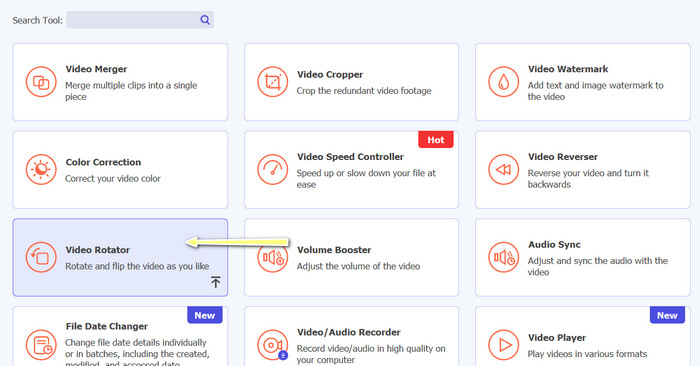
Una vez que el programa se haya iniciado, verás que la ventana principal tiene cuatro pestañas. Elige Video Rotator en el menú Toolbox. También tienes la opción de usar el cuadro de búsqueda para localizar la herramienta y acceder a ella rápidamente.
Paso 3. Inserta un archivo de vídeo
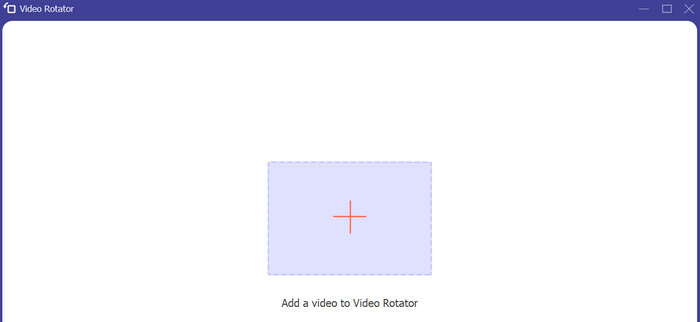
Video Rotator tiene un botón + para cargar vídeos. Haz clic en ese botón y, a continuación, se cargará la interfaz para voltear.
Paso 4. Invierte el vídeo
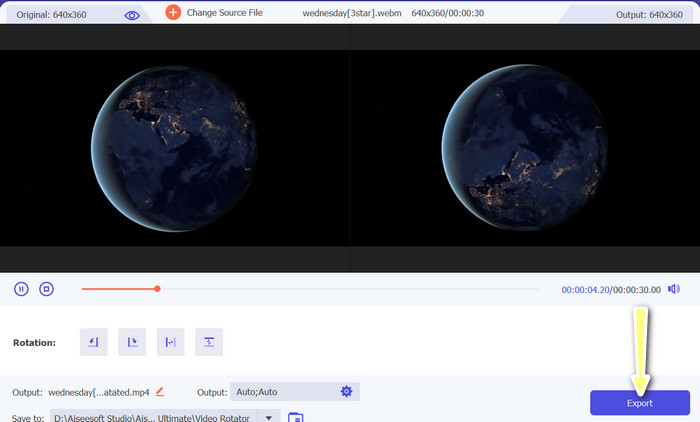
Una vez que se muestre la interfaz, puedes usar los botones de volteo. Puedes elegir entre reproducir el vídeo en horizontal o en vertical. Para completar el proceso, haz clic en el botón correcto y luego en el botón Export.
Lecturas recomendadas:
Las formas más sencillas de acelerar un vídeo en tus dispositivos Android [2023]
Cómo acortar un vídeo en iPhone [Tutoriales detallados]
Parte 3. Preguntas frecuentes sobre cómo voltear videos en Android y iPhone
¿Puedo voltear un video a su orientación original?
Sí, puede voltear fácilmente un video a su orientación original usando una aplicación para voltear el video en Android o iPhone. Simplemente aplique el efecto de giro nuevamente y volverá a su orientación original.
¿Puedo voltear un video usando la aplicación de cámara integrada en mi dispositivo Android o iPhone?
No, la aplicación de la cámara integrada no tiene una función para voltear videos. Deberá usar una aplicación o software de edición de video para voltear sus videos.
¿Voltear un video reducirá su calidad?
Voltear un video no debería reducir su calidad, pero puede afectar la orientación de cualquier texto o gráfico en el video. Si le preocupa la calidad, es mejor usar una aplicación o software de edición de video de alta calidad.
Conclusión
Así que, ¿por qué no descargas hoy mismo una de estas apps y empiezas a voltear tus vídeos para crear contenido emocionante y único para tu audiencia? Seguro que conseguirás más visualizaciones y más “me gusta” después de aprender cómo voltear un vídeo en un iPhone o en un dispositivo Android.
-
 Tutorial: 4 formas gratuitas de fusionar videos en iPhone en uno nuevo
 Lea y obtenga 4 formas sencillas de fusionar videos en iPhone. Todos los modelos de iPhone y versiones de iOS son compatibles. Puede combinar 2 o más videos en iPhone en un nuevo video rápidamente.
-
 Consejos sobre cómo cambiar los metadatos de video en iPhone al alcance
 ¿Tiene dificultades para cambiar los metadatos de video en dispositivos iPhone? Afortunadamente, este artículo habla sobre la mejor manera de cambiar los metadatos de video en el iPhone.
-
 Edita como un profesional: cómo recortar tus videos de iPhone sin esfuerzo
 Si está buscando llevar sus habilidades de edición de video de iPhone al siguiente nivel, las aplicaciones de recorte de video son un cambio de juego. Cubriremos algunas de las mejores aplicaciones de recorte de video para iPhone.
