


 Video Converter Ultimate
 Grabador de pantalla
 Reparación de vídeo
 Descarga segura
Duplique videos en línea para transformar su experiencia de visualización de videos
Ver videos que están invertidos o al revés puede ser frustrante. Sí, puede ser frustrante capturar un momento perfecto solo para descubrir que el video debe girarse o voltearse. Pero no temas. ¡Voltear videos en línea es una solución fácil y conveniente!
Mientras tanto, el contenido en vídeo en redes sociales o en sitios de intercambio de vídeos se está convirtiendo rápidamente en un básico de internet. Y con razón: los vídeos son increíblemente fáciles de compartir y de recibir comentarios de tu audiencia, y pueden utilizarse para crear reconocimiento de marca e incrementar la interacción con tu público. En esta entrada del blog, vamos a repasar las diferentes formas en las que puedes voltear vídeos gratis online.

Parte 1. Diferentes formas de voltear videos en línea
Aquí, hablaremos sobre los mejores flippers de video y extensiones de espejo de video que puede usar para cambiar la orientación de un video. No importa si el video se carga desde su disco local o si el video proviene directamente de un sitio para compartir videos, estas herramientas pueden manejarlos.
1. Espejo de vídeo
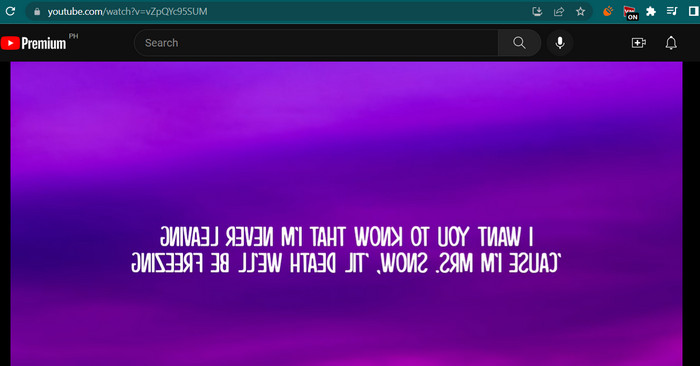
La extensión Video Mirror Chrome es una herramienta poderosa y fácil de usar que facilita la duplicación de sus videos para una experiencia de visualización mejorada. Con solo un clic, puede voltear y duplicar sus videos para corregir cualquier distorsión y disfrutarlos en la orientación adecuada. La extensión es compatible con una amplia gama de formatos de video y funciona a la perfección con los reproductores de video más populares. Además, la extensión es fácil de instalar y usar, con controles intuitivos y una interfaz simple. Si desea voltear un video horizontal en línea usando esta herramienta, siga los pasos a continuación:
Paso 1. Abre tu navegador favorito e instala la extensión de Chrome Video Mirror desde Chrome Web Store.
Paso 2. Una vez instalada, ve al vídeo que quieres voltear en tu navegador web. Puedes ir a sitios para compartir vídeos como YouTube, Netflix, etc.
Paso 3. Ahora, haz clic en el icono de Video Mirror situado en la barra de herramientas. El vídeo se volteará y se reflejará horizontalmente. Lamentablemente, no puedes reflejar los vídeos verticalmente con esta herramienta.
2. Kapwing
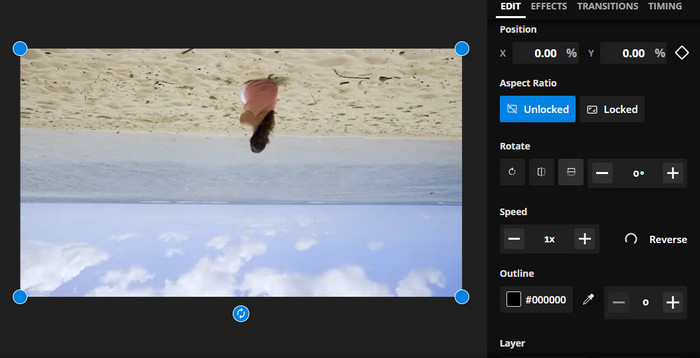
Kapwing es una poderosa plataforma de edición de videos en línea que admite una amplia gama de herramientas y funciones para ayudarlo a crear y editar videos de manera rápida y sencilla. Con Kapwing, puede recortar, cambiar el tamaño, agregar texto e imágenes e incluso agregar efectos y transiciones a sus videos. Una de las características cautivadoras de Kapwing es su capacidad para voltear videos en línea. Los videos se pueden voltear horizontal o verticalmente, las distorsiones se pueden corregir y puede verlos en la orientación ideal.
Paso 1. Para empezar a usar la herramienta, abre tu navegador web preferido y ve a la página oficial de Kapwing.
Paso 2. Cuando tengas una cuenta, haz clic en el botón Create New Project y pulsa el botón Upload para insertar el vídeo que deseas voltear online.
Paso 3. Una vez que el archivo multimedia se añada a la herramienta online, las herramientas de edición situadas a la derecha aparecerán automáticamente. Esta vez, ve a la pestaña EDIT y busca la sección Rotate. Después, haz clic en el icono Flip Horizontally o Flip Vertically.
Paso 4. Cuando estés satisfecho, haz clic en el botón Export Project en la esquina superior derecha de la interfaz. Para entonces, deberías poder voltear vídeos online tanto horizontal como verticalmente.
3. Clideo
Clideo es una excelente herramienta de edición de video en línea que simplifica el proceso de edición de video para todos. Lo bueno de este programa es que viene con herramientas dedicadas para cada propósito. Una herramienta útil es el video flip. Puede voltear videos horizontal o verticalmente sin configuraciones complicadas. Además, la herramienta permite a los usuarios elegir su formato preferido después de voltear el video. Por lo tanto, voltee el video 90 grados en línea siguiendo los siguientes pasos:
Paso 1. Accede a la página web de Clideo utilizando un navegador disponible en tu ordenador. Después, busca la opción Flip Video entre la selección de herramientas de la página principal.
Paso 2. Ahora, haz clic en el botón Choose file para subir un vídeo desde la unidad local de tu ordenador. Si deseas insertarlo desde un servicio de almacenamiento en la nube, puedes hacerlo pulsando el botón desplegable y seleccionando el almacenamiento que quieras.
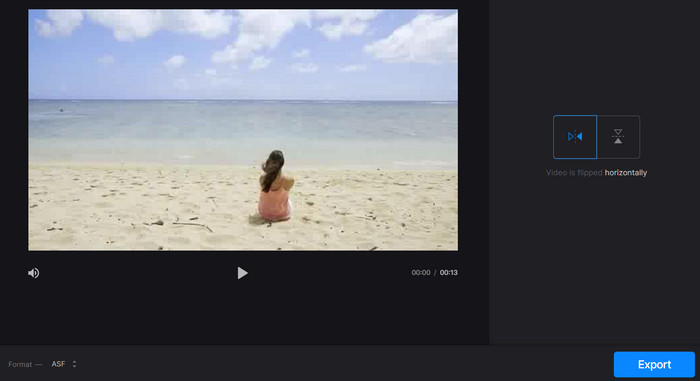
Paso 3. A continuación, podrás cambiar la orientación del vídeo después de añadirlo al programa. Haz clic en los botones correspondientes para ajustarlo a tus necesidades de orientación.
Paso 4. Si deseas cambiar el formato del vídeo, haz clic en Format y pulsa el botón Export para guardar el vídeo en tu ordenador. Tras seguir las instrucciones, deberías poder voltear vídeos online gratis y sin marca de agua.
Parte 2. Gran enfoque para voltear videos sin conexión
En muchos casos, no hay acceso a internet, especialmente si siempre estás de un lado para otro. Por lo tanto, un programa offline como FVC Video Converter Ultimate puede ayudarte mucho. La herramienta de edición de escritorio ofrece una mayor variedad de opciones de edición que las que ofrecen las aplicaciones online para voltear vídeos. Tanto para PC como para Mac, FVC Video Editor es el programa de edición de vídeo de nivel más profesional disponible. Es el mejor editor de vídeo disponible, ya que te permite convertir, girar, voltear, recortar, cortar y añadir marcas de agua a los vídeos con total libertad.
Paso 1. Obtén e instala el software
Haz clic en el botón Free Download que aparece abajo para obtener una copia del instalador del programa. Después, configúralo con la ayuda del asistente de instalación. Inmediatamente después, ejecútalo en tu ordenador y navega por la interfaz.
Descarga gratuitaPara Windows 7 o posteriorDescarga segura
Descarga gratuitaPara macOS 10.7 o posteriorDescarga segura
Paso 2. Inicia el volteador de vídeo
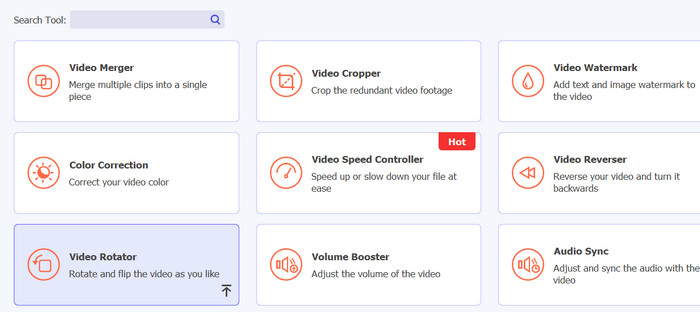
Después de iniciar la aplicación, deberías ver cuatro pestañas en la interfaz principal. Elige Toolbox > Video Rotator en el menú desplegable. También puedes buscar la herramienta utilizando el cuadro de búsqueda para encontrarla rápidamente.
Paso 3. Sube un archivo de vídeo
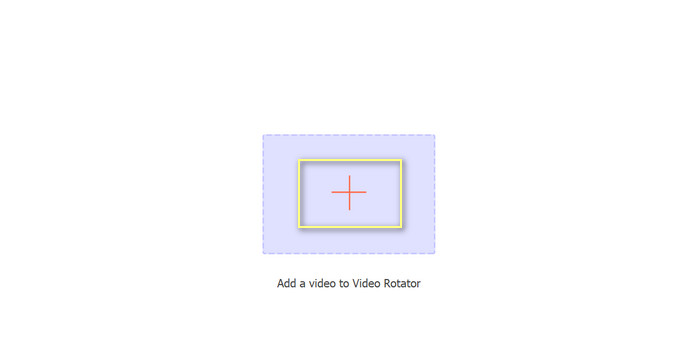
El signo más se puede seleccionar para cargar el video deseado en el panel de carga del Video Rotator. A continuación, se presentará la interfaz para voltear.
Paso 4. Voltea el vídeo
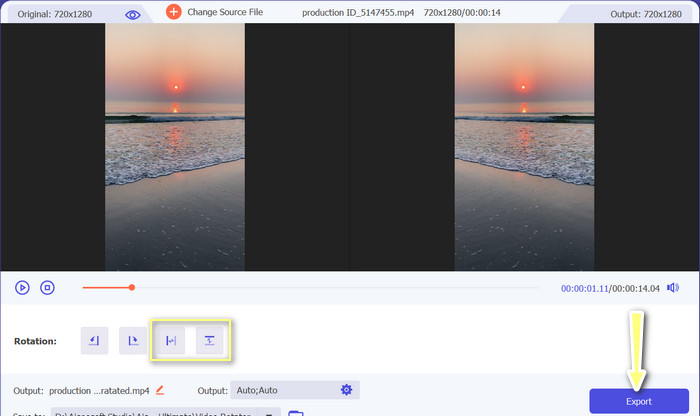
Una vez que se muestre la interfaz de volteo, tendrás acceso a sus botones de volteo. Puedes elegir rotar el vídeo en horizontal o en vertical. Elige el botón adecuado y luego haz clic en el botón Export para completar el proceso.
Lecturas recomendadas:
Excelentes formas de cortar vídeo online de manera cómoda
Cómo invertir un vídeo como un profesional para crear un gran vídeo cinematográfico
Parte 3. Preguntas frecuentes sobre cómo voltear videos en línea
¿Qué significa duplicar un video en línea?
Reflejar un video significa voltearlo horizontal o verticalmente para que el lado izquierdo se convierta en el lado derecho y viceversa. Esto es útil para corregir imágenes que se grabaron en un ángulo extraño o al crear ciertos tipos de contenido.
¿Es legal duplicar el video de otra persona?
Por lo general, no es legal duplicar el video de otra persona sin el permiso o la atribución adecuada. Antes de duplicar cualquier video, asegúrese de que tiene el derecho de usarlo y de que no está infringiendo ninguna ley de derechos de autor.
¿Puedo duplicar un video en mi teléfono?
Sí, puede reflejar un video en su teléfono usando una aplicación de edición de video. Muchas aplicaciones de edición de video populares, como InShot, VideoShow y KineMaster, ofrecen opciones de duplicación. Simplemente cargue su video en la aplicación, seleccione la opción de duplicación y guarde la nueva versión duplicada.
Conclusión
Reflejar vídeos online nunca ha sido tan fácil, gracias a la gran variedad de herramientas de edición de vídeo online disponibles. Con tantas aplicaciones para reflejar vídeo online, es importante elegir una herramienta de edición de vídeo online fiable y de alta calidad que se adapte a tus necesidades específicas.
-
 [4 formas] Cómo acelerar fácilmente sus videos en línea
 ¿Quieres acelerar un video en línea? Lea este artículo para que sepa más sobre cómo acelerar un video de diferentes maneras posibles.
-
 Cómo hacer un video de lapso de tiempo en iPhone perfectamente
 ¿Quieres saber cómo hacer un video de lapso de tiempo en tu iPhone? Puede hacer un lapso de tiempo de video perfecto en su iPhone siguiendo estos simples pasos a continuación.
-
 Los 5 mejores convertidores en línea para GIF a cualquier formato de video gratis y premium
 Si los GIF no son compatibles con la plataforma, es mejor convertir su GIF a cualquier formato de video en línea. Y también conserva el contenido de los GIF.
