


 Video Converter Ultimate
 Grabador de pantalla
 Reparación de vídeo
 Descarga segura
Elimine la marca de agua Animotica en videos sin esfuerzo
Animotica es un popular editor de vídeo para Windows que todo el mundo disfruta usar, ya que ofrece un resultado espectacular una vez que lo utilizas. Gracias a su interfaz y funciones fáciles de usar, incluso si eres principiante en edición de vídeo, puedes crear un resultado fantástico, similar al que logran los profesionales en sus vídeos. No es de extrañar que el nombre de esta herramienta esté entre los mejores editores de vídeo que puedes usar en Windows. Aun así, por muy buena que sea, muchos usuarios siguen encontrándose con un problema al usarla, y la marca de agua que queda en el vídeo es la principal preocupación de muchos. En lugar de preocuparte, ¿por qué no lees este artículo para eliminar la marca de agua de Animotica? ¿Hemos llamado tu atención? Entonces lee los detalles a continuación para aprender más sobre cómo hacerlo de forma eficaz.

Parte 1. Cómo eliminar la marca de agua del video de Animotica usando las 3 formas que debe saber
FVC Video Converter Ultimate [Eliminador de marcas de agua de video más recomendado]
FVC Video Converter Ultimate ofrece el mejor resultado para eliminar la marca de agua de tu vídeo. Aunque no seas tan bueno como otros editores de vídeo, puedes seguir logrando un resultado fantástico una vez que te acostumbres a usarlo; no hace falta preocuparse, porque podrás convertirte en un usuario experto de esta herramienta en muy poco tiempo. Su rendimiento es incomparable frente a otros quitadores de marcas de agua que puedes descargar o usar en internet. Así que, si quieres ver cómo eliminar la marca de agua de un vídeo de Animotica usando esta herramienta, sigue el tutorial que hemos añadido abajo para que lo sigas paso a paso.
Paso 1. Primero, descarga el software en tu ordenador de sobremesa y elige la versión que se adapte a tu sistema operativo. Después, sigue el proceso de instalación y abre la herramienta para continuar.
Descarga gratuitaPara Windows 7 o posteriorDescarga segura
Descarga gratuitaPara macOS 10.7 o posteriorDescarga segura
Paso 2. Cuando abras la aplicación, ve a la Caja de herramientas y abre Video Watermark Remover. Hay más funciones y herramientas que puedes usar dentro de la Caja de herramientas; puedes echarles un vistazo más tarde si quieres.
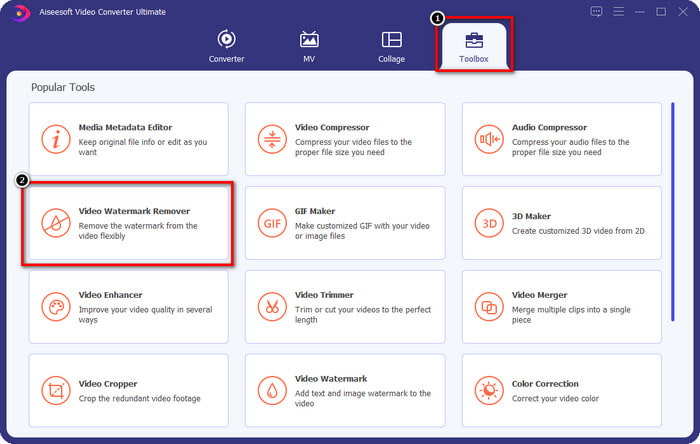
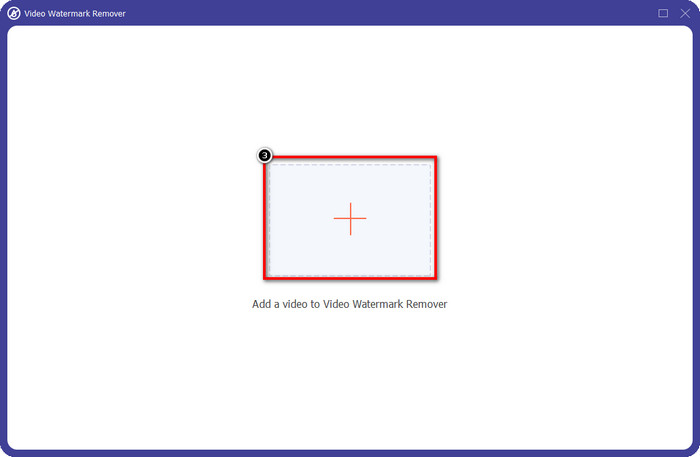
Paso 3. Haz clic en el icono + para cargar el vídeo que has editado en Animotica. Busca el archivo de vídeo que exportaste con marca de agua en la carpeta que aparecerá en tu pantalla y, a continuación, haz clic en Open para cargarlo.
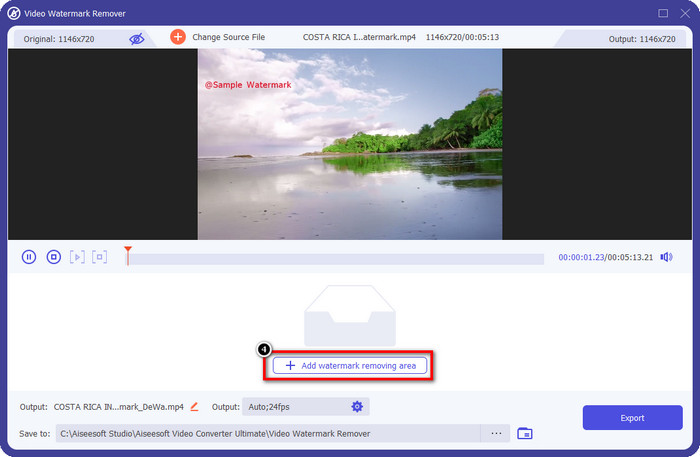
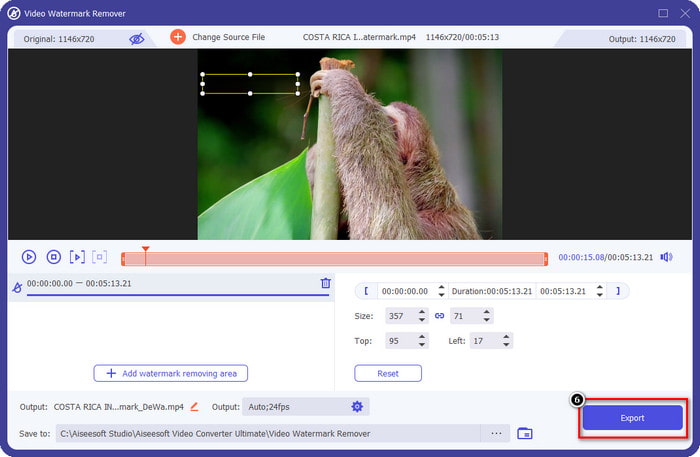
Paso 4. En la ventana que aparecerá, haz clic en Add Watermark Removing Area para abrir otra ventana donde trazarás la marca de agua.
Paso 5. Aquí, sitúa el rectángulo sobre la marca de agua para cubrirla y asegúrate de que queda totalmente cubierta. Puedes simplemente redimensionar el cuadro de selección si es demasiado pequeño o demasiado grande para la marca de agua.
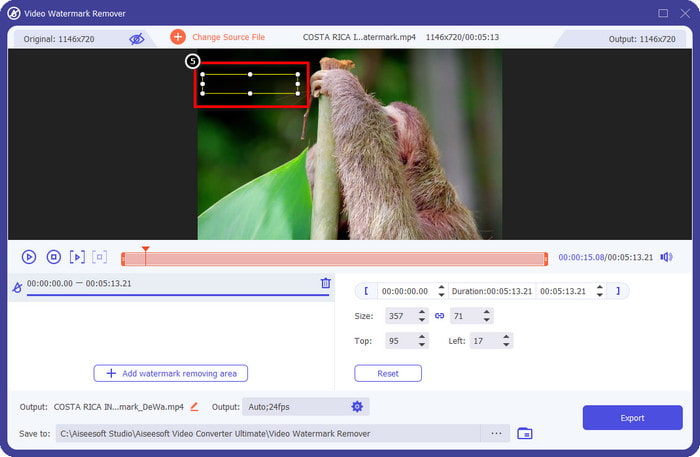
Paso 6. Ahora ya puedes guardar el vídeo de Animotica sin marca de agua haciendo clic en el botón Export que se encuentra en la parte inferior derecha de la interfaz.
Relacionado:
Eliminar marca de agua de Pond5
Eliminar marca de agua de Dxtory
Eliminador de marcas de agua de video UkeySoft
Puedes descargar gratis UkeySoft Video Watermark Remover para eliminar la marca de agua de tu vídeo. Esta herramienta está disponible en Windows, lo que significa que, si eres usuario de Windows, puedes descargarla libremente y aprovechar sus ventajas para eliminar la marca de agua. Al igual que otros quitadores de marcas de agua, esta herramienta ofrece un resultado excelente y no reduce la calidad del vídeo importado cuando se exporta.
Sin embargo, si usa la versión accesible de esta herramienta, algunas limitaciones podrían frenarlo, como que no puede cargar un video aquí por más de un minuto de forma gratuita. Aquí hay una guía completa sobre cómo eliminar la marca de agua de Animotica de forma gratuita.
Paso 1. Para descargar el software en tu ordenador, ve a su sitio web oficial y haz clic en el botón de descarga para tenerlo en tu Windows.
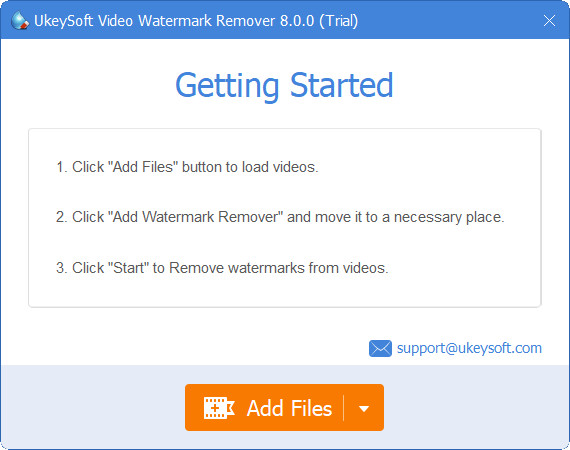
Paso 2. Abre el quitador de marcas de agua y haz clic en Add Files para cargar el vídeo que tiene una marca de agua.
Paso 3. Haz clic en Add Watermark Remover y sitúa el cuadro de selección sobre la marca de agua. Luego haz clic en el icono de check para comenzar a eliminar la marca de agua de tu vídeo.
Paso 4. Para guardar los cambios que has realizado y el vídeo de Animotica sin marca de agua, haz clic en Next.
Eliminador de marcas de agua Apowesoft en línea
Apowersoft Watermark Remover Online es un eliminador de marcas de agua específico al que puedes acceder en línea si no quieres descargar un software de eliminación de marcas de agua en tu dispositivo. Al ser accesible desde la web, la compatibilidad de la herramienta es mucho mayor con diferentes sistemas operativos. Aunque la herramienta sea accesible en línea, su rendimiento sigue siendo tan bueno como el de otros quitadores de marcas de agua que puedes usar o descargar en tu ordenador. Como otras grandes herramientas, también tiene inconvenientes, como el número limitado de formatos de vídeo compatibles, la dependencia de internet y otros más.
Pero si esta herramienta le llamó la atención, a continuación encontrará un tutorial sobre cómo eliminar rápidamente la marca de agua de Animotica en su video con la herramienta en línea.
Paso 1. Para acceder al eliminador de marcas de agua en línea, puedes buscar la herramienta en tu navegador web y luego abrirla.
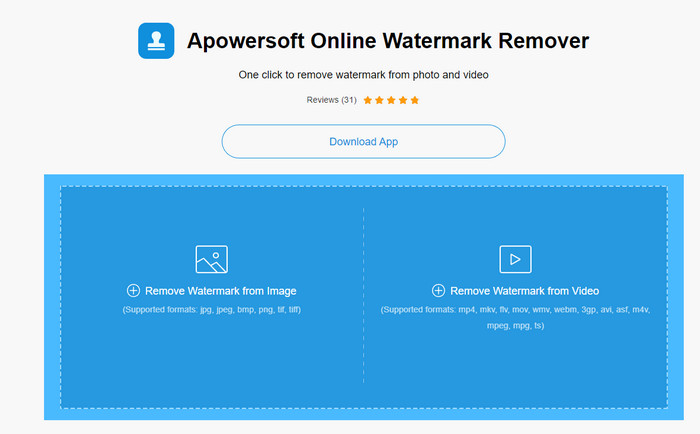
Paso 2. Pulsa Remove Watermark From Video y selecciona el archivo de vídeo que tiene una marca de agua. Espera al proceso de carga, ya que puede llevar bastante tiempo, especialmente si tienes una conexión a internet lenta.
Paso 3. Después de cargar el archivo de vídeo, coloca la forma rectangular sobre la marca de agua para cubrirla en el vídeo.
Paso 4. Ahora que la marca de agua objetivo está seleccionada, haz clic en Erase para eliminar la marca de agua dentro del área rectangular.
Parte 2. Preguntas frecuentes sobre cómo eliminar la marca de agua Animotica
¿Cuánto cuesta Animotica Light?
El precio de Animotica Light es $6.99. El precio seguirá dependiendo de la región de Microsoft Store. Incluye algunas funciones menores que puede usar que no están incluidas en la versión gratuita, como salida HD total, sin marca de agua, todas las transiciones, velocidad de fotogramas ilimitada y otras.
¿Es una excelente opción aprovechar Animotica Pro?
Para $15.99, esta herramienta es una buena opción para los principiantes que desean realizar una edición básica que brinde características y funciones extraordinarias que pueda disfrutar. Con la versión pro, puede exportar videos con una calidad de hasta 2160 (4k) con 60 FPS, funciones de edición completas y más.
¿Por qué la marca de agua de Animotica se vuelve borrosa?
La mayoría de las herramientas desenfocan la marca de agua en su video para hacerlos invisibles. Sin embargo, si lo miras más tiempo, notarás que deja residuos que podrían empeorar la visual. Por lo tanto, utilice un eliminador de marcas de agua que no las difumine una vez que exporte, como produce FVC Video Converter Ultimate.
Conclusión
De hecho, todas las herramientas que mencionamos en este artículo tienen diferentes fortalezas y debilidades para eliminar la marca de agua de Animotica. Antes de terminar este artículo, ¿qué herramienta utilizará como eliminador de marcas de agua? Supongamos que todavía no ha decidido qué usar. En ese caso, le sugerimos que elija el eliminador de marcas de agua definitivo porque es la herramienta más potente para eliminar la marca de agua en cualquier video y realizar múltiples tareas en una sola descarga. Esperamos responder a sus consultas con este artículo. El tutorial anterior lo ayudará a eliminar la marca de agua en su video para que pueda disfrutar viendo un video de alta calidad sin una marca de agua.
-
 Aprenda a eliminar la marca de agua de Movavi de forma gratuita [¡Imprescindible!]
 Exportar un video o una imagen en Movavi dejará una marca de agua, pero ¿es posible eliminarla? Para enseñar como quitar la marca de agua gratis lee esto.
-
 3 formas sencillas de eliminar la marca de agua de Fiverr en Windows y Mac
 Está en la página correcta si está buscando una aplicación que pueda eliminar la marca de agua de Fiverr. Lea esta publicación para saber cómo puede eliminar fácilmente la marca de agua de Fiverr.
-
 Cómo quitar la marca de agua de Lomotif usando estas increíbles herramientas
 ¿Quieres aprender a eliminar la marca de agua Lomotif de tu vídeo? Lee este artículo para conocer los métodos más destacados para eliminarlo online y offline.
