


 Video Converter Ultimate
 Grabador de pantalla
 Reparación de vídeo
 Descarga segura
Guía sobre cómo eliminar la marca de agua de Lumion en el escritorio sin esfuerzo
Lumion es una aplicación que los arquitectos utilizan con mayor frecuencia para crear un diseño 3D de una casa, un hospital, una escuela, una infraestructura, etc. Con un software potente como este, puede dar fácilmente a las personas una idea visual de cómo se verá el edificio en la realidad. -tiempo. Aunque puede usar la versión de prueba gratuita, el principal problema que encontrará es que dejará una marca de agua una vez que exporte. No es ideal para presentaciones profesionales.
En lugar de preocuparte por este problema, puedes usar el mejor software para eliminar la marca de agua y presentarlo sin el logotipo de Lumion. ¿Quieres saber cómo quitar la marca de agua de Lumion? Si es así, debes continuar leyendo la información que añadimos a continuación sobre cada software que puede resolver el problema.

Parte 1. Las mejores formas de eliminar la marca de agua de Lumion en la Web y sin conexión
FVC Video Converter Ultimate
¿Puedes quitar las marcas de agua de Lumion Pro 9? No hace falta hacerse esa pregunta, porque FVC Video Converter Ultimate es la mejor solución para eliminar la marca de agua del vídeo que capturas en Lumion. Este software es superior a la hora de eliminar marcas de agua; elimina de forma exclusiva la marca de agua incorporada al archivo de vídeo exportado. Además, si eres usuario de Windows, puedes descargar su versión para Windows para eliminar la marca de agua con la ayuda de este software definitivo. Pero si usas Mac, no tienes de qué preocuparte, porque este software también está disponible en otros sistemas operativos.
¿Y lo que es más? También puede hacer varias cosas, como agregar efectos al video que toma en Lumion y aplicar algunos efectos de transición para mejorarlo. En comparación con el otro software, esta herramienta es el último software entre el resto de eliminadores de marcas de agua que puede descargar en el mercado. Entonces, si desea eliminar la marca de agua de Lumion, puede seguir los pasos a continuación para ayudarlo a hacerlo sin esfuerzo y en unos pocos pasos.
Paso 1. Para descargar el software en tu Windows o Mac, haz clic en el botón de descarga que aparece a continuación. Elige el botón adecuado para descargar la versión correcta. Pulsa el archivo que descargaste antes para instalarlo y, a continuación, ábrelo para pasar al siguiente paso.
Descarga gratuitaPara Windows 7 o posteriorDescarga segura
Descarga gratuitaPara macOS 10.7 o posteriorDescarga segura
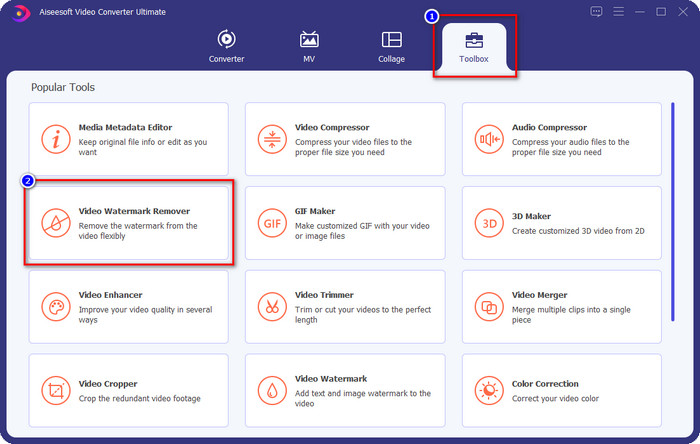
Paso 2. Después de iniciar el software, abre la Toolbox y busca Video Watermark Remover en el conjunto de funciones que aparecerán tras hacer clic en Toolbox.
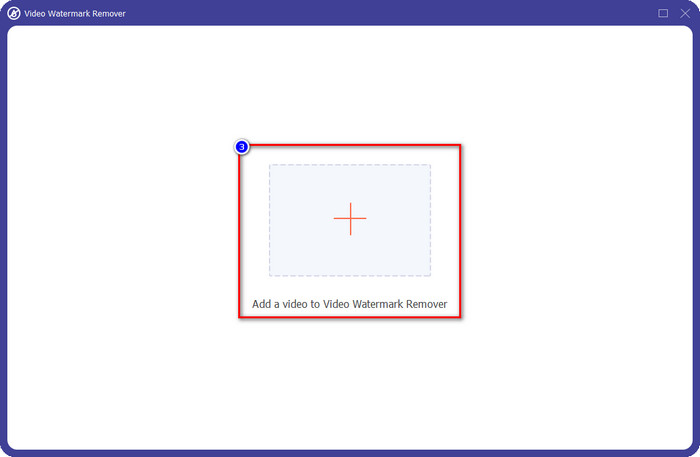
Paso 3. Para subir el archivo de Lumion que exportaste con marca de agua, haz clic en el icono +, busca el archivo de vídeo con marca de agua, haz clic en él y luego pulsa Open para cargarlo.
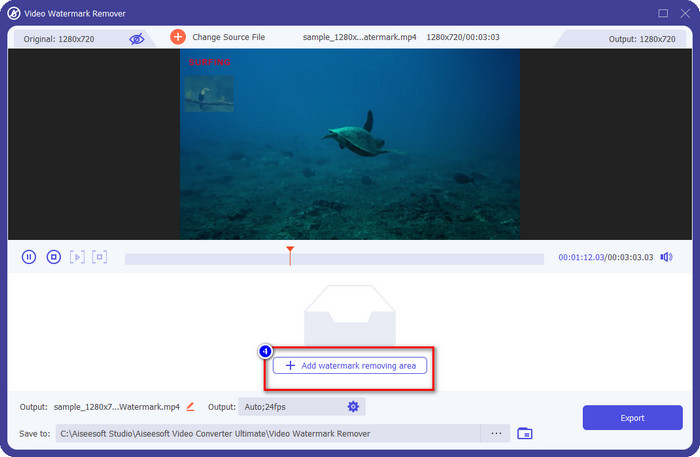
Paso 4. Haz clic en Add Watermark Removing Area para eliminar la marca de agua de Lumion colocada en el vídeo.
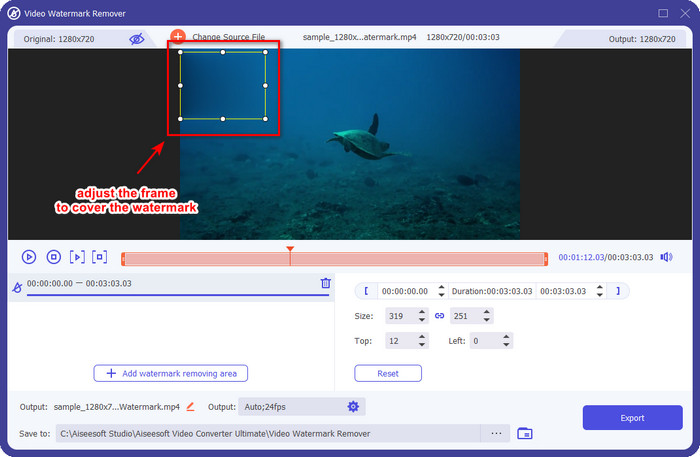
Paso 5. Ajusta el eliminador de marcas de agua arrastrando los puntos del marco para cubrir la marca de agua. Puedes mantener pulsado y arrastrar el marco para colocarlo correctamente en la parte del vídeo que tiene la marca de agua.
Paso 6. Para guardar el vídeo sin la marca de agua de Lumion, haz clic en Export, y se guardará automáticamente el vídeo sin marca de agua.

Eliminador de marcas de agua gratuito Aiseesoft en línea
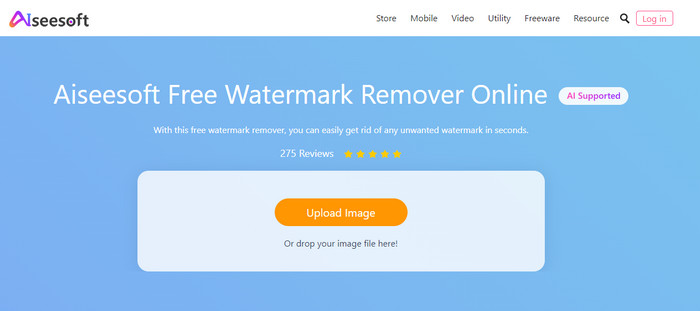
Aiseesoft Free Watermark Remover Online te permite quitar la marca de agua de Lumion de tu imagen. Aunque la herramienta web no elimina la marca de agua en vídeo, aún puedes usar este software en línea si quieres quitar la marca de agua de tu imagen. Además, no es necesario descargar esta herramienta porque está disponible en la web. Así que, si quieres ahorrar espacio en tu ordenador y no quieres esperar al proceso de descarga, por suerte puedes usar este software para eliminar la marca de agua.
Este software es la mejor solución para eliminar la marca de agua en cada imagen que tenga. Sin embargo, esta herramienta es de uso gratuito y accesible en todos los navegadores web para realizar búsquedas.
Paso 1. Busca la página oficial del eliminador en línea, luego abre la web del eliminador de marcas de agua y haz clic en Upload Image para añadir la imagen que tiene una marca de agua de Lumion.
Paso 2. Resalta la marca de agua usando las herramientas que se muestran arriba; asegúrate de cubrir la marca de agua de Lumion para poder eliminarla.
Paso 3. Haz clic en Remove para hacer desaparecer la marca de agua de prueba de Lumion antes de guardar la imagen. Después, haz clic en Save para exportar la imagen de Lumion sin marca de agua.
Editor de vídeo Gihosoft
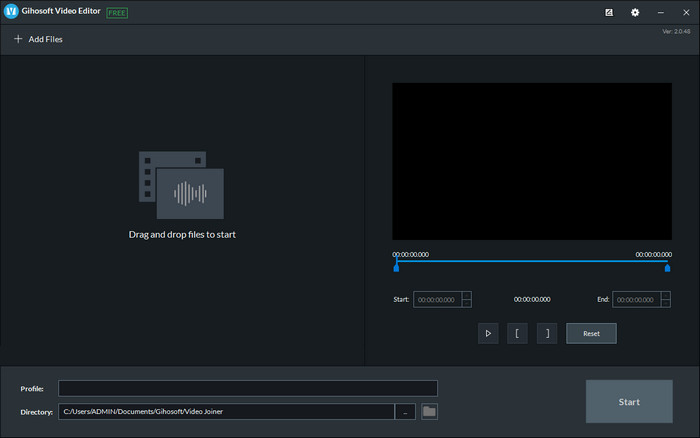
Gihosoft Video Editor puede ayudarte a borrar la marca de agua del vídeo que tienes recortándola. Esta herramienta puede convertir el archivo de vídeo que importes y, al mismo tiempo, eliminar la marca de agua. Aunque el software es gratuito tanto en Windows como en Mac, varios inconvenientes a la hora de eliminar marcas de agua se han convertido en un problema para muchos usuarios mientras lo utilizaban. No puede eliminar directamente la marca de agua del vídeo que subes, especialmente si la marca de agua está situada dentro del propio vídeo y no al principio o al final del clip. Aunque el software no es tan bueno como otros eliminadores de marcas de agua que hemos mencionado arriba, todavía puedes usarlo para recortar fácilmente la parte de tu clip donde está la marca de agua.
Paso 1. Para descargar el software en tu ordenador, tendrás que visitar su página web oficial para conseguir el cortador de vídeo.
Paso 2. Abre el software, haz clic en Add Files y sube el vídeo con marca de agua.
Paso 3. Mantén pulsado y arrastra los play heads in and out para recortar la parte de tu vídeo donde está la marca de agua.
Paso 4. Para guardar los cambios, haz clic en Cut, y se iniciará el proceso de exportación.
Parte 2. Preguntas frecuentes sobre cómo eliminar la marca de agua de Lumion
¿Puedo comprar el Lumion premium para quitar la marca de agua?
Sí, puedes comprar la versión premium de la misma. Cuando exporte el diseño 3D que ha realizado, no habrá marca de agua, ya sea un video o una imagen.
¿Cuál es la forma efectiva de eliminar la marca de agua de Lumion?
En lugar de descargar un software en su dispositivo para eliminar la marca de agua del video o la imagen que exporta en Lumion, puede comprar la versión premium. Pero suponga que no tiene el dinero para pagarlo. En ese caso, puede usar los diferentes eliminadores de marcas de agua que mencionamos en este artículo.
¿Por qué no puedo iniciar Lumion correctamente?
Si desea usar Lumion correctamente, necesitará una computadora de escritorio de alta especificación que se ajuste al estándar requerido. Aunque puede iniciarlo con una especificación de versión baja, se bloqueará con frecuencia y habrá ocasiones en las que no podrá iniciar correctamente el software en su escritorio.
Conclusión
Ahora que ya conocemos diferentes maneras de eliminar la marca de agua de Lumion, puedes entender cómo quitar la marca de agua del diseño 3D que has creado para presentarlo de forma profesional. Entonces, ¿qué herramienta crees que satisfará tus necesidades? Si aún no has elegido cuál usar, te recomendamos encarecidamente utilizar FVC Video Converter Ultimate para eliminar la marca de agua de un vídeo, porque es, sencillamente, la mejor entre todas. Así que, si quieres tener el eliminador definitivo de marcas de agua en vídeo, haz clic en el botón de descarga de arriba y úsalo en cuanto lo hayas descargado e instalado.
-
 Cómo agregar una marca de agua a un video en iMovie en Mac [Abarca todo]
 ¿Quieres conocer los secretos de agregar una marca de agua a un video en iMovie? No derrames el té sobre nadie y apréndelo leyendo este artículo.
-
 Las 3 formas más fáciles de agregar una marca de agua a un GIF en línea y fuera de línea
 Agregar una marca de agua a un GIF puede ser tan fácil como 1-2-3 si usa correctamente la herramienta adecuada. Las herramientas en el mercado son demasiado amplias, pero le presentaremos las tres herramientas en las que puede confiar.
-
 Las 4 mejores formas de eliminar la marca de agua de un GIF [en línea y fuera de línea]
 ¿Necesitas eliminar la marca de agua de un GIF? Con la herramienta de este artículo, aprenderá los diferentes estilos con los diferentes eliminadores de marcas de agua disponibles en su plataforma.
