


 Video Converter Ultimate
 Grabador de pantalla
 Reparación de vídeo
 Descarga segura
Cómo quitar la marca de agua en SmartDraw con 2 formas posibles
Si necesitas una forma sencilla y potente de crear gráficos, dibujos y mapas, y luego presentarlos con calidad de nivel empresarial, entonces utiliza SmartDraw. Puedes dar rienda suelta a tu imaginación y convertirla en realidad con la ayuda de SmartDraw. ¿La herramienta es gratuita? Puedes usar la prueba gratuita de siete días que ofrece para utilizarla sin coste, aunque con una marca de agua. Lidiar con una marca de agua en el archivo exportado puede ser un fastidio. Aquí te presentamos esta entrada del blog, en la que solo recomendamos la mejor herramienta que puedes encontrar en el mercado y que funciona de forma eficaz para eliminar la marca de agua. Sigue leyendo la información que aparece a continuación para aprender cómo eliminar la marca de agua en SmartDraw de dos maneras eficaces.

Parte 1. Cómo quitar la marca de agua en Smart Draw comprando una clave de licencia [Versión oficial]
¿Cómo quitar la marca de agua de SmartDraw? Es la primera forma que le presentaremos, y es mediante la compra de la clave de licencia de esta herramienta. Esta plataforma le ofrece diferentes tipos de planes que puede obtener que beneficiarán su fin. Además, no puedes comprar el acceso de un mes a esta herramienta, por lo que si planeas comprar su clave de licencia, se te facturará mensualmente, pero el total que pagarás es en su versión anual. Si aprecia el rendimiento de esta herramienta y desea adquirirla, puede seguir los pasos que agregamos a continuación.
Pasos sobre cómo eliminar la marca de agua en SmartDraw con una clave de licencia:
Paso 1. Abre la página web oficial de SmartDraw y asegúrate de acceder al sitio correcto para realizar una transacción segura.
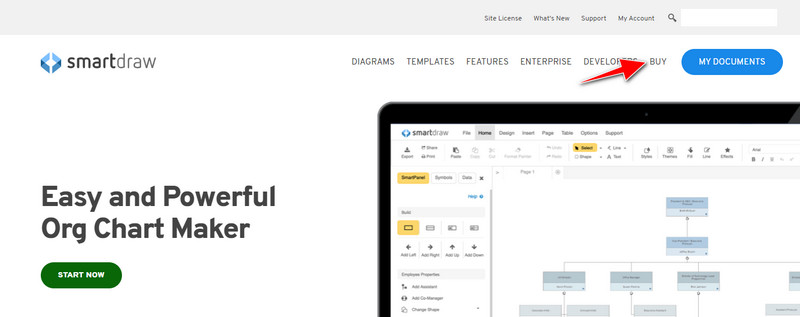
Paso 2. En el sitio web, haz clic en Buy para ver los planes disponibles.
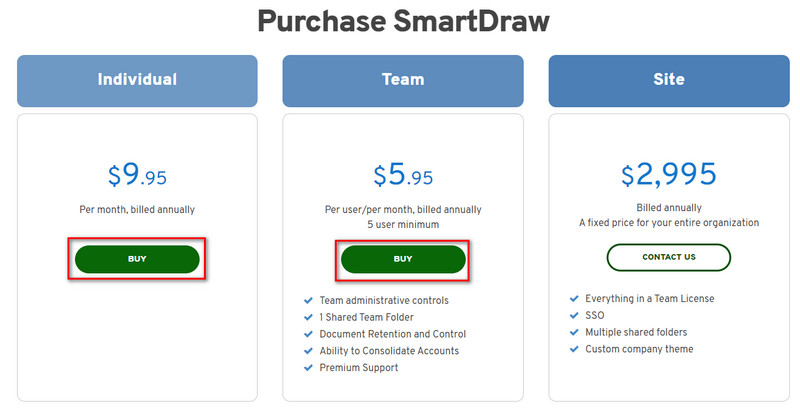
Paso 3. Puedes comprar SmartDraw como Individual, Team o Site. Haz clic en Buy Now si vas a adquirir la versión Individual o Team.
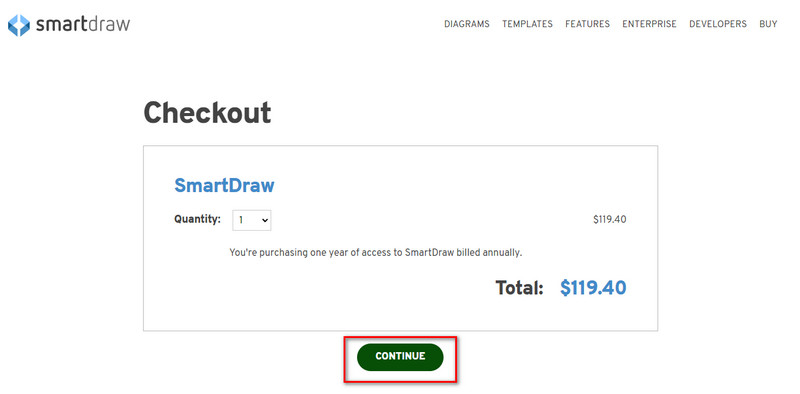
Paso 4. En la parte derecha verás el importe total de la herramienta tras el pago anual; haz clic en Continue para continuar.
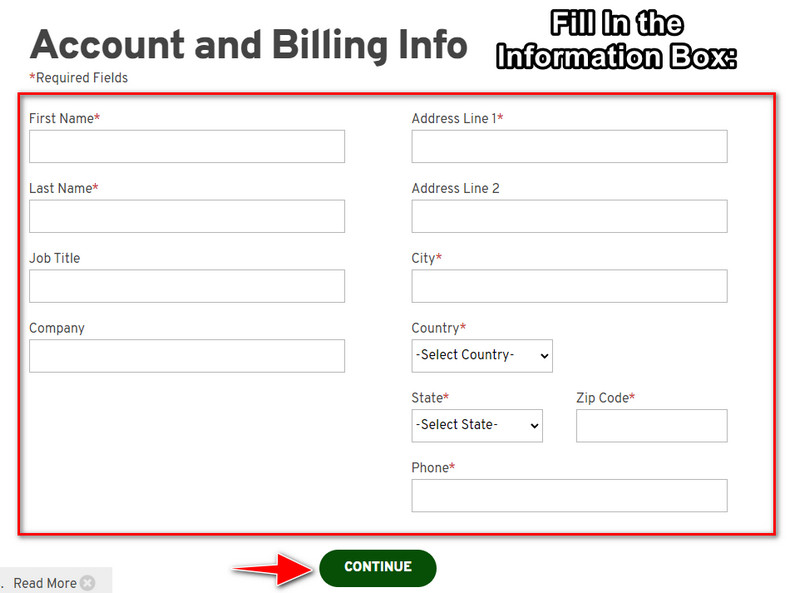
Paso 5. Añade la información de tu cuenta y de facturación que se solicita y, a continuación, pulsa Continue para continuar y obtener la clave de licencia.
Parte 2. Cómo eliminar la marca de agua en Smart Draw de forma gratuita mediante el servicio web [sin costo]
¿Cómo eliminar la marca de agua de la versión de prueba de SmartDraw sin comprarla? Entonces tendrás que utilizar FVC Free Watermark Remover Online. Este eliminador de marcas de agua está listo para que lo uses. No necesitas ser un experto para borrar la marca de agua de tu imagen, porque usar esta herramienta no te resultará complicado. Incluso si ya eres un profesional, puedes seguir utilizando este software para eliminar marcas de agua u objetos no deseados de tu imagen. Con la ayuda de este eliminador de marcas de agua, no quedará ninguna mancha en tu imagen que no pueda eliminar. ¿Quieres probar este software en lugar de comprar la clave de licencia? Si es así, sigue este tutorial que añadimos a continuación para eliminar la marca de agua de las imágenes de forma eficaz.
Pasos sobre cómo eliminar la marca de agua de SmartDraw en un gráfico o diagrama de forma gratuita:
Paso 1. En lugar de buscar la herramienta web en tu navegador, puedes hacer clic en este enlace para abrirla; se abrirá una nueva pestaña en tu navegador.
Paso 2. Usando el ratón, arrastra y suelta el gráfico o diagrama que hayas creado en SmartDraw para poder subirlo.
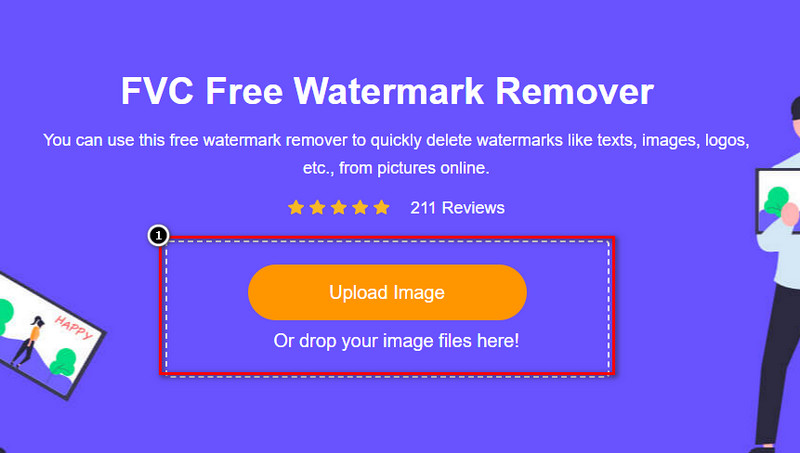
Paso 3. Ahora que el eliminador de marcas de agua online está abierto, elige la herramienta que quieras para resaltar la marca de agua en la imagen.
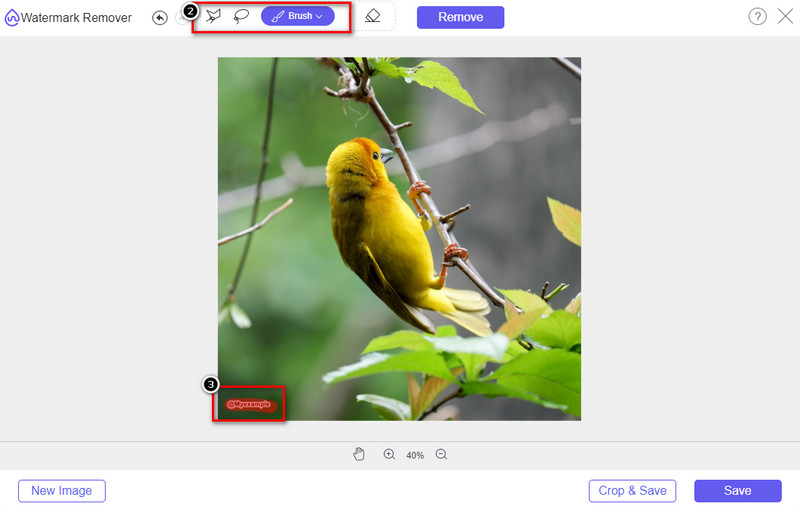
Paso 4. Después de resaltar la marca de agua o el logotipo en la imagen que has subido, pulsa Remove.
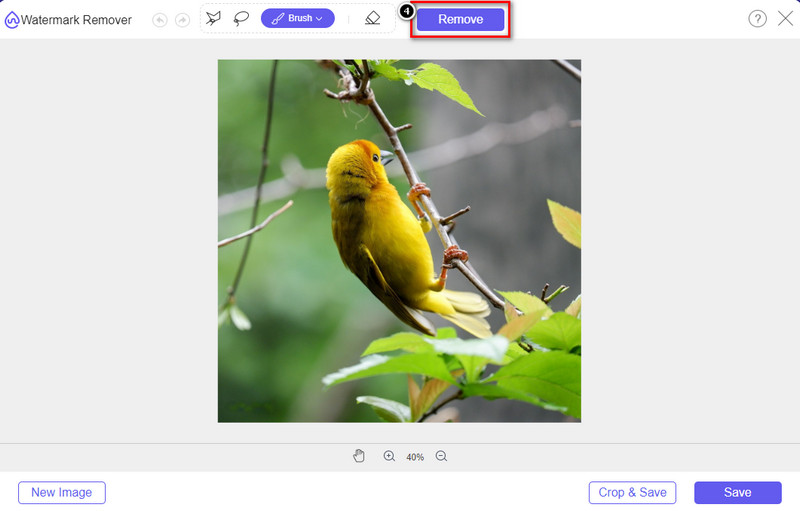
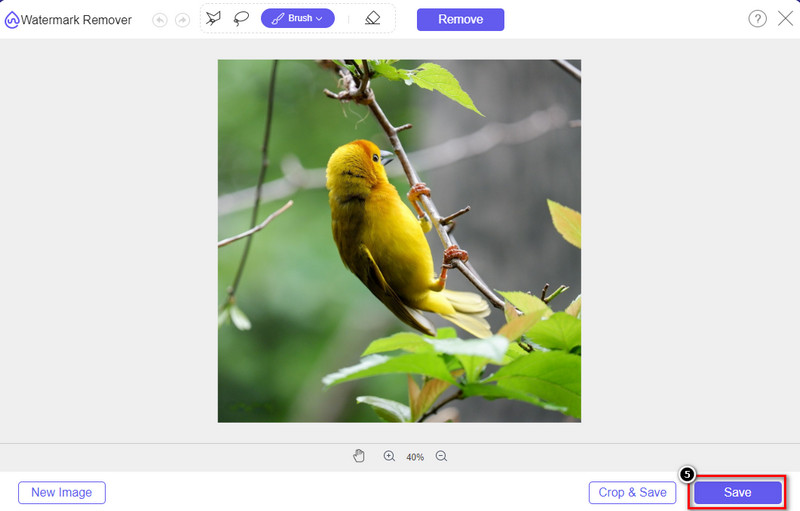
Paso 5. Espera a que termine el proceso de eliminación de la marca de agua y haz clic en Save para descargar el gráfico o diagrama que has subido. Aparecerá una carpeta en la pantalla; comprueba ahora la versión del gráfico o diagrama que has creado sin la marca de agua.
Ventajas de usar FVC Free Watermark Remover Online:
◆ No es necesario descargar la aplicación porque está disponible en la web.
◆ Admite una amplia gama de imágenes y puede eliminar las marcas de agua de manera efectiva.
◆ Es un eliminador de marcas de agua dedicado que produce resultados de alta calidad.
◆ No se agrega ninguna marca de agua a la salida final una vez exportada.
◆ No hay limitación sobre cuántas veces usar y el tamaño del archivo.
Parte 3. Parte adicional: cómo hacer un cuadro, un gráfico o un diagrama en SmartDraw con pasos detallados
La parte anterior le enseña cómo deshacerse de la marca de agua SmartDraw. En esta parte, le enseñaremos cómo hacer un cuadro, un gráfico y un diagrama con la ayuda de SmartDraw; puedes seguir los pasos que agregamos a continuación para saber cómo hacerlo.
Paso 1. Ve a su página oficial para crear un gráfico, diagrama o esquema.
Paso 2. Una vez que hayas abierto la página oficial, haz clic en Start Now e inicia sesión en tu cuenta.
Paso 3. En la parte izquierda, elige qué tipo de plantilla quieres usar o crear.
Paso 4. Añade la información en cada diagrama de flujo. En la parte izquierda de la página habrá opciones adicionales que puedes utilizar.
Paso 5. Haz clic en el botón Export, elige el tipo de formato que deseas y haz clic para iniciar el proceso. Si utilizas la versión gratuita, aparecerá una marca de agua; puedes seguir los pasos de la parte 2 para eliminarla.
Lecturas recomendadas:
Cómo eliminar la marca de agua de B612 de tus imágenes
Cómo eliminar gratis la marca de agua de WOW Slider
Parte 4. Preguntas frecuentes sobre cómo eliminar la marca de agua SmartDraw
¿SmartDraw puede exportar imágenes PNG?
Sí, puede tener un gráfico transparente en formato PNG. Sin embargo, agregará una marca de agua si usa la versión gratuita. Puede comprar la versión oficial, por lo que habrá una marca de agua en la imagen exportada.
¿Cuánto es el precio de SmartDraw?
Si está a punto de comprar un plan en SmartDraw, puede comprar su plan a partir de $ 5.95. Puede consultar los otros precios que proporciona en el sitio web oficial.
¿Cuál es la ventaja de comprar la versión premium de SmartDraw?
Puede obtener el control del administrador del equipo, la carpeta del equipo, el soporte premium y exportar imágenes sin marca de agua para planes individuales. Para otras ventajas premium que puede obtener, visite el sitio web oficial y vea qué características y funciones puede obtener.
Conclusión
Ahora que ya sabes cómo guardar SmartDraw sin marca de agua con las dos formas que agregamos. O lo compra o usa una herramienta para eliminar la marca de agua en el archivo exportado. Si no te gusta comprar la herramienta, debes usarla porque es la herramienta web más eficiente para eliminar la marca de agua. Si cree que este artículo lo ayudó a resolver el problema, entonces califíquenos con 5 estrellas.
-
 Las 4 mejores formas de eliminar la marca de agua de un GIF [en línea y fuera de línea]
 ¿Necesitas eliminar la marca de agua de un GIF? Con la herramienta de este artículo, aprenderá los diferentes estilos con los diferentes eliminadores de marcas de agua disponibles en su plataforma.
-
 Las 5 formas más fáciles de eliminar metadatos en cualquier archivo multimedia
 ¿Cómo eliminar metadatos? ¿Es difícil hacerlo? ¿Necesito comprar o usar una herramienta gratuita para eliminar etiquetas? Todas estas preguntas tienen respuesta en este artículo.
-
 Excelente removedor de marca de agua de Photobucket en línea y fuera de línea
 Aprenda a eliminar la marca de agua de Photobucket de sus fotos con este increíble eliminador de marcas de agua de Photobucket. Lea este artículo para aprender las formas.
