


 Video Converter Ultimate
 Grabador de pantalla
 Reparación de vídeo
Intensifique su experiencia en problemas de alcance como cómo reducir la velocidad de un video
Eres un/a aspirante a artista y quieres ver un tutorial de diseño artístico para mejorar tus habilidades. Sin embargo, la mayoría de estos tutoriales están acelerados para acumular cierto tiempo de reproducción y poder subirse con un tamaño de archivo reducido. Por eso piensas en una solución que consista en disminuir la velocidad del vídeo. Pero no sabes cómo ralentizar un vídeo a cámara rápida, como pasa con la mayoría de los tutoriales de arte. Lee este artículo para ampliar tus conocimientos sobre este problema que tienen muchos artistas principiantes.

Parte 1. 3 sencillos pasos para ralentizar un video [computadora de escritorio/portátil]
Hay muchos enfoques que ofrece la web, ya sea un editor en línea o fuera de línea. Algunos de ellos deben descargarse, especialmente cuando está usando una computadora de escritorio o una computadora portátil para editar. Hay una diferencia significativa entre usar una computadora de escritorio en términos de detalles de uso; es por eso que este artículo selecciona la mejor manera de ralentizar un video sin conexión o en línea en una computadora de escritorio. Aquí están los enfoques con sus pasos proporcionados:
Enfoque 1. Use Video Converter Ultimate
Es posible descargar y usar muchos conversores incluso sin estar conectado a Internet. Para ralentizar un vídeo, puedes usar Video Converter Ultimate, una de las mejores alternativas. Es fácil de usar y puedes descargarlo gratis. No tienes que preocuparte de que la conexión a Internet afecte al proceso de ralentizar un vídeo en línea, porque este software puede procesar tu vídeo sin complicaciones. Gracias a su impresionante herramienta Video Speed Controller, ahora puedes ajustar la velocidad de reproducción de tus vídeos en menos de un minuto. Ahora que te preguntas cómo se hace, aquí tienes algunos pasos guiados que puedes seguir:
Paso 1: Haz clic en el botón Free Download para descargar el programa en el escritorio de tu ordenador. A continuación, completa la instalación del software y personaliza la configuración siguiendo los pasos indicados.
Descarga gratuitaPara Windows 7 o posteriorDescarga segura
Descarga gratuitaPara macOS 10.7 o posteriorDescarga segura
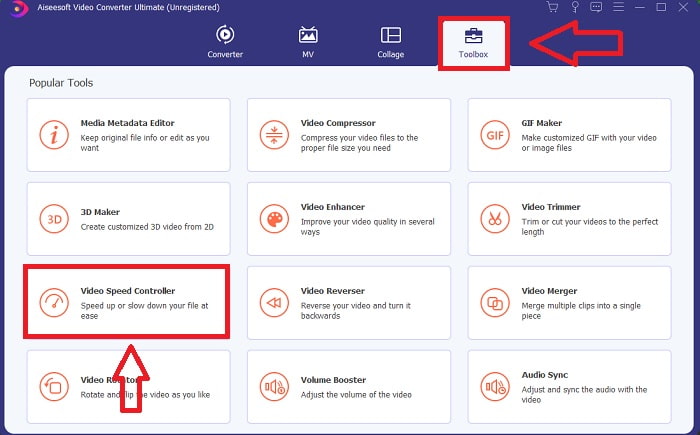
Paso 2: Para usar Video Speed Controller, inicia el programa justo después de la instalación y selecciona esta función en el menú Toolbox.
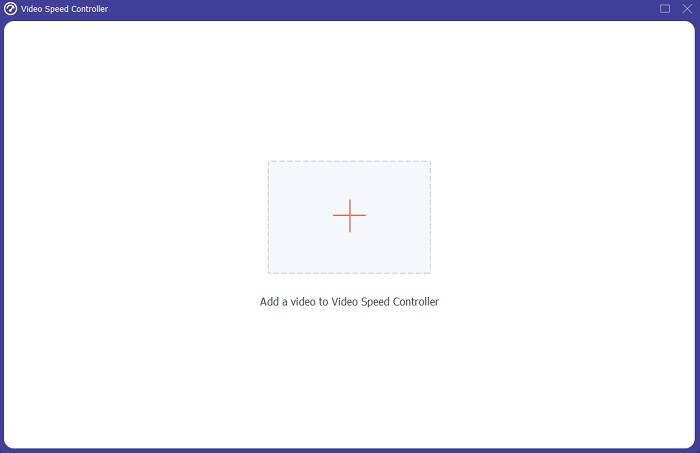
Paso 3: La interfaz de Video Speed Controller aparecerá después de hacer clic en esta opción. Para subir un archivo, haz clic en el icono +.
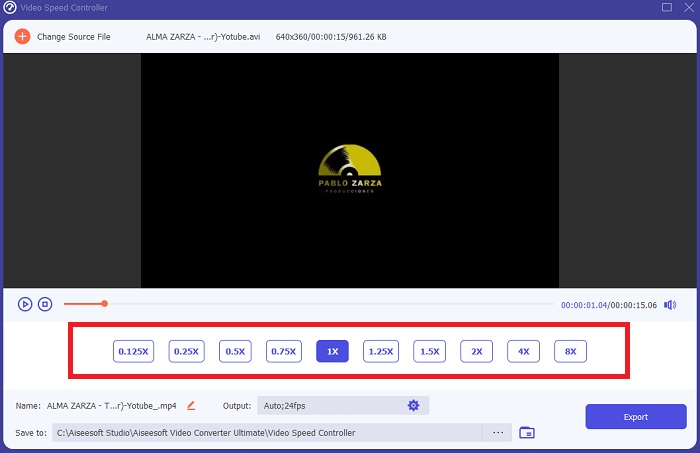
Paso 4: Ahora puedes empezar a ralentizar tu vídeo eligiendo valores inferiores a la velocidad normal. La mayoría de los números aparecerán a la izquierda de la velocidad actual de tu vídeo.
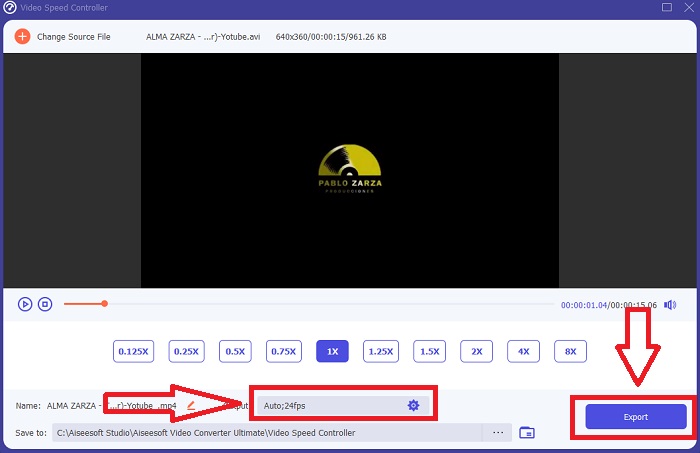
Paso 5: Cuando hayas terminado de modificar la velocidad de reproducción de tu clip de vídeo, puedes seleccionar el formato de salida, la resolución, la calidad y otros parámetros que quieras utilizar. Cuando finalices, haz clic en Export y elige dónde quieres que se guarde tu archivo una vez que todo el proceso haya concluido.
Enfoque 2. Usar VEED
Los creadores de contenido de todo el mundo confían en VEED y su herramienta web de código abierto para producir videos para las redes sociales y otros usos. Es una aplicación web que requiere una conexión sólida para funcionar correctamente, pero puede cargar directamente y cambiar la velocidad de reproducción en su interfaz de usuario. Además, tiene varias funciones, una de las cuales es la disminución de la velocidad de reproducción del video. Ahora puede ralentizar un video sin descargar nada en su escritorio. Solo necesita un motor de búsqueda y una conexión sólida para acceder a esta herramienta en línea. Tiene una interfaz de usuario simple y fácil de usar que puede beneficiar a la mayoría de los usuarios principiantes que necesitan reducir la velocidad de un video sin aprender pasos complicados. Estos son los procedimientos de muestra para digerir para lograr los ajustes deseados en su video.
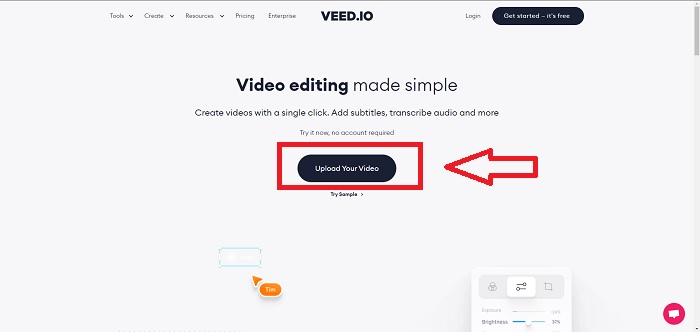
Paso 1: Haz clic en el botón Upload Your Video para enviar un archivo de vídeo desde tu ordenador al servidor.
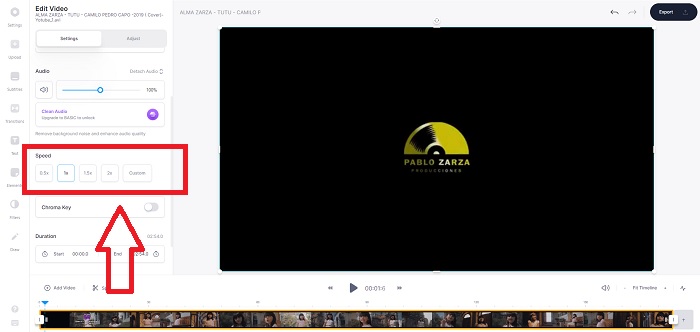
Paso 2: Se puede acceder a la interfaz de edición de la herramienta web haciendo clic en la Video Track en la esquina superior izquierda. Selecciona una velocidad de reproducción más rápida buscando la opción Speed y pulsando sobre ella. Si la velocidad que prefieres no aparece como opción, puedes elegir Custom para anular los ajustes predeterminados y reproducir tu clip de vídeo a una velocidad personalizada.
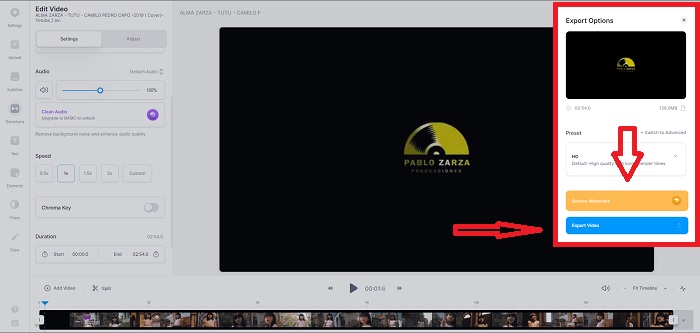
Paso 3: Después de editar la velocidad de vídeo que deseas, ve a la pestaña de exportación haciendo clic en Export. Mientras tanto, puedes elegir la calidad que prefieras para tu vídeo y eliminar la marca de agua comprando la versión premium de la herramienta web. Si todo está listo, transfiere el vídeo convertido a tu ordenador haciendo clic en Exporting Video.
Parte 2. 3 sencillos pasos para reducir la velocidad de un video [teléfono móvil]
¿Estás cansado de pensar en una solución que responda cómo ralentizar un video en iPhone o Android? Hay muchas aplicaciones y herramientas disponibles en Internet para usar para justificar que hay una respuesta al problema dado. Pero aquí están las mejores y más accesibles herramientas que recomendamos usar si eres un editor de teléfonos móviles y quieres hacer una obra maestra con el pequeño dispositivo que tienes.
Enfoque 1. Usar iMovie
Ahora puedes controlar la velocidad de reproducción o ralentizar tu vídeo en tu iPhone y iPad con esta aplicación gratuita y muy útil llamada iMovie. Es una de las apps de confianza disponibles en dispositivos con iOS que puede editar tu vídeo y, lo que es más importante, modificar la velocidad de reproducción. Para saber más sobre esta aplicación, aquí tienes los pasos que debes seguir para resolver el problema mencionado anteriormente:
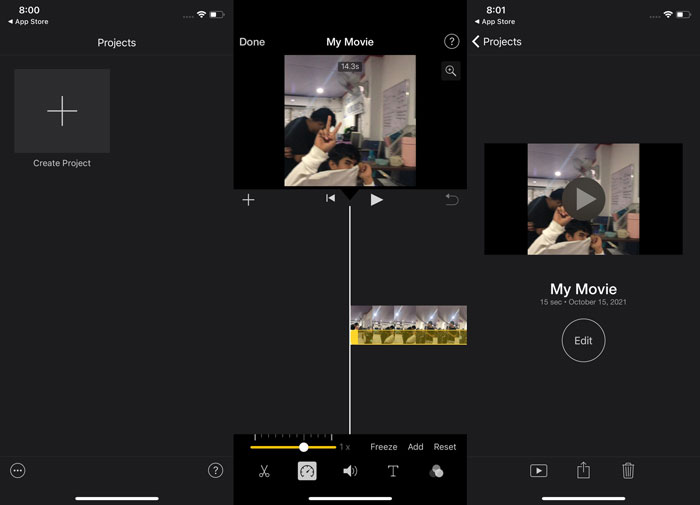
Paso 1: Empieza a editar tu película en iMovie en tu iPhone o iPad. Es posible que veas una breve descripción de la interfaz de usuario antes de continuar. En la página Projects, pulsa el símbolo más para añadir un nuevo clip de vídeo y, a continuación, selecciona Movie en el menú New Projects.
Paso 2: Antes de pasar a la sección Create Movie, selecciona un vídeo de tu carrete. La herramienta de velocidad se parece a un speedometer y se encuentra tocando el clip de vídeo en la línea de tiempo y esperando a que aparezcan las herramientas de edición. Rebobina o adelanta el metraje deslizando el control deslizante amarillo de la parte inferior. En comparación con la velocidad original, puedes acelerar hasta el doble o ralentizar hasta una octava parte.
Paso 3: Pulsa Done en la esquina superior izquierda del teléfono cuando hayas finalizado el proceso. Puedes guardar el vídeo terminado seleccionándolo en el menú Share y decidiendo dónde quieres guardarlo.
Enfoque 2. Usar VideoFX Music Video Maker
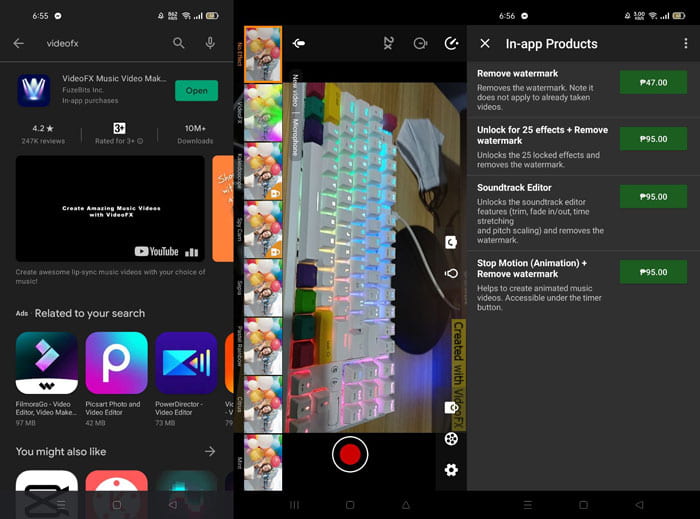
Crea tus vídeos musicales en cuestión de segundos con la herramienta VideoFX Music Video Maker. Todo lo que tienes que hacer es grabar un vídeo usando uno de los muchos efectos disponibles, elegir una canción y guardarlo en la memoria interna de tu teléfono Android. Como puedes aplicar filtros antes de grabar el vídeo, es muy fácil de usar. Para bien o para mal, la edición en posproducción no es una opción; solo es posible antes de grabar el vídeo. Antes de empezar a grabar, elige una canción que encaje bien con tu vídeo. Puedes acelerar o ralentizar la música, pero los cambios deben hacerse antes de la grabación. Aquí tienes los pasos a seguir:
Paso 1: Descarga e instala VideoFX en tu teléfono Android.
Paso 2: Dado que las funciones de esta app solo se aplican antes de que cambie el vídeo, empieza a grabar pulsando el botón Record.
Paso 3: Después, haz clic en 2x para ajustar la velocidad del vídeo que grabas. Antes de desbloquear todas las funciones de la app, primero debes comprar el acceso completo.
Parte 3. Preguntas frecuentes sobre cómo ralentizar un video
¿Cómo ralentizar un video en iPhone?
Los creadores de contenido y videógrafos disponen de una gran variedad de herramientas, y la cámara lenta es una de las mejores. Un vídeo con una mayor cantidad de fotogramas por segundo ofrecerá una experiencia de visualización más agradable. Aun así, los vídeos ralentizados no siempre son el mejor enfoque para todos los vídeos que haces. En algunos casos, la cámara lenta simplemente no es apropiada o incluso es innecesaria. Como resultado, tu única opción es devolver el vídeo a cámara lenta del iPhone a su velocidad normal.
¿Cómo se ralentiza un video en la galería?
Los teléfonos Android e iOS tienen íconos de configuración para tocar para activar el modo de cámara lenta o cámara lenta antes de grabar un video. Debes grabar tus escenas a cámara lenta en ráfagas de cinco a diez segundos para evitar tener demasiado metraje.
¿Pierdo la calidad si ralentizo un video?
No, no perderá la calidad de un video, pero verá que la resolución y la velocidad de fotogramas de su video disminuyen por cada segundo que reduzca la velocidad promedio. Cuando la velocidad de reproducción de su video aumenta o disminuye, solo se dividirá el cuadro. Aumentarlo tendrá el efecto deseado. Cinco veces más rápido, es decir, 60 fotogramas por 1/120 de segundo. En otras palabras, a menos que el video tenga una velocidad de fotogramas baja, no tendrá ningún efecto.
Conclusión
Por lo tanto, a través de este artículo has aprendido todos los métodos que tiene cada sistema operativo para afrontar el problema de las distintas apps para ralentizar un vídeo. También se incluyen pasos para algunos usuarios principiantes que no tienen ningún conocimiento previo de edición de vídeo. Como recomendación de una app que te ayuda con la velocidad de reproducción de tu vídeo y con el resto de herramientas de edición que usa un editor, descarga el software Video Converter Ultimate para disfrutar al máximo de la experiencia de ser un editor profesional.
-
 Los 4 mejores reproductores VOB para móviles Android para diferentes usos
 Cuando descarga videos de VOB y desea verlos en Android, puede elegir el más adecuado entre los 4 mejores reproductores de VOB de este artículo.
-
 Las 5 mejores alternativas de Windows Media Player para móviles Android
 Como no puede descargar Windows Media Player para Android, debe leer este artículo y conocer las 5 mejores alternativas a Windows Media Player.
-
 Los 5 mejores reproductores de video para iPhone que no debe perderse en 2021
 Para reproducir videos en todos los formatos y tener una mejor experiencia de visualización en su iPhone, debe leer este artículo y conocer los mejores 5 reproductores de video para iPhone 12/11 / X / 8/7/6.
