


 Video Converter Ultimate
 Grabador de pantalla
 Reparación de vídeo
Domine cómo acelerar videos en Windows Media Player de la mejor manera posible [basado en evidencia]
Todas las escenas de vídeo difieren en su velocidad de reproducción, pero también difieren en su propósito cuando cambian de velocidad. Cuando aumentas la velocidad de tu vídeo, simboliza irrelevancia y acontecimientos poco interesantes en la película o vídeo. En cambio, cuando ralentizas el vídeo, se enfatizan momentos o escenas que es muy importante mostrar. Estas modificaciones en la velocidad de reproducción son muy cruciales de llevar a cabo al editar o crear películas de vídeo. Lee este artículo para enseñar a los usuarios cómo acelerar vídeos, especialmente en algunos reproductores multimedia habituales en nuestro escritorio, como Windows Media Player.

Parte 1. Windows Media Player: Cómo acelerar los videos
Windows Media Player es un reproductor multimedia gratuito de Microsoft que viene con cada copia de Windows. También es conocido como reproductor WMP o WM por Microsoft. Además de permitirles ver fotos y escuchar música, también les permite ver videos. Con Windows Media Player (WMP) es posible copiar CD de audio y organizar su biblioteca de música. También tiene una pestaña de edición que ayuda a ajustar videos, imágenes y música. Si desea acelerar un video con Windows Media Player, estos son los pasos a seguir:
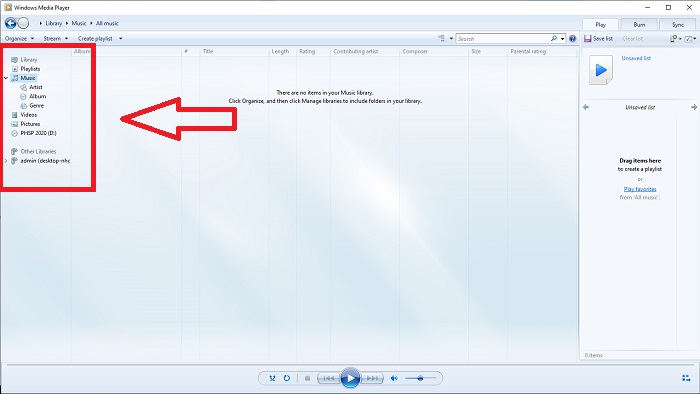
Paso 1: Abre Windows Media Player; en la esquina izquierda, elige la pestaña Vídeo.
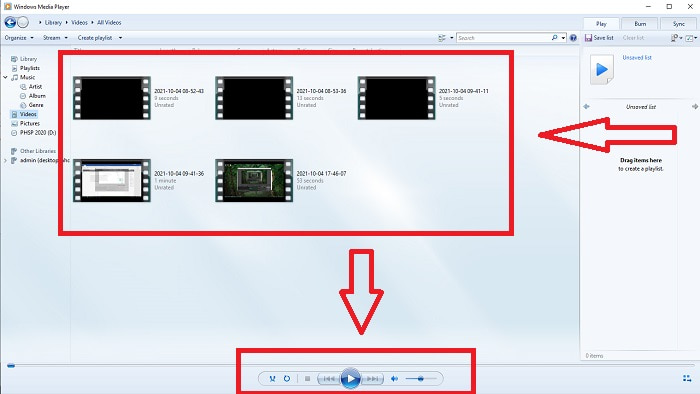
Paso 2: Reproduce el vídeo con un doble clic izquierdo o con clic derecho, o puedes pulsar el botón Reproducir en la esquina inferior central de la interfaz.
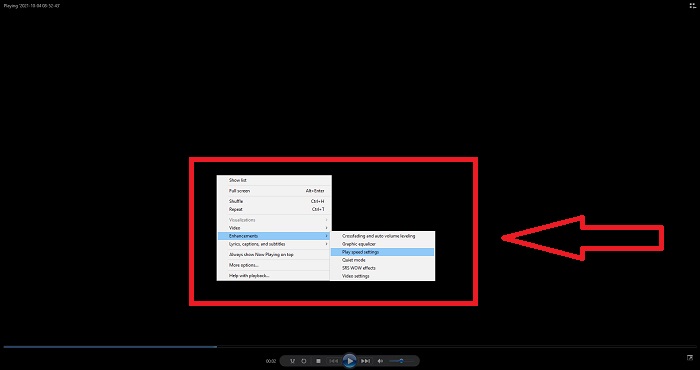
Paso 3: Después, haz clic derecho en la pantalla para acceder a la pestaña de edición. Continúa haciendo clic en Mejoras y Configuración de velocidad de reproducción. Después de eso, ya puedes ajustar la velocidad de reproducción de tu videoclip arrastrando el Deslizador.
Parte 2. ¿Qué sucede si la velocidad de reproducción del Reproductor de Windows Media no funciona?
Al reproducir archivos de video AVI, WAV o MOV, es posible que se ejecute en el reproductor multimedia de Windows y encuentre un problema al reproducir el error del archivo. Los videos de calidad mediocre se ven con frecuencia en formato AVI. Otros reproductores multimedia no tienen problemas para reproducir AVI. WMP, por otro lado, puede tener una falla al reproducir un archivo AVI. Windows Media Player no admite archivos AVI porque están codificados mediante códecs. Es posible que haya recibido la siguiente notificación: Windows Media Player no puede reproducir el archivo. Es posible que el reproductor no admita el tipo de archivo o que no admita el códec que se utilizó para comprimir el archivo. Hay dos posibles explicaciones para este fenómeno.
1. Debido a que no coincide con el archivo requerido, el reproductor multimedia de Windows (WMP) no puede admitir el códec del archivo.
2. El reproductor multimedia de Windows no es compatible con los códecs de compresión.
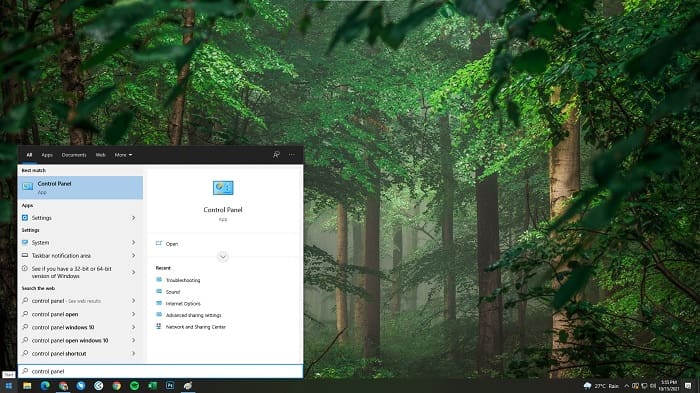
Paso 1: Abre el Panel de control en tu ordenador y localiza Ver por, luego haz clic en Iconos grandes para acceder a todas las funciones completas del Panel de control.
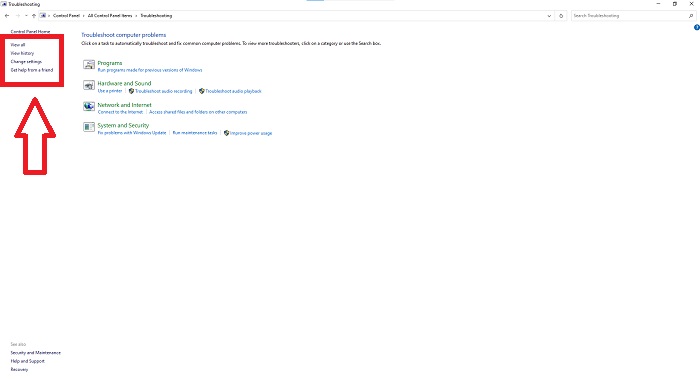
Paso 2: Continúa haciendo clic en Solución de problemas. En la esquina izquierda, haz clic en Ver todo y localiza Biblioteca de Windows Media Player.
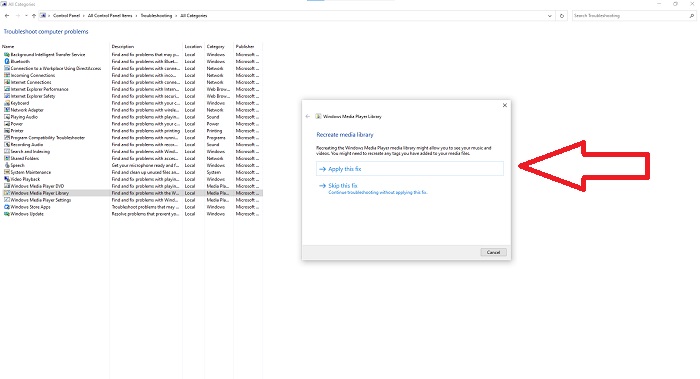
Paso 3: Por último, soluciona los problemas de tu Windows Media Player haciendo clic en Siguiente después de que aparezca una pestaña. A continuación, continúa seleccionando Aplicar esta corrección. Cuando la solución de problemas haya finalizado, elige si quieres cerrarla o enviar comentarios sobre ella.
Parte 3. Otra forma viable de acelerar los videos
Suponga que tiene problemas para arreglar la velocidad de reproducción de sus videos debido a los pasos complicados. Además, si la solución de problemas no funciona y aún no puede reproducir el video. Hay herramientas web disponibles en Internet, y algunas de ellas deben comprarse antes de tener acceso a la herramienta completa. Video Converter Ultimate es la mejor alternativa para acelerar videos y es de uso gratuito. Este software puede editar su video al siguiente nivel, y estos son los pasos proporcionados:
Paso 1: Selecciona Descarga gratuita del software directamente en tu ordenador. Después de eso, personaliza e instala el programa.
Descarga gratuitaPara Windows 7 o posteriorDescarga segura
Descarga gratuitaPara macOS 10.7 o posteriorDescarga segura
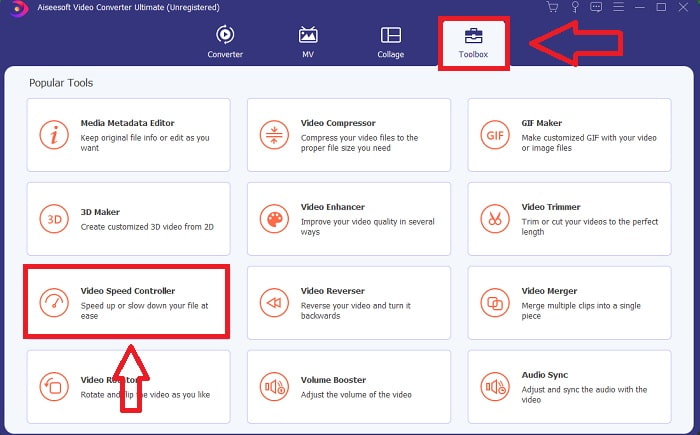
Paso 2: Una vez que el software se haya instalado, ejecútalo seleccionando la opción Caja de herramientas en la barra de menús y, a continuación, selecciona Controlador de velocidad de vídeo en la lista que aparece.
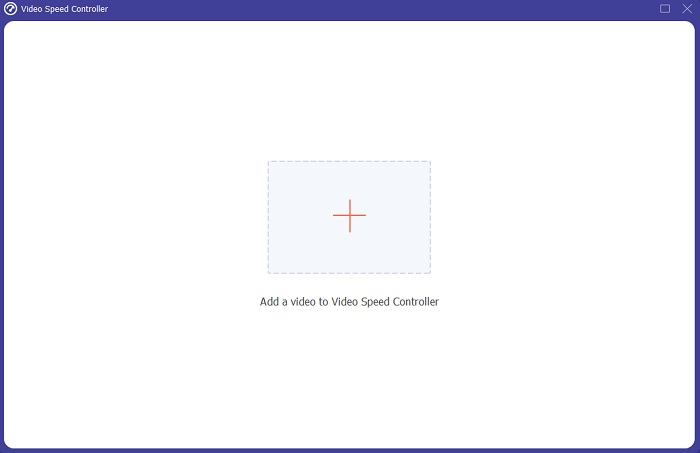
Paso 3: Haz clic en el botón + según tu preferencia para añadir un archivo y luego continúa editando el vídeo.
Paso 4: Selecciona cuántas veces aumentará o disminuirá la velocidad de fotogramas del vídeo para modificar la velocidad de reproducción.
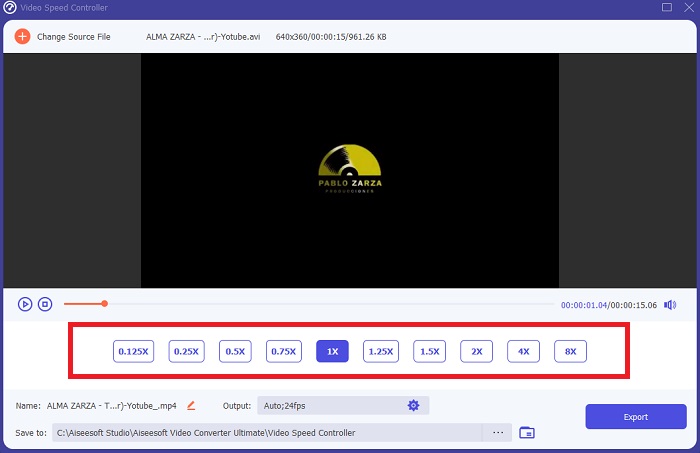
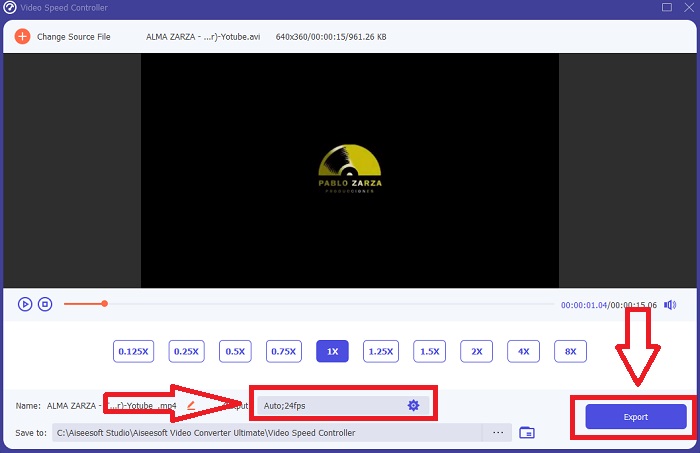
Paso 5: Cambiar el formato, la resolución, la calidad, etc., te permitirá elegir el resultado deseado después de haber terminado de ajustar la velocidad de reproducción de tu vídeo. Haz clic en Exportar y luego selecciona una ubicación para guardar tu trabajo cuando hayas terminado.
Parte 4. Preguntas frecuentes sobre cómo acelerar los videos en Windows Media Player
¿Cómo reparar videos MP4 que no se pueden reproducir en Windows Media Player?
Como se ha dicho anteriormente en el artículo, Windows Media Player no admite una amplia gama de formatos de vídeo. Como solo es compatible con la mayoría de los formatos adecuados para Windows, es difícil solucionar errores utilizando este reproductor multimedia. Por eso necesitas aprender a convertir o saber cómo reproducir formatos de vídeo MP4. El enlace aquí es un artículo útil para ayudarte a resolver este problema.
¿Cómo reproducir DVD en Windows Media Player?
Algunas películas están en DVD y, para reproducirlas, necesitas encontrar el reproductor multimedia adecuado para reproducir DVD. Windows Media Player es uno de los reproductores multimedia más comunes que reproducen DVD. Además, este reproductor multimedia también incluye algunos ajustes que ayudan a editar mientras se reproduce un DVD. Aquí tienes más detalles sobre cómo reproducir DVD en Windows Media Player.
¿El tamaño del archivo del video se reduce si aumenta la velocidad de reproducción?
Solo el cuadro se dividirá cada vez que aumente o disminuya la velocidad de reproducción de su video. Si lo aumenta .5 veces más rápido, el cuadro será de 60 cuadros por 1/120 segundos. En resumen, no puede afectar el video a menos que el video ya tenga una velocidad de cuadro baja.
Conclusión
En conclusión, Windows Media Player puede ser un software con fallos que solo admite unos pocos formatos. Aun así, hay algunas funciones que este software puede ofrecer que permiten solucionar problemas relacionados con formatos de vídeo. Sin embargo, si quieres aumentar la velocidad de reproducción de tu videoclip, descarga Video Converter Ultimate, no solo para acelerar tu vídeo. Este software puede llevar tu vídeo a otro nivel. Con todas las funciones disponibles, será el mejor y más accesible software que recomendamos utilizar.
-
 WebM a GIF: 3 convertidores de WebM a GIF gratuitos para crear sus propios GIF
 ¿WebM es un GIF? ¿Cómo convertir un video en un GIF? ¿Existe algún conversor gratuito de WebM a GIF? Esta publicación comparte 3 formas gratuitas de ayudarlo a convertir WebM a GIF.
-
 Cómo convertir videos MKV a GIF animados sin Photoshop / FFmpeg
 Después de descargar y ver películas MKV en su computadora, es posible que desee compartir algunos momentos maravillosos con amigos o en Internet como GIF. En este artículo, puede aprender sobre las 2 formas más fáciles de convertir MKV a GIF.
-
 Crea tu mejor GIF animado a través de Online GIF Maker [2021]
 Una revisión informativa sobre cómo hacer un GIF usando estos simples creadores de GIF en línea que ya encuentra o no en la web.
