


 Video Converter Ultimate
 Grabador de pantalla
 Reparación de vídeo
 Descarga segura
Revisión del compresor Veed.io: cómo funciona esta herramienta
En el siglo XXI, la gente se ha sentido fascinada por los medios digitales. La mayoría de nuestros servicios de streaming actuales permiten ver y transmitir vídeos sin límites. En nuestros ordenadores y teléfonos inteligentes, ver vídeos también se ha convertido en una parte integral de nuestras vidas. Al comprar un dispositivo, damos prioridad a la pantalla y a la capacidad del aparato para reproducir vídeo. A medida que hemos innovado en la creación de vídeos con una mejor calidad de salida, los archivos que ocupan en nuestros dispositivos se han hecho más grandes. Por ello, se han desarrollado distintas tecnologías de compresión de vídeo. Uno de los compresores de vídeo en línea que hoy en día es popular es el compresor Veed.io. Este artículo analiza en detalle las ventajas, desventajas y el uso de esta aplicación en línea.

Parte 1. ¿Qué es Veed Video Compressor?
Veed.io es una herramienta de compresión de video que permite a los usuarios comprimir archivos de video enormes sin comprometer la calidad. Esta herramienta basada en web es fácil de usar y ofrece una interfaz sencilla de arrastrar y soltar. Tampoco tiene publicidad para que los usuarios puedan comprimir varios vídeos de forma rápida y segura. Una de las características críticas de Veed.io es su capacidad para comprimir vídeos sin comprometer la calidad. Puede mantener la resolución del archivo de video mientras lo comprime con su algoritmo avanzado. Además, esta herramienta en línea es compatible y soporta diferentes contenedores de video, incluidos MP4, AVI, MOV, MKV, WMV y más. Veed.io comprime videos y ofrece funciones de edición como recortar, recortar, agregar texto y más. Tiene un panel de edición de línea de tiempo donde los usuarios pueden editar y mejorar su video de salida. No sólo puedes reducir el tamaño del archivo del vídeo, sino que también puedes embellecer y modificar la apariencia de salida del vídeo.
Parte 2. Pros y contras de Veed Video Compressor
Veed.io es una gran herramienta que viene con muchas funciones. Sin embargo, nada es perfecto en términos de uso digital. Siempre hay espacio para que esto mejore sus procesos. Por eso hemos realizado un profundo repaso de sus ventajas y de un número considerable de inconvenientes.
Pros
- Puede proporcionar a los usuarios muchas funciones de edición para mejorar la salida de vídeo.
- También puede cambiar el tamaño de la relación de aspecto del video para que sea adecuada para plataformas de redes sociales.
- Puedes cambiar el color de fondo del archivo de vídeo que estás intentando comprimir.
- Tiene un eliminador de ruido de fondo.
- Esta herramienta en línea viene con una opción para mejorar FPS.
- Viene con la opción Exportación más rápida.
Contras
- Aunque la aplicación es un servicio freemium, ciertas funciones no están disponibles como prueba gratuita.
- Para uso gratuito, tiene una marca de agua al exportar el video.
- La herramienta reduce y comprime automáticamente el archivo. Esto podría ser un inconveniente para los usuarios que quieran tener opciones o selecciones para reducir sus archivos manualmente.
- Depende principalmente de la velocidad de Internet, por lo que la duración de la compresión con esta herramienta puede variar.
Parte 3. Guía de Veed Video Compressor
Se puede acceder a Veed.io desde cualquier dispositivo con conexión a Internet y es compatible con los principales navegadores. Es una herramienta intuitiva para editar clips pequeños y comprimirlos en archivos de vídeo más pequeños. Puede consultar las soluciones a continuación si necesita conocer el proceso detallado de la herramienta.
Paso 1: Accede a Veed.io Online
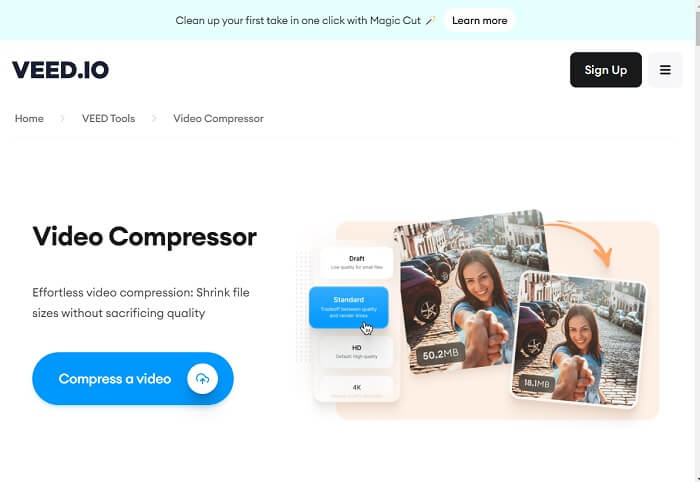
Accede al compresor de vídeo Veed en tu navegador web en su página principal del producto. También puedes hacer clic en el enlace incluido en este tutorial para ir rápidamente a su página web. Después, puedes registrarte para crear una cuenta o hacer clic en la opción Compress a Video para acceder directamente a sus funciones de edición.
Paso 2: Importa y edita un vídeo
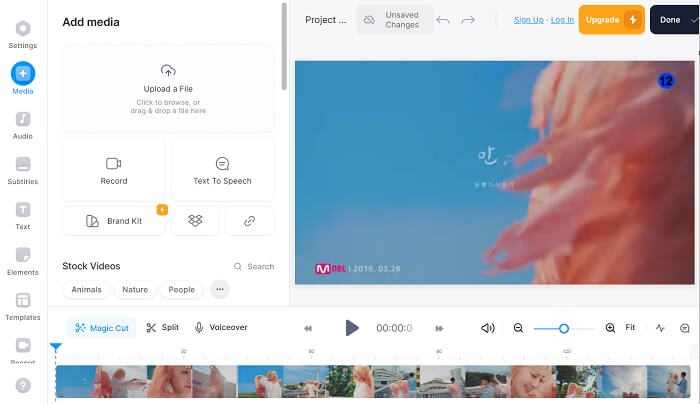
A continuación, ve a la pestaña Media haciendo clic en su opción en la parte izquierda de la herramienta en línea. Podrás ver la opción para importar tu vídeo. Puedes arrastrar y soltar el archivo de vídeo o hacer clic en Upload a File para añadir tu vídeo a la interfaz de la herramienta. Luego, arrástralo a la línea de tiempo del panel de edición y ajusta el vídeo usando sus funciones de edición.
Paso 3: Exporta y reduce el archivo de vídeo
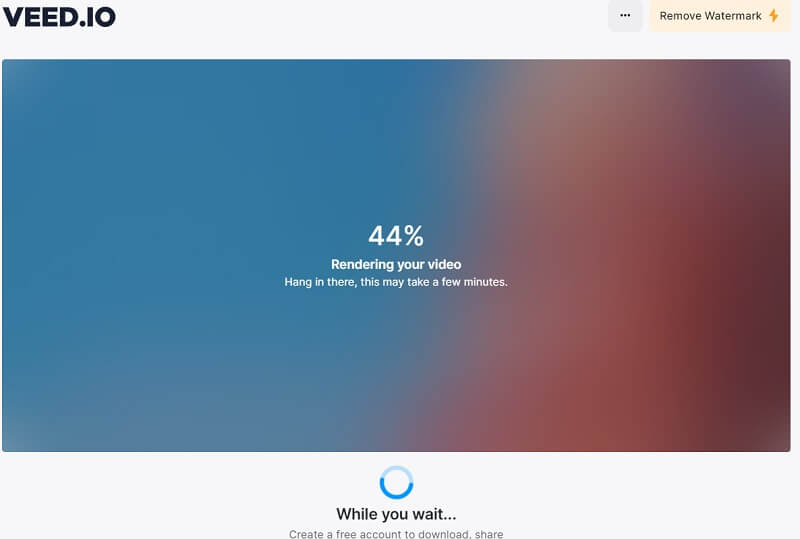
Por último, cuando el archivo de vídeo esté completamente editado según el resultado que prefieras, prepáralo para exportarlo. Haz clic en la opción Done en la parte superior derecha de la herramienta en línea. Selecciona Export Video para comprimir el archivo automáticamente con el algoritmo de la herramienta. Espera a que termine el proceso y el vídeo podrá guardarse directamente en una carpeta de tu ordenador o exportarse a plataformas de redes sociales.
Parte 4. Alternativa a Veed Video Compressor
Suponga que siente que Veed.io es diferente de su ambiente y debe usar otros métodos para comprimir su video. Esta parte analizará diferentes soluciones para comprimir archivos de video sin necesidad del compresor de video Veed.io.
1. Video Converter Ultimate
Video Converter Ultimate es una aplicación de conversión de vídeo revolucionaria para tu ordenador que puede reducir y modificar el tamaño de tu archivo de vídeo sin comprometer la calidad. Lo que hace que esta herramienta sea una mejor opción que Veed.io es su capacidad para comprimir archivos de vídeo de alta calidad. Los usuarios o clientes pueden reducir el tamaño de archivos de vídeos que contienen 8K, 4K, 2K, 1080p y más. Todos sabemos que este tipo de calidad de vídeo consume mucho espacio. Con esta aplicación, tu dispositivo “respirará”, ya que podrá almacenar muchos vídeos con estas calidades ocupando poco espacio. Además, esta app admite más de 1000 formatos para editar, mejorar y comprimir. Estos contenedores de archivos incluyen MP4, AVI, WMV, MKV, MOV, formatos compatibles con VLC y otros. Puedes consultar la guía detallada a continuación sobre cómo comprimir vídeo usando Video Converter Ultimate.
Paso 1: Descarga Free Converter Ultimate en tu PC
Para comprimir archivos de vídeo con Free Converter Ultimate, debes descargar su archivo de instalación y guardarlo en tu PC. Tenemos una mejor solución si necesitas la herramienta rápidamente. Haz clic en el icono Free Download que se muestra abajo para obtener el instalador de la herramienta.
Descarga gratuitaPara Windows 7 o posteriorDescarga segura
Descarga gratuitaPara macOS 10.7 o posteriorDescarga segura
Paso 2: Importa y reduce el tamaño de tu archivo de vídeo
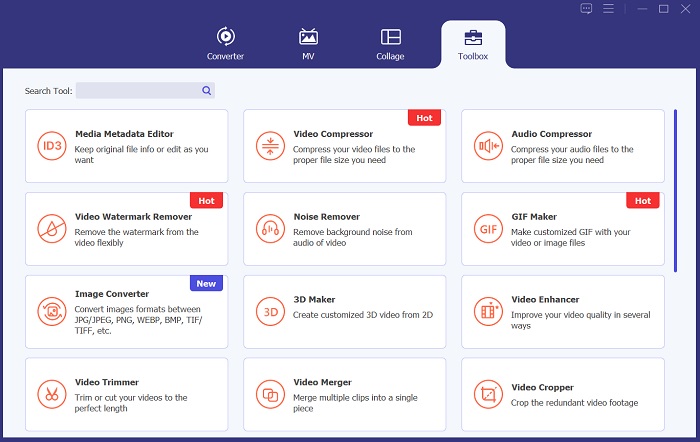
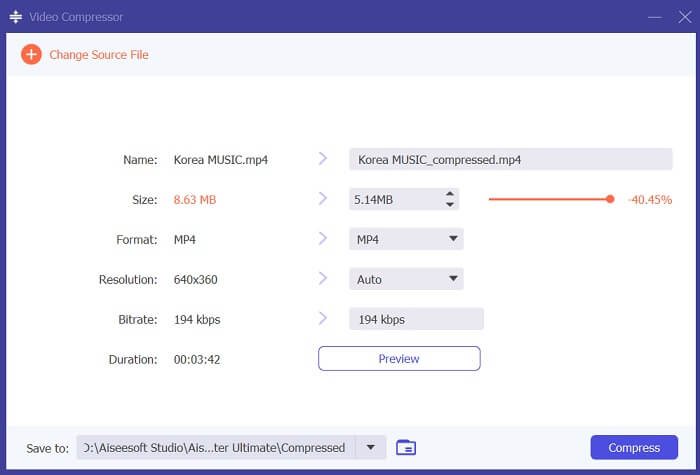
Después, para comprimir un vídeo, ve a la opción Toolbox y localiza Video Compressor. Haz clic en el icono + en la interfaz de tu aplicación y busca el vídeo cuyo tamaño necesitas reducir. Haz clic en el botón OK para añadir el vídeo al sistema de la herramienta.
Paso 3: Exporta el vídeo
Por último, cuando hayas ajustado el tamaño del archivo de vídeo y lo tengas reducido, haz clic en la opción Compress para analizar el vídeo e iniciar el proceso de compresión. El archivo de salida se guardará automáticamente en una carpeta de tu PC dentro de la carpeta de salida de Video Converter Ultimate.
2. Compresor de vídeo FVC en línea
Otra opción que los usuarios pueden utilizar para comprimir vídeo es FVC Video Compressor Online. Esta herramienta basada en la web es una opción dedicada a reducir el tamaño de los archivos de vídeo. Admite varios contenedores y formatos de vídeo, incluidos MP4, MOV, AVI, FLV, TS, WebM, M4V y otros. También es compatible con una amplia variedad de calidades de vídeo. Los usuarios pueden comprimir vídeos en 4K, vídeos HD, SD, 3D y más. Con su algoritmo, la herramienta garantiza que el proceso de compresión sea 30 veces más rápido que el de un compresor de vídeo en línea normal. Esta característica convierte a esta herramienta en una mejor alternativa a Veed.io. Además, FVC Video Compressor Online cuenta con una función de compresión por lotes que puede reducir el tamaño de archivos en masa. Esta función es algo de lo que Veed.io aún carece. Para aprender a reducir archivos de vídeo con esta plataforma, sigue los tutoriales detallados a continuación.
Paso 1: Accede a FVC Video Compressor Online
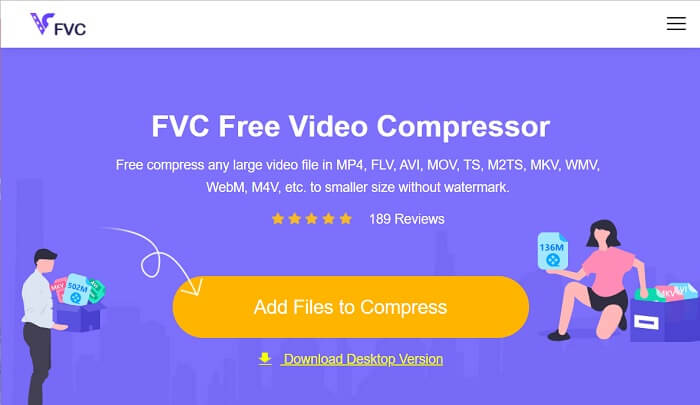
Comience a procesar sus archivos de video accediendo a FVC Video Compressor Online en sus navegadores web. Esta herramienta es compatible con Chrome, Firefox, Safari, Microsoft Edge y más. Vaya a la página principal de su producto y localice su interfaz.
Paso 2: Comprime archivos de vídeo
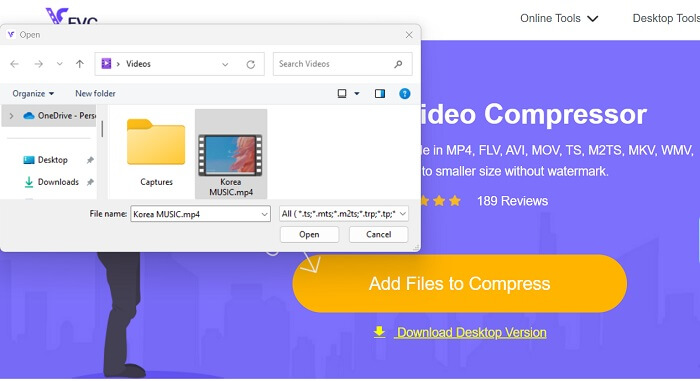
Haz clic en el icono Add Files to Compress para acceder a las carpetas de tu PC o dispositivo. Navega por tu dispositivo y localiza el vídeo que necesitas comprimir. Haz clic en Open para importar el archivo. Los usuarios que acceden por primera vez quizá tengan que descargar un instalador o lanzador en sus navegadores web para poder utilizar esta plataforma.
Paso 3: Exporta el vídeo
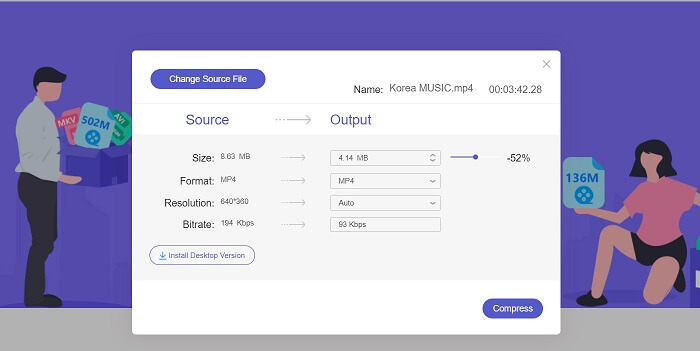
Por último, comprime el archivo de vídeo ajustando distintos parámetros de vídeo. Usa el indicador para seleccionar el porcentaje de tamaño que se reducirá del vídeo original. Puedes hacer clic en la opción Compress para iniciar el proceso y exportar el vídeo reducido.
Lecturas recomendadas:
Los 10 mejores compresores de GIF para usuarios de escritorio y en línea
Cómo comprimir vídeo para Vimeo antes de subirlo (gratis y en línea)
Parte 5. Preguntas frecuentes sobre Veed Video Compressor
¿El compresor de vídeo Veed es gratuito?
Veed Video Compressor es una herramienta de software que permite o habilita a los usuarios reducir el tamaño de sus archivos de video sin perder calidad. Utiliza algoritmos de compresión avanzados para comprimir videos manteniendo su resolución y velocidad de fotogramas originales. Está disponible en cualquier navegador web, incluidos Chrome, Safari y Firefox. Es de uso gratuito para usuarios que necesitan reducir el tamaño de su archivo de video.
¿Es seguro utilizar Veed io?
Sí, Veed Video Compressor es seguro de usar. Utiliza cifrado SSL, como HTTP, para garantizar la seguridad, protección y privacidad de los datos de sus clientes. Además, no requiere que los usuarios descarguen ni obtengan ningún software de archivo en sus dispositivos, lo que lo convierte en una opción segura y conveniente para comprimir archivos de video.
¿VEED free tiene marca de agua?
Sí, tiene una marca de agua al exportar el archivo de video. Veed Video Compressor permite a los usuarios personalizar la configuración de compresión según sus necesidades. Los usuarios pueden ajustar parámetros como la tasa de bits, la resolución y la velocidad de cuadros para lograr el nivel de compresión deseado. Estas funciones avanzadas están disponibles. Sin embargo, el vídeo de salida tendrá una marca de agua.
Conclusión
Veed Video Compressor es una herramienta ideal para creadores de contenido que quieren subir vídeos de alta calidad sin largos tiempos de carga. Es una excelente plataforma para cualquiera que busque comprimir archivos de vídeo grandes de forma rápida y eficiente. Su interfaz fácil de usar y sus avanzados algoritmos de compresión la convierten en una opción destacada en el saturado mercado de los compresores de vídeo. No obstante, esta herramienta aún necesita mejoras, como hemos comentado en sus inconvenientes arriba. Cuando Veed compress te decepcione, puedes recurrir a sus alternativas y herramientas equivalentes recomendadas en este artículo. Aun así, Veed.io es una gran plataforma, accesible, fácil de usar y eficaz para reducir el tamaño de los archivos.
-
 Cómo comprimir video GoPro de 4K a 1080p (gratis y en línea)
 Cuando usa la cámara GoPro para grabar un video, normalmente el tamaño del archivo del video grabado es extremadamente grande, lo que será difícil de compartir con otros. Entonces, esta publicación le mostrará cómo comprimir videos GoPro.
-
 Cómo comprimir gratis videos para Facebook de GB a MB
 Si tiene prohibido subir un video grande en Facebook, no se preocupe. Simplemente comprima el tamaño de video grande de GB a MB con el compresor de video gratuito.
-
 Cómo comprimir videos para la Web de manera eficiente sin perder calidad
 Cuando el video de su sitio web recibe muchas quejas de los clientes de que siempre se almacena mucho en búfer, puede intentar comprimir el video para la web de 2 formas eficientes, lo que lo ayudará a reducir el tiempo de búfer del sitio web para retener a los clientes.
