


 Video Converter Ultimate
 Näytön tallennin
 Videon korjaus
 Suojattu lataus
Kuinka muuntaa MKV MP4: ksi Windows / Macissa
Kun toistat elokuvaa, huomaat, että sitä ei voi avata, koska jokin ohjelma ei tue MKV-muotoa. Sitten saatat miettiä, miksi näin tapahtuu ja miten se voidaan ratkaista.
Syy, miksi et voi toistaa MKV: tä, voi johtua tiettyjen koodekkien puuttumisesta laitteellasi. Tästä johtuen, vaikka näet MKV: n nykyään kaikkialla, jotkut laitteet tai ohjelmat eivät vieläkään tue MKV-muotoa. Joten sinun on muunnettava se yleisempään muotoon, kuten MP4, paljon käyttökelpoisempaan muotoon, joka voidaan ladata oikein melkein jokaiseen laitteeseen.
Tänään esittelemme sinulle 2 ilmaista muunninta, jotka auttavat sinua muuntamaan MKV-tiedostot MP4-muotoon.

Osa 1. Kuinka muuttaa MKV MP4 Online & Free -palveluksi
Jos et kestä paljon ohjelmistojen asentamista tietokoneellesi aivan kuten minä, suosittelen kokeilemaan verkkopohjaista online-muunninta.
Markkinoilla on runsaasti ilmaisia online-videomuuntimia, mutta rehellisesti sanottuna useimmilla näistä ns. Ilmaisista muuntimista on lukemattomia rajoja. Sinun on maksettava heille saadaksesi paremman suunnitelman. Vain tällä tavalla voit muuntaa suuret tiedostot nopeasti erissä ilman vesileimaa.
Joten, onko olemassa todella ilmainen, nopea ja tehokas videomuunnin? Vastaus on kyllä.
FVC Free Online Video Converter on tehokas MKV–MP4-videomuunnin, jonka avulla voit muuntaa videoita ilman rajoituksia. Se tukee lähes kaikkien yleisten videotiedostojen muuntamista suosittuihin formaatteihin, kuten MP4, MOV, WMV, AVI ja FLV, vain muutamassa sekunnissa. Se tukee myös erämuunnosta, mikä tarkoittaa, että voit muuntaa useita videoita kerralla ja säilyttää samalla niiden alkuperäisen laadun.
Koska FVC Free Online Video Converter on verkkopohjainen työkalu, voit käyttää sitä helposti sekä Windowsilla että Macilla, kunhan sinulla on vakaa internet-yhteys ja selain. Käytön osalta opit hallitsemaan tämän MKV–MP4-muuntimen vain muutamassa vaiheessa.
Vaihe 1. Siirry selaimessasi FVC Free Online Video Converter -sivustolle. Napsauta sitten Add Files to Convert -painiketta. Jos et ole aiemmin ladannut FVC Launcher -ohjelmaa tietokoneellesi, sinua kehotetaan lataamaan käynnistin ensin. Seuraa vain ohjetta ja asenna käynnistin.
Lataa työpöytäversio muuntaaksesi tiedostoja erissä.

Vaihe 2. Asennuksen jälkeen Open File -ikkuna avautuu automaattisesti. Valitse nyt MKV-tiedosto, jonka haluat muuntaa. Jos haluat samalla kertaa muuntaa useita MKV-videoita, valitse kaikki tarvitsemasi MKV-tiedostot.
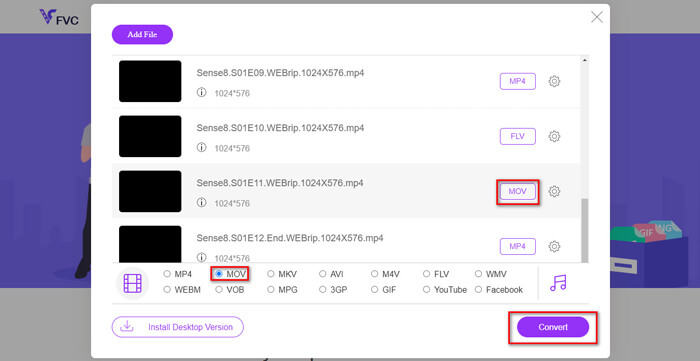
Vaihe 3. Napsauta sitten Open, ja näet luettelon valituista tiedostoista. Valitse luettelon alta tulostiedostomuodoksi MP4.
Voit myös valita eri tiedostoille eri formaatit napsauttamalla muotoa Setting-kuvakkeen vierestä ja vaihtamalla tulostusmuodon alla. Mutta voit myös ohittaa tämän ja napsauttaa suoraan Convert-painiketta. Tämän jälkeen valitse kohdekansio muunnetuille videoille.
Osa 2. Kuinka muuntaa MKV MP4: ksi VLC Media Playerilla
Saatat tuntea VLC:n multimediatoistimena, joka on saatavilla useimmille työpöytäkäyttöjärjestelmille. Todellisuudessa se on kuitenkin myös piilotettu videomuunnin. Sen avulla voit muuntaa MKV-tiedostot MP4-muotoon. Jos sinulla on jo VLC tietokoneellasi, voit kokeilla sitä.
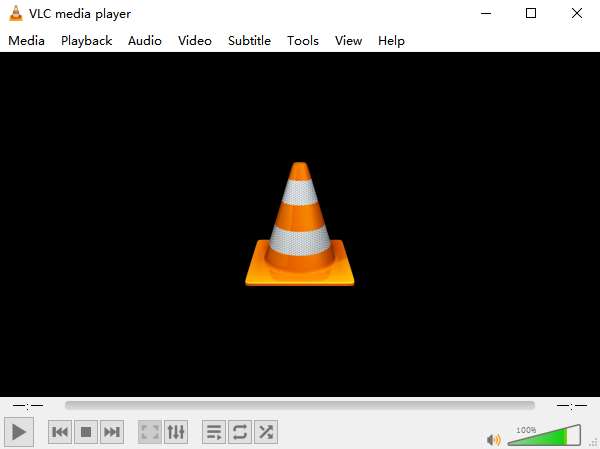
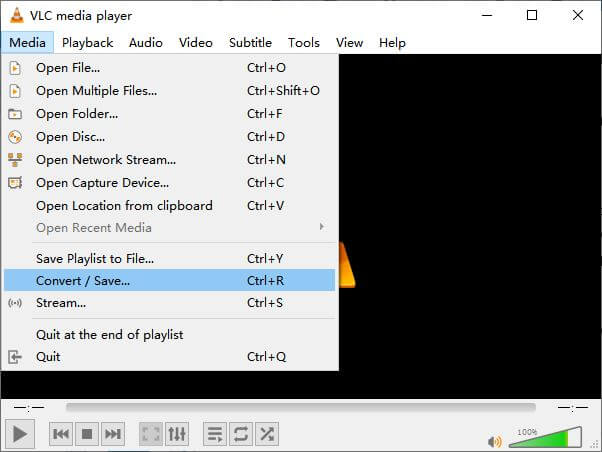
Vaihe 1. Käynnistä ensin VLC Media Player tietokoneellasi. Napsauta Media-valikkoa. Etsi avattavasta valikosta Convert / Save.
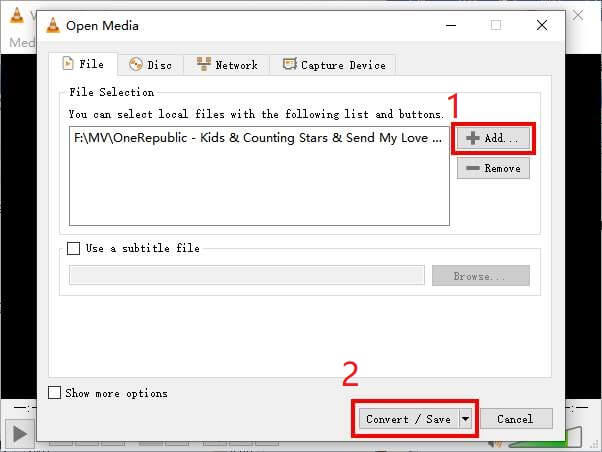
Vaihe 2. Napsauta + Add ja etsi MKV-video, jonka haluat muuntaa. Napsauta sitten alla olevaa Convert / Save -painiketta.
Vaihe 3. Valitse MP4-muoto Convert-ikkunassa.
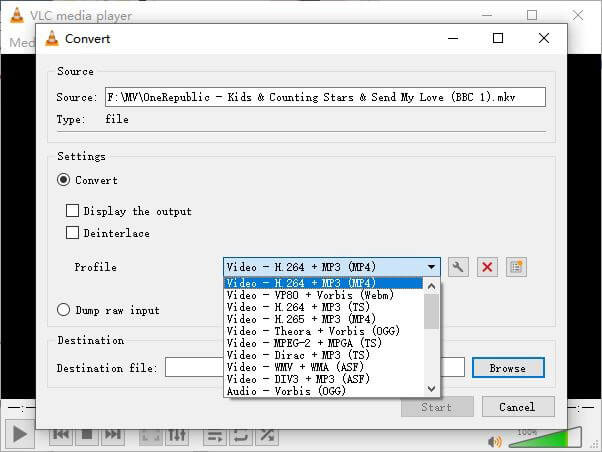
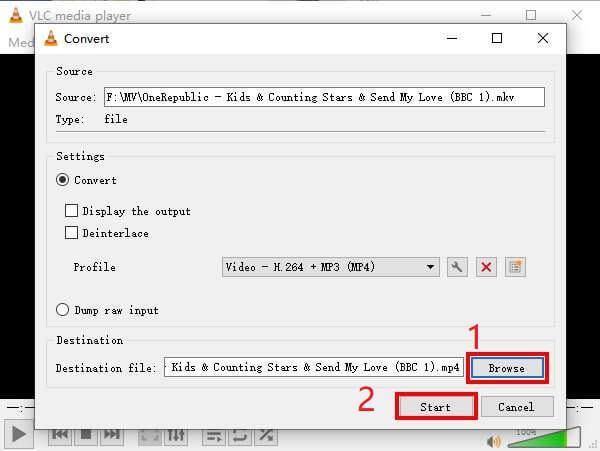
Vaihe 4. Napsauta Browse-painiketta vahvistaaksesi tallennuskohteen. Lopuksi Start muunnos ja odota, että saat MP4-videosi.
MKV vs. MP4
Vuonna 2002 julkaistu Matroska-multimediakonttiformaatti on avoimen lähdekoodin muoto, joka voi sisältää useita video-, ääni-, kuva- ja tekstitysraitoja. Joten voit käyttää sitä lyhyiden videoleikkeiden, TV-ohjelmien ja elokuvien tallentamiseen helposti. Se on melko suosittu anime-fanien tilaajissa.
Moving Picture Experts Groupin (MPEG) vuonna 2001 julkaisema MP4-muoto voi auttaa sinua tallentamaan video-, ääni-, tekstitys- ja kuvatiedot eri raidoille. Se on lyhenne sanoista MPEG-4 Part 14. Lisäksi se on yksi suosituimmista videoiden suoratoistoon ja jakamiseen käytetyistä muodoista.
Osa 3. Usein kysytyt kysymykset MKV: n muuntamisesta MP4: ksi
1. Voiko ffmpeg muuntaa MKV: n MP4: ksi?
Kyllä, voit muuntaa MKV:n MP4:ksi ffmpegillä. Mutta sen toimintaperiaatteen ymmärtäminen voi olla hieman monimutkaista, vaikka tehokkain toimenpide onkin vain merkkijono: ffmpeg -i my_movie.mkv -vcodec copy -acodec copy my_movie.mp4
2. Voiko HandBrake viedä MP4: n MKV: stä?
Jos haluat vain MP4-tiedoston muunnoksen jälkeen, HandBrake voi kyllä auttaa siinä. Se ei kuitenkaan voi muuntaa tiedostojasi muihin formaatteihin, kuten WMV, MOV tai FLV. HandBrake tukee useimpia yleisiä multimediatiedostoja, mutta tämä koskee sen tukemia tulolähteitä. Tulostusmuotojen osalta vaihtoehtosi ovat MP4(.M4V) ja MKV.
3. Menettääkö MKV: n muuntaminen MP4: ksi laadun?
Suurin osa videomuuntimista menettää laatua, kun muunnat MKV-tiedostot MP4: ksi, ehkä 1% tai 5%. Vaikka koodataan MKV-tiedostoja uudelleen MP4: ksi, on vaikea välttää tietojen häviämistä kokonaan. Mutta voit lisätä kuvien tarkkuutta, jotta vietyjen MP4-videoiden laatu olisi lähellä alkuperäistä videota.
Johtopäätös
Voit valita lukemattomia videomuuntimia. On vaikeaa löytää ilmainen ja tehokas muunnin yksin. Tämä viesti on esittänyt sinulle 2 tapaa muuntaa MKV MP4: ksi. Yksi on VLC Media Player ja toinen on FVC Free Online Video Converter.
Jos haluat vain MP4-tiedoston, VLC riittää. VLC tukee kuitenkin vain rajallista määrää formaatteja. Joten, jos haluat ammattimaisemman muuntimen, FVC Free Online Video Converter näyttää olevan parempi valinta.
Toivottavasti löydät tämän viestin hyödyllisenä. Ja älä epäröi kertoa meille mielipiteesi.
-
 Kuinka muuntaa MP4-videotiedostosi animoiduiksi GIF-kuviksi ilman laadun heikkenemistä
 Etsitkö parasta tapaa muuntaa MP4-videosi animoituiksi GIF-tiedostoiksi? Tässä on yksityiskohtainen opas sen tekemiseen Photoshopissa, Windows Movie Makerissa, online-videomuunnoksessa ja muissa.
-
 Kuinka muuntaa MOV MP4: ksi menettämättä laatua
 Haluatko muuntaa MOV (Apple QuickTime Movie) -tiedostot MP4iksi? Tämä viesti jakaa 4 ilmaista tapaa muuntaa MOV-videotiedostosi MP4-muotoon Windows 10/8/7 / XP: ssä ja Mac OS X: ssä.
-
 4 helppoa tapaa muuntaa WMV MP4: ksi Macissa ja Windowsissa
 Kuinka muuntaa WMV-tiedostot MP4iksi? Tässä on 4 helppoa tapaa muuntaa WMV MP4: ksi Macissa ja Windowsissa yksinkertaisilla vaiheilla.

