


 Video Converter Ultimate
 Näytön tallennin
 Videon korjaus
Ohjeita, joita sinun on noudatettava muuntaessasi MXF: n korkealaatuiseksi MOV:ksi
Material Exchange Format is what MXF stands for. An open file format that allows for the interchange of audiovisual material and its accompanying data and metadata is called OMF. The initial design of MXF made a designed sign by a group of leading Broadcast and Digital Production companies. MXF's goal is to standardize file formats, facilitate compatibility across diverse hardware and software suppliers, and eventually eliminate the need for tape. If you're asking for a suitable converter to use in converting the MXF to MOV, here are the choices for you to select what's best for you.
Osa 1. Yleiskatsaus: MXF & MOV
MXF is an excellent choice for both acquisition and delivery. Using inter-frame compression isn't optimal for usage in the making of films. It takes longer to decompress inter-frame compression since many methods require sub-pixel information for frame-by-frame precision in AE. When using inter-frame compression, users must recreate some frames during decompression, and this is where After Effects runs into trouble.
However, The MOV file extension symbolizes Apple's QuickTime video format. This multimedia container can also store many tracks with different data (audio, video, subtitles). Features like media data separation from media offsets, abstract data references, and track edit lists make it ideal for video editing. The MOV video container is also widely used for online video distribution.
Osa 2. Erinomaisia menetelmiä MXF:n muuntamiseen MOV:ksi
Using the newest and efficient software called Video Converter Ultimate, you can now convert MXF to MOV offline in a wide variety of formats that can be restored. With this software, you can now convert MXF to MOV in a fastest way than other converters. The video's quality can also be altered before you are able to convert it. You can also enhance your video file by making use of the converter's various features. Using this app, you won't have to worry about converting video formats that aren't compatible with the one you prefer. Having learned about the best converter, the following is what you need to do:
Step 1. Click the Free Download button below to get started with your downloads! Once the download is complete, you can choose to download the software on either Windows or Mac. You must first install the software on your computer's desktop and then click Start Now to begin using it.
Ilmainen latausWindows 7 tai uudempiTurvallinen lataus
Ilmainen latausMacOS 10.7 tai uudempiTurvallinen lataus
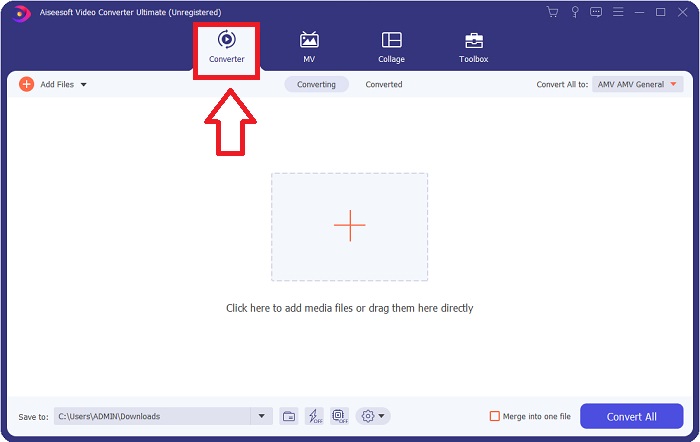
Step 2. Start the downloaded program by clicking the button. The Converter interface will be displayed as soon as you launch the software for the first time. You'll begin the process of transcoding your video here.
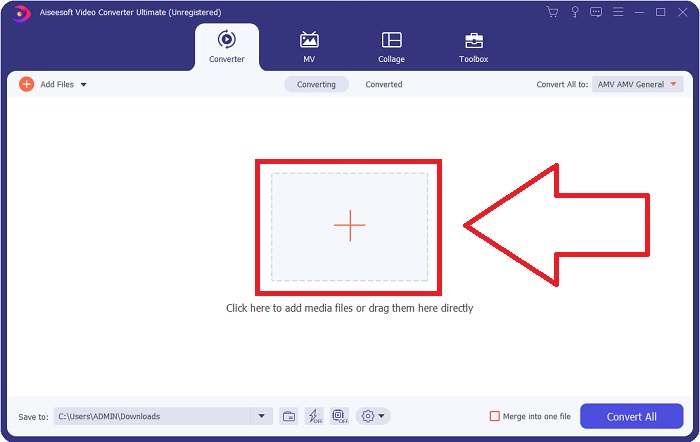
Step 3. Begin the converting process by importing your files into the converter. The video file you want to convert can be dragged and dropped onto the + icon.
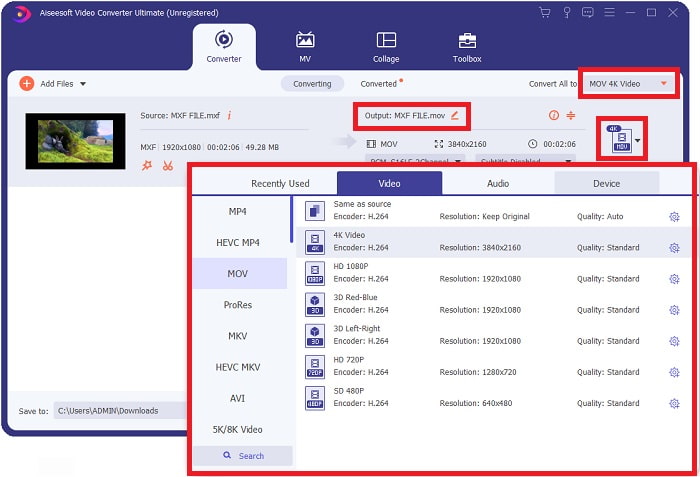
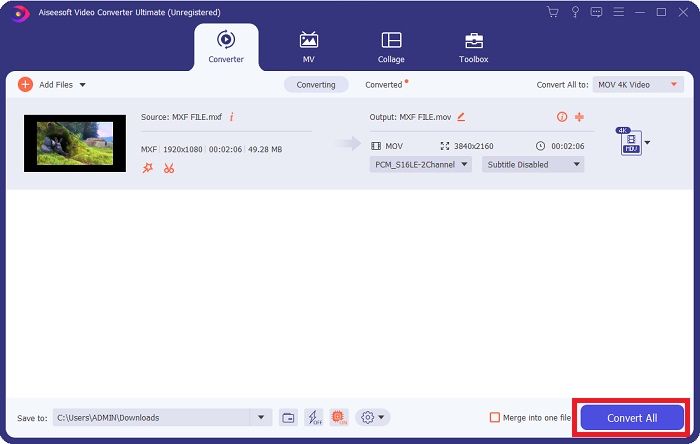
Step 4. Then, select the MOV format from the drop-down option of Convert All to. Once you've decided on an MOV file, you'll have access to a variety of video quality options. But if your chosen video output isn't listed, you can alter the quality settings to suit your needs. By selecting the gear icon, you may adjust the display's resolution, frame rate, and even audio quality. Click the Create New button to save your changes.
Step 5. Converting your video is as simple as clicking Convert All when you're done editing its quality, resolution, frame rate, etc.
Osa 3. Toinen vinkki MXF:n muuntamiseen MOV:ksi [Online]
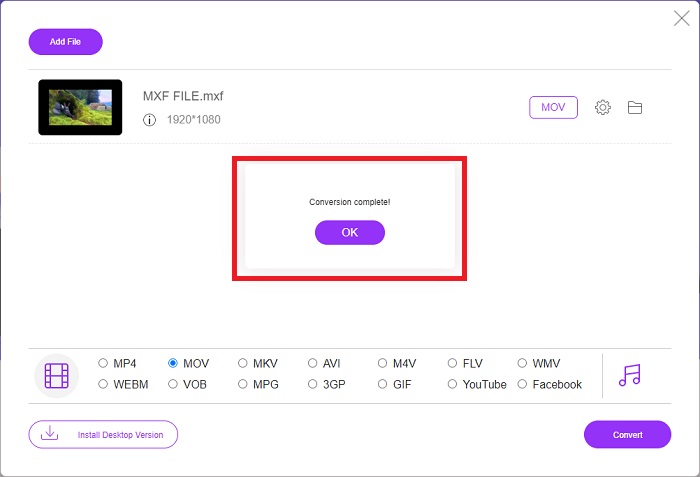
Using Free Video Converter Online is the finest way to convert a wide range of video formats in a short period of time. This converter, other than an online converter, does not have any restrictions on the formats it can accept. That's why it's a good option for certain novices. Here are the steps you need to follow in order to learn more about this online web tool.
Step 1. Enter the FVC converter's home page by clicking on this link.
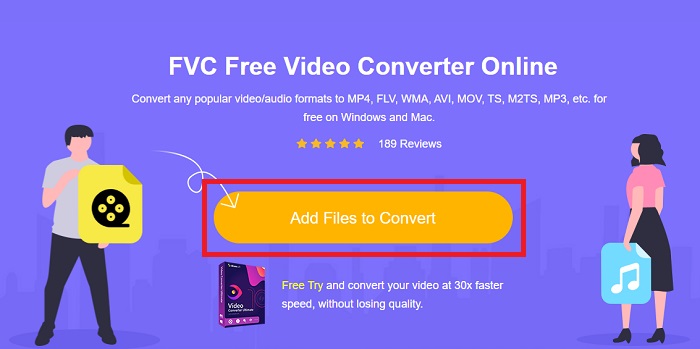
Step 2. To get the launcher for your computer, click the Add Files to Convert button if this is your first time using the tool. As soon as it is re-downloaded, it will run automatically again. Open the file from your downloads folder by selecting it and clicking Open.
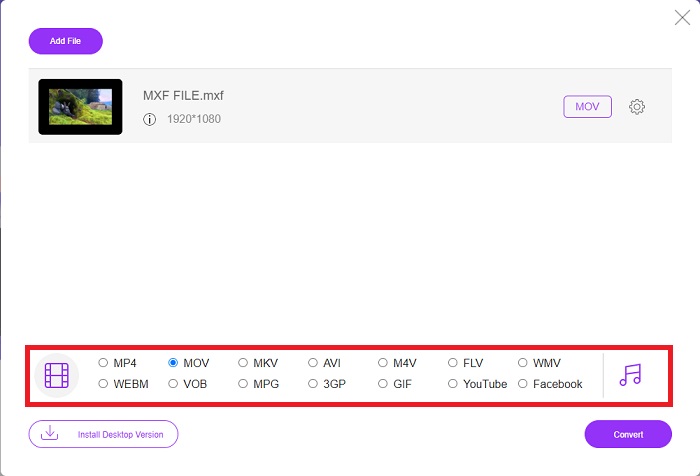
Step 3. Once you've selected the MOV format you'd like to use, click on it to begin the converting process.
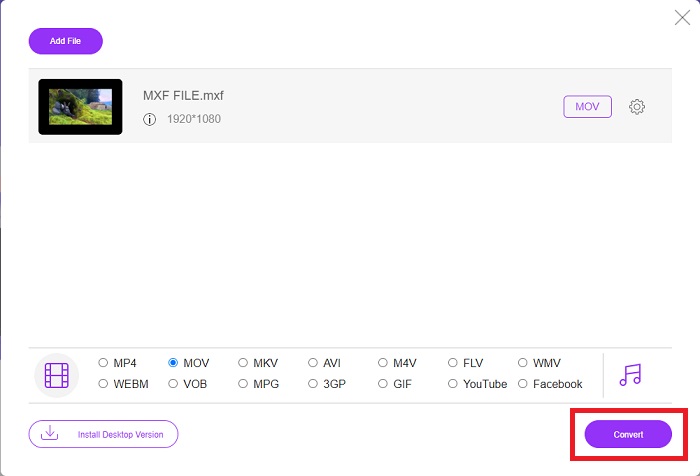
Step 4. You may begin the conversion process by clicking the Convert button once you have selected the MOV format.
Step 5. You can start watching the converted file by clicking on it in a few minutes when it appears in a folder on your computer's desktop.
Osa 4. Usein kysytyt kysymykset MXF:n muuntamisesta MOV:ksi
Onko MXF sama kuin MOV?
Myös digitaalisessa maailmassa tämä on ongelma. Materiaalien vaihtomuoto ja QuickTime-videomuoto kuuluvat molemmat sateenvarjotermin "konttimuodot" alle. Kun videoohjelma tukee tiettyä säilömuotoa, se voi käyttää vakiotyökaluja säilöjen käsittelyyn, kuten tiedoston avaamiseen, tietyn ajankohdan etsimiseen ja toistoon tai pikakelaukseen, käyttämällä yleisesti saatavilla olevia standardeja ja kirjastoja. Uutta tiedostomuotoa tai uusia kirjastoja median käsittelyyn ei tarvita.
Onko MOV raaka?
RAW-videota käytettäessä yleisimmin kohdatut tiedostotyypit ovat AVI (. avi) ja MOV (. mov); koska ne ovat pakkaamattomia videoita, niiden tiedostokoot voivat olla erittäin suuria – jopa gigatavua tai enemmän riippuen videon pituudesta ja laadusta.
Mikä on MXF-tiedosto Pro Tools?
Pro Toolsin Quicktime-ominaisuuksien avulla SoundCode Exchange MXF voi vaihtaa MXF-tiedostoja. Pro Tools voi visualisoida MXF-tiedostoja Quicktime-elokuvina Quicktime-komponentin ja vedä ja pudota -apuohjelman ansiosta. Videoraita voidaan luoda sekunneissa Pro Toolsin Quicktime Import -ominaisuuden avulla, joka voi toistaa teräväpiirto- tai vakiotarkkuuden MXF-tiedostoja. Blackmagic-näytönohjaimen avulla voit nyt nähdä materiaalin ikkunana Pro Toolsissa tai lähettää sen ulkoiselle näytölle. Samanaikaisesti MXF-ääniraitoja voidaan tuoda WAV-tiedostoina muokattavaksi ja miksattavaksi Pro Toolsissa.
Johtopäätös
To conclude, a wide range of options are available to you, whether you're using a piece of software or web service to convert your video from one format to another. However, in terms of the possibilities or conveniences they provide, they are still complementary. Some just get the job done, while others offer a variety of options. This article focuses on this to assist you in deciding which one to utilize based on your situation. Since you never know when you might need some of these additional functions, reversing, enhancement, merging, etc., we recommend Video Converter Ultimate the most. Instead of constantly searching for a converter online, you may keep this software on your computer at all times.
-
 4 ilmaista tapaa muuntaa videokamera MXF MP4: ksi yleistä toistoa varten
 Tämä viesti on yksityiskohtainen opas MXF: n muuntamiseen MP4: ksi tietokoneella. Voit saada 4 ilmaista MXF - MP4-muunninta videokameran MXF: n koodaamiseksi MP4: ksi yksinkertaisilla vaiheilla.
-
 4 ylintä MXF-muunninta MXF:n muuntamiseksi AVI:ksi [ilmainen ja maksullinen]
 Mikä on MXF-tiedosto? Kuinka muuntaa MXF AVI:ksi? Nämä ovat muutamia kysymyksiä, joihin vastaamme. Joten, jos sinulla on sama kysymys, lue tämä artikkeli.
-
 Kuinka muuntaa AVI MOV: ksi helppojen vaiheiden ja työkalujen avulla
 Haluatko tietää kuinka muuntaa AVI toistettavaksi MOV:ksi? Sinun on noudatettava tätä artikkelia, jotta tiedät, miten se tehdään, ja vinkkejä onnistuneen muuntamisen saavuttamiseksi.
