


 Video Converter Ultimate
 Näytön tallennin
 Videon korjaus
[Todistettu] 2 parhaista Windowsissa ja Macissa käytettävistä tunnisteeditoreista
Most of the audio files we recorded on Windows are in WMA, and you can edit their metadata by using a WMA metadata editor. However, choosing the right metadata editor you can use on your desktop might be a bit hard of a task to handle by individuals. But today, this task isn't as hard as you think, with the help of the two editors you can use on Windows and Mac. Want to know what these two are? If you keep reading this article we will provide an unbiased review between the two software you can download and see which is better. Stay tuned and enjoy reading this blog post to know the two excellent tools you shouldn't miss this 2022.

Osa 1. Käytä Windowsissa ja Macissa saatavilla olevaa Ultimate WMA Tag Editoria WMA-tunnisteiden muokkaamiseen
Ensimmäisenä listallamme on paras WMA-metadataeditori FVC Video Converter Ultimate, työkalu, joka tarjoaa tehokkaan editorin tunnisteilleen, josta kaikki pitävät. Tämän työkalun avulla voit helposti käsitellä tätä ongelmaa kuin ammattilainen, vaikka sinulla ei olisi kokemusta WMA-tunnisteiden muokkaamisesta. Toisin kuin muut tunnisteiden muokkausohjelmat, et tarvitse laajaa tietoa tästä metatietoeditorista sen käyttämiseen. Muutamalla napsautuksella ja sekunnin murto-osassa saat WMA-tunnisteen ilman hikoilua.
Want more? One of the best features this tool presents is the Toolbox, where you can do multiple things that the other tools can't offer to you, such as compressing, trimming, watermark adding or removing, reversing, and many more. So the task on every media file you can even think of can easily be handled by you with the assistance you will get thru this tool. In addition to that, you can convert your WMA format into 1000+ new formats quickly with the help of the ultra-fast converting process. Notable, isn't it? Well, that is what the ultimate tool is capable of. And to learn how to add a WMA tag, the steps below will help you handle it like an expert.
Step 1. Firstly, click the download button below, choose whether you are currently using Windows or Mac. Install it promptly and after the process, launch it.
Ilmainen latausWindows 7 tai uudempiTurvallinen lataus
Ilmainen latausMacOS 10.7 tai uudempiTurvallinen lataus
Step 2. On the upper section, click the Toolbox, and do the same thing on the Media Metadata Editor.
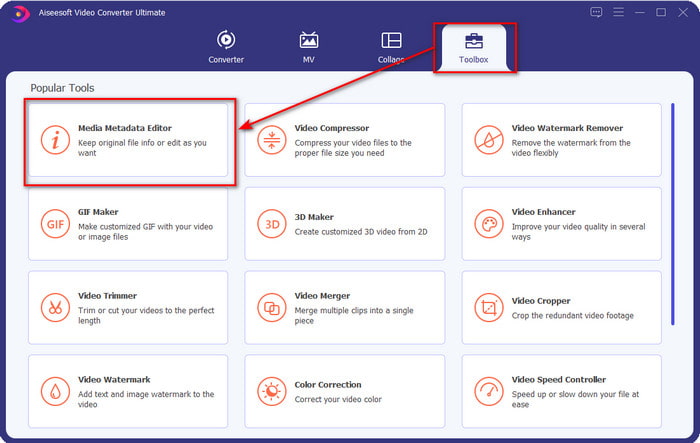
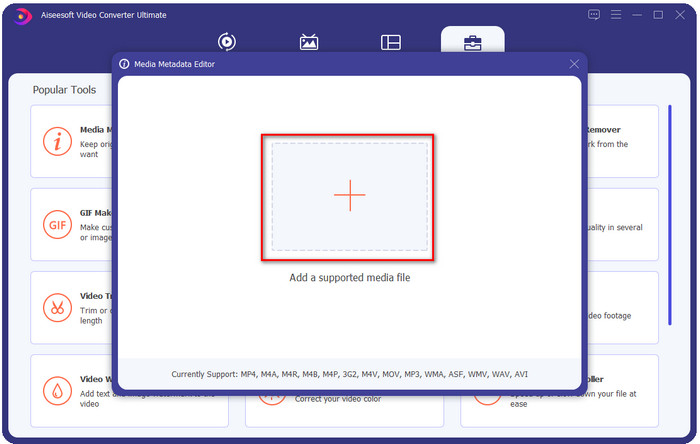
Step 3. Insert the file by clicking the + icon on the mini window that will show, locate the WMA file on the folder, and press Open to proceed to the next procedure.
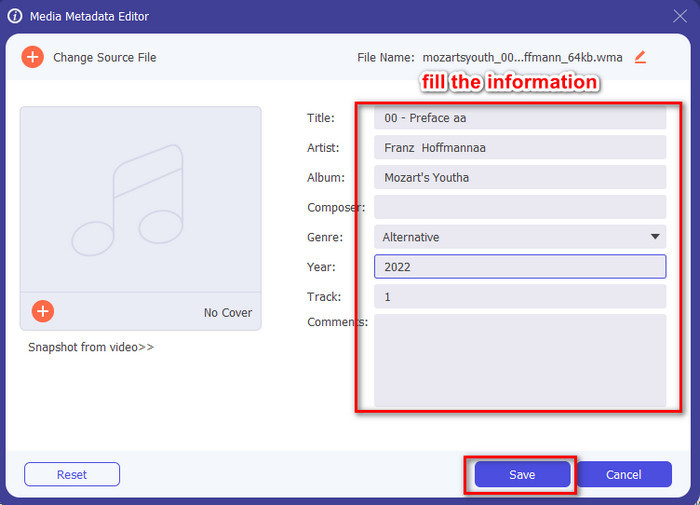
Step 4. In this area, you can edit the metadata or tags in your WMA and fill the textbox accordingly. After all of that, click Save to apply the changes you've made to your audio file. With that, you have tagged the metadata on the audio file as quickly as 1-2-3.
Osa 2. Käytä ilmaista WMA-tunnisteeditoria, joka on saatavilla Windowsissa ja Macissa WMA-metatietojen muuttamiseen
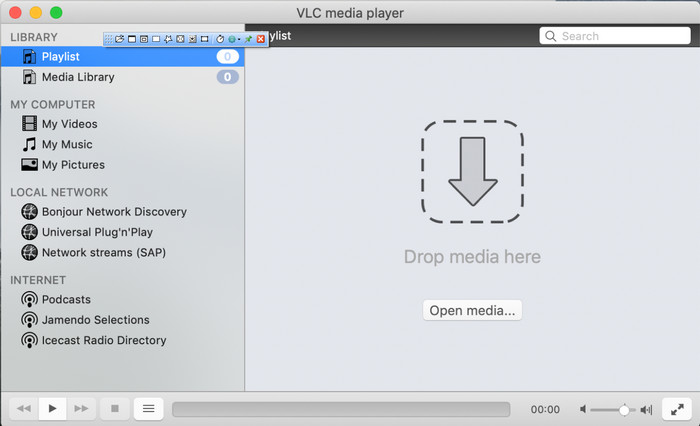
VLC Player is another WMA tag editor you can download for free on Windows and Mac. This media player can help you edit your video and audio file tags. Unlike the first software mentioned, this tool isn't made for adding metadata to any media file. It is used to play the different media files that the original or native media player can't play without downloading an additional codec to play it. Although the tool can add the tags, it is still not as effective as the other committed tag editor.
Lisäksi tämä työkalu on osoittanut meille monia asioita, koska se on luotettava ja turvallinen ladata. Näiden ominaisuuksien lisäksi tämä työkalu pystyy myös muuntamaan, yksinkertaiseen muokkaamiseen ja näytön tallentamiseen, jos tarvitset sellaista. Voimme sanoa, että se on monikäyttöinen työkalu, joka ei tarjoa niin erinomaista muita toimintoja, mutta videoiden toisto on epäilemättä markkinoiden paras.
Osa 3. Vertailukaavio Free & Ultimate WMA Tag Editorin välillä
Jotta tarkastelu olisi meille vieläkin yksinkertaisempi, sisällytämme siihen vertailukaavion, jonka avulla tiedämme, mikä työkalu on paljon parempi ladata asemallesi. Lue se huolellisesti, jotta voit verrata ja vertailla FVC Video Converteria ja VlC Playeria ja arvioida, mikä on paras WMA-metatietojen editori.
| FVC Video Converter Ultimate | VS | VLC-soitin |
 | Saatavilla Windowsissa ja macOS:ssä | |
| Tukee laajan valikoiman muotoja tunnisteiden muokkaamiseen |  |
| Monikäyttöiset toiminnot, kuten trimmaus, leikkaus, muokkaus ja paljon muuta | |
| Käyttäjäystävällinen | |
| Paras grafiikkakäyttöliittymä | |
Osa 4. Usein kysyttyä WMA-metatietoeditorista
Voinko pelata WMA:ta VLC:llä?
Yes, you can easily play the WMA file on VLC because it is supported. If you want to know more about the VLC, you can read this article; by tapping this link, you will learn VLC and its other available alternatives.
Mikä on WMA?
WMA is an audio format used to store a series of audio codecs available created by Microsoft with the help of its composer Stan LePard. This audio format is one of the famous competitors of the standard audio format, MP3. However, the format isn't as popular as you expected, so if you want to transfer the file with a .wma extension, expect that you will need a third-party app if the users on the other end don't use Windows. So, what should you do? Can you convert the WMA into an MP3 to make it compatible with the receiver? With the help of this article, you will learn how to convert WMA to MP3 on Windows, Mac, and Online.
Tarvitsenko lisäpakkauksen toistaakseni WMA:ta?
Se riippuu tällä hetkellä käyttämästäsi ohjelmasta; Jos olet Windows-käyttäjä, sinun ei tarvitse ladata ylimääräistä koodekkia toistaaksesi äänitiedoston työpöydälläsi. Kaikki eivät kuitenkaan olleet Windows-käyttäjiä, joten äänitiedoston muuntaminen on paras tapa tehdä WMA-yhteensopiva laitteidesi kanssa. Jos etsit muunninta, suosittelemme valitsemaan parhaan äänimuuntimen, jonka voit ladata Windowsille ja Macille, FVC Video Converter Ultimaten. Noudata näitä ohjeita, jos haluat tietää. Lataa työkalu työpöydällesi ja asenna se seuraavaksi. Avaa työkalu ja lataa WMA-tiedosto napsauttamalla +-kuvaketta. napsauta oikeassa yläkulmassa Muunna kaikki muotoon ja valitse luettelosta saatavilla oleva äänimuoto. Aloita muunnos painamalla Muunna kaikki. Helppoa niin.
Johtopäätös
Nyt kun meillä on käsitys FVC Video Converter Ultimatesta ja VLC-soittimesta, on aika valita paras käytettävä WMA-tunnisteeditori. Nämä työkalut ovat hyviä WMA-tiedostojesi tunnisteiden muokkaamiseen, joten voit muokata tunnisteita nopeasti halutessasi. Mutta jos haluat ammattityökalun hoitamaan tämän tehtävän, valitse paras työkalu. Painamalla latauspainiketta voit säätää WMA-tunnisteita molemmissa käyttöjärjestelmissä.
-
 Mikä on metadata: Opi perustiedot metatiedoista
 Mikä on metatiedot? Onko tämä tärkeää? Mitkä ovat metatietojen osat? Onko sinulla sama kysymys? Tässä artikkelissa opit perustiedot metatiedoista.
-
 4. Paras metatietojen katselu verkossa ja offline-tilassa [Päivitetty 2025]
 Voinko tarkistaa tiedostoni metatiedot? Kyllä, voit, tämän viestin avulla esittelemme sinulle erilaisia metatietojen katseluohjelmia, joita voit käyttää.
-
 6 suosikkivalintaa Snapchat-animoidut Snapchat-suodattimet Snapchatissa
 Haluatko tietää parhaat tavat lisätä suodattimia Snapchat-videoihin? No, voit napsauttaa tätä ja oppia erilaisia suodattimia, joita voit käyttää Snapchat-videoissa.
