


 Video Converter Ultimate
 Näytön tallennin
 Videon korjaus
 Suojattu lataus
Vaiheittaiset ohjeet albumin kuvien lisäämisestä MP3-tiedostoon käyttämällä parasta työpöytäohjelmistoa
Albumikuvituksen lisääminen voi olla erittäin hyödyllistä, varsinkin jos haluat auttaa kuuntelijaa tuntemaan olonsa läheisemmäksi kuuntelemaansa musiikkiin. Albumikuvan avulla käyttäjä voi saada käsityksen siitä, mistä musiikissa on kyse, erityisesti digitaalisissa kappaleissa. Joissakin tapauksissa MP3-tiedostossa ei ole lainkaan albumikuvaa tai sitä ei ole liitetty tiedostoon. Jos sinulla on sama ongelma, on tärkeää oppia, kuinka lisätä albumikuva MP3-tiedostoon työpöydälläsi. Jos haluat lisätietoa aiheesta, jatka lukemista – tässä artikkelissa tarjoamme tiiviin tietopaketin ongelmaan.

Osa 1. Albumin kuvien lisääminen MP3-tiedostoon Video Converter Ultimaten avulla [suositeltu tunnisteeditori]
Etsitkö tehokasta ohjelmistoa albumikuvan lisäämiseen MP3-tiedostoihin? FVC Video Converter Ultimate on suositeltu tägejä muokkaava ohjelma tähän tehtävään. Tätä ohjelmistoa ei suositella syyttä. Toisin kuin monissa muissa ohjelmissa, albumikuvan tuettujen tiedostomuotojen määrä on usein rajallinen, mutta tämän työkalun kanssa näin ei ole. Tällä ultimate‑ohjelmistolla voit lisätä albumikuvan MP3-, WAV-, WMA-, AAC-, FLAC-tiedostoihin sekä yli 1000 muuhun video- ja ääniformaattiin. Vaikuttavaa, eikö? Tämä työkalu on ykkösvalinta, kun haluat lisätä kuvan albumisi kanneksi. Haluatko tietää, miten ultimate‑ohjelmaa käytetään? Siinä tapauksessa voit lukea ja seurata huolellisesti alla antamaamme ohjetta.
Vaihe 1. Napsauta alla olevaa latauspainiketta ja valitse käyttämäsi käyttöjärjestelmä. Kun ohjelmisto on ladattu, jatka työkalun asentamista. Kun kaikki on valmista, napsauta Start Now käynnistääksesi ohjelman tietokoneellasi.
Ilmainen latausWindows 7 tai uudempiTurvallinen lataus
Ilmainen latausMacOS 10.7 tai uudempiTurvallinen lataus
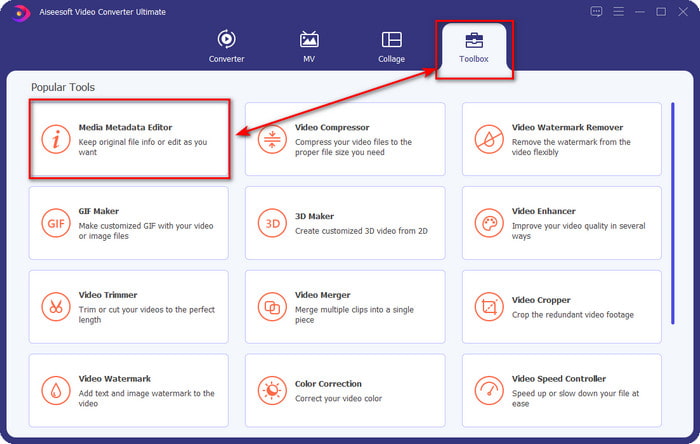
Vaihe 2. Siirry Toolbox-osioon ja napsauta sen alta Media Metadata Editor.
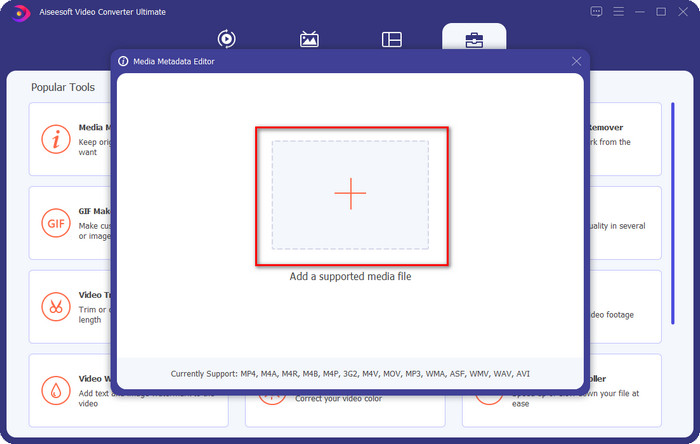
Vaihe 3. Valitse musiikkitiedosto, johon haluat lisätä albumikuvan, napsauttamalla +‑painiketta. Lisätäksesi valitsemasi musiikkitiedoston napsauta Open.
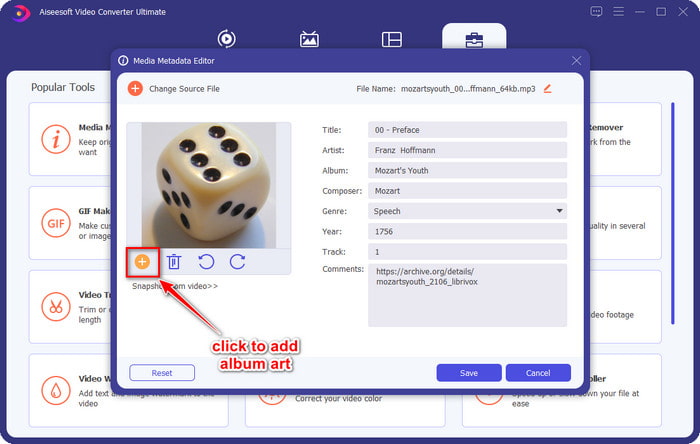
Vaihe 4. Napsauta sitten +-painiketta käyttöliittymän vasemmassa alakulmassa, etsi albumikuva, jota haluat käyttää, ja napsauta Open. Lisää tarvittaessa muut metatiedot tekstikenttään.
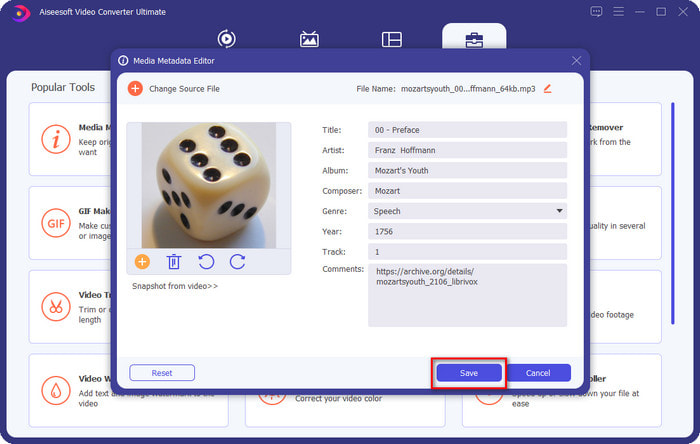
Vaihe 5. Kun olet lisännyt albumikuvan ja metatiedot MP3‑tiedostoon, voit napsauttaa Save liittääksesi albumikuvan lataamaasi MP3‑tiedostoon. Helppoa, eikö? Kaikki muuttuu mahdolliseksi ja vaivattomaksi, kun käytät ultimate‑työkalua tämän ongelman ratkaisemiseen.
Osa 2. Albumin kuvan lisääminen MP3:een VLC Media Playerin ilmaisella metatietoeditorilla]
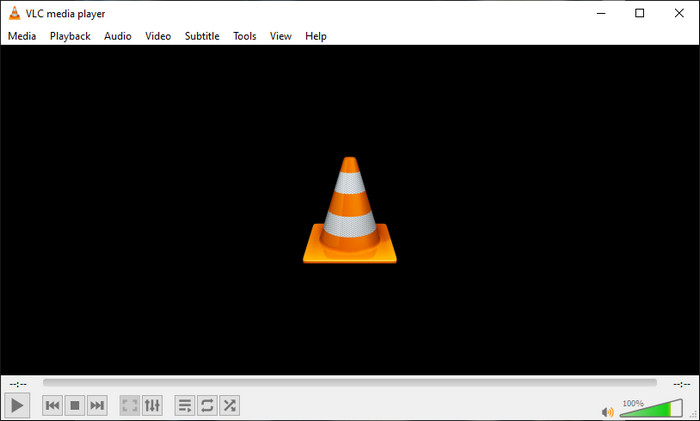
VLC Media Player on paras mediasoitin, joka useimmilla meistä jo on. Tällä työkalulla voi toistaa käytännössä mitä tahansa videotiedostoja, ja se pystyy myös muokkaamaan metatietoja, esimerkiksi lisäämään albumikuvan musiikkitiedostoon. Tällä mediasoittimella voit vapaasti säätää ja lisätä metatietoja. Jos haluat oppaan albumikuvan lisäämisestä MP3‑tiedostoon Windows 10/11:ssä tai Macissa tällä työkalulla, alla olevat vaiheet ovat sinua varten.
Vaihe 1. Lataa mediasoitin tietokoneellesi ja avaa se.
Vaihe 2. Päänäkymässä napsauta Tools ja sen alta Information.
Vaihe 3. Napsauta hiiren oikealla painikkeella VLC‑kuvaketta oikeassa alakulmassa, lisää albumikuva ja napsauta Save.
Osa 3. Albumin kuvien lisääminen MP3-tiedostoon iTunesissa [sisäänrakennettu metatietoeditori Macissa]
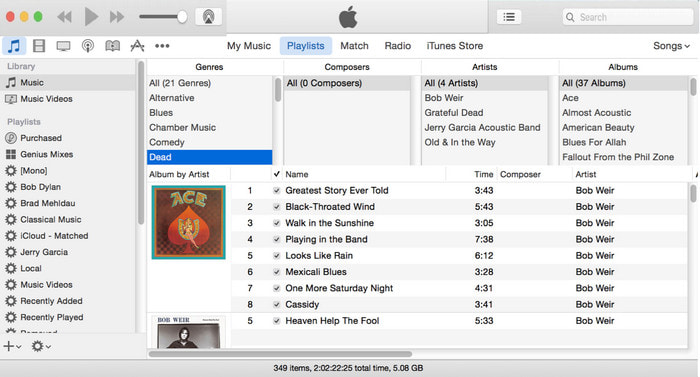
Mac-käyttäjille iTunes on oletusratkaisumme, kun haluamme lisätä kuvan MP3‑tiedoston kanneksi. Tämä sisäänrakennettu sovellus auttaa meitä muokkaamaan Macissa olevien tiedostojen metatietoja. Ohjelmisto ei kuitenkaan enää ole saatavilla joissakin Mac-versioissa, koska se on korvattu kolmella erillisellä sovelluksella, jotka hoitavat samat tehtävät kuin iTunes. Joissakin vanhempaa versiota käyttävissä Maceissa se kuitenkin yhä on. Jos olet Mac‑käyttäjä ja haluat tietää, miten lisäät albumikuvan MP3‑tiedostoon iTunesissa, voit seurata alla olevia ohjeita.
Vaihe 1. Avaa iTunes-sovellus Macillasi.
Vaihe 2. Napsauta Music, sitten Library ja napsauta hiiren oikealla sitä musiikkitiedostoa, jolta puuttuu albumikuva.
Vaihe 3. Valitse yläreunan vaihtoehdoista Artwork, sitten Add Artwork, valitse kuva, jonka haluat ladata, ja napsauta OK ottaaksesi sen käyttöön.
Osa 4. Usein kysytyt kysymykset albumin kuvien lisäämisestä MP3:lle
Voinko lisätä albumin kuvituksen MP3-tiedostoon Audacityssä?
Valitettavasti et voi lisätä kuvataidetta MP3-tiedostoon Audacityllä. Tämä työkalu ei tue mitään kuva- tai videomuotoa, koska se on tarkoitettu käytettäväksi musiikkieditorina. Mutta voit silti käyttää Audacityä metatietoeditorina, jos haluat muokata MP3-metatietojasi.
Miksi albumin kansikuvani puuttuu äänitiedostostani?
On kolme syytä, miksi albumin kansikuvasi puuttuu äänitiedostosta. Ensimmäinen syy on se, että ladattava tiedosto ei sisällä albumin kuvitusta, varsinkin jos kyseessä on piratismi. Suurin osa verkosta lataamistamme musiikkitiedostoista ei sisällä albumin kuvitusta tekstinkirjoitusongelmien välttämiseksi. Seuraavaksi tiedosto katosi, koska kuvaa ei ollut liitetty oikein. Jotkut käyttäjät kohtaavat tämän ongelman, ja sitä on vaikea käsitellä, joten ammattimaisen albumin kansilisäyksen käyttö on välttämätöntä. Lopuksi kuva on vioittunut; Jos lataamasi tiedosto ei ole saatavilla albumin kuvituksena tai jos musiikkitiedosto on vioittunut, tämä voi olla syynä siihen.
Mikä on paras metadata, jota voin käyttää?
Jos edellä esitellyt metatietojen muokkausohjelmat tuntuvat rajallisilta, voit klikata tätä linkkiä siirtyäksesi uuteen artikkeliin ja tutustua kaikkiin parhaisiin metatietoeditorioihin, joita voit käyttää.
Johtopäätös
Nyt kun meillä on ajatus lisätä albumin kuvitus MP3:lle, on aika valita, mikä työkalu mielestämme sopii meille parhaiten. Jos olet Mac-käyttäjä etkä halua ladata mitään ohjelmistoa työpöydällesi, sinun on valittava iTunes. iTunes on kuitenkin poistettu käytöstä Macin päivitetyssä versiossa. Jos haluat ladata ilmaisen työkalun, jonka avulla voit lisätä kannen musiikkiisi, VLC on loistava valinta. Työkalu ei kuitenkaan ole ammattityökalu. Joten jos haluat asiantuntevan ohjelmiston, joka sopii sinulle tähän tehtävään molemmissa käyttöjärjestelmissä, Windowsissa ja Macissa, käytä parasta ohjelmistoa. Lataa ohjelmisto työpöydällesi, niin saat ammattimaisen työkalun käyttöösi napsauttamalla yllä olevaa latauspainiketta.
-
 Kuinka katsella valokuvien ja videoiden metatietoja helposti iOS:ssä
 Haluatko tietää, kuinka voit nähdä metatiedot iPhonessa ja iPadissa? Tämän artikkelin lukeminen saattaa auttaa sinua ratkaisemaan tämän ongelman vaivattomasti.
-
 Parhaat tekniikat iD3-tunnisteiden muokkaamiseen iTunesissa [tehokkaita vinkkejä]
 Haluatko tietää, kuinka tunnisteita muokataan iTunesissa? Sitten olet oikeassa paikassa. Kuten menetelmistä keskustelimme, voit seurata tunnisteiden muokkaamista iTunesin avulla.
-
 WAV-tiedostojen ominaisuuksien muokkaaminen Windows 10/11:ssä ja Macissa [Ratkaistu]
 Etsitkö tapaa muokata WAV-tiedostojesi ominaisuuksia Windows 10/11:ssä? Tähän kysymykseen saat vastauksen, jos jatkat tämän artikkelin lukemista.
