


 Video Converter Ultimate
 Näytön tallennin
 Videon korjaus
 Suojattu lataus
Nopein ja helpoin tapa lyhentää videota parhailla työkaluilla
Videon leikkaaminen tai lyhentäminen on tärkeää, koska se korostaa vain tarvittavat leikkeet videostasi. Videon leikkaaminen tarkoittaa videoleikkeen lopun alun poistamista. Tämä editoinnin peruselementti on välttämätön, jotta et menetä yleisösi huomiota. Joten jos haluat leikata tai lyhentää pitkää videotasi, opit tässä artikkelissa tapoja lyhentää videota.

Osa 1. 2 menetelmää videon lyhentämiseksi trimmerissä käyttämällä parasta sovellusta
FVC Video Converter Ultimate on paras työpöytätyökalu videosi leikkaamiseen. Tällä työkalulla on intuitiivinen käyttöliittymä ja se on ilmainen käyttää. Tällä offline-muuntimella voit lisätä osioita videotiedostoosi. Lisäksi siinä on toiminto, jolla voit nopeasti jakaa videosi haluamiisi eri osiin. Ja jos etsit työkalua, jolla voi yhdistää useita eri tiedostomuotoja yhdeksi, tämä sovellus pystyy siihen.
Lisäksi tämä työkalu tarjoaa monia edistyneitä ominaisuuksia, kuten GIF‑tekijän, videoyhdistimen, videon vesileiman poistajan jne. Vielä parempaa on, että se tukee lukuisia tiedostomuotoja, mukaan lukien MP4, WMV, FLV, AVI, MPG, WebM, MKV ja yli 1000 muuta formaattia. Jos siis haluat käyttää tätä sovellusta videosi lyhentämiseen, meillä on sinulle kaksi menetelmää seurattavaksi.
Menetelmä 1. Käytä FVC:n videotrimmeriä
Vaihe 1. Lataa ensin FVC Video Converter Ultimate napsauttamalla alla olevaa Lataa-painiketta. Seuraa asennusohjeita ja käynnistä sitten sovellus.
Ilmainen latausWindows 7 tai uudempiTurvallinen lataus
Ilmainen latausMacOS 10.7 tai uudempiTurvallinen lataus
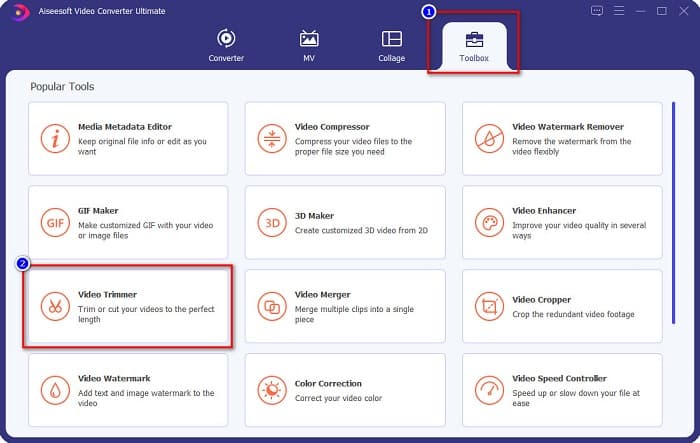
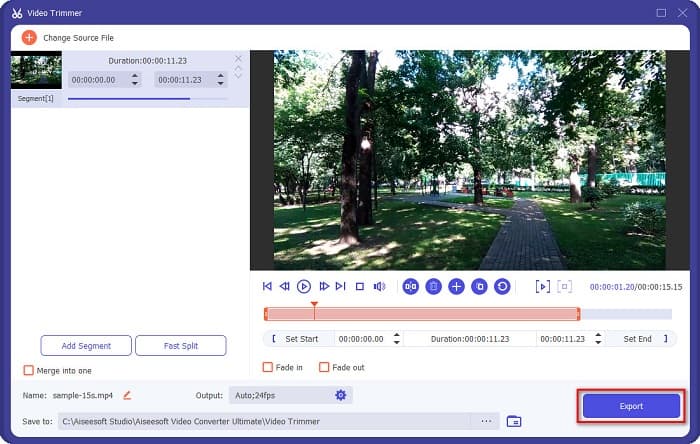
Vaihe 2. Valitse seuraavaksi ohjelman yläreunassa näkyvä Työkalupakki-välilehti. Napsauta sitten työkalupakissa Videoleikkuri-vaihtoehtoa.
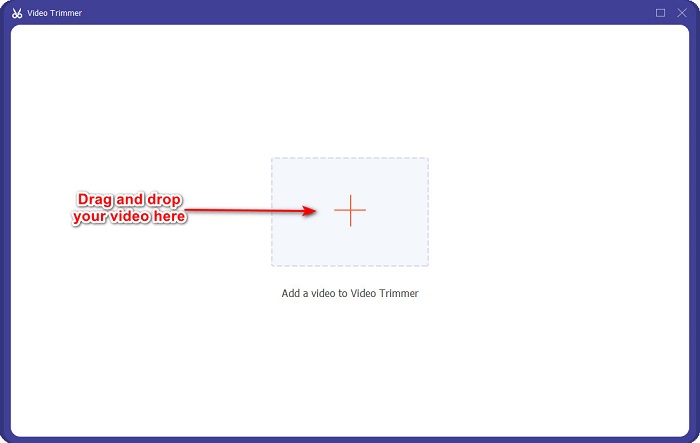
Vaihe 3. Napsauta seuraavassa ikkunassa +-painiketta tai vedä ja pudota videosi plus-merkin kohdalle.
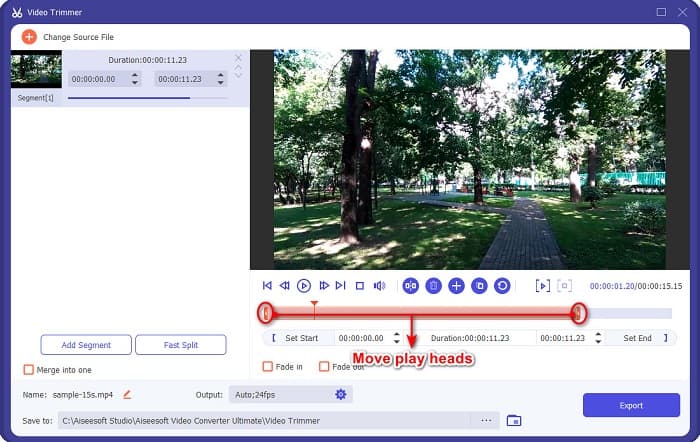
Vaihe 4. Siirrä sitten toistopäitä haluamaasi pituuteen. Nuolenkärki osoittaa videosi esikatselun sijainnin ja toistopäät osoittavat videosi keston. Näet väliaikaiset muutokset videoosi esikatselussa.
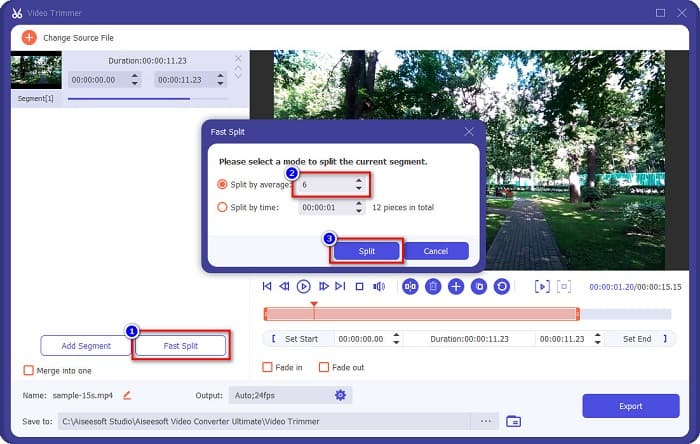
Valinnainen. Jos haluat yksinkertaisemman tavan jakaa videosi osiin:
1. Napsauta Nopea jako -painiketta.
2. Valitse, montako osaa haluat videoosi, ja paina sitten Jaa.
3. Jos et halua jakaa videotasi, siirry seuraavaan vaiheeseen.
Vaihe 5. Napsauta lopuksi Vie-painiketta ottaaksesi muutokset käyttöön videossasi. Sen jälkeen tulostiedosto tallentuu automaattisesti tietokoneellesi.
Menetelmä 2. Käytä FVC:n videonopeuden vaihtajaa
FVC Video Converter Ultimatessa on myös ominaisuus, jolla voit muuttaa videosi nopeutta 0,125x, 0,25x, 0,5x, 0,75x, 1,25x, 1,5x, 2x, 4x ja 8x nopeuksilla. Ja jos haluat lyhentää videosi pituutta, säädä videosi nopeaan. Katso tarkemmat vaiheet alla olevan oppaan mukaisesti.
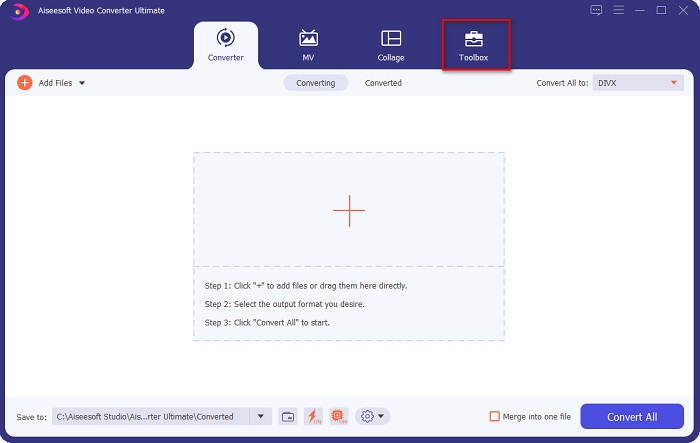
Vaihe 1. Avaa FVC Video Converter Ultimate. Napsauta ohjelman pääikkunassa Työkalupakki‑vaihtoehtoa.
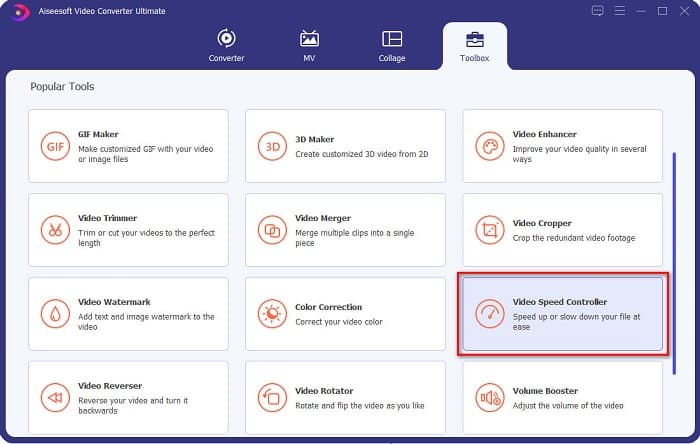
Vaihe 2. Napsauta sitten Videon nopeuden säädin -työkalua ja siirry seuraavaan vaiheeseen.
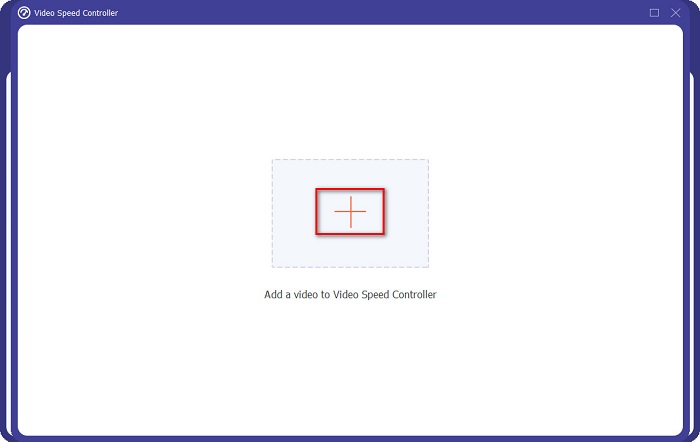
Vaihe 3. Napsauta seuraavaksi +-painiketta ladataksesi videon, jota haluat lyhentää. Tietokoneesi kansiot avautuvat, jolloin voit valita videon ja tuoda sen ohjelman käyttöliittymään.
Vaihe 4. Lyhentääksesi videota valitse nopeudeksi jokin välillä 1,25x–8x.
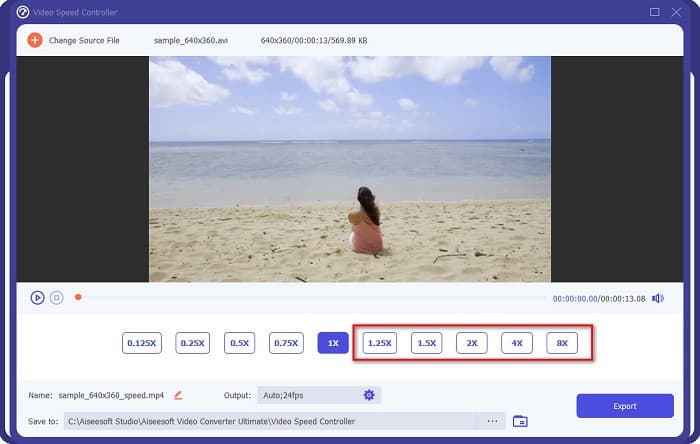
Vaihe 5. Viimeiseksi napsauta Vie‑painiketta tallentaaksesi videotasi koskevat muutokset. Sen jälkeen tulostiedosto tallentuu automaattisesti tietokoneellesi.
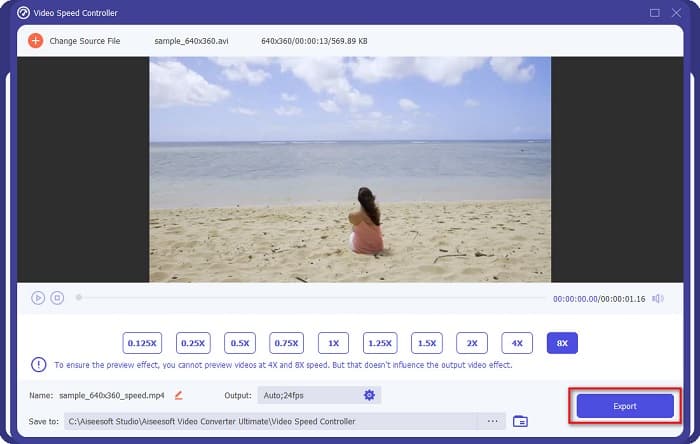
Jos haluat lyhyemmän videon, valitse 8x nopeus.
Plussat
- Se tukee lukuisia tiedostomuotoja, mukaan lukien MOV, MKV, AVI, MP4, WMV, WMA, MPEG ja 1000+ tiedostomuotoja.
- Siinä on helppokäyttöinen ohjelmistokäyttöliittymä.
- Sen avulla voit jakaa videosi nopeasti vain muutamalla napsautuksella.
- Ladattavissa kaikilla multimedia-alustoilla, kuten Windows, Mac ja Linux.
Haittoja
- Osta sovellus ensin, ennen kuin käytät sen muita ominaisuuksia.
Osa 2. 2 Online-videotrimmeri kokeiltavaksi
Jos haluat leikata videotasi lataamatta mitään, voit käyttää online-videoleikkureita. Luettelimme parhaat online-videotrimmerit, joita monet ihmiset käyttävät tässä osassa.
Leikkaa video
Trim Video on verkkopohjainen videoleikkuri, jota on helppo käyttää sen intuitiivisen käyttöliittymän ansiosta. Se on kätevä työkalu, koska se ei vaadi asennusta toisin kuin monet muut verkkotyökalut. Lisäksi siinä on toiminto, jolla voit kiertää videota 90, 180 tai 270 astetta. Sinun ei myöskään tarvitse epäillä tietojesi turvallisuutta, sillä tämä työkalu suojaa yksityisyyttäsi. Koska kyseessä on kuitenkin selainpohjainen sovellus, se sisältää mainoksia, jotka voivat häiritä.
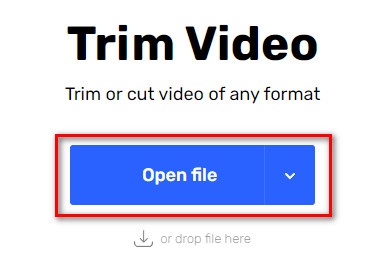
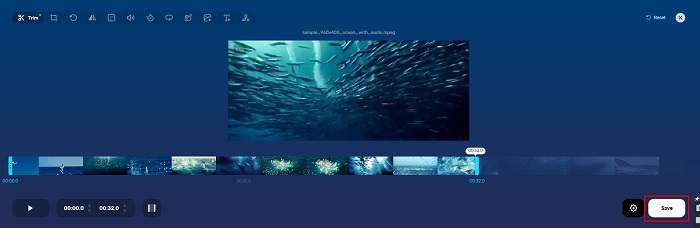
Vaihe 1. Hae selaimessasi online‑videoleikkuria. Napsauta sitten Trim Video -sivustoa. Napsauta ohjelman pääikkunassa Avaa tiedosto -painiketta.
Vaihe 2. Säädä sitten toistopäitä haluamaasi pituuteen.
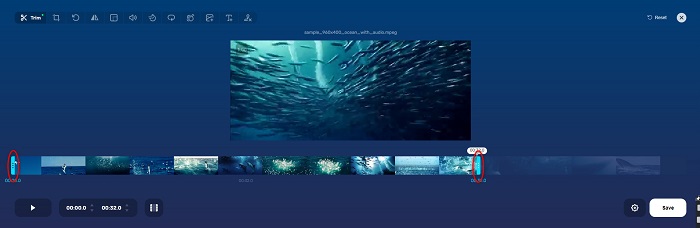
Vaihe 3. Napsauta Tallenna-painiketta muuttaaksesi videosi pituutta.
Plussat
- Siinä on helppokäyttöinen graafinen käyttöliittymä.
- Siinä on ominaisuuksia videon rajaamiseen ja kiertämiseen.
- Se on turvallista käyttää.
Haittoja
- Se sisältää ärsyttäviä mainoksia.
- Sillä on hidas lataus- ja latausprosessi.
Clideo
Toinen verkkopohjainen videoleikkuri on Clideo. Tällä työkalulla on yksinkertainen käyttöliittymä, joten se on helppokäyttöinen. Se tukee myös useimpia yleisiä tiedostomuotoja, kuten AVI, MP4, VOB, MPG, MOV jne. Lisäksi tämä työkalu tarjoaa korkean tietoturvan, mikä tarkoittaa, että tietosi ovat turvassa eikä muut pääse niitä katselemaan. Lisäksi Clideo ei sisällä mainoksia, jotka voisivat häiritä sinua.
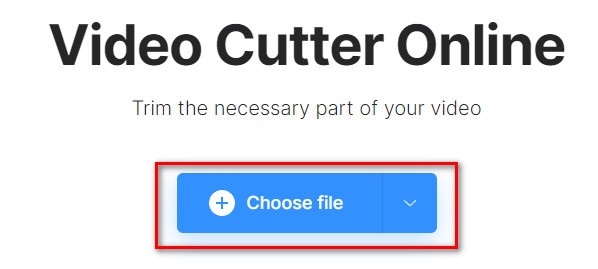
Vaihe 1. Hae käyttämässäsi selaimessa Clideo video trimmer. Napsauta ohjelman ensimmäisessä näkymässä Valitse tiedosto -painiketta. Tietokoneesi kansiot avautuvat, jolloin voit valita videon, jota haluat lyhentää.
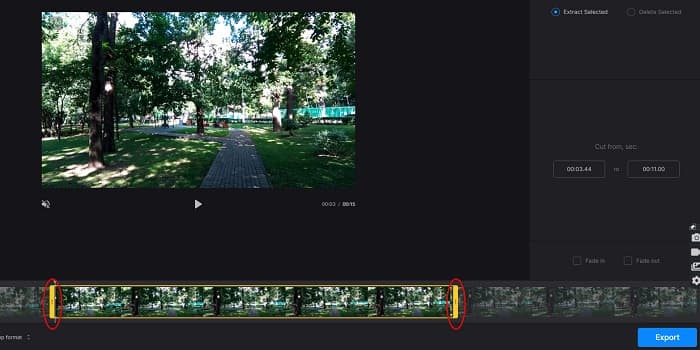
Vaihe 2. Siirrä toistopäitä siihen pituuteen, jonka haluat videollesi.
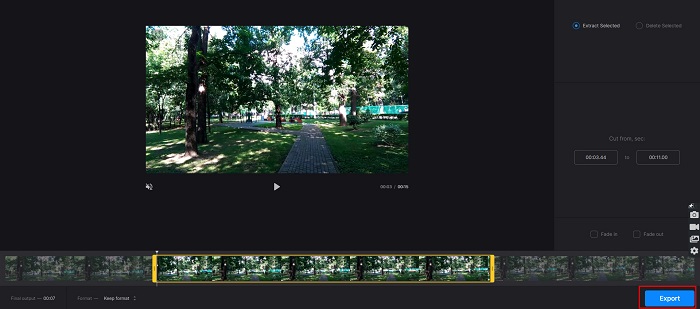
Vaihe 3. Viimeisessä vaiheessa napsauta Vie-painiketta muuttaaksesi videosi kestoa.
Plussat
- Siinä on helppokäyttöinen käyttöliittymä.
- Se on turvallista käyttää.
- Se ei sisällä mainoksia.
Haittoja
- Prosessi saattaa hidastua, kun Internet-yhteytesi on hidas.
Osa 3. Usein kysyttyä videon lyhentämisestä
Kuinka lyhentää videota iPhonessa?
Avaa ensin Valokuva-sovellus ja valitse leikattava video. Napauta sitten Muokkaa. Siirrä sen jälkeen liukusäätimet haluamaasi videon pituuteen ja napauta Valmis tallentaaksesi muutokset videostasi.
Vaikuttaako videon leikkaaminen laatuun?
Ei. Useimmat leikkaustyökalut eivät vaikuta videosi laatuun. Mutta jos varmistat työkalun, joka ei vaikuta laatuun, kun lyhennät videota, käytä FVC Video Converter Ultimatea.
Vaikuttaako videon lyhentäminen tiedoston kokoon?
Joo. Mitä lyhyempi videosi on, sitä pienempi sen tiedostokoko on. Sitä vastoin, jos videosi on pitkä, se sisältää valtavan tiedostokoon.
Johtopäätös
Tässä kaikki siitä, miten videota voi lyhentää käyttämällä leikkuria ja videon nopeuden muokkaajaa. Kaikki mainitut työkalut antavat hyvät tulokset ja takaavat parhaan suorituskyvyn. Jos kuitenkin etsit parasta työkalua, jossa on runsaasti ominaisuuksia ja joka on laajasti tunnettu videoiden lyhentämisessä, FVC Video Converter Ultimate on sinulle paras vaihtoehto.
-
 Kuinka leikata ja yhdistää kappaleita verkossa - 4 parasta tapaa, jotka sinun pitäisi tietää
 Kun haluat leikata ja yhdistää kappaleita verkossa luoda musiikkipala, voit oppia lisää 4 parhaasta online-työkalusta kappaleiden leikkaamiseen ja artikkelin tiedostojen yhdistämiseen.
-
 Löydä paras MP4 -trimmeri menettelyjen ja tietojen avulla
 Haluatko oppia leikkaamaan videoita, kuten katsomasi vloggaajat? Jatka sitten tämän viestin lukemista tietääksesi, mitä MP4-trimmereitä voit käyttää.
-
 5 MP3-leikkuria minkä tahansa äänen leikkaamiseen helposti [2022 päivitetty]
 Tarvitsetko MP3-leikkurin äänen trimmaamiseen? Siinä tapauksessa lue tämä artikkeli, koska tarjoamme työkalut, joihin voit luottaa ja joiden avulla voit helposti leikata ääntä.
