


 Video Converter Ultimate
 Näytön tallennin
 Videon korjaus
 Suojattu lataus
Parhaat tekniikat Animoto-vesileiman poistamiseksi videoista pysyvästi
Animoto on pilvipohjainen videontekijä, jonka avulla kuka tahansa voi tehdä erinomaisen videon tehdäkseen vaikutuksen videon näkevään yleisöön. Miljoonien käyttäjien ansiosta Animoto tuli tunnetuksi videoiden editoinnista ja luomisesta ilman laajaa tietämystä jälkituotannosta. Verkkosivustolla vierailevien päivittäisen käytön vuoksi monet käyttäjät nauttivat sen käytöstä ja luovat useita upeita lyhyitä videoita esityksiään varten.
Työkalun ilmaisversio lisää kuitenkin videon loppuun oman logonsa. Se voi olla joillekin ärsyttävää, ja jotta videon voisi esittää siististi ilman mitään vesileimaa, se on syytä poistaa. Jotta saisit työkalun, jolla voit poistaa Animoton vesileiman ilmaiseksi, jatka tämän artikkelin lukemista – esittelemme kaikki työkalut, joista voi olla sinulle apua.

Osa 1. Vesileiman poistaminen Animoto-videosta [Käytetty vesileimanpoistoaine vuonna 2022]
FVC Video Converter Ultimate – Ultimate Watermark Remover Windowsissa ja Macissa
Jos haluat poistaa Animotica-vesileiman, voit hyödyntää FVC Video Converter Ultimate -ohjelman ominaisuuksia ja toimintoja. Tämä työkalu tarjoaa tehokkaimman tavan poistaa vesileima videostasi, eli poistamalla sen. Tämän työkalun avulla voit peittää Animoton logon itse luomallasi omalla logolla, jotta Animoton logo ei enää näy tekemässäsi videossa. Kokonaissuorituksen perusteella vesileiman poistossa voimme todeta, että tämä on markkinoiden paras ratkaisu, jonka olemme löytäneet.
Lisäksi vesileiman poistamisen ja lisäämisen lisäksi voit myös hyödyntää muita ominaisuuksia ja toimintoja, kuten muokkausta, muuntamista, MV:n luomista ja paljon muuta. Kaikilla ominaisuuksillaan ja toiminnoillaan voimme myöntää, että se palvelee oikeaa lautasta pöydällä lopulliseen tarkoitukseen. Joten jos haluat tietää kuinka poistaa vesileima Animoto-videosta, voit lukea alla olevat tiedot.
Vaihe 1. Napsauta alla olevaa latauspainiketta ladataksesi ohjelman Windows- tai Mac-koneellesi. Valitse käyttöjärjestelmällesi sopiva versio. Sen jälkeen klikkaa ladattua tiedostoa asennuksen aloittamiseksi, seuraa asennusohjeita ja avaa ohjelma.
Ilmainen latausWindows 7 tai uudempiTurvallinen lataus
Ilmainen latausMacOS 10.7 tai uudempiTurvallinen lataus
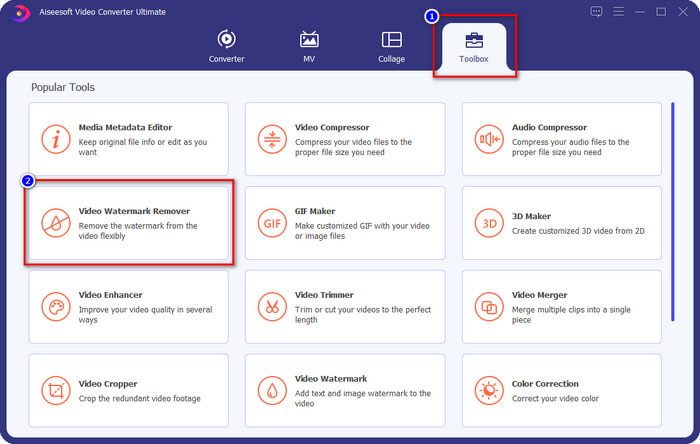
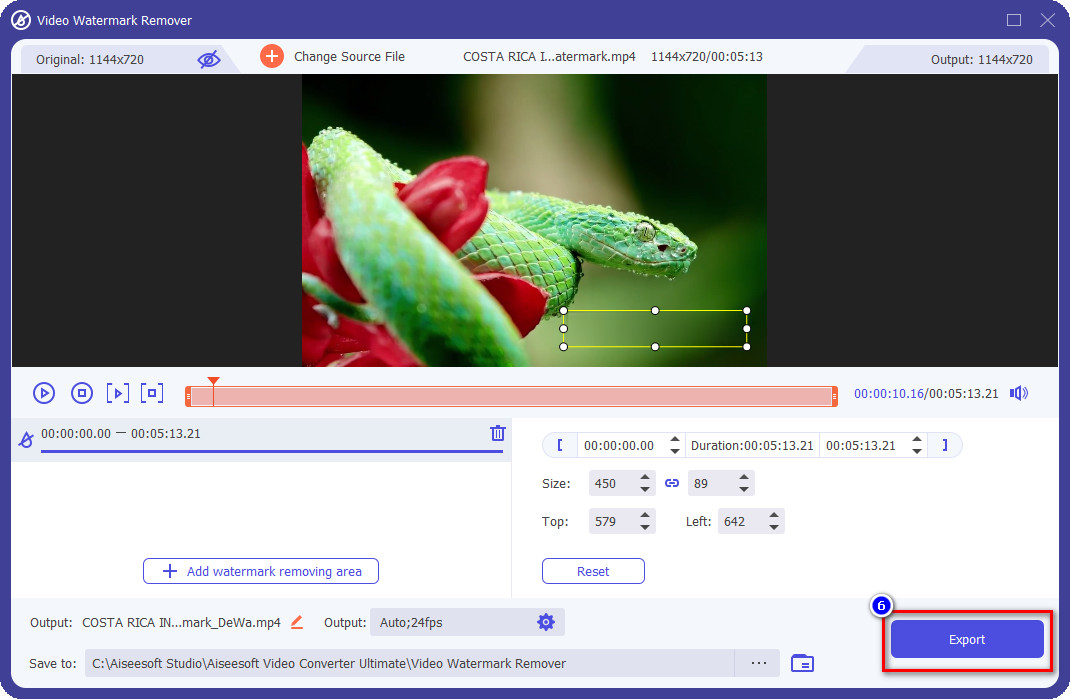
Vaihe 2. Siirry Toolbox-osioon ja avaa sieltä Video Watermark Remover.
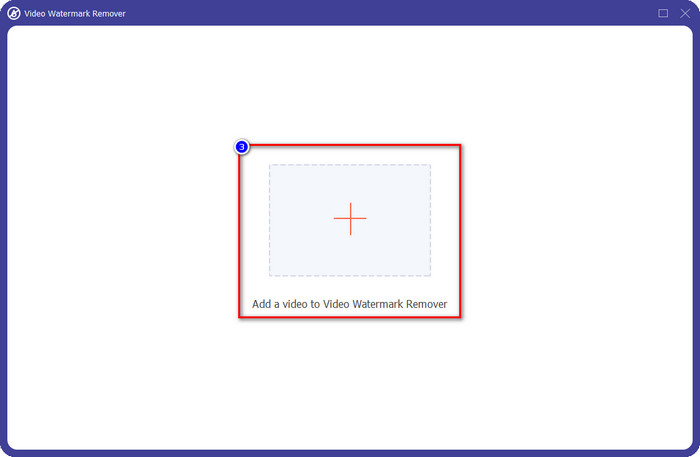
Vaihe 3. Napsauta näytöllesi ilmestyvää +-painiketta ladataksesi Animotolla muokkaamasi, vesileimalla varustetun videon.
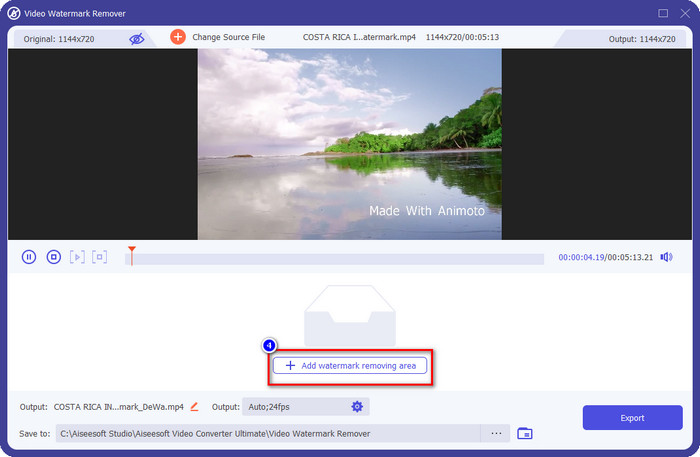
Vaihe 4. Kun video on ladattu, näytölle avautuu uusi ikkuna. Napsauta käyttöliittymän keskialareunassa olevaa Add Watermark Removing Area -painiketta.
Vaihe 5. Säädä valintaruutua niin, että se peittää vesileiman, ja aseta se paikoilleen.
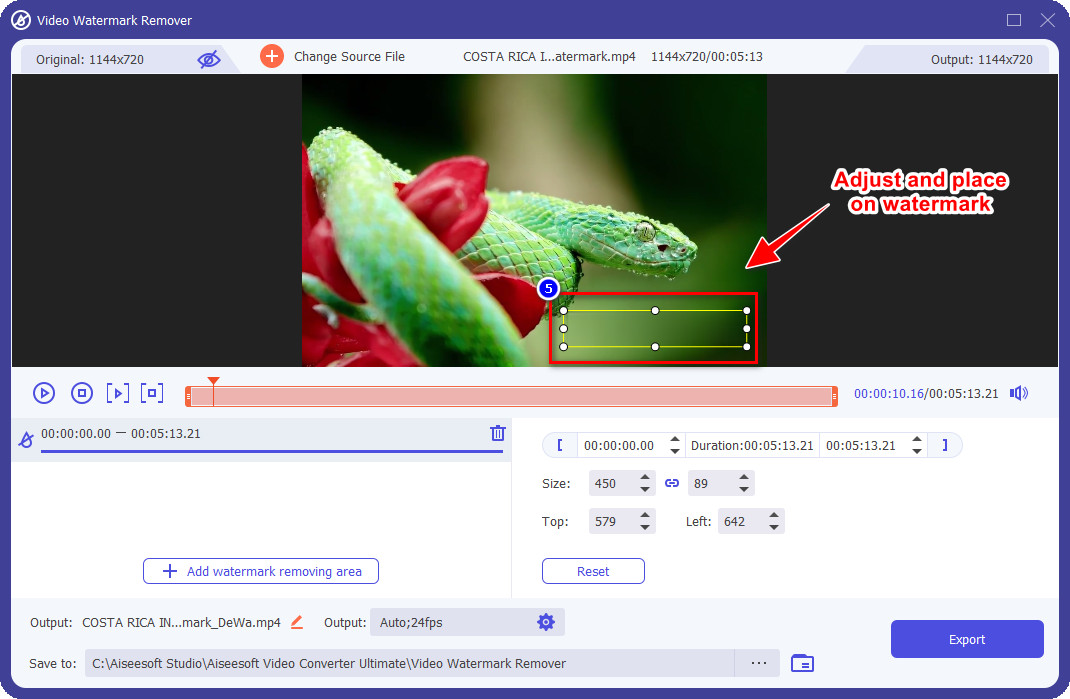
Vaihe 6. Kun valintaruutu on asetettu vesileiman kohdalle, voit napsauttaa Export-painiketta tallentaaksesi videon lopullisen version ilman vesileimaa.
iMovie Macissa
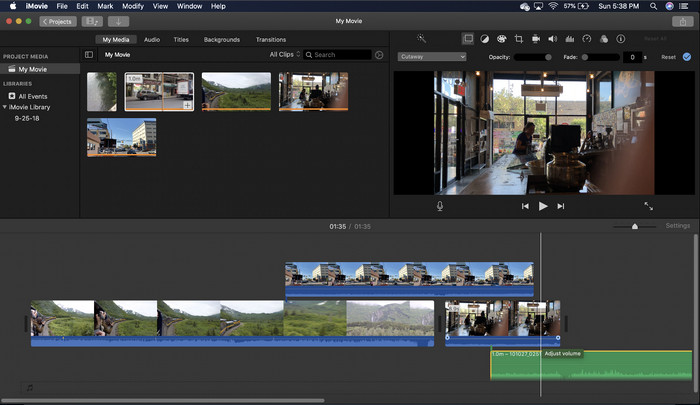
iMovie on suosittu videoeditori, jonka avulla voit poistaa vesileiman videostasi rajaamalla sitä. Jokainen Mac-käyttäjä voi hyödyntää sen potentiaalia lataamatta ohjelmistoa laitteelleen, koska se on jo esiasennettu, mikä säästää aikaa lataamiseen ja asennukseen, jopa tallennustilaan. Vaikka työkalu on erinomainen videoeditointiin, sen tukema vesileiman poistoominaisuus ei ole samanlainen kuin ensimmäinen työkalu. Se rajaa videokehyksen poistaakseen vesileiman videosta, joten jos vesileima sijoitetaan keskelle, joudut rajaamaan lähes puolet videon visuaalisesta esityksestä.
Se ei ole aina paras valinta vesileiman poistamiseen, mutta jos logo on videon lopussa, voit seurata alla olevia ohjeita saadaksesi tietää, kuinka Animoto-vesileima poistetaan videosta rajaamalla sitä.
Vaihe 1. Avaa Mac-laitteesi videoeditori siirtymällä Finderiin ja sitten kohtaan Sovellukset (Applications). Etsi iMovie ja kaksoisnapsauta sitä.
Vaihe 2. Tuo haluamasi video napsauttamalla import-painiketta ja etsimällä videotiedoston paikalliselta levyltäsi.
Vaihe 3. Kun video on tuotu, raahaa se aikajanalle.
Vaihe 4. Työkalun käyttöliittymän oikealla puolella näet useita muokkauskuvakkeita; napsauta listasta crop-kuvaketta.
Vaihe 5. Muuta kehystä niin, että Animoton vesileima rajautuu pois videosta.
Vaihe 6. Napsauta vasemmassa yläkulmassa olevaa share-painiketta ja valitse Export as a Video aloittaaksesi videon lataamisen.
Osa 2. Lisätapa Animoto-videoiden tallentamiseen ilman vesileimaa
Voinko tallentaa editoidut videot Animotoon ilman vesileimaa? Sinä pystyt. Yllä mainitsemamme ohjelmiston sijaan ostat tämän verkkotyökalun tilausmaksun tallentaaksesi täällä muokkaamasi videon, mutta tällä kertaa ilman vesileimaa. Voit auttaa sinua tekemään sen noudattamalla alla olevia ohjeita.
Vaihe 1. Avaa selaimesi, etsi Animoto Video Editor ja siirry sen viralliselle sivustolle.
Vaihe 2. Virallisella sivustolla napsauta Pricing-kohtaa.
Vaihe 3. Sen alta näet, että käytettävissä on kaksi tilaustyyppiä: kuukausittainen ja vuosittainen. Älä anna vuosittaisen hinnan, joka näyttää kuukausitilausta edullisemmalta, hämätä – koska vuosilisenssi laskutetaan koko vuoden ajalta, se voi tulla kokonaisuutena kalliimmaksi kuin kuukausitilaus.
Vaihe 4. Luo tili, lisää laskutusosoite ja haluamasi maksutapa. Tämän jälkeen voit käyttää tämän verkkotyökalun Pro-versiota.
Liittyvät:
Kuinka poistaa Photobucket-vesileimat
Kuinka poistaa vesileima GIF-tiedostosta
Osa 3. Usein kysytyt kysymykset Animoto-vesileiman poistamisesta
Onko Animoto ja Animotica sama asia?
Nämä kaksi videonmuokkausohjelmaa eivät liity toisiinsa, mutta niitä koskevissa artikkeleissa puhutaan useimmiten kunkin työkalun vertailusta. Ja ne ovat molemmat paras vaihtoehto toisilleen sinänsä.
Kumpi on parempi, Animoto-vesileiman sumennus vai rajaaminen?
Sumentaminen voi vaikuttaa videoosi sekä hyvin että huonosti. Vesileiman hämärtymisen hyvä puoli on, että sitä ei voi havaita paljain silmin, varsinkin jos se sekoittuu hyvin väriin. Mutta sen huono puoli on, että näet jäljitettävän merkin viemisen jälkeen, jos se ei mennyt hyvin. Rajauksessa se on sama; kun rajaat videota, videossa ei ole jälkitehostetta, mutta kehyskoko pienenee.
Onko Animotolla kertamaksu?
Valitettavasti se ei tue kertamaksuja. Mutta jos haluat halvemmalla ja käyttää sitä pitkään, suosittelemme, että valitset vuositilauksen käyttääksesi verkkotyökalua vuodeksi, tilaat sen sitten uudelleen seuraavaksi vuodeksi ja jatkat eteenpäin.
Johtopäätös
Joten mitä tapaa luulet käyttäväsi Animoto-vesileiman poistamiseen? Olipa päätöksesi mikä tahansa, toivomme, että auttoimme sinua ratkaisemaan vesileiman poistamisen Animotolla muokkaamastasi videosta.
-
 4 parasta tapaa lisätä vesileimaa kaikkiin videoihin nopeasti
 Opitaan lisäämään vesileima kaikkiin videoihin Windowsissa, Macissa, Onlinessa, iOS:ssä ja Androidissa yksityiskohtaisten ohjeiden avulla, jos luet tämän artikkelin.
-
 4 tehokasta tapaa poistaa Tiktok-vesileimat Tiktok-videoista
 Pitääkö sinun poistaa Tiktok-vesileima vietyistä Tiktok-videoistasi? Voit tehdä sen täällä esittelemiemme työkalujen avulla; voit tehdä sen helposti.
-
 Vesileiman lisääminen videoon Macin iMovie-sovelluksessa [All Embracing]
 Haluatko tietää iMovien videoon vesileiman lisäämisen salaisuudet? Älä läikytä teetä kenenkään päälle, vaan opi se lukemalla tämä artikkeli.
