


 Video Converter Ultimate
 Näytön tallennin
 Videon korjaus
 Suojattu lataus
Kuinka poistaa Viva-videovesileima videoista helposti ja tehokkaasti
Viva Video on videoeditointi- ja videonvalmistussovellus, jonka voit ladata mobiililaitteillesi luodaksesi erinomaisen videon, jota et voi saavuttaa toisella videonmuokkausohjelmalla. Tämän avulla voit käyttää sen ilmaista versiota tai premium-videoeditointia eduksesi. Näin ollen käyttäjillä on ongelmia ilmaisen version käyttämisessä, koska se jättää vesileiman ja muut muokkausominaisuudet eivät ole samoja kuin pro-versio. Videoon upotettu vesileima voi haitata visuaalisuutta, ja sen poistaminen on parempi.
Voit kuitenkin käyttää muutamia työkaluja, joilla voit poistaa vesileiman; niitä löytyy Play Storesta ja App Storesta. Mutta mikä niistä on paras? Jatka tämän artikkelin lukemista, sillä esittelemme työkalun, jolla voit poistaa vesileiman videostasi ja annamme ohjeet siitä, miten poistat Viva Video -vesileiman videostasi.

Osa 1. Viva-videovesileiman poistaminen parhaiden vesileimanpoistosovellusten avulla
Video Eraser – poista vesileima/logo videosta [Android]
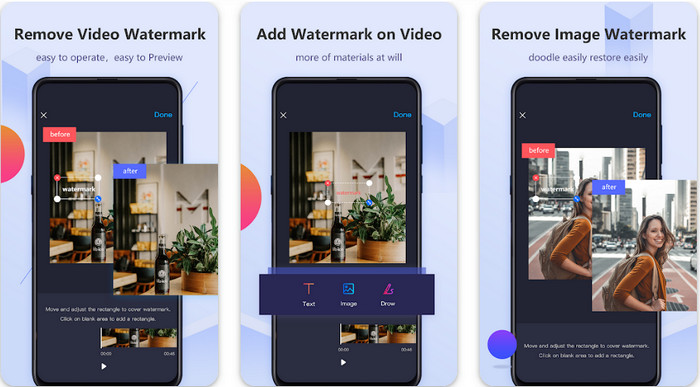
Video Eraser - Remove Watermark/Logo from Video on tehokas vesileimanpoisto-ohjelma, jonka voit ladata Android‑laitteellesi poistaaksesi videoosi upotetun vesileiman. Tällä sovelluksella voit poistaa minkä tahansa tyyppisen vesileiman videostasi, kuten logon, tekstin, leimat jne. Voit hyödyntää sitä myös, jos haluat lisätä oman personoidun vesileimasi, rajata, leikata, kääntää, pakata ja muuttaa videon nopeutta. Vaikka siinä on runsaasti ominaisuuksia, tämän työkalun voi silti ladata ilmaiseksi. Jos siis haluat poistaa Viva Video -vesileiman Android‑laitteellasi, voit seurata alla olevia ohjeita.
Vaihe 1. Lataa ensin sovellus Android‑laitteellesi menemällä Play Storeen ja napauttamalla Lataa.
Vaihe 2. Avaa vesileimanpoistosovellus, napauta Remove Watermark from Video, anna työkalulle pääsy videoihisi ja lataa video, jossa on vesileima.
Vaihe 3. Aseta suorakulmio vesileiman päälle peittääksesi sen.
Vaihe 4. Paina Valmis tallentaaksesi videon ilman vesileimaa.
Aiheeseen liittyvää:
Video Eraser - Retuser Removal [iOS]
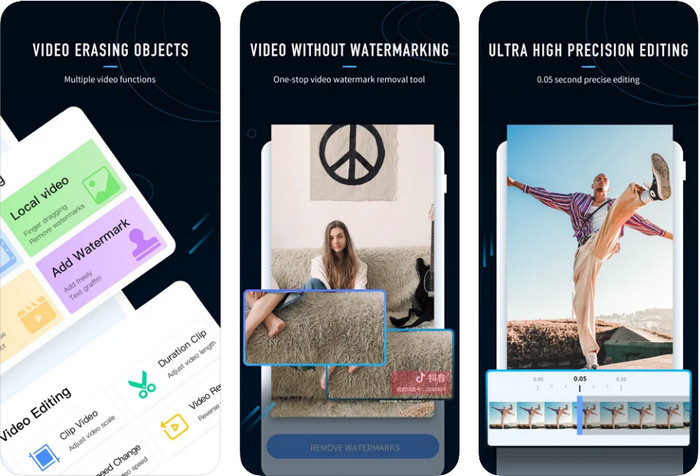
iOS‑laitteelle voit ladata App Storesta sovelluksen Video Eraser- Retouch Removal. Se on yksi Viva Video -vesileiman poistajista, jonka voit ladata ilmaiseksi ja jolla pääset tehokkaasti eroon videossasi olevasta merkistä. Samoin kuin esittelemämme Android‑vesileimanpoistosovellus, myös tämä tukee muita muokkausominaisuuksia, kuten videon tarkennusta (upscale), vesileiman lisäämistä, leikkausta, rajausleikkausta, pakkausta ja kääntöä. Kaikki nämä toiminnot löytyvät tästä sovelluksesta. Vaikka ominaisuudet muistuttavat Android‑sovellusta, niiden toteutustapa eroaa, ja ennen kuin voit poistaa vesileiman tällä työkalulla, sinun on ostettava lisenssi. Voit seurata alla olevia vaiheita, jotka opastavat, miten poistat vesileiman Viva Videosta viemästäsi videosta; seuraa vain annettuja ohjeita.
Vaihe 1. Lataa sovellus App Storesta ja avaa se latauksen jälkeen.
Vaihe 2. Kun avaat ohjelman, napauta Local Video/GIF ladataksesi videon, jossa on vesileima. Muista sallia sovellukselle pääsy Kuvat-kansioosi.
Vaihe 3. Napauta videon kohtaa, jossa vesileima on; tämän jälkeen näytölle ilmestyy suorakulmio.
Vaihe 4. Napauta Eliminate Watermark viedäksesi videon ja tallentaaksesi sen ilman vesileiman aiheuttamaa häiriötä.
Osa 2. Viva-videovesileiman poistaminen Windowsissa ja Macissa [Ultimate Software]
Jos käytät Windowsia tai Macia, tarvitset tehokkaan ohjelmiston, joka poistaa vesileiman videostasi siististi jättämättä raitoja. FVC Video Converter Ultimate voi opastaa sinua poistamaan Viva Video -vesileiman ilmaiseksi ja tuottamaan lopuksi ammattimaisen lopputuloksen. Kuten Androidille ja iOS:lle ladattavat vesileimanpoistosovellukset, myös tämä työkalu tukee monia muita ominaisuuksia ja toimintoja, joita voit hyödyntää. Se tarjoaa enemmän kuin kaksi mainitsemaamme vesileimanpoistosovellusta.
Mikä tekee tästä työkalusta vaikuttavan? Tämän työkalun tukemat poistoominaisuudet ovat parempia kuin muut vesileimanpoistoaineet, joita voit käyttää videossasi. Joten jos käytät tätä, voit nauttia videon katsomisesta ilman vesileimaa, kun olet poistanut sen täältä. Tarvitsetko opetusohjelman tämän käyttämiseen? Seuraavat tiedot antavat sinun tietää kuinka käyttää tätä työkalua yhtä helposti kuin 1-2-3.
Vaihe 1. Voit ladata tämän kattavan ohjelmiston napsauttamalla alla olevaa latauspainiketta ja asentamalla sen laitteellesi. Seuraa WinRAR-asennusohjetta ja napsauta lopuksi Aloita nyt.
Ilmainen latausWindows 7 tai uudempiTurvallinen lataus
Ilmainen latausMacOS 10.7 tai uudempiTurvallinen lataus
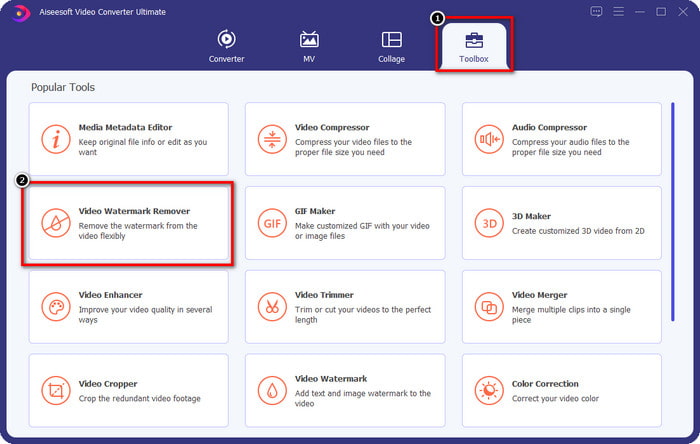
Vaihe 2. Siirry Toolbox-valikkoon ja napsauta Video Watermark Remover aloittaaksesi tämän tehokkaan vesileimanpoistotyökalun käytön.
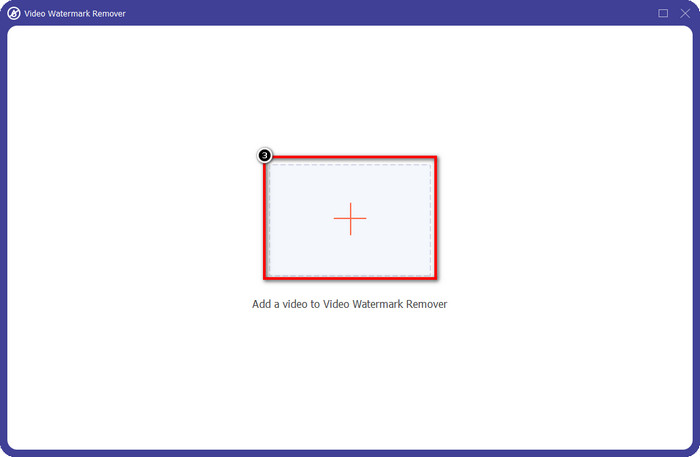
Vaihe 3. Voit ladata Viva Video -videon, jossa on vesileima ja joka on tallennettu työpöydällesi, napsauttamalla +‑kuvaketta. Etsi videon tiedosto avautuvasta kansioikkunasta ja napsauta Open ladataksesi sen.
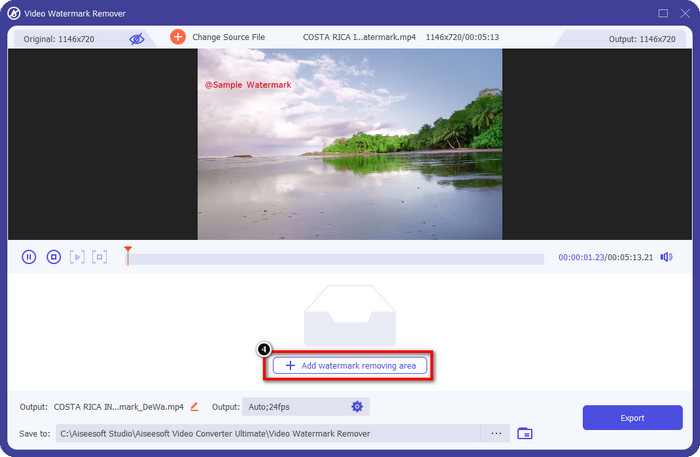
Vaihe 4. Napsauta Add Watermark Removing Area aloittaaksesi vesileiman poistotoiminnon käytön.
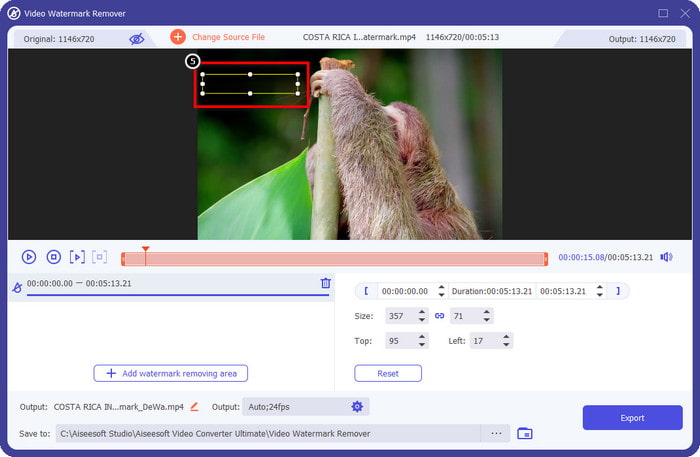
Vaihe 5. Vedä ja sijoita suorakulmio videossasi olevan vesileiman päälle ja peitä se kokonaan. On tärkeää, että peität sen täysin, sillä muuten vesileimasta voi jäädä jälkiä. Voit tarvittaessa muuttaa muodon kokoa.
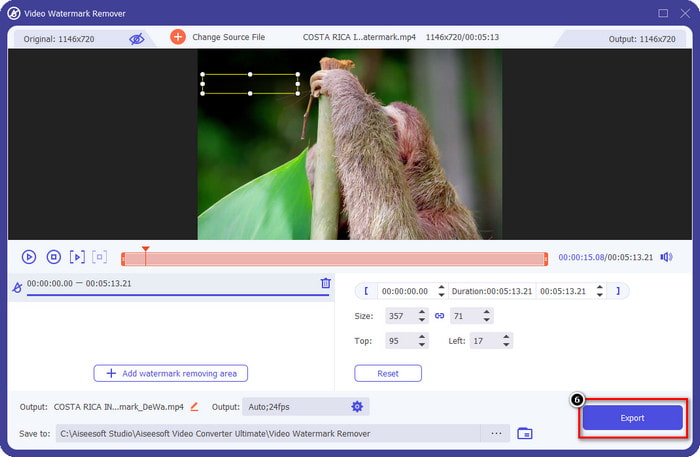
Vaihe 6. Tämän jälkeen napsauta Export tallentaaksesi videon ilman vesileimaa. Helppoa, eikö? Juuri siihen tämä ultimate-työkalu on tehty – helppoon mutta tehokkaaseen käyttöön kaikessa.
Osa 3. Usein kysytyt kysymykset Viva-videovesileiman poistamisesta
Voinko ladata Viva Videon ilman vesileimaa?
Kyllä, voit ostaa tämän työkalun pro-version, jotta videoon ei jää vesileimaa viedessäsi muokkaamaasi videota. Kun olet ostanut tämän työkalun pro-version, käytät myös toista tämän työkalun premium-ominaisuutta, joka ei ole saatavilla ilmaiseksi.
Onko Viva Videolla työpöytäversiota?
Voit ladata Viva Video -version vain Androidille ja iOS:lle. Joten jos haluat ladata työpöytäversion, et löydä sellaista, mutta voit etsiä parhaita vaihtoehtoja videoeditointiin, kuten Viva Video tarjoaa.
Onko Viva Videolla vakoiluohjelmia?
Vuonna 2017 tätä sovellusta koskevat raportit vahvistivat myöhemmin, että siinä on haittaohjelmia. Joten ihmiset, jotka latasivat tämän ohjelmiston, poistivat tämän sovelluksen väkisin laitteistaan välttääkseen lisäseurauksia.
Johtopäätös
Tämän artikkelin Viva Video -vesileimanpoistoaineella voit poistaa vesileiman, jonka Viva Video upottaa vietyyn videoon. Voit yrittää käyttää yllä mainittuja sovelluksia ja noudattaa mukanamme olevia ohjeita vesileiman poistamiseksi. Mutta Windows- ja Mac-käyttäjille, joilla on Viva Video -vesileima, on parempi käyttää parasta ohjelmistoa vesileiman poistamiseksi nopeasti ja tehokkaasti ja ammattimaisen tuloksen saamiseksi. Mitä odotat? Napsauta latauspainiketta, jos haluat poistaa lopullisen vesileiman laitteestasi heti, ja käytä sitä noudattamalla yllä olevia ohjeita.
-
 Kuinka poistaa Lomotif-vesileima näiden mahtavien työkalujen avulla
 Haluatko oppia poistamaan Lomotif-vesileiman videostasi? Lue tämä artikkeli saadaksesi selville merkittävimmät menetelmät sen poistamiseen online- ja offline-tilassa.
-
 Turistien poistaminen valokuvista vesileimanpoistoaineilla
 Kuinka turistit poistetaan valokuvista? Jos haluat oppia poistamaan ei-toivottuja asioita valokuvastasi, nämä työkalut auttavat sinua. Lue tämä artikkeli saadaksesi lisätietoja.
-
 123rf-vesileimanpoistoaineet – Ultimate-työkalujen perusteellinen katsaus
 Jos haluat tietää, mitkä ovat merkittävimmät 123rf-vesileimanpoistoaineet, lue tämä artikkeli huolellisesti. Tämä artikkeli sisältää perusteellisen katsauksen työkaluista.
