


 Video Converter Ultimate
 Näytön tallennin
 Videon korjaus
 Suojattu lataus
Täydelliset tavat poistaa Picsart-suodattimen vesileima videoistasi tehokkaasti
Nykyään on lähes välttämätöntä, että käytössäsi on luotettava visuaalisen median muokkausohjelma tietokoneella, kuten Picsart. Sen avulla voit säätää muutamia asetuksia ja muuttaa tavallisen kuvasi vaikuttavaksi valokuvaksi, jollaista kukaan ei ole ennen nähnyt! Voit hankkia enemmän asiakkaita tai yleisöä luomallasi huomiota herättävällä kuvalla. Picsartin käytössä on kuitenkin yksi ongelma: vesileima, jonka se lisää viennin jälkeen. Vesileima on varsin ärsyttävä ja voi häiritä kuvan visuaalista ilmettä, jos sitä ei poisteta. Jos siis haluat ohjelmiston ja ohjeet siitä, miten poistaa Picsart-suodattimen vesileima, jatka tämän artikkelin lukemista ja opi lisää!

Osa 1. Picsart-suodattimen vesileiman poistaminen käyttämällä ilmaista ohjelmistoa työpöydällä
FVC Video Converter Ultimate - ykkönen vesileimanpoistoaine Windowsissa ja Macissa
Aloitetaan ohjelmiston esittely ykkösvalinnallamme, joka voi auttaa ja opastaa sinua siinä, miten Picsartin vesileima poistetaan. FVC Video Converter Ultimate on välttämätön työkalu arsenaalissasi, kun haluat poistaa vesileiman videoista helposti ja silti saada ammattitasoisen lopputuloksen. Sen suorituskyvyn ja vertaansa vailla olevien ominaisuuksien ansiosta monet käyttäjät ovat jo kokeilleet sitä, eivätkä ole pettyneet. Jos tarvitset apua vesileiman poistamiseen videostasi, voit seurata alla antamiamme vaiheita ja toistaa ne itse.
Vaihe 1. Saat tämän tehokkaan ohjelmiston laitteellesi napsauttamalla alla olevaa sopivaa latauspainiketta. Sen jälkeen sinun on asennettava ohjelma tietokoneellesi ja klikattava Start Now avataksesi sen.
Ilmainen latausWindows 7 tai uudempiTurvallinen lataus
Ilmainen latausMacOS 10.7 tai uudempiTurvallinen lataus
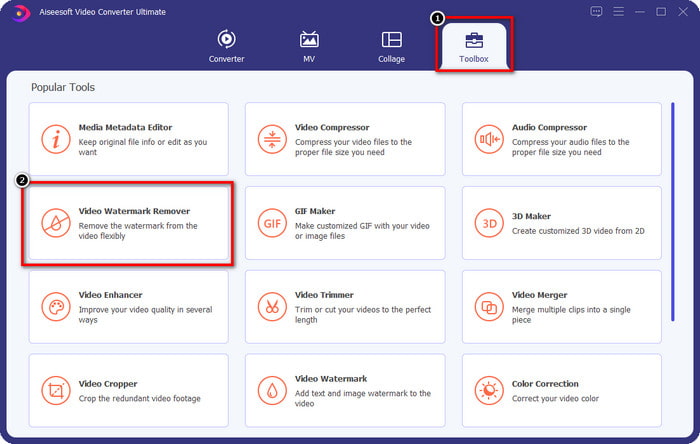
Vaihe 2. Toolbox-osiossa näet muita ominaisuuksia, joita voit käyttää ja joiden avulla voit viimeistellä videosi. Tällä kertaa napsauta kuitenkin Video Watermark Remover.
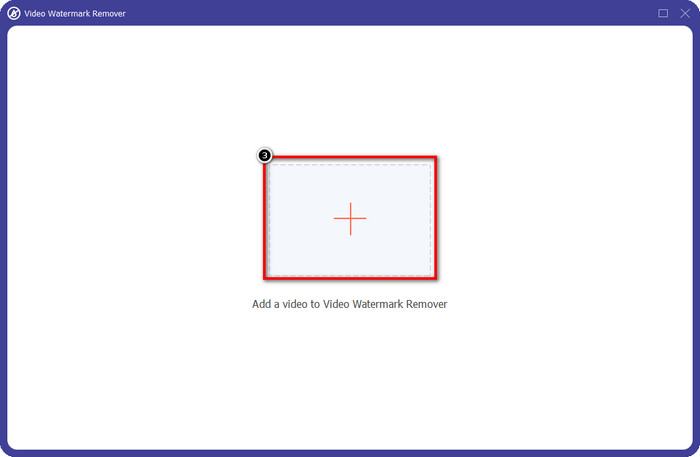
Vaihe 3. Lataa Picsartilla muokkaamasi video napsauttamalla +-kuvaketta. Etsi tiedosto kansiosta, joka avautuu näytöllesi, ja napsauta sitten Open.
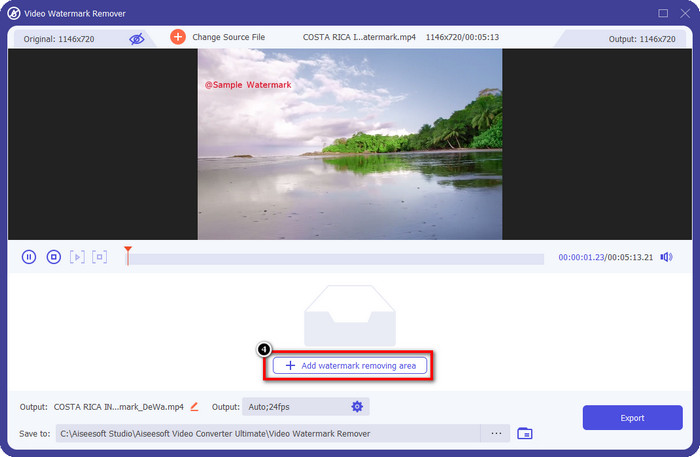
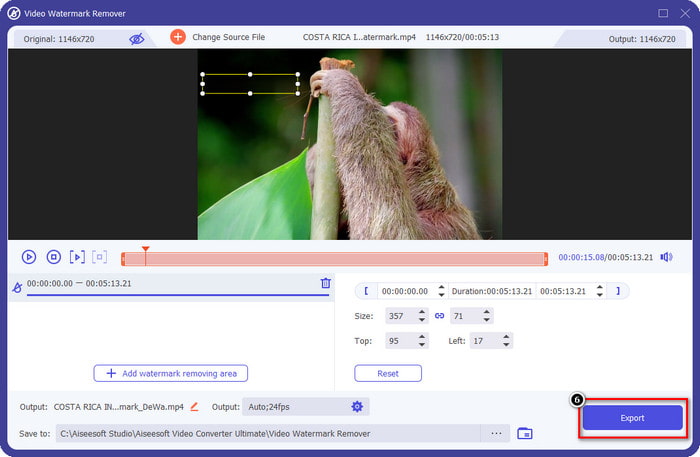
Vaihe 4. Paina Add Watermark Removing Area poistaaksesi videoon upotetun vesileiman.
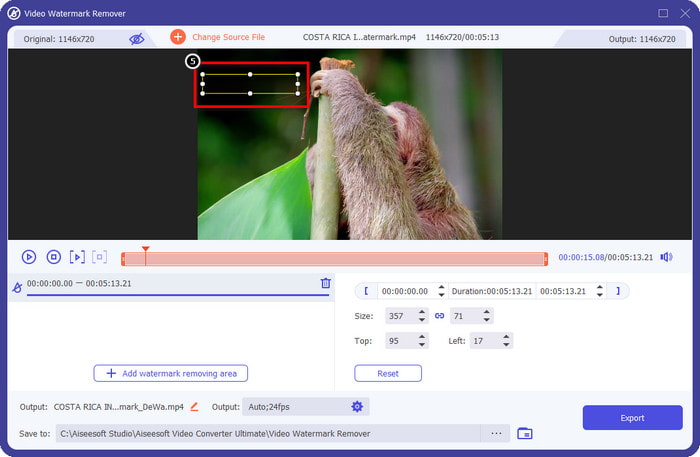
Vaihe 5. Pidä valintaruudusta kiinni ja siirrä se vesileiman päälle peittääksesi sen. Voit suurentaa tai pienentää ruutua mieltymystesi mukaan.
Vaihe 6. Kun olet peittänyt vesileiman valintaruudulla, napsauta Export tallentaaksesi lopullisen videon omalle levyasemallesi.
Valokuvat Windowsissa - Peitä vesileima 3D-suunnittelulla
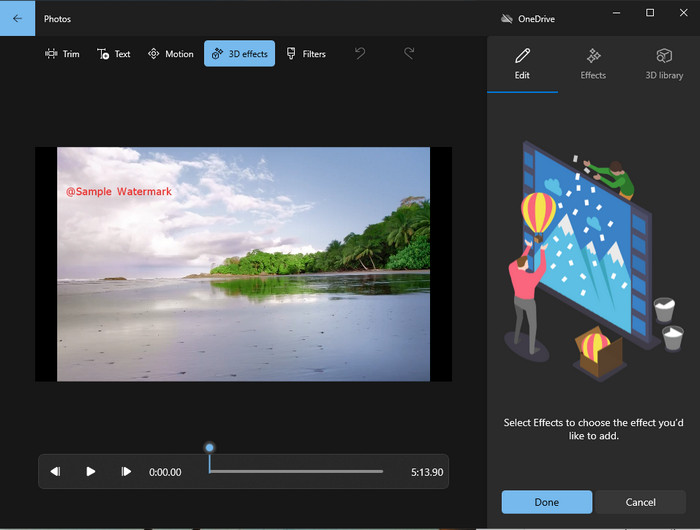
Jos ohjelmiston lataaminen ei ole sinun juttusi ja käytät Windowsia, kannattaa kokeilla Valokuvat-sovellusta vesileiman muokkaamiseen videossasi. Tämän työkalun avulla Picsart-vesileiman poistamisen opettelu käy vielä nopeammin, koska sinun ei tarvitse käydä läpi sovelluksen latausvaihetta. Työkalu ei varsinaisesti poista vesileimaa videosta, mutta voit peittää sen 3D-malleilla. Siitä huolimatta tämän oletusarvoisen kuvan- ja videokatselu- ja muokkaussovelluksen suorituskyky on hyvä. Etkö ole varma? Voit lukea alta vaiheet ja seurata niitä, jos haluat.
Vaihe 1. Napsauta Windows-painiketta tehtäväpalkissa ja etsi Valokuvat-sovellus avataksesi sen.
Vaihe 2. Kun olet avannut sisäänrakennetun editorin, napsauta +-merkkiä ladataksesi videon, jota haluat muokata täällä.
Vaihe 3. Siirry kohtaan 3D Effects, napsauta 3D Library ja etsi malli, jolla haluat peittää vesileiman. Aseta valitsemasi malli kohtaan, jossa vesileima näkyy.
Vaihe 4. Paina Finish Video tallentaaksesi lopputuloksen Windows-laitteesi paikalliselle levylle.
PickFrom Blur Video Online

PickFrom Blur Video Online voi auttaa sinua poistamaan PicsArt-vesileiman verkossa olevista videoistasi. Työkalu ei ole monille tuttu, mutta esittelemme sen tässä. Otimme tämän ohjelman mukaan sen tehokkuuden vuoksi vesileimojen poistamisessa ladatuista videoista. Sen käyttöliittymä on yksinkertainen ja selkeä, joten et eksy sitä käyttäessäsi. Jos siis haluat poistaa vesileiman, siirrytään seuraavaksi itse prosessiin.
Vaihe 1. Avaa selaimesi, etsi työkalun nimi ja napsauta ensimmäistä hakutulosta avataksesi vesileimanpoiston verkkoversiossa.
Vaihe 2. Napsauta Click to Add File ladataksesi videosi palveluun.
Vaihe 3. Valitse Blur Part of the Video ja siirrä valintaruutu vesileiman päälle.
Vaihe 4. Paina Start ladataksesi videon ilman vesileimaa.
Osa 2. Picsart-vesileiman poistaminen ostamalla Premium-versio
Sinun on ostettava ohjelmisto, jos et halua joutua vaikeuksiin Picsart-kultaisen vesileiman poistamisessa. Se maksaa sinulle tietyn summan, koska sinun on maksettava siitä ennen kuin voit käyttää sitä ja viedä sitten videon ilman upotettua vesileimaa. Joten jos haluat vaiheittaisen opastuksen Picsartin ostamisesta, sinun on noudatettava seuraavaa lisäämäämme opetusohjelmaa.
Vaihe 1. Avaa Picsartin virallinen verkkosivusto ja kirjaudu tilillesi. Jos sinulla ei ole tiliä, sinun täytyy luoda sellainen rekisteröitymällä täällä.
Vaihe 2. Pääsivulla napsauta Pricing ja tarkastele kunkin tuotteen hintoja.
Vaihe 3. Valitse haluamasi tilaus, kuukausittainen tai vuosittainen, ja napsauta sitten Go to Payment.
Vaihe 4. Lisää laskutustiedot täyttämällä vaaditut kentät ja napsauta sitten Purchase Now.
Aiheeseen liittyvää:
Poista vesileima valmistujaiskuvista
Osa 3. Usein kysytyt kysymykset Picsart-vesileiman poistamisesta
Voinko ostaa Picsart Goldin pysyvästi?
Se ei tue kertamaksuperustetta tai suunnitelmaa, joten jos haluat käyttää Picsart Goldia, sinun on käytettävä kuukausi- tai vuosisuunnitelmaa. Tarkista kunkin suunnitelman hinta menemällä sen viralliselle verkkosivustolle.
Voinko luoda mukautetun tilauksen Picsartissa?
Kyllä, voit luoda tilauksen Picsartissa. Voit määrittää sovellusta käyttävien ihmisten määrän.
Mistä pääsen Picsartiin?
Voit ladata Picsartin Windowsille, Androidille ja iOS:lle. Valitettavasti sovelluksella ei ole tällä hetkellä Mac-versiota, mutta älä ole surullinen, sillä voit käyttää muita järjestelmässäsi olevia medianmuokkausohjelmistoja.
Johtopäätös
Aiemmin opettamamme opetusohjelma antaa sinulle käsityksen vesileimojen poistamisesta PicsArt-sovelluksella ja parhailla vesileimanpoistoaineilla, joita voit käyttää. Voit nyt nauttia Picsartissa muokkaamastasi videosta huolehtimatta tuotteen vesileimasta, jonka se lisää lopputulokseen. Joten jos et ole vieläkään vakuuttunut tarjoamistamme työkaluista, sinun on ensin kokeiltava niitä, erityisesti FVC Video Converter Ultimatea. Napsauta latauspainiketta ja käytä se Windowsissa ja Macissa ilmaiseksi. Nauti sitten sen tarjoamista ominaisuuksista ja toiminnoista, joita voit hyödyntää.
-
 Pond5-vesileiman poistaminen Ultimate-työkaluilla
 Opi poistamaan Pond5-vesileima noudattamalla alla olevia yksinkertaisia ohjeita. Voit helposti poistaa Pond5-vesileiman kuvastasi näiden vaikuttavien työkalujen avulla.
-
 2 tehokasta tapaa Dxtory-vesileiman poistamiseen
 Opi poistamaan Dxtory-vesileima noudattamalla kahta parasta menetelmää. Jos etsit sopivinta työkalua Dxtory-vesileiman poistamiseen, lue tästä.
-
 Erinomaiset Arnold Maya -vesileimanpoistoaineet, joita et saa missata
 Monet vesileimanpoistoaineet voivat poistaa Arnold Maya -vesileiman. Mutta jos haluat tietää, mitkä ovat parhaat Arnold Maya -vesileimanpoistoaineet, lue tämä sivu.
