


 Video Converter Ultimate
 Näytön tallennin
 Videon korjaus
 Suojattu lataus
Kuinka poistaa iStock-vesileima videoista ja kuvista tehokkaasti vaiheiden avulla
Kun tarvitset käyttöösi lisensoidun visuaalisen mediatiedoston, voit siirtyä iStockiin ladataksesi nämä tiedostot. Kaikki eivät voi käyttää sivustoa ilmaiseksi, mikä tarkoittaa, että sinun täytyy ostaa kuva oikealla rahalla. Vaikka voit ladata tiedoston täältä ilmaiseksi, siihen lisätään vesileima ladattuun tiedostoon. Lisäämällä oletusvesileiman tiedostoon tämä sivusto osoittaa, että tiedosto kuuluu iStock-sivustolle. Eikö vesileima ärsytä sinua? Jos ajattelemme samoin, lue tämä blogi loppuun asti, niin esittelemme ratkaisun, jonka löysimme internetistä. Lisäämme myös sivustolla tarjolla olevat tilausvaihtoehdot sekä ohjeet siitä, miten poistat iStock-vesileiman jokaisessa tapauksessa.

Osa 1. iStock Watermarkon -videoiden ja -kuvien poistaminen 3 hyödyllisellä tavalla
1. tapa. Luoton ostaminen iStockista
Aloitetaan ostamalla luottoa iStockista. iStockin luotto on valuutta; Tämä sivusto tunnistaa rahojasi vastaavan luottokelpoisuuden. Voit käyttää luottoa minkä tahansa tiedoston ostamiseen tietyllä summalla. Voit tallentaa iStock-kuvia ilman vesileimaa, jos ostat luottoa. Jos haluat tietää, miten se tehdään, voit lukea kokonaan alla olevat vaiheet, jotka auttavat sinua tekemään sen.
Vaihe 1. Avaa virallinen verkkosivusto ja kirjaudu sisään tilillesi. Jos sinulla ei vielä ole tiliä, voit luoda sen ennen kuin ostat tarvitsemasi krediitin.
Vaihe 2. Sivustolla paina Pricing nähdäksesi, millaisia paketteja työkalu tarjoaa.
Vaihe 3. Näet listan krediiteistä, joita voit ostaa. Valitse, kuinka monta krediittiä haluat, ja napsauta sitten Purchase Credits.
Vaihe 4. Täytä tiedot ja laskutustiedot, joita käytät krediitin ostamiseen.
2. tapa. Poista iStock-vesileima videoista FVC Video Converter Ultimate -sovelluksella
Poistaaksesi iStock-vesileiman videosta tarvitset tehokkaan vesileimanpoisto-ohjelman, FVC Video Converter Ultimaten. Se on suosittu vesileimanpoistaja, joka poistaa vesileiman videoistasi vaivattomasti. Työkalu käsittelee videon ruutu ruudulta ja poistaa vesileiman niin, ettei jälkiä jää, kun viet videon ulos. Jos siis aiot käyttää tätä ohjelmistoa työpöydälläsi, voimme vakuuttaa, että saat vesileimattoman videon hetkessä. Haluatko käyttää tätä ohjelmistoa? Jos haluat, jatka lukemista ja seuraa alla olevia ohjeita vesileiman poistamiseksi iStockista lataamastasi videosta.
Vaihe 1. Napsauta alla lisäämäämme latauspainiketta saadaksesi ohjelman työpöydällesi. Valitse käyttöjärjestelmääsi sopiva versio. Asenna ja määritä työkalu latauksen jälkeen ja napsauta sitten Start Now avataksesi ohjelmiston ja aloittaaksesi sen käytön.
Ilmainen latausWindows 7 tai uudempiTurvallinen lataus
Ilmainen latausMacOS 10.7 tai uudempiTurvallinen lataus
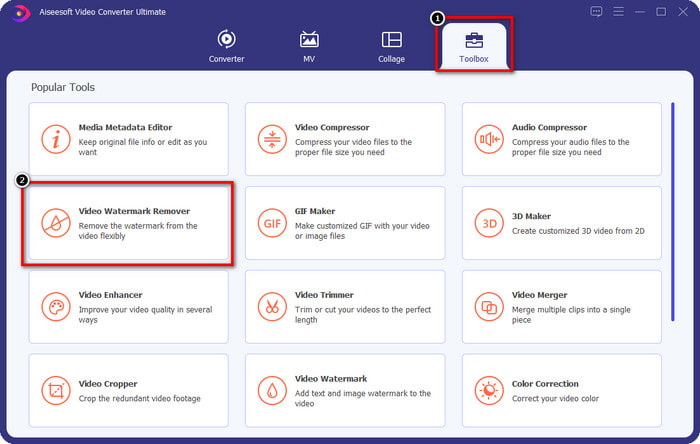
Vaihe 2. Nyt kun sinulla on tämä iStock-vesileimanpoistaja, siirry Toolbox-osioon. Etsi Video Watermark Remover käyttääksesi tätä ominaisuutta.
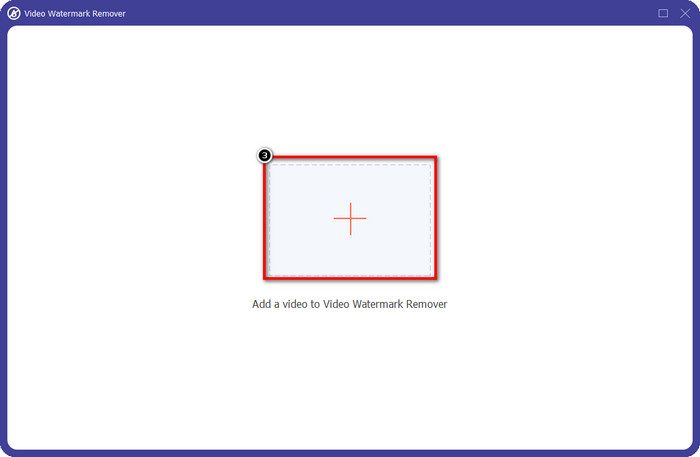
Vaihe 3. Paina +-painiketta ladataksesi iStockista lataamasi, vesileiman sisältävän videotiedoston. Etsi videotiedosto näytölle avautuvasta tiedostoselaimesta ja paina sitten Open ladataksesi sen.
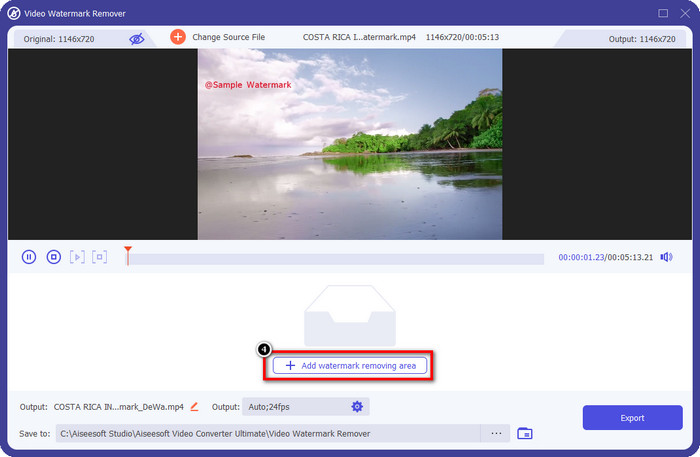
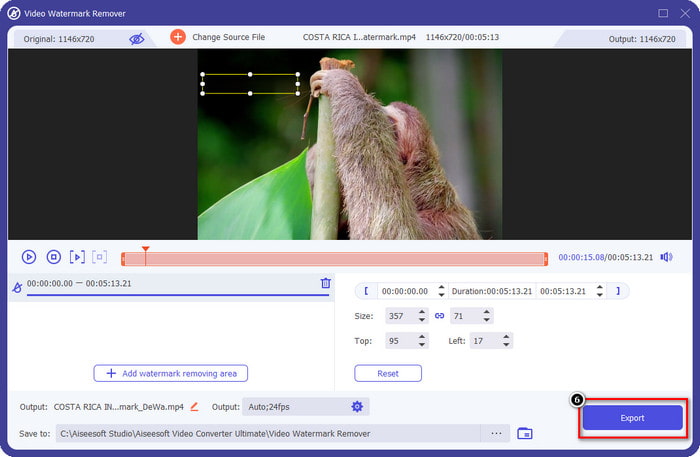
Vaihe 4. Valitse uudessa ikkunassa Add Watermark Removing Area määrittääksesi alueen videolla olevalle vesileimalle.
Vaihe 5. Säädä keskellä ylhäällä näkyvää suorakulmiota ja sijoita se vesileiman päälle, jotta vesileimanpoisto kohdistuu oikeaan alueeseen.
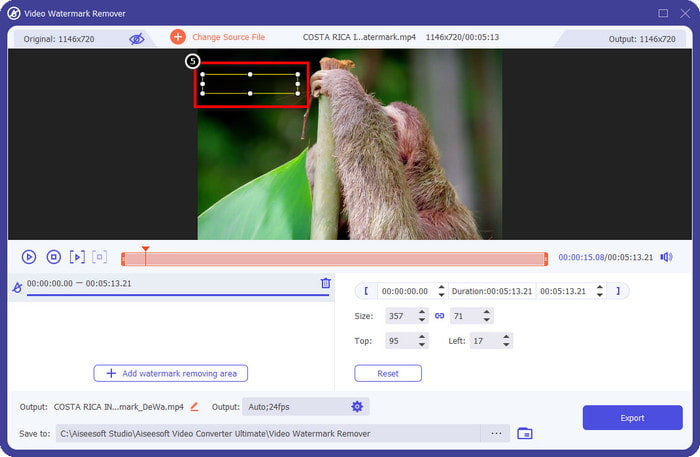
Vaihe 6. Aloita tiedoston vieminen, kun olet suorittanut kaikki tässä vaiheessa kuvatut toimenpiteet, painamalla Export-painiketta. Näin olet nyt saanut poistettua vesileiman videostasi tämän tehokkaan työkalun avulla.
3. tapa. Poista iStock-vesileima kuvista käyttämällä FVC Free Watermark Remover -vesileimanpoistolaitetta
Kuvien vesileimojen käsittelyä varten sinun tulee käyttää työkalua FVC Free Watermark Remover. Se on kätevä iStock-vesileimanpoistaja verkossa, jonka avulla voit poistaa tehokkaasti vesileimat kuvista ilman, että mitään tarvitsee ladata laitteellesi. Lisäksi sinun ei tarvitse ostaa tai tilata mitään, koska työkalu on ilmainen. Siitä huolimatta, että kyseessä on verkkotyökalu, sen suorituskyky vesileimojen poistamisessa on kiistatta parempi kuin monien muiden kuvien vesileimanpoistajien. Etkö usko? On vain yksi tapa todistaa, että se toimii erinomaisesti: seuraa tähän lisäämiämme vaiheita.
Vaihe 1. Napsauta tätä linkkiä käyttääksesi välittömästi verkkopohjaista vesileimanpoistoa kuville.
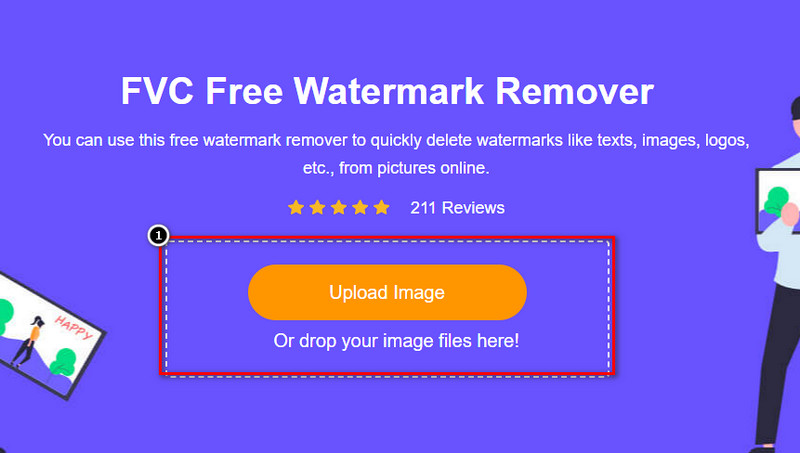
Vaihe 2. Paina Upload Image, valitse vesileiman sisältävä kuva ja odota, että latausprosessi valmistuu.
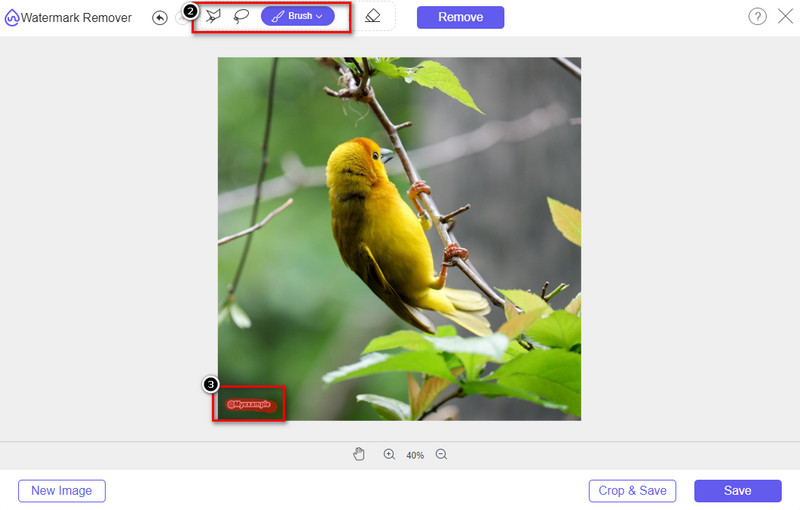
Vaihe 3. Piirrä vesileiman päälle näillä työkaluilla korostaaksesi sen.
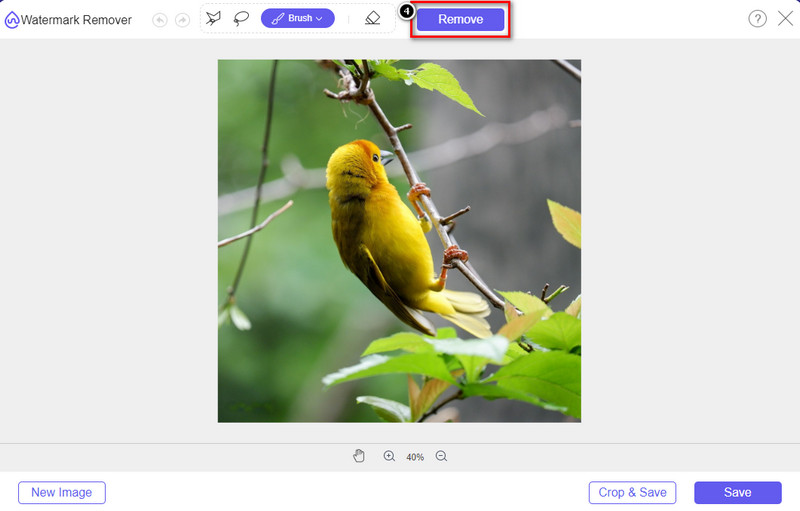
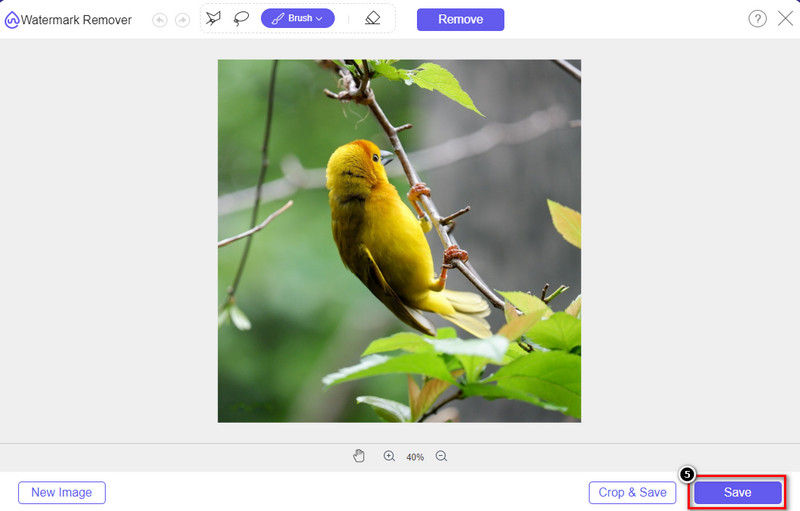
Vaihe 4. Napsauta Remove nähdäksesi, miltä kuva näyttää, kun vesileima on poistettu.
Vaihe 5. Tallenna kuvatiedosto lopuksi napsauttamalla Save viedäksesi kuvan ilman iStock-vesileimaa.
Aiheeseen liittyvää:
How to Remove the Watermark from Renderforest Exported Videos
How to Remove the Viva Video Watermark on Videos
Osa 2. Usein kysytyt kysymykset iStock-vesileiman poistamisesta
Kuinka ladata iStock-kuvia ilman vesileimaa ilmaiseksi?
Jos aiot ladata kuvan iStockista välittömästi, verkkosivusto lisää kuvaan vesileiman. Tämä sivusto suojaa jokaista tiedostoa tekijänoikeusongelmien ja tietyn kuvan liiallisen käytön välttämiseksi. Jos haluat ladata kuvan ilman vesileimaa, sinun on ostettava luottoa; voit noudattaa yllä lisäämiämme vaiheita kuinka se tehdään.
Kuinka paljon maksaa yksittäinen luotto iStockissa?
Yhden luoton hinta iStockissa on $12. Voit käyttää hyvitystä mediatiedoston ostamiseen täältä ja ladata sen ilman vesileimaa haluamaasi visuaaliseen mediaan. Mitä enemmän luottoa ostat, sitä alennusta kohden saat; voit tarkistaa käytettävissä olevat krediitit, joista saatat pitää.
Eikö tiedoston ostaminen iStockista ole kallista?
Verrattuna muihin saman palvelun tarjoaviin verkkosivustoihin, se on yksi halvimmista verkkosivustoista, joilla voit ostaa lisensoidun tiedoston. Kun ostat tiedoston täältä, voit käyttää sitä rajattomasti toisin kuin muita, joissa oston jälkeen tiedoston käytölle on edelleen rajoituksia.
Johtopäätös
Nyt kun tiedät kuinka tehokkaasti poistaa iStock-vesileima videoista ja kuvista, voimme sanoa, että työ on tehty. Joten, kumpaa tapaa pidät eniten? Haluatko ostaa saldon saadaksesi tiedoston valmiiksi ilman vesileimaa? Vai haluatko käyttää tähän lisäämiämme työkaluja, jotka voivat käsitellä kuvien ja videoiden vesileimaa? Oli valintasi mikä tahansa, tiedosto on silti täydellinen ja valmis käytettäväksi ilman vesileiman häiriöitä.
-
 Vesileiman poistaminen Pixlrillä yksityiskohtaisissa vaiheissa [tehokas]
 Haluatko tietää, kuinka vesileima poistetaan Pixlr:llä? Jos näin on, jatka lukemista alla saadaksesi tietää, miten se tehdään ja mitä vaihtoehtoja voit käyttää.
-
 Poista Animotica-vesileima vietyistä videoista kolmella todistetulla tavalla
 Oletko koskaan miettinyt, voiko Animotica-vesileiman poistaa viemistäsi videoista? Tämä artikkeli tarjoaa ohjeet.
-
 Ilmaisia tapoja poistaa VideoShop-vesileima videoista [vaivattomasti]
 VideoShop-vesileiman poistamiseksi laitteesi tarvitsee vesileimanpoistoaineen. Jos haluat tietää, mitä nämä ovat, lue tämä artikkeli.
