


 Video Converter Ultimate
 Näytön tallennin
 Videon korjaus
 Suojattu lataus
Adobe Resize Images - Helpoin tapa muuttaa kuvan kokoa verkossa ja offline-tilassa
If you want to resize images on Adobe, then we have the solution you are looking for. Adobe is a famous name for image and video editing applications. Adobe has many applications where you can enhance, trim, edit, and many more; name it! Adobe has almost all apps for video and photo editing. But did you know that Adobe also has an application where you can resize an image? You read that right! Adobe Express is an online tool for image resizing. And if you want to resize offline, you can use Adobe Photoshop. We will discuss below the tools and teach you how to resize images using Adobe Express and Adobe Photoshop.

Osa 1. Kuvan koon muuttaminen Adobe Express Onlinessa
Jos haluat käyttää online-kuvan koon muutosta, voit etsiä Internetistä monia työkaluja. Internetistä etsiminen ei kuitenkaan joskus ole paras valinta, koska on olemassa työkaluja, jotka eivät tarjoa laadukkaita tuloksia. Monet ihmiset etsivät myös Adobe Photoshopin verkkokokoa muuttamalla kuvia. Ongelmana on, että Adobe Photoshopilla ei ole online-versiota. Joten esittelemme toisen Adobe-työkalun kuvan koon muuttamiseen.
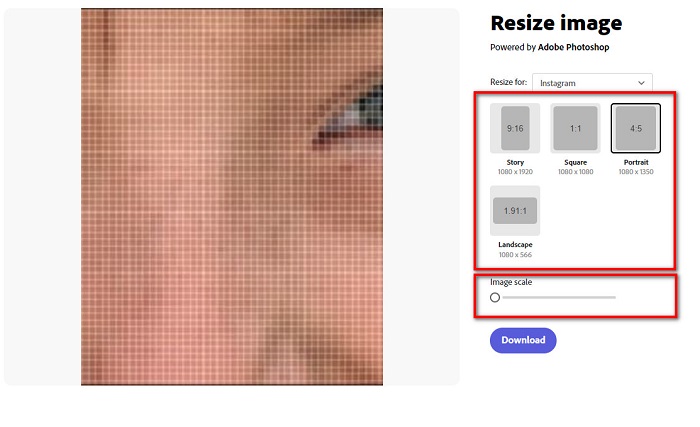
Adobe Express is probably the best online image resize you can search on the internet. This online application allows you to resize an image by choosing the scaling preset from the options. You can choose between 9:16 (Story), 1:1 (Square), 4:5 (Portrait), and 1.91:1 (Landscape). Moreover, it has a simple interface, making it a user-friendly application. You can also manually scale your image by holding and dragging the slider. Furthermore, if you want to resize an image for Instagram, Facebook, Twitter, or Pinterest, Adobe Express will help you with that. However, unlike other Adobe editing apps, this tool does not have other editing features.
Kuvan koon muuttaminen Adobe Expressillä:
Step 1. Open your browser and search Adobe Express image resizer on the search box. Then, click the Upload your Photo button on the main user interface to upload the image you want to resize.
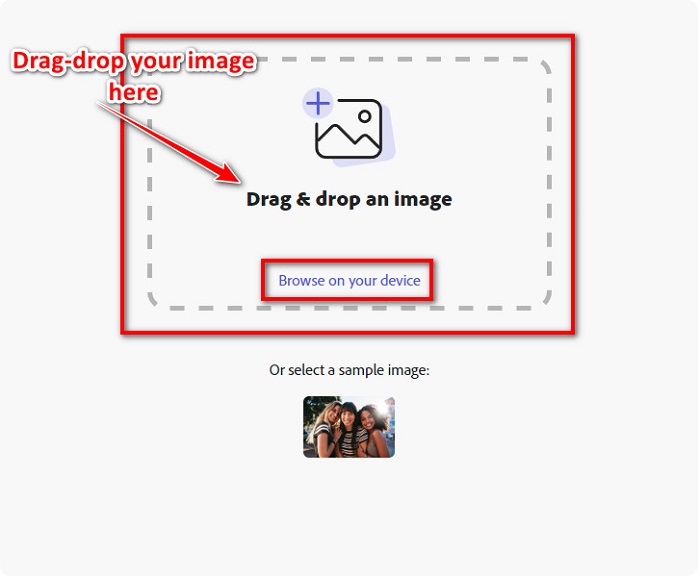
Step 2. And then, drag and drop your image from your computer folders. You can also just click the Browse on your device button to upload an image.
Step 3. Lastly, choose where you want to resize by clicking the drop-down arrow beside Resize for. And then, select your preferred size on your image's left side of the interface. You can also manually resize your image by holding and dragging the slider below the size presets.
Step 4. Click the Download button to download your resized image.
Osa 2. Kuvan koon muuttaminen Adobe Photoshopin offline-tilassa
Siitä huolimatta on hyvä käyttää online-työkalua, koska sen avulla voit säästää tilaa laitteessasi, mutta se on silti paras vaihtoehto käyttää offline-työkalua. Useimmat offline-kuvan koon muuttajat sisältävät monia muokkausominaisuuksia. Offline-työkalujen käytön etuna on myös se, että sinun ei tarvitse käyttää Internetiä kuvan koon muuttamiseen. Tässä osassa esittelemme merkittävimmän offline-videon koon muuttajan.
Adobe Photoshop is the best photo editing application that you can have on your PC. This photo editing app has many tools and functions that you can use to edit your images. In addition, you can use this tool to resize any image. This app allows you to enhance digital images, drawings, paintings, and animations that you can use for business purposes. Moreover, many professionals use this image editing application because of its functions and the quality it produces.
Lisäksi voit käyttää tätä sovellusta tekstin lisäämiseen, 3D:n luomiseen ja kuvan terävyyden lisäämiseen. Mutta Adobe Photoshopin haittapuoli on, että sinun on ostettava sovellus ennen sen käyttöä. Ja se on myös vaikea käyttää, varsinkin aloittelijoille. Tästä huolimatta tämä sovellus on hintansa arvoinen, ja nautit varmasti tämän sovelluksen käytöstä.
Kuvien koon muuttaminen Adobe Photoshopilla offline-tilassa:
Step 1. Download Adobe Photoshop on your device. Then, follow the app’s installation process, and run it on your device.
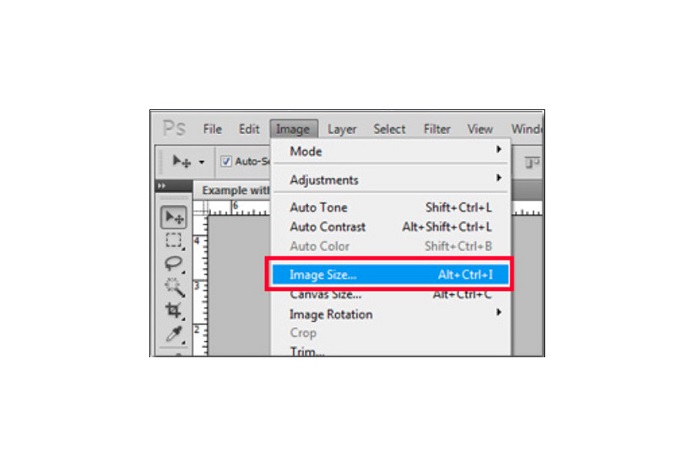
Step 2. Open your image on Photoshop, then go to the Image at the top left of the interface. Then, select Image Size.
Step 3. Next, a new window will prompt, where you will click the box next to Constrain Proportions.
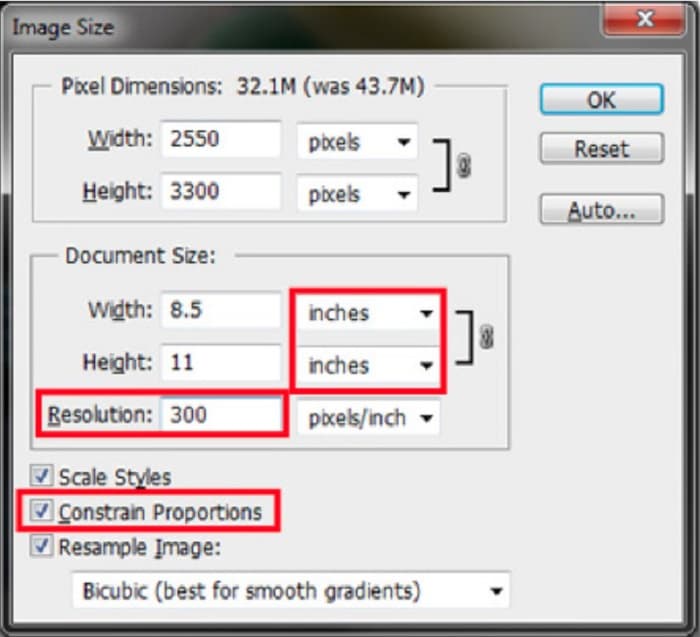
Step 4. And under the Document Size, select the inches for your measurement unit. Ensure that the resolution is not lower than 200 pixels per inch.
Step 5. Type the width and the height that you prefer for your image. And then tick the OK button to save the changes.
Step 6. Finally, save your file on your computer.
Now that you learned how to resize an image using the best Adobe photo resizer, we will show you an alternative image resizer to use.
Osa 3. Vaihtoehto Adobe Photoshopille kuvien koon muuttamisessa
Koska Adobe Photoshop ei ole käyttäjäystävällinen työkalu, etsimme vaihtoehtoa, jolla voit muuttaa kuvan kokoa. Joten esittelemme ohjelmistosovelluksen, jonka voit ladata Windows- tai Mac-laitteellesi. Opettelemme myös, kuinka kuvan kokoa muutetaan tämän äärimmäisen sovelluksen avulla.
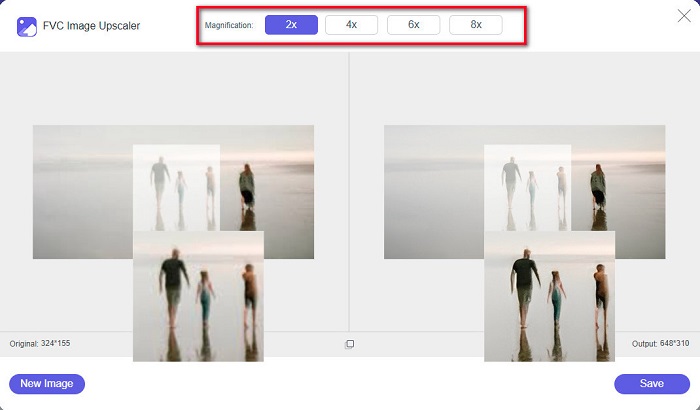
FVC Free Image Resizer is another powerful online image resizer that you can use if you want to resize your image. You can also use image resizer applications to fix the quality of your photo, and that’s what FVC Free Image Resizer does. This online tool can upscale your image for up to 2x, 4x, 6x, and 8x magnification. Additionally, it supports all image formats, such as JPG, JPEG, PNG, and BMP. What’s even great about this application is its easy-to-use software interface. Moreover, it uses AI technology that automatically detects the blurry part of an image, then enhances it.
Kuvan koon muuttaminen FVC Free Image Upscaler -työkalulla:
Step 1. Search for FVC Free Image Upscaler on your browser, then go to the app’s main page. Press the Upload Photo button on the main user interface to upload the image you want to resize.

Step 2. After uploading your image, select the magnification you want for your photo. You can select between 2x, 4x, 6x, and 8x. The greater the number, the better the quality.
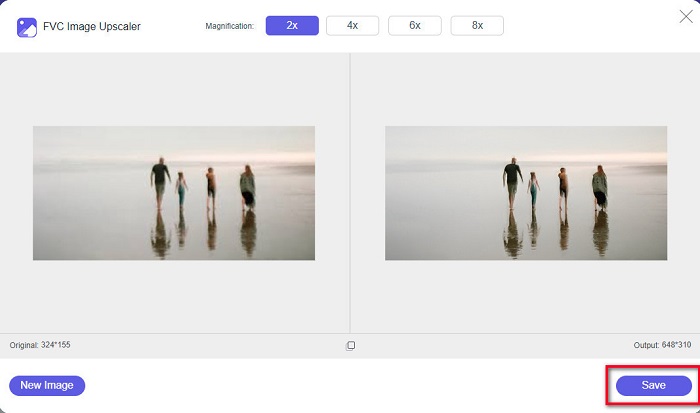
Step 3. And then, click the Save button to save your output on your device.
Osa 4. Usein kysyttyä kuvan koon muuttamisesta Adobe Photoshopissa
Muuttaako Adobe kuvien kokoa häviöttömästi?
Adobe Photoshopin avulla voit muuttaa kuvien kokoa laadun heikkenemättä. Lisäksi se tuottaa korkealaatuisia tuloksia.
Mitä tiedostomuotoja Adobe Photoshop tukee?
Adobe Photoshop hyväksyy lähes kaikki tunnetut kuvamuodot, kuten JPG, JPEG, PNG, BMP, TIFF, EPS, PDF ja muut.
Mikä on Adobe Photoshopin hinta?
Voit ostaa Adobe Photoshopin hintaan $19,99 kuukaudessa. Voit käyttää sen 30 päivän ilmaista kokeilujaksoa sovelluksen testaamiseen ensin.
Johtopäätös
Now that your query about Adobe resize images has been solved, you can resize an image using Adobe Express or Adobe Photoshop. Whichever application you choose among the above mentioned tools, you can successfully resize your image. But if you want an easier and more efficient way to resize and enhance an image, then use FVC Free Image Upscaler.
-
 Kuvan terävöittäminen verkossa ja offline-tilassa neljällä helpolla tavalla
 Voit tehdä monia menetelmiä, jos haluat terävöittää kuvaa. Keskustelemme alla parhaista ja helpoimmista tavoista terävöittää kuvia verkossa ja offline-tilassa.
-
 Vanhojen valokuvien palauttaminen verkossa ja offline-tilassa [Helppo vaiheet]
 Haluatko palauttaa vanhan valokuvan? Näiden työkalujen avulla tiedät vanhan valokuvan restaurointiprosessin. Lue tämä viesti oppiaksesi yksinkertaisimmista menetelmistä.
-
 Kuinka muuttaa valokuvan kokoa Facebookille [nopeat ja helpot vaiheet]
 Jos sinulla on ongelmia suuren kuvan lataamisessa Facebookiin, meillä on sinulle ratkaisu. Viimeistele tämä artikkeli oppiaksesi kuinka muuttaa kuvien kokoa Facebookia varten.
