


 Video Converter Ultimate
 Näytön tallennin
 Videon korjaus
 Suojattu lataus
3 tehokasta tapaa muuntaa MP4 AMV: ksi Windows- ja Mac-tietokoneissa helposti
Kun haluat lähettää suuria MP4-videoita älypuhelimeesi, kuten suuren elokuvan, tallennustilaa ei ehkä riitä. Voit muuntaa MP4 AMV-tiedostoksi käyttämällä edistynyttä pakkausalgoritmia saadaksesi paljon pienemmän videon. Halusitpa sitten muuntaa videot verkossa tai säätää ja muokata videoita tietyllä koolla, voit oppia lisää artikkelista 3 tehokkaimmasta MP4 - AMV-muuntimesta.

Osa 1: Kuinka muuntaa MP4 AMV Onlineksi
Jos sinun tarvitsee vain muuntaa yksinkertainen MP4-tiedosto AMV-muotoon vaivattomasti, FVC Free Online Video Converter on monipuolinen verkkovideomuunnin, joka on yhteensopiva MP4-, AMV-, AVI- ja monien muiden tiedostotyyppien kanssa. Sen avulla voit myös säätää video- ja ääniasetuksia, ja lisäksi se mahdollistaa tiedostojen muuntamisen ilman vesileimaa tai muita rajoituksia.
- 1. Muunna MP4 AMV: ksi, AVI, MKV ja muita videoita alkuperäislaatuisina.
- 2. Säädä kehysnopeutta, videolaatua, videokoodekkia, äänenlaatua ja muuta.
- 3. Tarjoa helppo käyttöliittymä AMV-tiedostojen muuntamiseksi vain 3 vaiheessa.
- 4. Se on turvallinen ja vakaa tapa muuntaa tiedostot ilman vesileimaa.
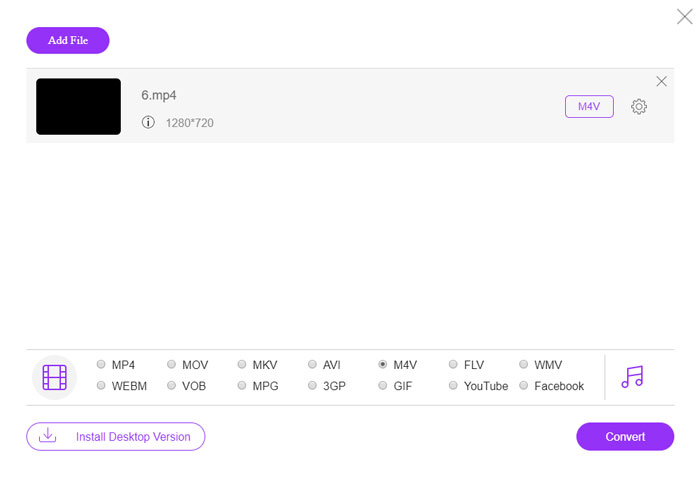
Vaihe 1. Siirry selaimellasi verkossa toimivaan MP4:stä AMV:hen -muuntimeen. Voit napsauttaa Add File to Convert -painiketta asentaaksesi videomuuntimen ensimmäisellä kerralla. Voit myös ladata MP4-tiedostot ohjelmaan.

Vaihe 2. Valitse alareunasta AMV tulostusmuodoksi. Voit tietenkin myös säätää video- ja ääniasetuksia, kuten videokooderia, videon tarkkuutta, videon bittinopeutta, kuvanopeutta ja muuta, jotta saat halutunlaisen videon.

Vaihe 3. Tämän jälkeen voit napsauttaa Convert-painiketta aloittaaksesi MP4:n muuntamisen AMV-muotoon. Halutun tiedoston luominen vie vain muutaman sekunnin, minkä jälkeen voit siirtää videon vastaavasti älypuhelimeesi.
Osa 2: Kuinka muuntaa MP4 AMV: ksi VLC Media Playerilla
VLC Media Player on yksi suosituimmista MP4-AMV-muunnimista. Se tarjoaa myös joitain videoiden muuntamisen ja muokkaamisen perusominaisuuksia. Lisäksi voit esikatsella lähtevää AMV-videota muuntamisen jälkeen. Katso vain yksityiskohtainen prosessi alla.
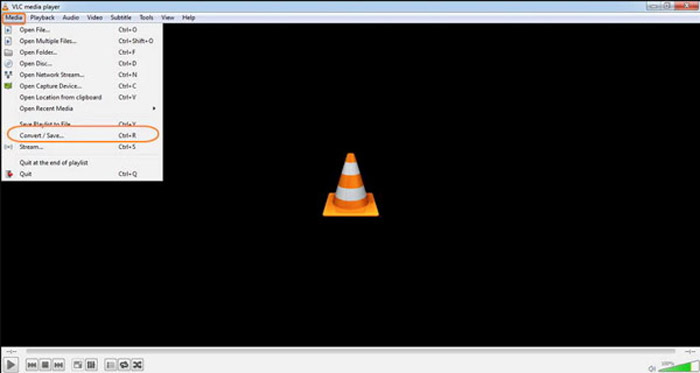
Vaihe 1. Avaa VLC Media Player -ohjelma tietokoneellasi, siirry Media-valikkoon ja valitse Convert/Save-vaihtoehto. Napsauta Add-vaihtoehtoa File Selection -luettelon oikealla puolella File-välilehdellä ja selaa MP4-tiedostot.
Vaihe 2. Napsauta Convert/Save-painiketta jatkaaksesi. Siirry Convert-ikkunaan, jossa voit valita AMV:n tulostusmuodoksi. Napsauta Edit Selected Profile -painiketta säätääksesi video- ja ääniasetuksia.
Vaihe 3. Napsauta Browse-vaihtoehtoa ja valitse sijainti ja tiedostonimi tulostetiedostolle. Tämän jälkeen voit napsauttaa Start-painiketta muuntaaksesi MP4-tiedostot AMV-muotoon tietokoneellasi.
Osa 3: Paras tapa muuntaa MP4 AMV: ksi helposti
FVC Video Converter Ultimate on kaiken kattava MP4:stä AMV:hen -muunnin sekä Windowsille että Macille. Se ei ainoastaan muunna videotiedostomuotoja, vaan sen avulla voit myös säätää erilaisia video- ja ääniparametreja, lisätä tekstityksiä/ääniraitoja ja jopa muokata muunnettuja videotiedostoja vaivattomasti.
- 1. Muunna MP4 AMV: ksi ja muiksi alkuperäislaatuisiksi videoformaateiksi.
- 2. Säädä kehysnopeutta, videon laatua, bittinopeutta, videokoodekkia ja muita.
- 3. Tarjoa useita videoeditointiominaisuuksia kiertää, leikata, säätää suodattimia jne.
- 4. Kehittynyt laitteistokiihdytys videon muuntamiseksi 70x nopeammin.
Ilmainen latausWindows 7 tai uudempiTurvallinen lataus
Ilmainen latausMacOS 10.7 tai uudempiTurvallinen lataus
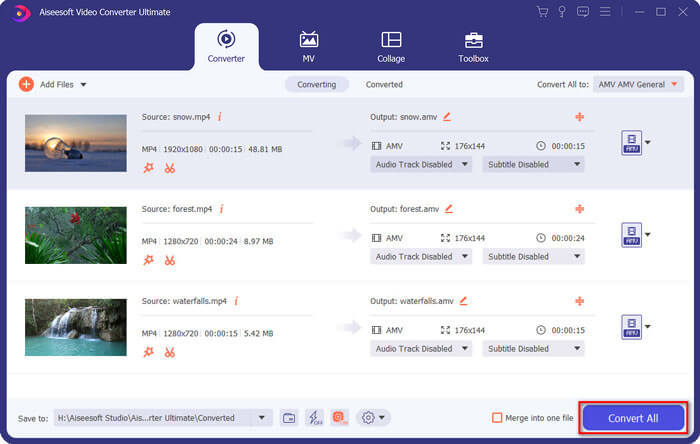
Vaihe 1. Lataa ja asenna MP4:stä AMV:hen -muunnin ja käynnistä ohjelma tietokoneellasi. Valitse Convert-painike ja napsauta Add File -vaihtoehtoa ladataksesi MP4-tiedostot tai vedä useita MP4-tiedostoja suoraan tähän ohjelmaan.

Vaihe 2. Napsauta videotiedoston oikealla puolella olevaa formaattikuvaketta ja valitse AMV tulostusmuodoksi. Voit myös napsauttaa Gear-kuvaketta säätääksesi video- ja ääniasetuksia tai jopa muokata videota/säätää suodattimia helposti.

Vaihe 3. Kun olet tyytyväinen tulostettavaan AMV-tiedostoon, esimerkiksi videon kokoon, voit napsauttaa Convert All -painiketta aloittaaksesi MP4:stä AMV:hen -muunnoksen. Tämän jälkeen voit siirtää AMV-tiedostot toiseen laitteeseen.
Osa 4: UKK MP4: n muuntamisesta AMV-tiedostoiksi
1. Mikä on AMV-tiedostomuoto?
AMV-tiedosto tunnetaan nimellä Anime Music Video -tiedosto. Sitä käyttävät tyypillisesti kannettavat mediasoittimet Kiinasta ja Kiinasta. AMV-videoformaatti on esillä matalalla resoluutiolla, jonka videotarkkuus on välillä 94x64 - 160x120. Kun muunnat MP4: n AMV: ksi, voit lähettää lisää videoita älypuhelimeesi helposti.
2. Kuinka toistaa AMV-tiedostoja älypuhelimella ja tietokoneella?
Kun muunnat MP4: n AMV-tiedostoiksi, kuinka toistaa videotiedostoja älypuhelimellasi tai tietokoneellasi? Oikeastaan voit yksinkertaisesti ottaa AMV: n AVI-muodon muunnoksena, joka toimii useimmissa mediasoittimissa. Jos haluat toistaa AMV-tiedostoja iOS-laitteillasi, voit käyttää sen sijaan VLC Media Playeria tai muuta mediasoitinta.
3. Mitkä ovat AMV: n ja MP4: n erot?
MP4 on yksi yleisimmin käytetyistä videoformaateista, joita voidaan käyttää online-suoratoistopalveluihin ja laitteisiin. AMV on Motion JPEG: n muunnos, jossa on pikemminkin kiinteät kuin muuttuvat kvantisointitaulukot. Kun muunnat MP4: n AMV: ksi, voit pakata videon ja säästää enemmän tallennustilaa erityisesti videoiden siirtämiseen laitteisiin.
Johtopäätös
Mikä on paras vaihtoehto muuntaa MP4 AMV: ksi? Opi vain lisätietoja parhaista menetelmistä artikkelista. Jos haluat muuntaa ja pakata videoita verkossa ilman lisäohjelmistoja, FVC Free Online Video Converter on lopullinen ratkaisu, jonka voit ottaa huomioon.
-
 AVI VS MP4 - mikä on parempi (laatu / pakkaus / tiedostokoko ...)
 Mikä on parempi videomuoto, AVI tai MP4? Jos haluat saada yksityiskohtaisen vertailun, voit tarkistaa tämän AVI VS MP4 -artikkelin. Voit tietää AVI: n ja MP4: n erot ja yhtäläisyydet monista näkökohdista.
-
 Top 10 MP4 Player -ohjelmisto Windowsille ja Macille (ilmainen ja maksettu)
 Lue ja hanki paras MP4-soitin 10 uusimman MP4-videosoitinohjelmiston suosituksista. Voit toistaa MP4-videotiedostoja Windowsissa ja Macissa sujuvasti ilman viivettä.
-
 Kuinka muuntaa MP4 WMV: ksi Macille / Windowsille
 Tämä viesti jakaa miten MP4-video voidaan muuntaa WMV-muotoon Macissa tai Windowsissa. Tarjoamme sinulle myös useita vaihtoehtoja, mukaan lukien sekä työpöytäohjelmistot että verkkopohjaiset verkkomuuntimet. Oletko valmis tuntemaan parhaat MP4 - WMV -muunnostyökalut?
