


 Video Converter Ultimate
 Näytön tallennin
 Videon korjaus
 Suojattu lataus
Kuinka purkaa MP3 M4V: stä 4 erinomaisella menetelmällä, jotka sinun pitäisi tietää
Jos olet jo ostanut joitain M4V-videoita iTunes-kaupasta, kuinka muuntaa M4V MP3-tiedostoiksi helposti? M4V on DRM Fair-Play -suojattu videomuoto, joka poikkeaa muista videoformateista. Kun sinun on purettava MP3-tiedostot M4V: stä, suojaus on purettava etukäteen. Opi vain lisätietoja 4 parhaasta M4V MP3 -muuntimesta ja valitse haluamasi tarpeidesi mukaan.

Osa 1: Paras tapa muuntaa M4V MP3: ksi
FVC Video Converter Ultimate on haluttu M4V–MP3-muunnin, joka ei ainoastaan muunna M4V‑videota MP3‑muotoon halutulla laadulla, vaan myös poistaa DRM‑suojauksen. Sen avulla voit lisäksi säätää video‑ ja ääniasetuksia tai jopa muuntaa videotiedostoja kehittyneen laitteistokiihdytyksen avulla.
- 1. Pura MP3-äänitiedostot M4V-, MP4- ja muusta videoformaatista.
- 2. Säädä kuvanopeutta, videon laatua, videokoodekkia, ääniasetuksia ja paljon muuta.
- 3. Edistynyt laitteistokiihdytys videon muuntamiseksi nopealla nopeudella.
Ilmainen latausWindows 7 tai uudempiTurvallinen lataus
Ilmainen latausMacOS 10.7 tai uudempiTurvallinen lataus
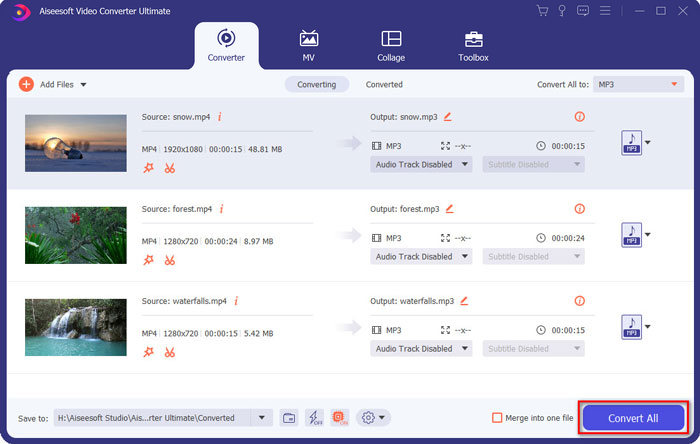
Vaihe 1. Lataa ja asenna M4V–MP3‑muunnin, minkä jälkeen voit käynnistää ohjelman tietokoneellasi. Napsauta Add Files ‑valikkoa tai vedä useita M4V‑videoita suoraan tähän ohjelmaan.

Vaihe 2. Kun olet tuonut M4V‑videot, valitse MP3 tulostusmuodoksi. Voit tietysti napsauttaa Gear‑kuvaketta säätääksesi video‑ ja ääniasetuksia, kuten näytteenottotaajuutta, äänikanavaa jne.

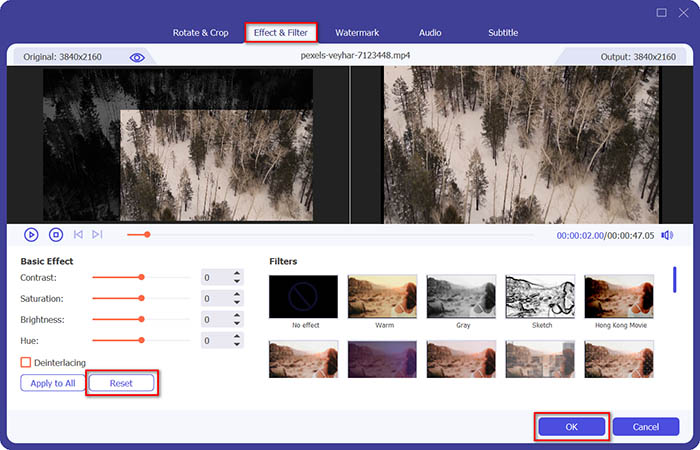
Vaihe 3. Lisäksi voit napsauttaa Edit‑painiketta tai Clip‑painiketta muokataksesi tulostevideoitasi. Voit myös säätää kirkkautta, kontrastia, värikylläisyyttä, sävyä ja valita lomituksen poiston tarpeidesi mukaan.
Vaihe 4. Kun olet tyytyväinen MP3‑tiedostoon tai haluat yhdistää MP3‑tiedostoja, voit valita Merge into one file ‑ruudun ja napsauttaa Convert‑painiketta aloittaaksesi M4V‑tiedostojen muuntamisen MP3‑muotoon vaivattomasti.
Osa 2: 3 menetelmää MP3: n purkamiseksi M4V: stä helposti
Tapa 1: Kuinka muuntaa M4V MP3 Online -muodoksi
FVC Free Online Video Converter on monipuolinen verkkopohjainen M4V–MP3‑muunnin, jonka avulla voit helposti irrottaa MP3‑äänen M4V‑videosta. Lisäksi voit säätää videon bittinopeutta, näytteenottotaajuutta, kuvanopeutta, resoluutiota jne.
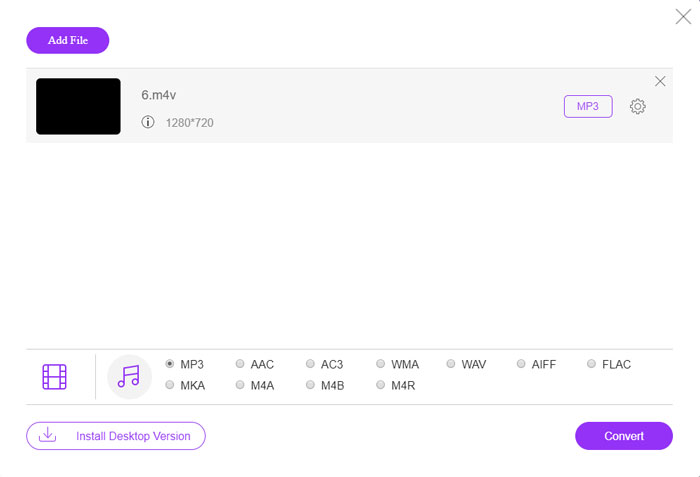
Vaihe 1. Mene M4V–MP3‑verkkomuuntimeen ja napsauta Add Files to Convert ‑painiketta ladataksesi M4V‑tiedostot ohjelmaan. Ensimmäisellä käyttökerralla sinun tulee ladata asennusohjelma etukäteen.

Vaihe 2. Kun olet ladannut M4V‑tiedostot, voit valita MP3‑vaihtoehdon Audio‑valikosta. Voit myös säätää ääniasetuksia, kuten näytteenottotaajuutta, äänikoodekkia ja muuta.

Vaihe 3. Sen jälkeen voit napsauttaa Convert‑painiketta aloittaaksesi M4V–MP3‑muunnoksen. Muunnosprosessin aikana mitään tietoja ei häviä. Voit tallentaa tulosteen kiintolevyllesi.
Tapa 2: Kuinka muuntaa M4V MP3: ksi HandBrake-toiminnolla
HandBrake on avoimen lähdekoodin M4V-MP3-muunnin, jonka avulla voit mukauttaa muunnosprosessia. Siinä on joitain edistyneitä parametreja, joiden avulla voit säätää videon tarkkuutta, kehysnopeutta ja muuta.
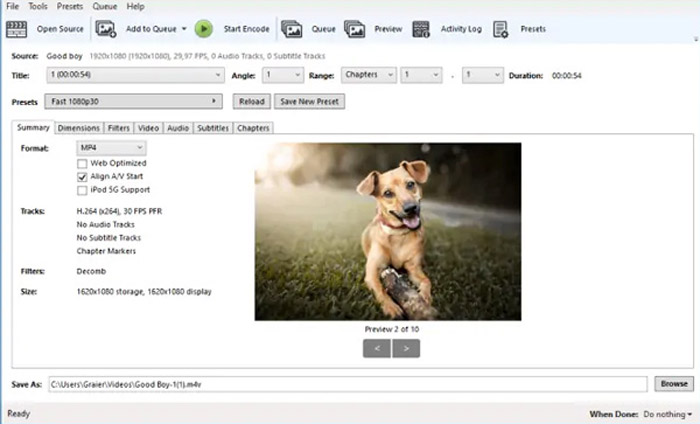
Vaihe 1. Lataa ja asenna ohjelma tietokoneellesi, käynnistä se ja etsi muunnettavaksi haluamasi M4V‑tiedosto. Sitten löydät videon ohjelman käyttöliittymästä.
Vaihe 2. Sen jälkeen voit napsauttaa alareunassa olevaa Browse‑painiketta ja syöttää uuden tiedostonimen sekä kohdekansion. Sen jälkeen voit valita MP3 tulostusmuodoksi ja säätää asetuksia.
Vaihe 3. Kun olet tyytyväinen MP3‑tulosteeseen, voit napsauttaa ylävalikosta Start Encode ‑painiketta muuntaaksesi M4V‑tiedoston MP3‑muotoon. Muunnos voi kestää jonkin aikaa.
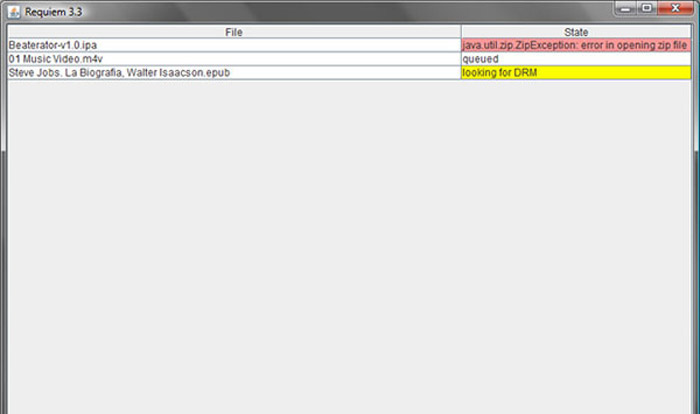
Tapa 3: Kuinka muuntaa M4V MP3: ksi Requiemin avulla
M4V: stä MP3-muuntimiin on kymmeniä, kun sinun täytyy päästä eroon M4V-tiedostojen DRM-suojauksesta. Requiem on yksi parhaista ilmaisohjelmista, jotka voit ottaa huomioon.
Vaihe 1. Kun olet asentanut DRM‑purkuohjelman, käynnistä se, jotta se tunnistaa DRM‑suojatut tiedostot, mukaan lukien musiikin, videot tai äänikirjat iTunes‑kirjastostasi.
Vaihe 2. Tämän jälkeen voit alkaa poistaa DRM‑suojausta näistä M4V‑tiedostoista. Alkuperäiset tiedostot siirretään roskakoriin, ja nyt iTunes‑kirjastossasi olevat tiedostot ovat DRM‑vapaita.
Vaihe 3. Kun olet saanut haluamasi M4V‑tiedostot ilman DRM‑suojausta, voit yksinkertaisesti muuntaa videon verkossa toimivilla M4V–MP3‑muuntimilla tai siirtää sen suoraan älypuhelimeen. (Katso kuinka muuntaa FLV MP3‑muotoon)
Osa 2: UKK M4V: stä MP3-muunnokseen
1. Mikä on M4V-tiedostomuoto?
M4V-tiedostotunniste on MPEG-4-video, joka tunnetaan myös iTunes-videotiedostona. Kun ostat tai vuokraat videotiedostoja iTunes Storesta, voit saada videot M4V: ään DRM-suojauksella. Mutta videotiedosto on toimiva valtuutetuille laitteille. Kun muunnat M4V: n MP3: ksi, voit käyttää äänitiedostoa muille laitteille.
2. Mikä on 100%-toimintatapa M4V: n muuttamiseksi MP3-tiedostoksi?
Jos et voi muuntaa M4V: tä suoraan MP3: ksi, jota DRM-suojaus rajoittaa, voit tallentaa M4V-videon MP3-äänenä näytön tallentimen avulla. FVC Free Screen Recorder on monipuolinen online-ratkaisu, jonka avulla voit saada tyytyväisen äänitiedoston ilmaiseksi.
3. Kuinka muuntaa M4V MP3: ksi DRM-suojauksella HandBrake-toiminnolla?
Kun haluat muuntaa M4V: n MP3: ksi DRM-suojauksella, voitko purkaa videoiden HandBrake-salauksen? Kyllä, voit asentaa joitain ylimääräisiä laajennuksia videoiden salauksen purkamiseen ennen muuntamista.
Johtopäätös
Kun haluat muuntaa M4V: n MP3: ksi, sinun tulisi oppia lisää tärkeistä tekijöistä haluttujen tiedostojen saamiseksi helposti. Jos sinulla on vain yksinkertaisia M4V-tiedostoja ilman DRM-suojausta, voit valita sen sijaan minkä tahansa online-M4V-video MP3-muuntimeksi tai ilmaisohjelman. FVC Video Converter Ultimate on lopullinen muunnin, jonka avulla videot voidaan muuntaa ja DRM-suojaus purkaa helposti.
-
 Kuinka muuntaa MP4 MP3: ksi Windows / Mac / iPhone / Android / Online
 Jos haluat purkaa MP3-äänen MP4-videosta, voit tarkistaa tämän artikkelin ja saada 8 ratkaisua. On online- ja offline-tapoja muuntaa MP4 MP3: ksi puhelimellasi tai tietokoneellasi helposti.
-
 Kuinka muuntaa M2TS-tiedostot MP3-tiedostoksi ilmaiseksi
 Voiko M2TS-tiedoston muuntaa MP3-tiedostoksi? Tässä viestissä olemme listanneet kuusi parasta ilmaista ja online-tapaa, joilla voit muuntaa M2TS: n MP3-, AAC-, AIFF- ja muiksi äänimuodoiksi.
-
 Mikä on ero MP3: n ja MP4: n välillä
 MP3 tai MP4, mikä on parempi? Mitä eroa on MP3: lla ja MP4: llä? Tässä artikkelissa verrataan MP3: ta MP4: ään kaikilla näkökohdilla, joita voit kuvata.
