


 Video Converter Ultimate
 Näytön tallennin
 Videon korjaus
 Suojattu lataus
3 Shutterstock-vesileimanpoistolaitetta videoiden vesileiman käyttämiseen ja poistamiseen
Tarvitsetko korkealaatuisia, lisensoituja Shutterstock-videoita projektiisi, mutta niissä on Shutterstockin vesileima? Shutterstock-vesileiman poistajan avulla voit helposti pyyhkiä vesileiman ladatusta videosta. Ammattimaisesti ja henkilökohtaisesti emme halua, että videoissamme on vesileimaa, koska se pilaa koko videon idean. Jos siis haluat päästä eroon Shutterstockin vesileimasta, voit jatkaa lukemista ja tutustua tähän artikkeliin koottuihin tietoihin ja lyhyeen ohjeeseen.

Osa 1. Shutterstock-vesileiman poistaminen Marketin Ultimate Watermark Remover -vesileimanpoistajalla [Toimittajan valinta]
FVC Video Converter Ultimate voi täsmällisesti auttaa ja opastaa sinua siinä, miten poistat Shutterstock-vesileiman tallentamastasi videosta. Kyseessä on monipuolinen ratkaisu, jonka voit ladata Windows- ja Mac-laitteille videosi muokkaamista varten, esimerkiksi vesileimojen poistamiseen. Vaikka ohjelma onkin monitoiminen, sen kehittäjä on pitänyt käytön helppona, jotta kuka tahansa voi hyödyntää sitä ilman laajoja ennakkotietoja.
Jopa matalan tason taidoilla voit saada huippuluokan tulosteen lopussa, kun käytät tätä editoria. Etkö ole vieläkään vakuuttunut lisäämistämme tiedoista? Todistaaksemme sen opetamme sinulle, kuinka voit poistaa Shutterstock-vesileiman ilmaiseksi tällä videonmuokkausohjelmalla.
Vaihe 1. Poistaaksesi vesileiman lataamastasi videosta sinun on ensin ladattava tämä editori napsauttamalla käyttöjärjestelmällesi sopivaa latauspainiketta. Sinun on käytävä läpi lyhyt asennusprosessi, jonka jälkeen voit alkaa käyttää ohjelmistoa.
Ilmainen latausWindows 7 tai uudempiTurvallinen lataus
Ilmainen latausMacOS 10.7 tai uudempiTurvallinen lataus
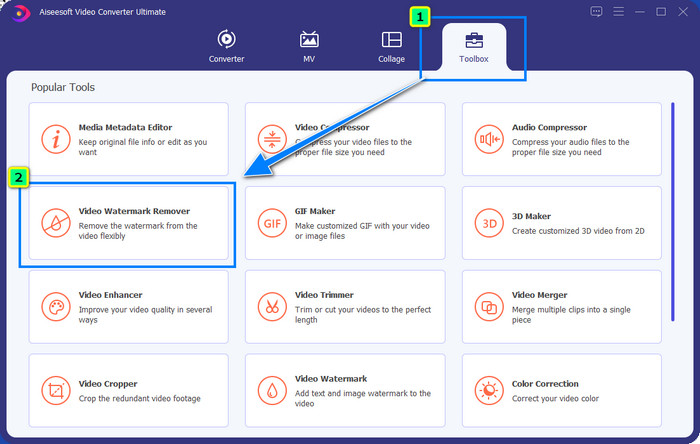
Vaihe 2. Seuraavaksi käytät toimintoa Video Watermark Remover, jonka löydät Toolbox-osiosta. Kuten huomaat, voit käyttää useita muokkaustoimintoja ja -ominaisuuksia säätääksesi kuvaasi halutunlaiseksi.
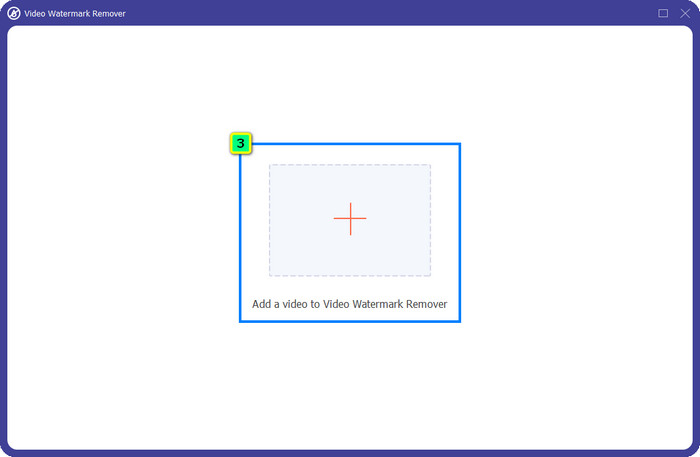
Vaihe 3. Napsauta plus-kuvaketta, jolloin näytölle avautuu tiedostonhallintaikkuna. Valitse vesileimalla varustettu videotiedosto ja napsauta sitten Open ladataksesi sen.
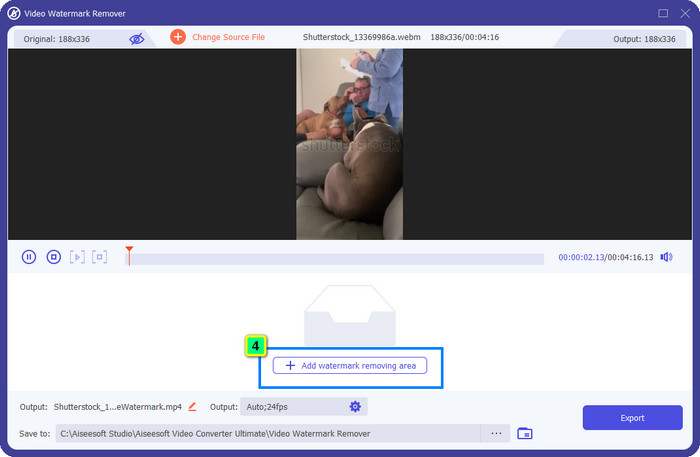
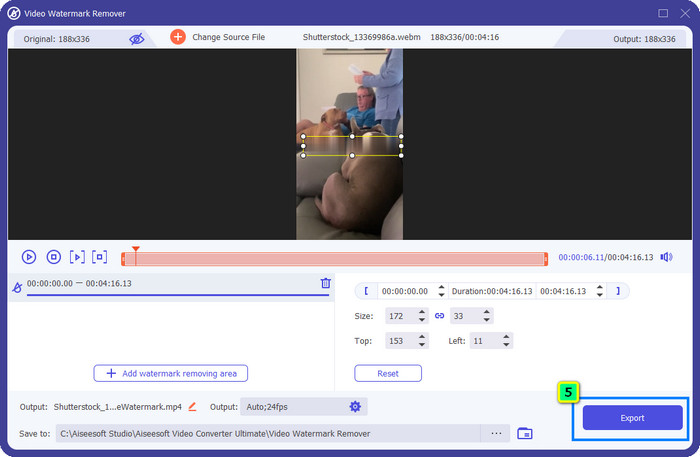
Vaihe 4. Poistaaksesi vesileiman lataamastasi videosta paina Add Watermark Removing Area, jolloin avautuu uusi ikkuna.
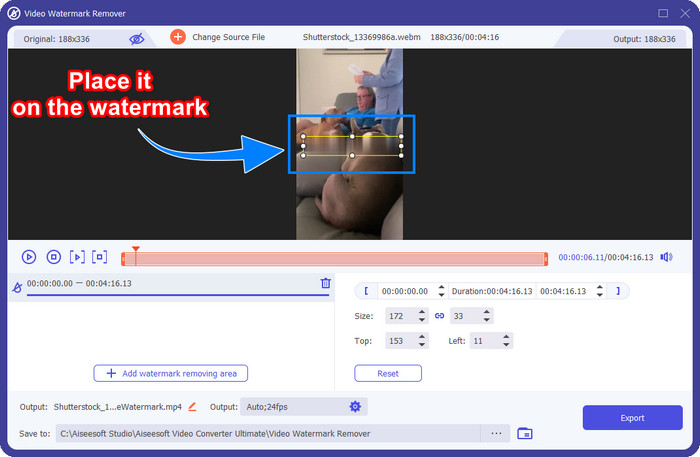
Vaihe 5. Tässä vaiheessa videosi päällä näkyy neliönmuotoinen alue; aseta se vesileiman päälle. Voit muuttaa sen kokoa, vetää, pienentää tai suurentaa sitä, jotta se sopii täsmälleen poistettavan vesileiman alueelle.
Vaihe 6. Napsauta lopuksi Export-painiketta ladataksesi laitteellesi Shutterstock-videon lopullisen version. Voit nyt katsella sitä ilman huolta vesileimasta, koska se on poistettu.
Osa 2. Shutterstock-vesileiman poistaminen verkossa ilmaiseksi
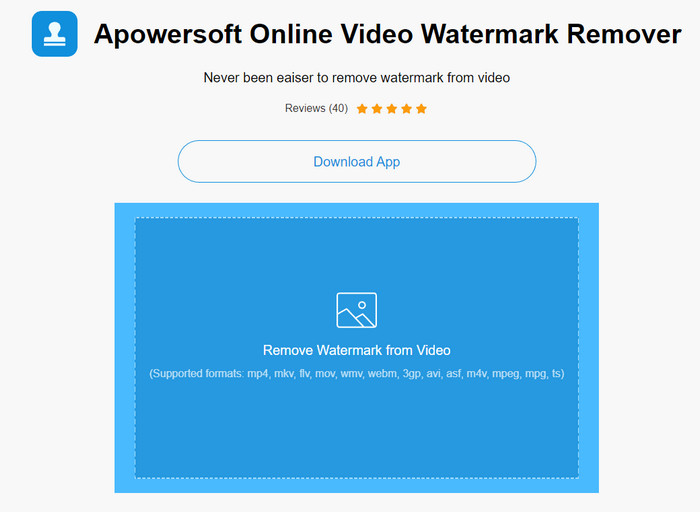
Etkö pidä ajatuksesta, että lataat vesileimanpoisto-ohjelman tietokoneellesi? Siinä tapauksessa voit käyttää palvelua Apowersoft Online Watermark Remover, ja kerromme tässä, miten Shutterstock-vesileima poistetaan verkossa. Se on erinomainen valinta kaikille, joiden tarvitsee poistaa vesileima videosta tai kuvasta. Mainitsemme tämän työkalun, koska se on helposti käytettävissä ja yhteensopiva eri käyttöjärjestelmien kanssa.
Toisin kuin offline-työkalut, tarvitset vakaan ja vankan Internet-yhteyden käyttääksesi niitä. Kuten lupaamme, alla on opetusohjelma tämän vesileimanpoistoaineen käyttämisestä Shutterstockin jättämän vesileiman poistamiseen.
Vaihe 1. Avaa Apowersoft Online Watermark Removerin virallinen verkkosivusto suosikkihakukoneellasi ja napsauta sitten oikealla olevaa +-painiketta ladataksesi videotiedoston.
Vaihe 2. Aseta valintaruutu videossa näkyvän Shutterstock-vesileiman kohdalle.
Vaihe 3. Napsauta sen jälkeen Erase poistaaksesi vesileiman ja nähdäksesi tuloksen.
Vaihe 4. Paina Download File ladataksesi Shutterstock-videon ilman vesileimaa.
Osa 3. Shutterstock-vesileiman poistaminen Photoshopilla [Maksullinen]
Monet käyttäjät kysyvät, miten Shutterstock-vesileiman voi poistaa Photoshopilla, ja siksi autamme sinua! Adobe Photoshop sisältää ammattimaisen vesileimanpoisto-ominaisuuden, josta tulet pitämään. Kuten tämän artikkelin muutkin ohjelmat, se hoitaa tehtävän, mutta sen tapa poistaa vesileimat on ruutu ruudulta. Tämä tarkoittaa, että sinun on käytettävä aikaa vesileiman poistamiseen jokaisesta videon ruudusta; mitä pidempi video on, sitä enemmän ruutuja siinä on. Jos haluat tietää, miten työkalu toimii, lue alla olevat ohjeet.
Vaihe 1. Lataa sovellus tietokoneellesi ja napsauta sitten File. Sen alta valitse Open ladataksesi tietokoneellesi tallennetun videon.
Vaihe 2. Valitse vasemmalta puolelta Magic Wand Tool ja napsauta vesileimaa, jonka haluat poistaa. Tämä työkalu jäljittää vesileiman automaattisesti kyseisessä ruudussa.
Vaihe 3. Siirry valikkoon Edit ja valitse Content-Aware Fill sen jälkeen, kun olet jäljittänyt vesileiman.
Vaihe 4. Kun Content-Aware Fill avautuu, se poistaa automaattisesti aiemmin valitsemasi vesileiman, minkä jälkeen paina OK.
Lisälukemista:
Helpot menetelmät Shootproof-vesileiman poistamiseen
Miten poistaa Bandicam-vesileima vaivattomasti [3 tehokasta tapaa]
Osa 4. Usein kysyttyä Shutterstock-vesileiman poistamisesta
Kuinka poistaa Shutterstock-vesileima ilman Photoshopia?
Voit käyttää FVC Video Converter Ultimatea videoosi sidotun Shutterphoto-kuvan poistamiseen. Siinä on tehokas vesileiman pyyhekumi, jota haluaisit kokeilla. Noudata tähän artikkeliin lisäämiämme ohjeita, jotta voit tehdä sen yhtä tehokkaasti kuin Photoshop.
Toimiiko Shutterstock-vesileiman rajaus videossa?
Jos haluat muuttaa videon kokoa muuttamalla kokoa, voit rajata videon useiden videoeditorien avulla online- ja offline-tilassa. Koska Shutterstockin vesileima on keskellä, on parempi olla käyttämättä rajausominaisuuksia. Lukuisat vesileimanpoistoaineet ovat täällä auttamassa; voit lukea ja kopioida lisäämämme opetusohjelman, jotta voit poistaa sen tehokkaasti jättämättä siihen tahraa.
Onko Shutterstock-vesileiman poistaminen laillista?
Shutterstockin vesileiman poistaminen ei ole laillista, mutta jos haluat käyttää sitä ei-kaupalliseen käyttöön, voit tehdä sen vesileimanpoistoaineen avulla. On parempi ostaa haluamasi valokuva Shutterstockista, jos aiot käyttää sitä kaupallisiin tarkoituksiin. vaikka se maksaisi sinulle, se antaa sinulle ainakin lailliset oikeudet käyttää sitä.
Johtopäätös
Nyt tiedät, miten poistaa Shutterstock-vesileima tämän artikkelin ohjelmilla. Minkä ohjelman siis valitset: maksullisen, ilmaisen verkkotyökalun vai monipuolisimman ohjelmiston? Valitsitpa minkä tahansa, voit saada Shutterstock-kuvan ilman tuotteen logoa. Jos kuitenkin kysyt, mitä me käyttäisimme, valitsisimme ehdottomasti FVC Video Converter Ultimaten, koska se tekee työn kaikkein tyydyttävimmällä tavalla. Vaikka se onkin tehokas vesileimanpoisto-ohjelma, se on silti helppokäyttöinen. Jos haluat kokeilla tätä ohjelmistoa, voit napsauttaa latauspainiketta hankkiaksesi työkalun tietokoneellesi.
-
 Äärimmäiset työkalut vesileiman poistamiseen Renderforestin vietyistä videoista
 Vesileiman poistamiseen Renderforestista tarvitset vesileimanpoistoaineen laitteellesi, kaikki työkalut joita voit käyttää, ovat täällä.
-
 Helppoja vaiheita WOW Slider -vesileiman poistamiseen [Ratkaistu]
 WOW Slider on sovellus upean diaesityksen luomiseen. Se upottaa kuitenkin vesileimat tuotteeseensa. Lue alta, kuinka voit poistaa WOW Slider -vesileiman.
-
 Kuinka päästä eroon Power Director -vesileimasta ilmaiseksi [täydellinen]
 Kuinka päästä eroon Power Director -vesileimasta ilmaiseksi? Parhaat työkalut vesileiman poistamiseen ovat täällä, joten opi ne lukemalla tämä.
