


 Video Converter Ultimate
 Näytön tallennin
 Videon korjaus
 Suojattu lataus
Upea tapa poistaa vesileima Camtasia 9:stä, jota sinun täytyy kokeilla
Jos etsit yksinkertaista ja parasta tapaa poistaa vesileima Camtasia 9:ssä, olet oikeassa paikassa. On olemassa monia erinomaisia videoita, joita haluamme katsoa. Joissakin niistä on kuitenkin suuri vesileima, mikä tekee niistä ärsyttäviä eikä videon varsinaista sisältöä pääse kunnolla arvostamaan. Lisäksi näiden tarpeettomien elementtien vuoksi osa videosta voi peittyä, mikä tuottaa katsojille pettymyksen. Onneksi on saatavilla ohjelmistoja, joissa on vesileimanpoistotyökaluja, joilla voit poistaa vesileimat videoistasi ja nauttia suosikkielokuviesi katselusta ilman häiriöitä. Jos haluat oppia lisää siitä, miten vesileimat saa nopeasti pois videoistasi, lue tämä artikkeli alusta loppuun.

Osa 1: Paras tapa poistaa vesileima Camtasiasta
Video Converter Ultimaten käyttäminen
Jos etsit erinomaista ja luotettavaa ohjelmaa, jossa on vesileimanpoistotyökaluja, Video Converter Ultimate on loistava ohjelmisto käyttöösi. Voit poistaa vesileimat videoistasi tämän sovelluksen avulla. Voit käyttää tätä ohjelmaa myös silloin, kun videosi vesileima on peräisin muista sovelluksista, kuten Camtasiasta. Lisäksi se on helppokäyttöinen ja yksinkertainen, joten se sopii hyvin aloittelijoille. Ohjelmassa on myös useita muita muokkaustyökaluja, joista voit nauttia, kuten videokompressori, videonparannus, videoleikkuri, äänikompressori, videon kääntäjä, videon kiertäjä ja paljon muuta. Tässä artikkelissa esitellään kaksi tapaa poistaa vesileimat videoistasi käyttämällä Video Converter Ultimatea.
1. Video Watermark Remover -ohjelman käyttö
Vaihe 1: Lataa Video Converter Ultimate tietokoneellesi. Jatka sitten asennusprosessiin.
Ilmainen latausWindows 7 tai uudempiTurvallinen lataus
Ilmainen latausMacOS 10.7 tai uudempiTurvallinen lataus
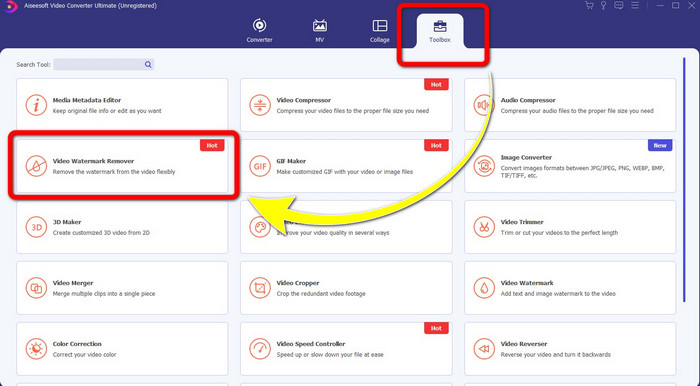
Vaihe 2: Kun asennus on valmis, avaa ohjelma ja siirry kohtaan Toolbox > Video Watermark Remover. Tämän jälkeen näyttöösi avautuu uusi ikkuna.
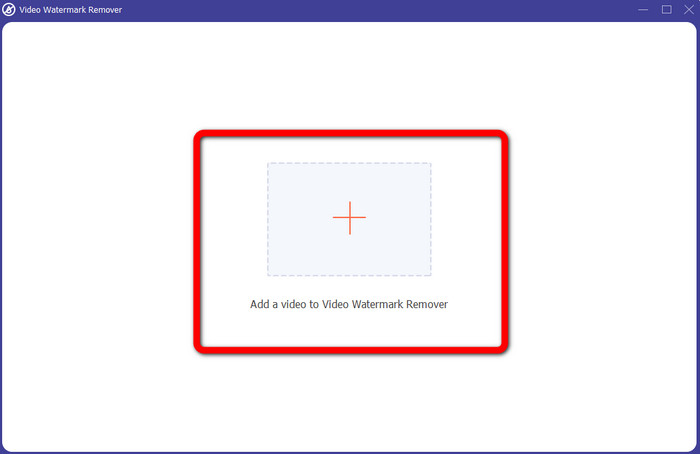
Vaihe 3: Kun uusi ikkuna on avautunut, napsauta Plus-painiketta ja lisää vesileiman sisältävä video.
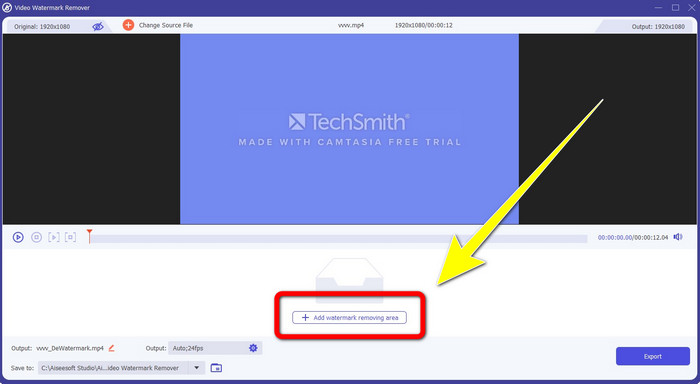
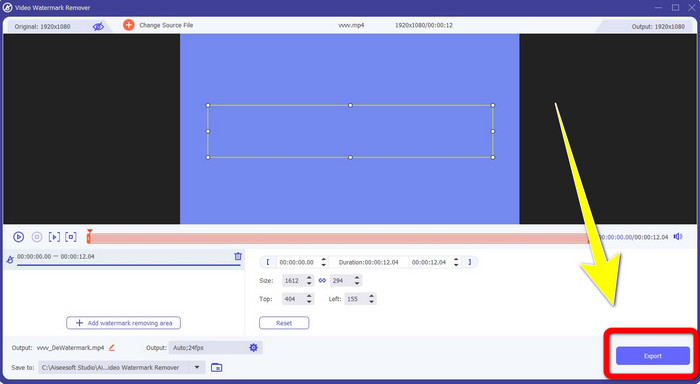
Vaihe 4: Kun olet lisännyt vesileimalla varustetun videosi, napsauta Add Watermark Removing Area.
Vaihe 5: Näytölle ilmestyy laatikon muotoinen alue. Käytä tätä laatikkoa peittääksesi vesileiman videossasi.
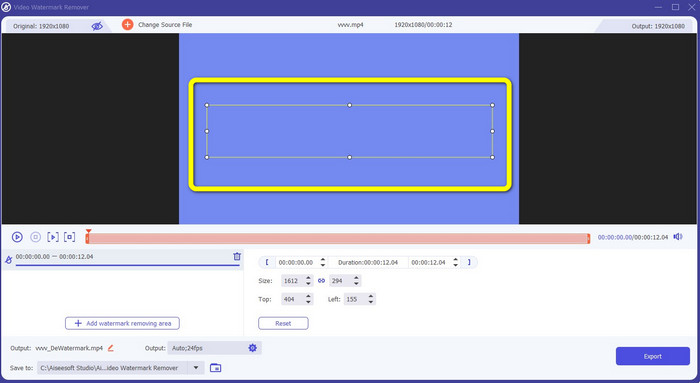
Vaihe 6: Kun vesileima on peitetty, vesileimat katoavat videostasi. Napsauta Export tallentaaksesi videosi. Näin voit poistaa Camtasialla tehdyn vesileiman sisältävän videon.
2. Rajaustoimintojen käyttäminen
Toinen tapa, jota voit kokeilla, on Video Converter Ultimaten rajausominaisuus. Se on yksi helpoimmista tavoista poistaa vesileimat videoistasi, etenkin jos vesileima on vain videon kulmassa tai reunassa. Rajoittamalla videon kuvarajaa voit välittömästi poistaa videosta tarpeettomat elementit. Seuraa näitä yksinkertaisia vaiheita poistaaksesi vesileimat rajaustyökalulla.
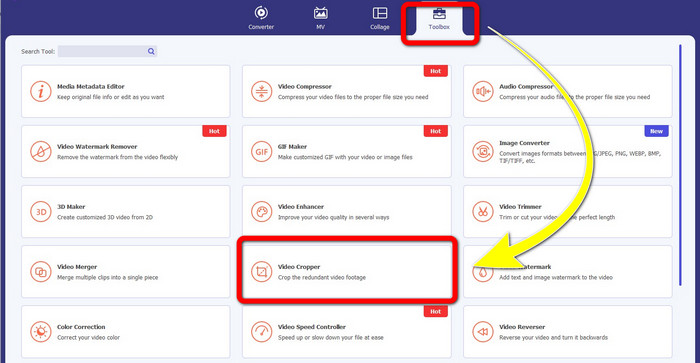
Vaihe 1: Avaa Video Converter Ultimate. Napsauta Toolbox > Video Cropper. Tämän jälkeen näyttöösi avautuu uusi ikkuna.
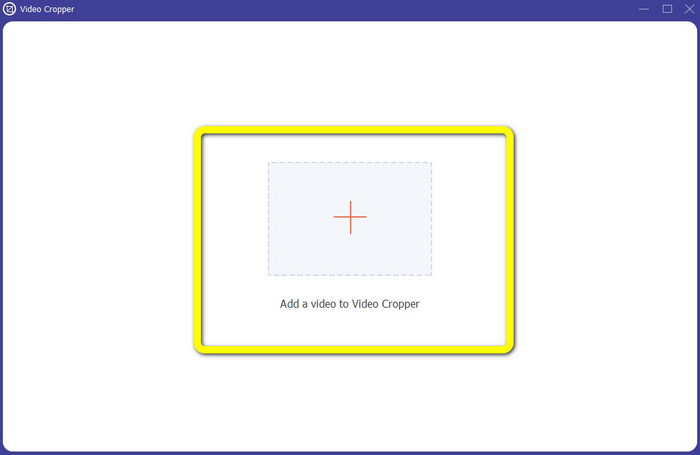
Vaihe 2: Napsauta Plus-painiketta ja lisää vesileiman sisältävä video, josta haluat vesileiman poistaa.
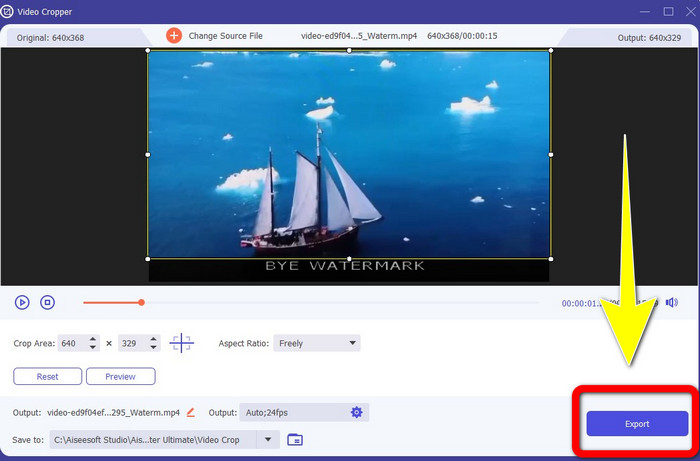
Vaihe 3: Kun olet liittänyt vesileimalla varustetun videosi, voit nyt rajata videon reunoja vesileiman alueelle asti. Näin saat vesileiman poistettua.
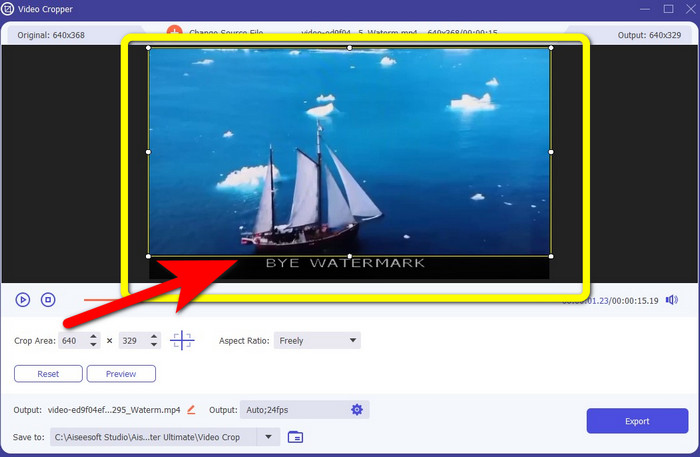
Vaihe 4: Kun olet rajannut videon ja vesileima on poissa, napsauta Export tallentaaksesi muokatun videosi. Nyt voit nauttia videon katsomisesta ilman vesileimoja näytölläsi.
Osa 2: Videoiden tuottaminen Camtasiassa ilman vesileimaa
Haluatko oppia, miten tuottaa Camtasia-video ilman vesileimaa? Määritellään ensin, mikä Camtasia on. Camtasia on yksinkertainen ja hyödyllinen editointityökalu. Lisäksi se on myös näytöntallennusohjelma. Sen mukana tulee useita muokkausominaisuuksia, joista voit nauttia, kuten huomautukset, siirtymät, animaatiot, äänitehosteet, videotehosteet ja paljon muuta. Voit myös tehdä diaesityksiä tällä ohjelmalla.
Tämän sovelluksen avulla voit tehdä videoistasi houkuttelevampia ja ainutlaatuisempia katsojille. Camtasiassa voit tuottaa kauniita videoita, joista voit nauttia. Tässä sovelluksessa on kuitenkin vesileima videon viennin jälkeen, ellet osta sovellusta. Seuraa näitä yksinkertaisia ohjeita oppiaksesi monia asioita tässä sovelluksessa, erityisesti videoiden luomisessa Camtasiassa.
Tämän sovelluksen avulla voit tehdä videoistasi houkuttelevampia ja ainutlaatuisempia katsojille. Camtasiassa voit tuottaa kauniita videoita, joista voit nauttia. Tässä sovelluksessa on kuitenkin vesileima videon viennin jälkeen, ellet osta sovellusta. Seuraa näitä yksinkertaisia ohjeita oppiaksesi monia asioita tässä sovelluksessa, erityisesti videoiden luomisessa Camtasiassa.
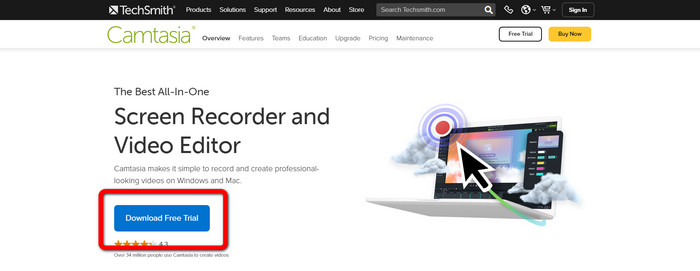
Vaihe 1: Lataa Camtasia Windows-tietokoneellesi. Napsauta Download Free Trial -painiketta saadaksesi ohjelman. Avaa ohjelma asennuksen jälkeen.
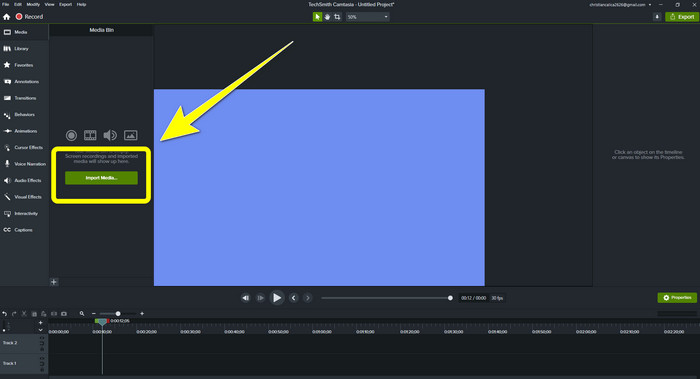
Vaihe 2: Kun olet käynnistänyt ohjelman, napsauta Import Media -painiketta lisätäksesi tiedoston, jota haluat muokata.
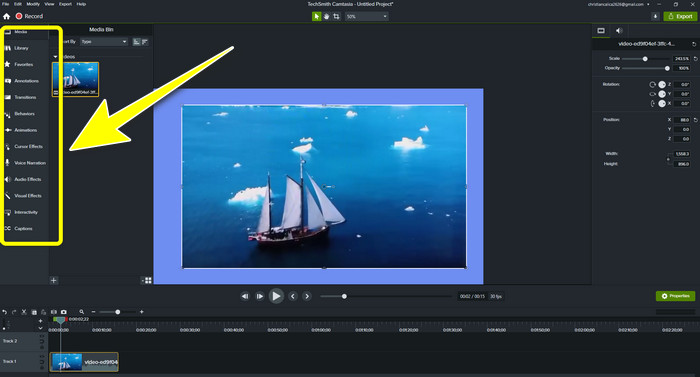
Vaihe 3: Voit nyt muokata tiedostojasi tässä ohjelmassa käyttämällä editointityökaluja, kuten tekstityksiä, siirtymiä, animaatioita, huomautuksia, käyttäytymistehosteita ja muuta.
Vaihe 4: Kun olet valmis ja tyytyväinen videoidesi muokkaukseen, napsauta Export > Local File -painiketta tallentaaksesi lopputuloksen.
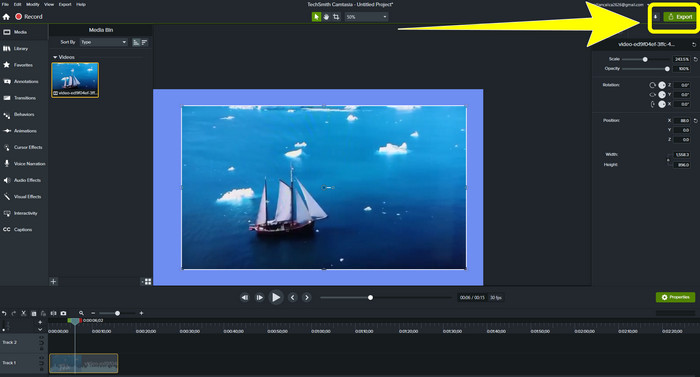
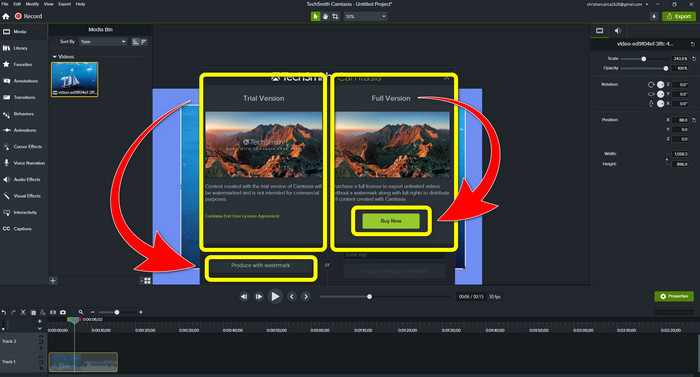
Vaihe 5: Kun olet napsauttanut Export > Local File Button -vaihtoehtoa, näyttöön ilmestyy uusi ikkuna. Jos haluat ostaa ohjelman, napsauta Buy-painiketta, jotta voit tuottaa Camtasia-videon ilman vesileimaa. Jos kuitenkin käytät vain kokeiluversiota, videoosi tulee vesileima viennin ja tallennuksen jälkeen.
Liittyy aiheeseen:
Kuinka poistaa Filmora-vesileima videoistasi tai projekteistasi ilmaiseksi
Nopein niksi Adobe Stock -vesileiman poistamiseen videosta [ opas ]
Osa 3: Usein kysytyt kysymykset vesileimojen poistamisesta
Onko olemassa erinomaista vesileimanpoistoainetta, jota voin käyttää Macissani?
Ehdottomasti kyllä! Voit käyttää vesileimanpoisto-ominaisuuksilla varustettuja ohjelmia, kuten Video Converter Ultimate. Se pystyy poistamaan vesileimat videoistasi. Lisäksi ohjelma on saatavilla sekä Windowsille että Macille, mikä tekee siitä entistä kätevämmän.
Voinko poistaa vesileimat kuvista jotenkin?
Ehdottomasti kyllä! Voit käyttää laitteessasi monia sovelluksia vesileimojen poistamiseen valokuvista. Parasta, mitä sinun tarvitsee tehdä, on etsiä selaimistasi vesileimanpoistotyökaluja ja etsiä 10 parasta tulosta tulossivulta.
Voinko poistaa vesileimat puhelimellani?
Kyllä sinä voit! Jotkut vesileimanpoistoaineilla varustetuista sovelluksista ovat nyt käytettävissä Macissa ja Windowsissa sekä matkapuhelimissa, kuten Android-puhelimissa ja iPhoneissa.
Kuinka voin poistaa vesileimat rajaustyökalulla?
Vesileimojen poistaminen valokuvista tai videoista rajaustyökalulla on helppoa, varsinkin jos vesileima on kuvan reunassa. Sinun tarvitsee vain rajata se, poistaa vesileima ja olet valmis.
Johtopäätös
Kuten huomaat, tässä artikkelissa esitellään parhaat tavat poistaa vesileima Camtasia 9:stä. Lisäksi siinä esitellään erinomainen ja luotettava ohjelma, jossa on kaksi menetelmää tarpeettomien elementtien poistamiseen videoistasi. Tämä ohjelma on Video Converter Ultimate.
-
 5 tapaa poistaa vesileima videosta ammattimaisesti
 Haluatko poistaa vesileiman videosta, jotta se näyttää ammattimaiselta? No, lue tämä artikkeli, kun lisäämme opetusohjelman sen tekemiseen!
-
 Kolme uusinta Shutterstockin vesileimanpoistoainetta, joita tulet koskaan tarvitsemaan
 Eikö viety videoon liitetty Shutterstock-vesileima pidä? Voit käyttää Shutterstock-vesileimanpoistoainetta poistaaksesi sen tehokkaasti.
-
 Helpoimmat menetelmät vesileiman poistamiseen valokuvista
 Ärsyttääkö valokuvasi vesileimat? Älä huoli! Tämä artikkeli tarjoaa yksinkertaisia ja helppoja tapoja poistaa vesileimat valokuvistasi
