


 Video Converter Ultimate
 Näytön tallennin
 Videon korjaus
 Suojattu lataus
Tarrojen poistaminen valokuvista ja videoista kätevästi
Jos pidät videoiden katsomisesta, on selvää, ettet halua häiriöitä katselun aikana. Valitettavasti joskus videoissasi on tarroja, jotka tekevät katselusta turhauttavaa. Myös joissakin valokuvissa on tarroja, jolloin et pysty täysin arvostamaan kuvan kauneutta näiden ärsyttävien tarrojen takia. Onneksi tämä artikkeli tarjoaa parhaat keinot ratkaista ongelma. Saat myös tietää erinomaisista työkaluista, joita voit käyttää. Lue tämä artikkeli ja opi, miten poistat tarrat valokuvistasi ja videoistasi.

Osa 1: Parhaat menetelmät tarrojen poistamiseen valokuvista
Yksi parhaista valokuvien tarranpoistajista, jota voit kokeilla, on FVC Free Watermark Remover. Tämä verkkotyökalu voi poistaa kuvistasi tarpeettomat elementit, kuten vesileimat, tarrat, logot, allekirjoitukset ja paljon muuta. Lisäksi se tukee yleisimpiä kuvamuotoja, kuten JPEG, PNG, BMP jne. Myös kuvasi tallennetaan samaan muotoon tarran poistamisen jälkeen. Tämän ilmaisen vesileimanpoistajan avulla voit lisäksi käyttää hiirtä piirtääksesi kuvaan monikulmaisen ääriviivan tai lasson valitaksesi alueen, jolta tarrat poistetaan. Eikä siinä kaikki. On myös toinen tapa pyyhkiä tarrat pois valokuvasta. Jos tarra on sijoitettu kuvan reunaan tai kulmaan, voit käyttää rajaus‑toimintoa. Yksinkertaisen käyttöliittymän ja prosessin ansiosta FVC Free Watermark Remover on kätevä kaikille käyttäjille, erityisesti aloitteleville.
Seuraa näitä yksinkertaisia ja yksityiskohtaisia ohjeita poistaaksesi tarran valokuvistasi.
Vesileiman poistotyökalun käyttäminen
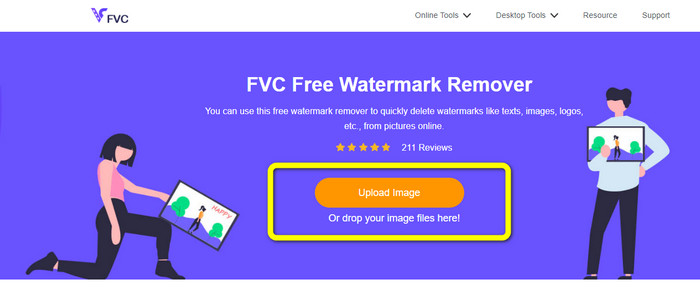
Vaihe 1: Siirry FVC Free Watermark Remover ‑verkkosivulle poistaaksesi tarrat. Napsauta Upload Image ‑painiketta lisätäksesi valokuvan, jossa on tarra.
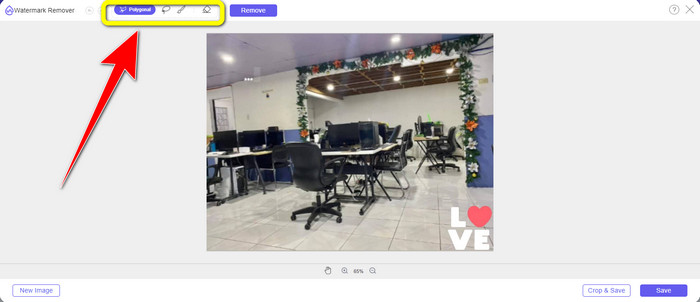
Vaihe 2: Kun olet lisännyt valokuvan, voit käyttää vesileimanpoistotyökaluja tarran poistamiseen kuvastasi. Voit käyttää Polygonal‑työkalua, Lasso‑työkalua ja Brush‑työkalua.
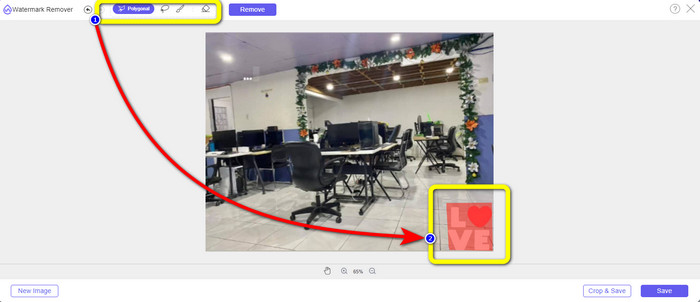
Vaihe 3: Seuraavaksi korosta tarra kuvasta vesileimanpoistotyökaluja käyttäen.
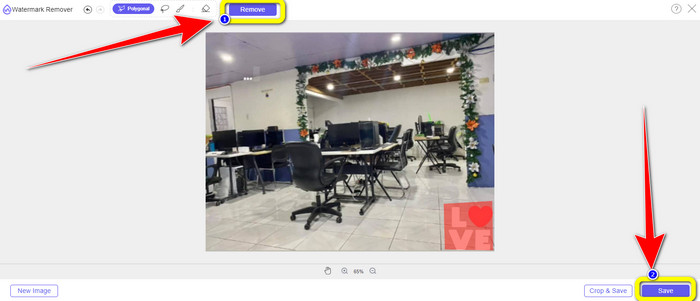
Vaihe 4: Kun olet korostanut tarran kuvastasi, napsauta Remove‑painiketta. Odota poistoprosessin valmistumista ja napsauta Save‑painiketta. click-remove-button-save.jpg
Rajaustyökalun käyttäminen
Käytä näitä alla olevia ohjeita, jos haluat rajata valokuvasi poistaaksesi tarran.
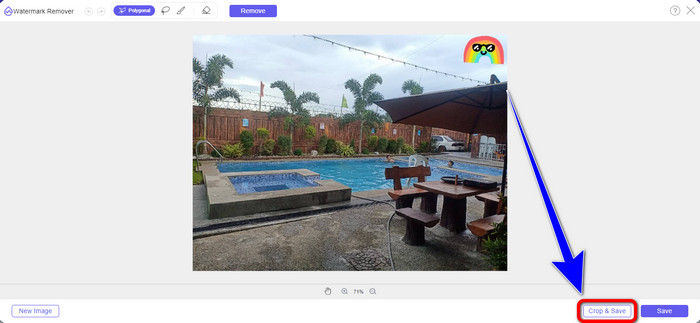
Vaihe 1: Kun olet ladannut tarrallisen valokuvasi, valitse Crop & Save ‑painike.
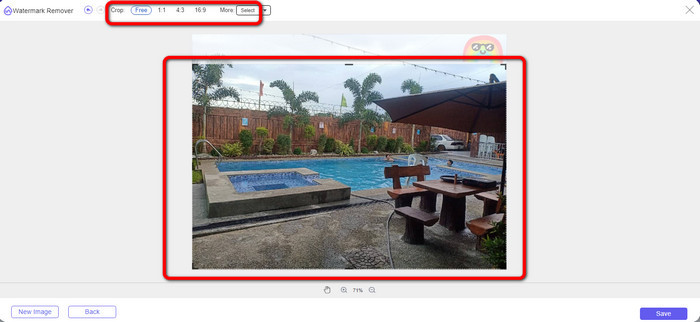
Vaihe 2: Tässä vaiheessa sinulla on kaksi tapaa rajata kuva. Voit valita rajausvaihtoehdot käyttöliittymän yläosasta sen mukaan, miten haluat rajata kuvan. Voit myös valita Free‑vaihtoehdon rajataksesi kuvan manuaalisesti ja poistaaksesi tarran.
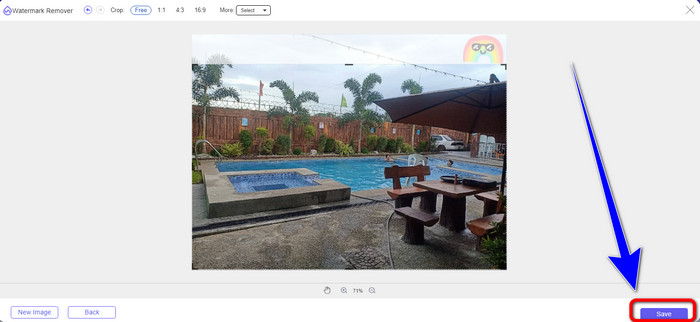
Vaihe 3: Kun olet lopettanut kuvan rajaamisen, napsauta Save‑painiketta tallentaaksesi kuvan.
Snapseedin käyttö
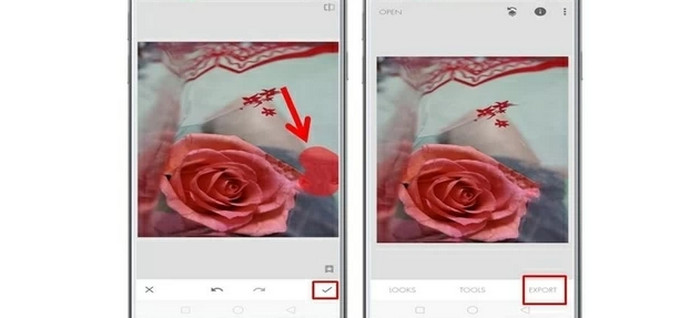
Snapseed on ihanteellinen ja tehokas työkalu Android‑ ja iOS‑käyttäjille tarrojen poistamiseen kuvista. Tämä ohjelma tarjoaa Healing‑työkalun, jonka avulla voit poistaa kokonaan kaikki ei‑toivotut objektit tai elementit, kuten vesileimat kuvistasi. Voit onnistuneesti poistaa tarran vain muutamalla napsautuksella. Lisäksi voit julkaista kuvan välittömästi muihin sosiaalisen median alustoihin, kuten Facebookiin, Instagramiin ja Twitteriin, säilyttäen alkuperäisen laadun. On kuitenkin hyvä tiedostaa, että sovelluksessa on paljon hämmentäviä vaihtoehtoja uusille käyttäjille.
Vaihe 1: Lataa Snapseed Android‑ tai iOS‑laitteellesi.
Vaihe 2: Napsauta käyttöliittymässä Plus‑kuvaketta näytöllä lisätäksesi tarrallisen valokuvan.
Vaihe 3: Valitse Tools ja sen jälkeen Healing‑kuvake.
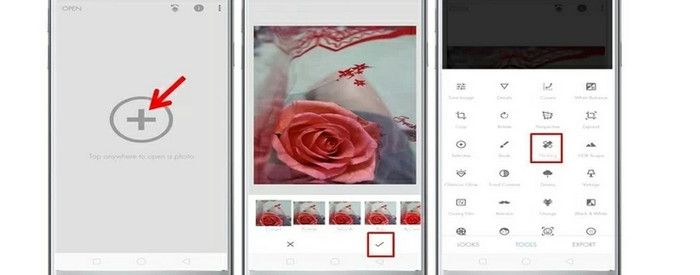
Vaihe 4: Paina Check‑kuvaketta ja Export tallentaaksesi valokuvasi.
Osa 2: Tarrojen poistaminen videoista
Video Converter Ultimate on paras työkalu, jos etsit erityisen vaikuttavaa ja tehokasta ohjelmaa tarrojen poistamiseen videoistasi. Tämä ohjelma voi poistaa häiritseviä elementtejä videoistasi, kuten tarroja, vesileimoja, logoja, allekirjoituksia ja kuvia. Lisäksi sinun ei tarvitse odottaa kauan tallennusprosessin valmistumista, sillä tarran poistamisen jälkeen voit tallentaa videosi nopeasti. Video Converter Ultimate sisältää myös runsaasti muokkaustyökaluja, joita voit hyödyntää. Jos aiot rajata tai leikata videosi täydelliseen pituuteen, voit käyttää Video Trimmer ‑työkalua. Näin voit vapaasti lyhentää videotasi.
Videon lisäksi, jos haluat muuntaa kuvia, voit silti luottaa tähän työkaluun. Se tarjoaa myös Image Converter -työkalun, joka tukee useita kuvaformaatteja, kuten JPG, PNG, BMP, WEBP jne. Parasta on, että sinun ei enää tarvitse ostaa tai ostaa tätä sovellusta. Tätä voidaan käyttää kuluttamatta. Lopuksi sillä on yksinkertainen käyttöliittymä ja perusmenetelmät, jotka sopivat täydellisesti kaikille käyttäjille. Seuraa alla olevia yksinkertaisia tapoja poistaa tarroja videoistasi.
Vaihe 1: Lataa ensin Video Converter Ultimate napsauttamalla alla olevaa Download‑painiketta. Jos olet Windows‑käyttäjä, valitse Windows‑latauspainike, ja jos olet Mac‑käyttäjä, valitse toinen painike. Käynnistä sitten sovellus asennuksen jälkeen.
Ilmainen latausWindows 7 tai uudempiTurvallinen lataus
Ilmainen latausMacOS 10.7 tai uudempiTurvallinen lataus
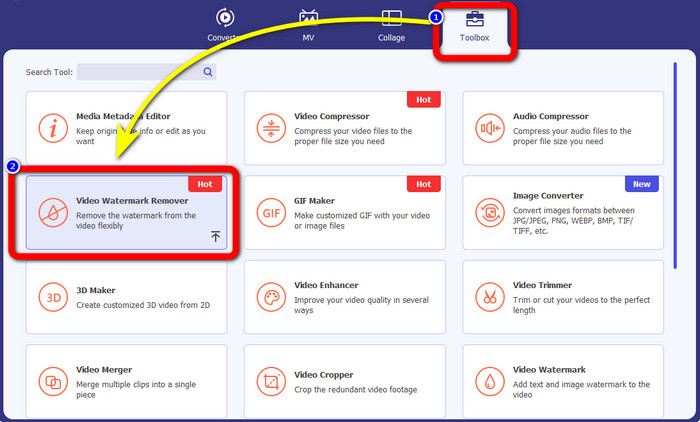
Vaihe 2: Kun käyttöliittymä on avautunut, valitse Toolbox‑paneeli. Etsi sitten Video Watermark Remover ja napsauta sitä.
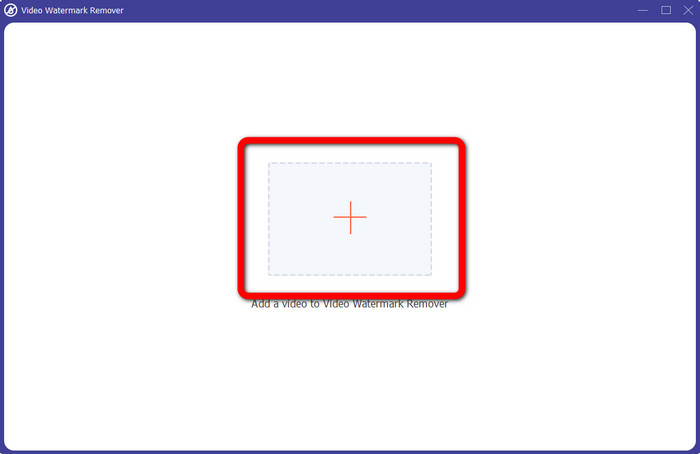
Vaihe 3: Uusi käyttöliittymä avautuu. Napsauta Plus‑painiketta liittääksesi tarrallisen videosi.
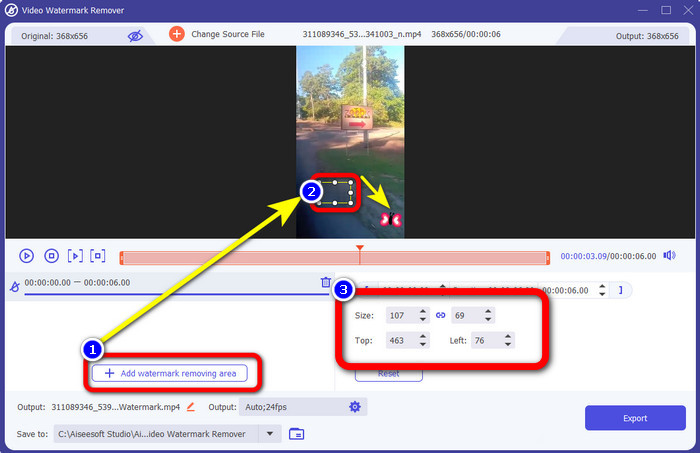
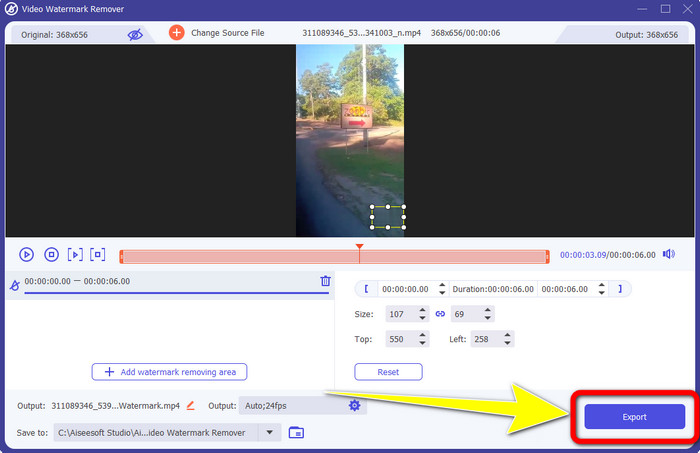
Vaihe 4: Kun olet liittänyt videosi, napsauta Add watermark removing ‑aluetta. Videoosi ilmestyy pieni laatikko. Vedä laatikko tarran kohdalle peittääksesi sen. Kolmannesta laatikosta voit siirtää laatikkoa näytölläsi. Voit myös muuttaa laatikon kokoa.
Vaihe 5: Kun olet peittänyt tarran, napsauta Export‑painiketta. Odota nopeaa poistoprosessia, minkä jälkeen voit jo tallentaa lopullisen tuloksen.
Osa 3: Usein kysytyt kysymykset tarrojen poistamisesta valokuvista ja videoista
1. Voinko poistaa tarran valokuvastani laadun heikkenemättä?
Kyllä voit! Sinun tulee käyttää FVC Free Watermark Remover ‑työkalua. Tämän verkkosovelluksen avulla voit poistaa tarran kuvistasi menettämättä laatua.
2. Voitko poistaa emojit videosta?
Ehdottomasti kyllä! Voit helposti poistaa emojin videosta käyttämällä Video Converter Ultimate ‑ohjelmaa. Sinun tarvitsee vain ladata se ja käyttää Video Watermark Remover ‑toimintoa.
3. Voinko poistaa tarran Instagram-tarinastani?
Ehdottomasti kyllä! Voit käyttää vesileimanpoistajaa, kuten FVC Free Watermark Remover ‑työkalua, poistaaksesi tarran Instagram‑tarinastasi.
Johtopäätös
Tämä artikkeli esittelee useita tapoja poistaa tarrat valokuvista ja videoista eri sovelluksia käyttäen. Osa niistä vaatii kuitenkin maksullisen version, jos haluat poistaa rajattomasti tiedostoja. Jos haluat ilmaisen vesileimanpoistajan, voit käyttää FVC Free Watermark Remover ‑työkalua.
-
 Ihmisten poistaminen valokuvista: Helppo ja nopea prosessi
 Haluatko päästä eroon ihmisistä valokuvastasi? Lue tämä artikkeli, sillä näytämme sinulle parhaat ja helpoimmat tavat poistaa ihmisiä valokuvista sovellusten avulla.
-
 Helppoja tapoja iSkysoft-logon poistamiseen videosta
 Lue ja opi paras menetelmä iSkysoft-logon poistamiseksi eri sovelluksilla. Tarjoamme sinulle parhaan ratkaisun, jonka haluat.
-
 Helpoimmat tavat poistaa Snapchat-teksti kuvakaappauksesta
 Poistetaan Snapchat-teksti valokuvista ja videoista luotettavien online- ja offline-työkalujen avulla. Tarjoamme sinulle helppoja tapoja. Kokeile nyt, niin kokeillaan!
