


 Video Converter Ultimate
 Näytön tallennin
 Videon korjaus
 Suojattu lataus
Ratkaisuja videoiden leikkaamiseen verkossa [Vaiheittaiset opetusohjelmat]
Miten saat pitkästä videostasi lyhyemmän? Jos et vielä tunne parhaita tapoja tehdä se, sinulla on hyvä syy lukea tämä opas. Tämän artikkelin aikana annamme sinulle kaiken oleellisen tiedon videon pituuden lyhentämisestä. Esittelemme myös verkossa ja offline‑tilassa toimivia videoeditointiohjelmia, joita voit käyttää. Näin sinulla on paremmat mahdollisuudet saavuttaa tavoitteesi. Joten ilman sen pidempiä puheita, lue tämä artikkeli ja opi, miten voit leikata videota verkossa.

Osa 1. Erinomaisia menetelmiä videon leikkaamiseen verkossa
1. InVideo
Yksi hyödyllisistä verkossa olevista videonmuokkaustyökaluista on InVideo-videotrimmeri. Tämä web-pohjainen ohjelmisto tarjoaa helppokäyttöisen asettelun. Sivulla käynnin jälkeen sinun ei tarvitse asentaa työkalua. Sinun tarvitsee vain lisätä video, ja voit jo jatkaa leikkaamista. Lisäksi, koska sillä on yksinkertainen asettelu, siellä on myös ymmärrettävä menetelmä. Tällä tavalla voit käyttää InVideoa riippumatta siitä, oletko ammattikäyttäjä tai ei-ammattilainen. Lisäksi InVideo on käytettävissä lähes kaikilla verkkoalustoilla. Voit käyttää työkalua Google Chromessa, Mozilla Firefoxissa, Internet Explorerissa ja muissa. InVideolla on kuitenkin joitain haittoja. Ilmaista versiota käytettäessä InVideo ei voi tarjota korkeaa videolaatua. Lisäksi se voi tarjota vain heikkoa videolaatua, mikä ei ole tyydyttävää. Jos haluat erinomaisen videolaadun, sinun on ostettava tilaus. Leikkaa/leikkaa videosi InVideo-videotrimmerin avulla noudattamalla alla olevia ohjeita.
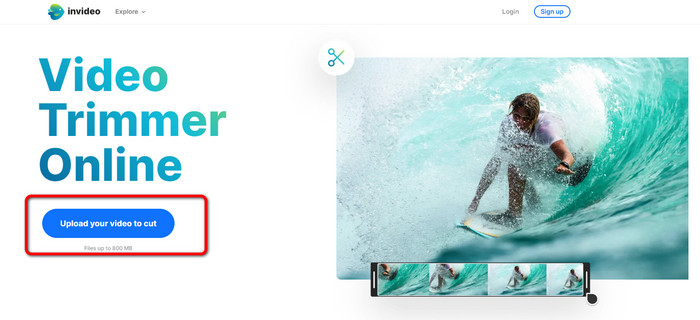
Vaihe 1. Avaa selaimesi ja siirry InVideon viralliselle sivustolle. Jos olet jo verkkosivulla, napsauta Upload your video to cut ‑painiketta. Kun tiedostoselain avautuu näytölle, valitse video, jonka haluat rajata/leikata, ja avaa se.
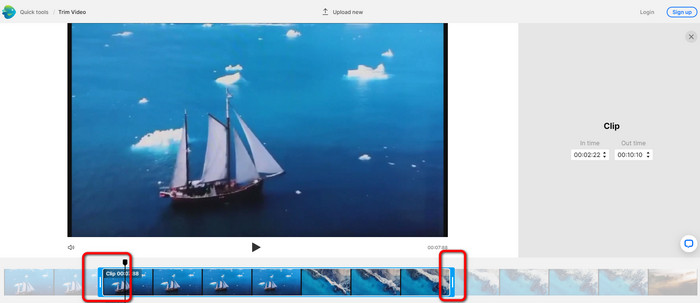
Vaihe 2. Videon valitsemisen jälkeen sinut ohjataan osioon, jossa voit rajata sitä. Videon lyhentämiseksi siirrä liukusäätimiä videon molemmissa päissä haluamaasi aikaleimaan.
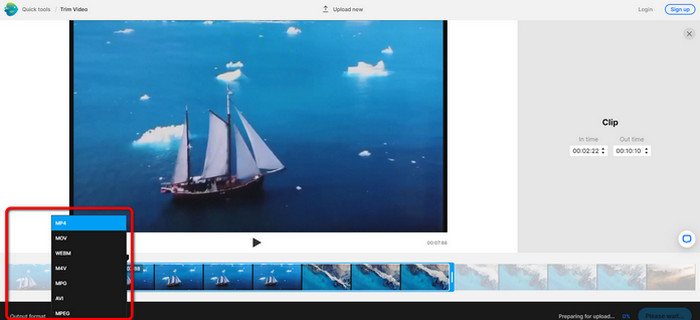
Vaihe 3. Kun olet rajannut videosi, voit tallentaa sen eri muodoissa. Siirry Output Format ‑vaihtoehtoon käyttöliittymän vasemmassa alakulmassa. Valitse sitten haluamasi tulostusmuoto, kun formaattiluettelo tulee näkyviin. Napsauta sen jälkeen Done.
Vaihe 4. Ennen kuin voit tallentaa videosi, sinun on rekisteröitävä InVideo‑tili tai kirjauduttava sisään jo olemassa olevalla tilillä. Kun olet syöttänyt kirjautumistietosi, videosi on tallennettavissa muutamassa sekunnissa.
2. Ezgif
Toinen ilmainen verkkopohjainen videoleikkuri on Ezgif. Sillä on helpot vaiheet videon lyhentämiseen. Ezgif on ilmainen verkkotyökalu, joten sinun ei tarvitse käyttää siihen rahaa. Lisäksi voit käyttää sitä kaikilla selaimilla, kuten Google Chromella, Edgellä, Firefoxilla, Explorerilla ja muilla. Huomaa kuitenkin, että työkalu tukee verkossa vain GIF‑tiedostoja. Jos siis aiot leikata videota jossain muussa muodossa, Ezgif ei ole oikea työkalu. Lisäksi näytölle ilmestyy runsaasti häiritseviä mainoksia työkalua käyttäessäsi, mikä tekee videoiden muokkaamisesta häiriintyvää.
Vaihe 1. Siirry Ezgif‑sivustolle ja valitse Cut‑vaihtoehto.
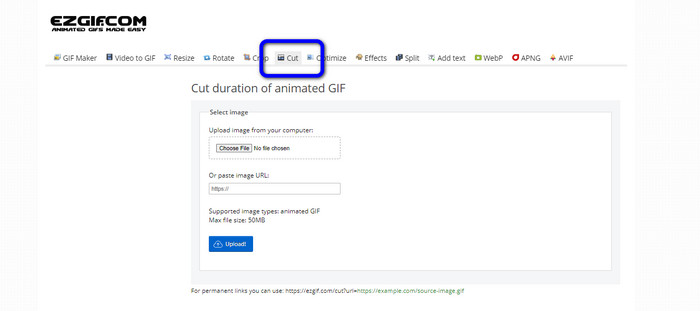
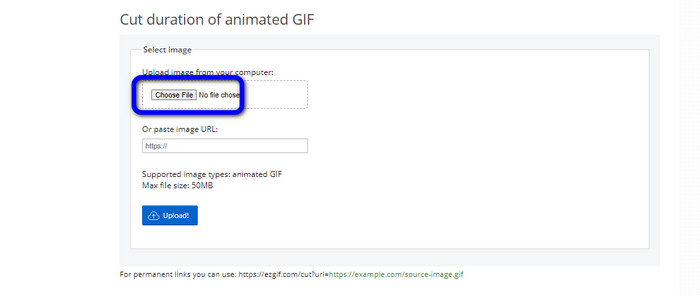
Vaihe 2. Napsauta sen jälkeen Choose File ‑painiketta. Lisää sitten tietokoneen kansiosta GIF‑tiedosto, jonka haluat ladata.
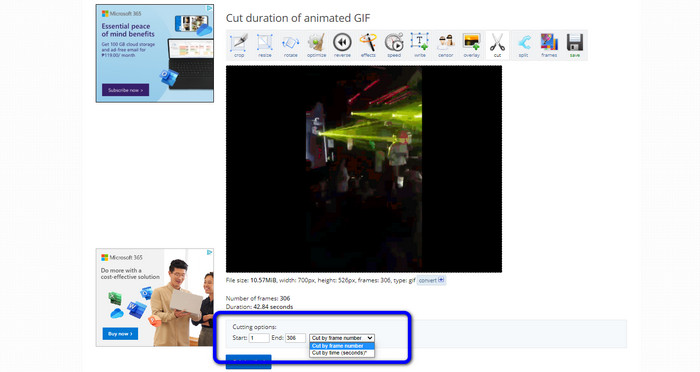
Vaihe 3. Kun GIF‑tiedosto on ladattu, voit jo leikata sitä. GIF‑tiedoston voi leikata kahdella tavalla: ruudun numeron mukaan tai ajan mukaan. Leikkaa se sinulle sopivalla tavalla.
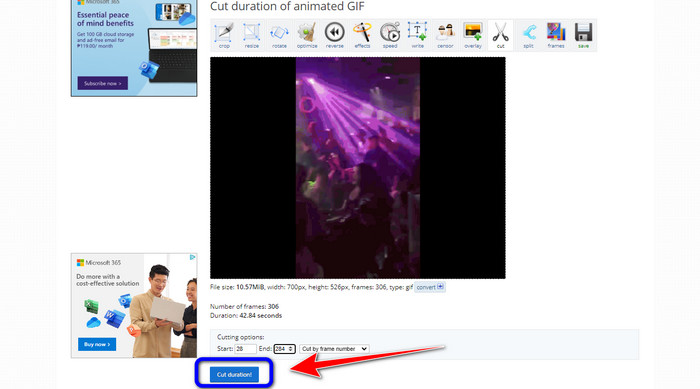
Vaihe 4. Napsauta Cut Duration ‑painiketta aloittaaksesi leikkausprosessin.
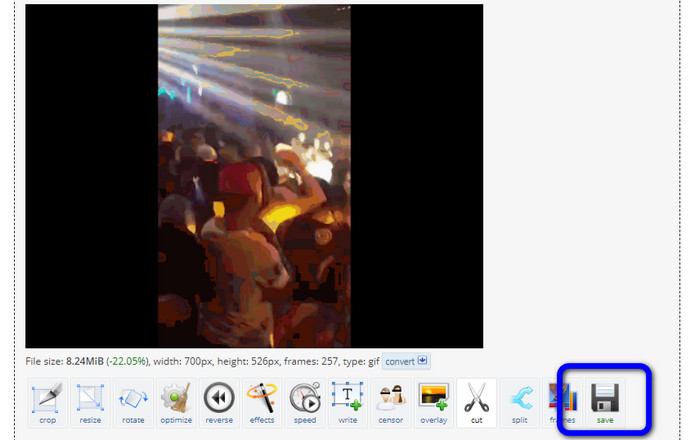
Vaihe 5. Tämän jälkeen muokattu versio tulee näkyviin. Napsauta Save‑vaihtoehtoa ladataksesi lopullisen tiedoston tietokoneellesi.
3. Kapwing
Videon leikkaamiseen voit käyttää myös Kapwing-videoleikkuria. Tämä selainpohjainen työkalu pystyy leikkaamaan videon vaivattomasti. Lisäksi voit käyttää työkalua eri verkkoselaimilla, kuten Chromella, Mozillalla, Edgellä ja muilla. Kapwing tukee monia videoformaatteja, kuten MP4, MOV, AVI, FLV, WEBM ja muita, mikä tekee siitä kätevän kaikille käyttäjille. Kapwingilla on kuitenkin myös haittapuolia. Näytölle ilmestyy jatkuvasti häiritseviä mainoksia. Lisäksi ilmaisversiossa voit ladata vain 720p‑laatuisia videoita. Ohjelma lisää myös häiritseviä vesileimoja videon muokkauksen jälkeen. Jos haluat videon ilman vesileimaa ja nauttia useammista ominaisuuksista, sinun on ostettava tilaus.
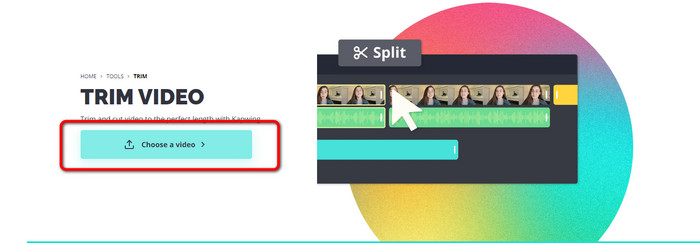
Vaihe 1. Siirry Kapwing‑sivustolle. Napsauta sitten Choose a video ‑vaihtoehtoa siirtyäksesi työkalun pääkäyttöliittymään.
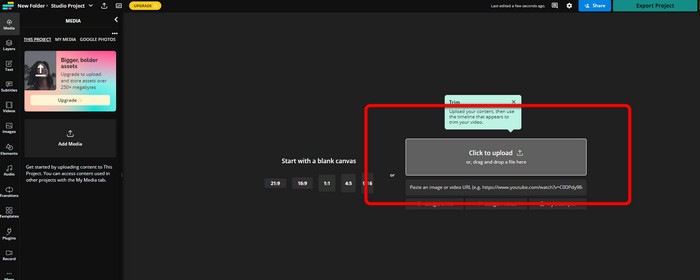
Vaihe 2. Napsauta Click to upload ‑painiketta lisätäksesi videon tietokoneen kansiosta.
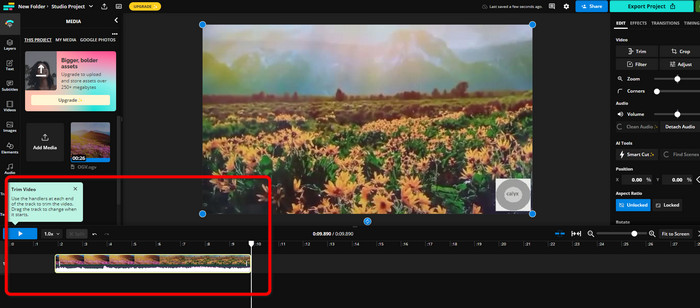
Vaihe 3. Kun video on jo aikajanalla, voit klikata ja vetää kummankin pään kahvoja aloittaaksesi videon leikkaamisen.
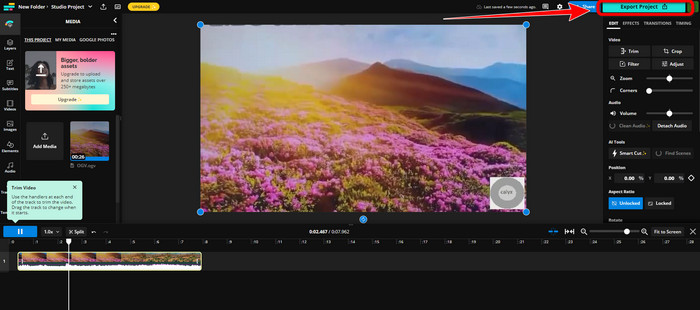
Vaihe 4. Kun olet valmis, siirry käyttöliittymän oikeaan yläkulmaan ja napsauta Export Project ‑painiketta. Näin voit tallentaa muokatun videon tietokoneellesi.
Osa 2. Vaihtoehtoinen tapa leikata videota offline-tilassa
Käytä Video Converter Ultimate ‑ohjelmaa videoiden offline‑muokkaukseen mahdollisimman tehokkaasti. Tällä työkalulla on helppo leikata ja/tai rajata videota. Siinä on myös yksinkertainen käyttöliittymä ja selkeä navigointi, joten se sopii kaikille käyttäjille. Valmiin videosi voi tallentaa monissa eri muodoissa, kuten MOV, AVI, MP4, MKV ja muut. Videon leikkaamisen yhteydessä voit tehdä paljon muutakin. Voit tehdä erilaisia säätöjä siirtymällä ulostuloasetuksiin (Output). Voit muuttaa videon kuvanopeutta, resoluutiota, koodekkia, laatua jne. Lisäksi Video Converter Ultimate ei lisää vesileimoja muokattuun videoon. Näin voit katsoa muokattua videota ilman häiritseviä elementtejä. Ohjelmaa voivat käyttää sekä Windows‑ että Mac‑käyttäjät, mikä tekee siitä kätevän molemmille käyttöjärjestelmille. Seuraa alla olevia yksityiskohtaisia ohjeita aloittaaksesi videon leikkaamisen.
Vaihe 1. Napsauta alla olevaa Lataa‑painiketta saadaksesi Video Converter Ultimate ‑ohjelman tietokoneellesi. Avaa ohjelma asennuksen jälkeen.
Ilmainen latausWindows 7 tai uudempiTurvallinen lataus
Ilmainen latausMacOS 10.7 tai uudempiTurvallinen lataus
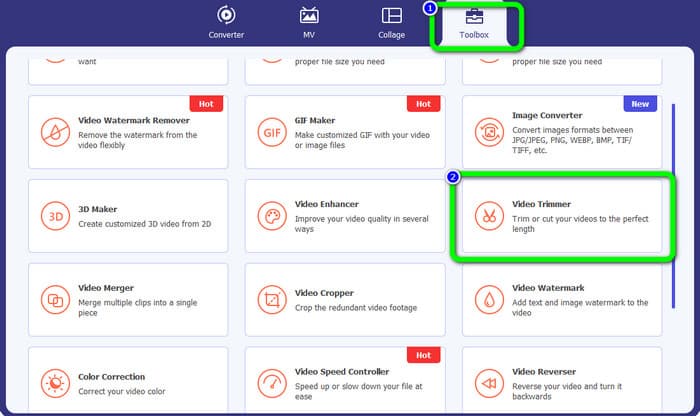
Vaihe 2. Napsauta käyttöliittymässä Toolbox-valikkoa ja valitse Video Trimmer ‑työkalu.
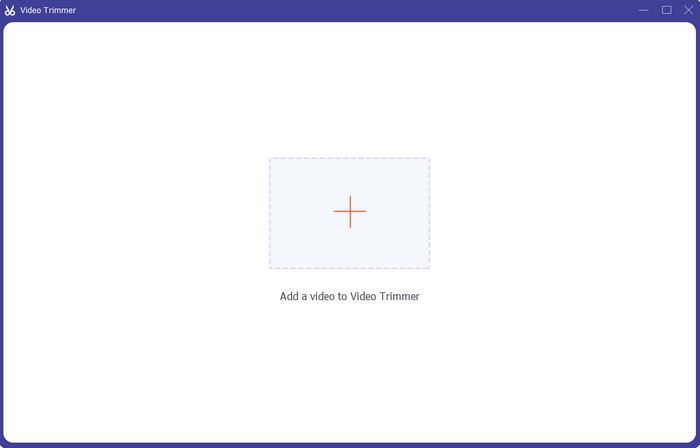
Vaihe 3. Kun uusi käyttöliittymä tulee näkyviin, napsauta Plus‑kuvaketta lisätäksesi videon, jota haluat muokata.
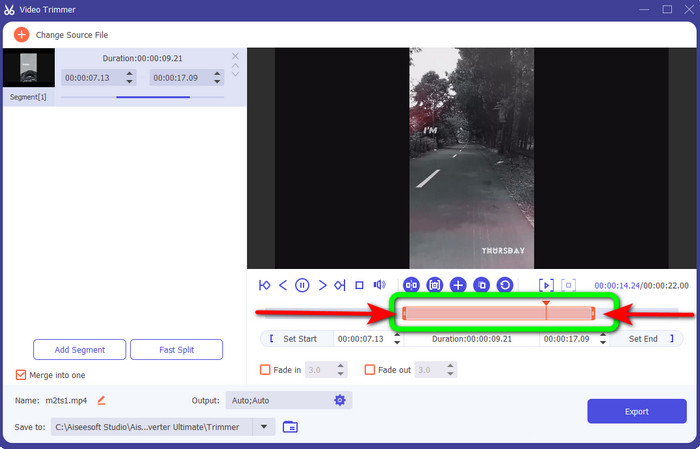
Vaihe 4. Tämän jälkeen voit jo aloittaa videosi muokkaamisen tässä osassa. Voit siirtää videon reunaosia hallitaksesi, miten haluat leikata/rajata videon. Voit liikuttaa oikeaa ja vasenta reunaa tarpeesi mukaan.
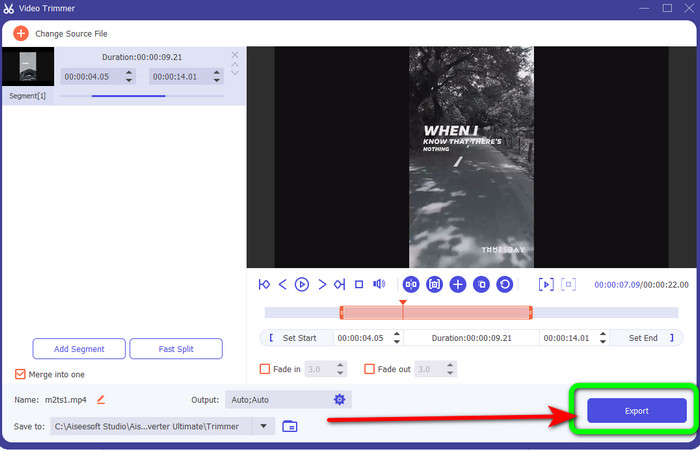
Vaihe 5. Kun olet tyytyväinen videoon, napsauta Export‑painiketta jatkaaksesi vientiä. Tallenna sitten lopullinen, muokattu videosi.
Osa 3. Usein kysyttyä videon leikkaamisesta verkossa
Kuinka leikata videota iPhonessa?
Napauta aloituksen jälkeen videota, jota haluat muokata Kuvat-sovelluksessa. Napsauta Muokkaa. Muuta aloitus- ja lopetusaikoja vetämällä videon aikajanan kummallakin puolella olevia liukusäätimiä. Käytä toistopainiketta nähdäksesi esikatselun muokatusta videostasi. Valitse Tallenna video tai Tallenna video uutena leikkeenä, kun olet valinnut Valmis.
Kuinka leikata videoita Shotcutissa?
Vedä videotiedosto aikajanalle, kun olet tuonut sen Shotcutiin. Aseta toistopaikka sen segmentin alkuun, jota haluat leikata. Paina sitten pikanäppäintä I. Paina O-näppäintä, kun olet siirtänyt toistopaikan osan loppuun. Jakso erotettaisiin nyt muusta videosta.
Mikä on paras ohjelmisto MP4-tiedostojen leikkaamiseen offline-tilassa?
Jos haluat leikata MP4‑tiedostoja offline‑tilassa, käytä Video Converter Ultimate ‑ohjelmaa. Tämä ilmaiseksi ladattava ohjelma antaa sinun leikata MP4‑tiedostoja vaivattomasti.
Johtopäätös
Nämä ovat parhaat menetelmät leikata video verkossa. Voit käyttää kaikkia yllä mainittuja videoeditointityökaluja videon leikkaamiseen. Kun kuitenkin käytät verkkotyökaluja, ne eivät aina toimi kunnolla huonon internet‑yhteyden vuoksi. Siinä tapauksessa käytä Video Converter Ultimate ‑ohjelmaa. Se on ladattava ohjelma, jonka avulla voit muokata videoita ilman internet‑yhteyttä.
-
 [4 tapaa] Videoiden nopeuttaminen verkossa
 Haluatko nopeuttaa videon katselua verkossa? Lue tämä artikkeli saadaksesi lisätietoja videon nopeuttamisesta eri tavoilla.
-
 Kuinka leikata ja yhdistää kappaleita verkossa - 4 parasta tapaa, jotka sinun pitäisi tietää
 Kun haluat leikata ja yhdistää kappaleita verkossa luoda musiikkipala, voit oppia lisää 4 parhaasta online-työkalusta kappaleiden leikkaamiseen ja artikkelin tiedostojen yhdistämiseen.
-
 Löydä paras MP4 -trimmeri menettelyjen ja tietojen avulla
 Haluatko oppia leikkaamaan videoita, kuten katsomasi vloggaajat? Jatka sitten tämän viestin lukemista tietääksesi, mitä MP4-trimmereitä voit käyttää.
