


 Video Converter Ultimate
 Näytön tallennin
 Videon korjaus
Kuvan leikkaaminen Photoshopissa
Voit tehdä paljon Photoshopissa; se on kuin kokonaisvaltainen työkalu kuvien muokkaamiseen. Jos olet käyttänyt Photoshopia jo pitkään ja tunnet yhä sen kaikki ominaisuudet, tai jos olet vasta tutkimassa sen taustanpoisto- ja irrotustoimintoja, me autamme sinua! Opi ja ymmärrä, miten kuva leikataan irti Photoshopissa nopeasti ja helposti. Lisäksi voit tutustua myös muihin menetelmiin kuvien irrottamiseen verkossa, jos Photoshop ei sovi käytettävissäsi oleviin resursseihin tai taitotasoon.
Osa 1. Kuvan leikkaaminen Photoshopissa
Kuvien leikkaamisen oppiminen Photoshopissa on tärkeää, koska sen avulla ihmiset voivat erottaa ja käsitellä kuvan eri elementtejä tarkasti. Tämä taito on perustavanlaatuinen sellaisissa tehtävissä kuin taustan poistaminen, kollaasien luominen ja kohdennettujen parannusten tekeminen kuvankäsittelyn aikana. Olipa kyseessä graafinen suunnittelu, tuotevalokuvaus tai digitaalinen taide, kyky leikata kuvia tarjoaa joustavuutta ja luovaa hallintaa, jonka avulla ammattilaiset ja harrastajat voivat saavuttaa haluttuja visuaalisia tuloksia erilaisissa projekteissa.
Näin leikkaat kuvan Photoshopissa:
Vaihe 1. Avaa kuva Photoshopissa siirtymällä File-välilehteen.
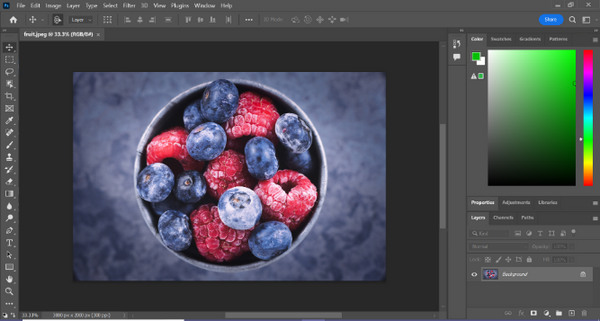
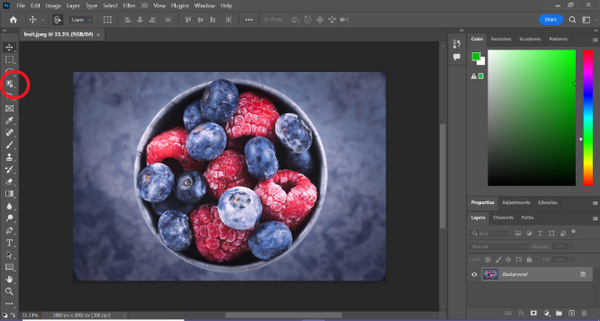
Vaihe 2. Valitse Object Selection -työkalu ja vedä hiirellä kohteesi yli valitaksesi alueen, jonka haluat leikata irti.
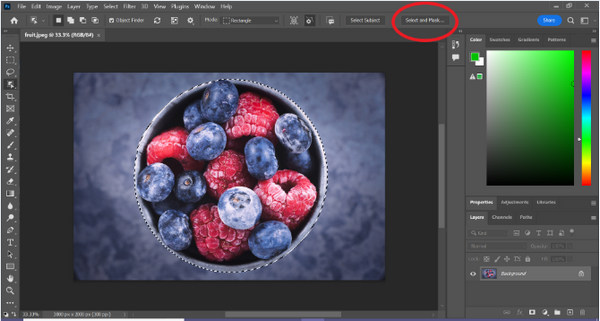
Vaihe 3. Napsauta Select and Mask.
Vaihe 4. Säädä valinnan asetuksia, kuten pehmennystä (feathering), tarvittaessa.
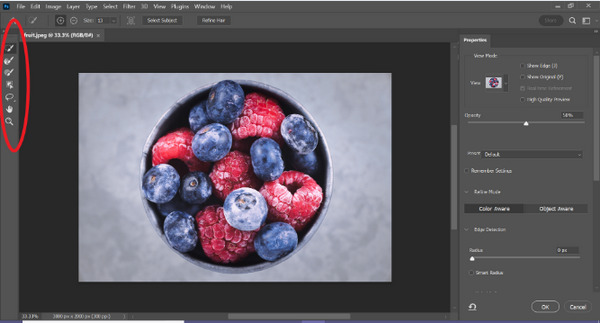
Vaihe 5. Napsauta Mask-kuvaketta leikataksesi kuvasi irti ja tallenna muokattu kuva.
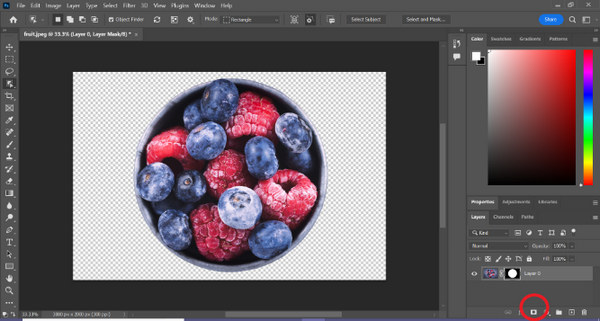
Tämän yksinkertaisen oppaan avulla voit nyt leikata kuvan irti Photoshopissa nopeasti ja helposti. Seuraa vain ohjeita ja nauti vaivattomasta, tarkasta kuvankäsittelystä. Voit myös muuttaa kuvan väriä korvataksesi irrotetun osan.
Osa 2. Kuinka leikata kuva ilman Photoshop Online -palvelua?
Jos tietokoneellesi ei ole asennettu Photoshopia, voit leikata kuvan verkossa. Vaikka Photoshop on laadukas työkalu kuvien muokkaamiseen, erityisesti kuvan täydelliseen leikkaamiseen, sen hallitseminen vaati taitoja ja harjoittelua. Joten jos tämä työkalu on poissa käsistäsi, voit käyttää näitä menetelmiä kuvan leikkaamiseen helposti.
Tapa 1: FVC Online Background Remover
FVC Online Background Remover on monipuolinen ja helppokäyttöinen työkalu, joka on suunniteltu poistamaan kuvan taustan automaattisesti PNG-, JPG- ja JPEG-muotoisista kuvista. Työkalu helpottaa läpinäkyvien taustojen luomista ja tarjoaa muokkausmahdollisuuksia: käyttäjät voivat sivellintyökalun avulla valita tarkasti alueita, jotka halutaan poistaa tai säilyttää.
Lisäksi FVC Free Background Remover -sovelluksen avulla käyttäjät voivat muuttaa kuvan taustan haluamansa yhtenäiseksi väriksi tai jopa korvata sen toisella valokuvalla. Työkalu menee taustan poistamista pidemmälle ja tarjoaa yksinkertaisia muokkausominaisuuksia, kuten rajaamisen, siirtämisen, kääntämisen ja kiertämisen, minkä ansiosta käyttäjät voivat parantaa kuviensa yleistä houkuttelevuutta. Alla on ohjeet tämän käyttämiseen.
Vaihe 1. Siirry ensin heidän viralliselle verkkosivustolleen ja napsauta Upload Image.
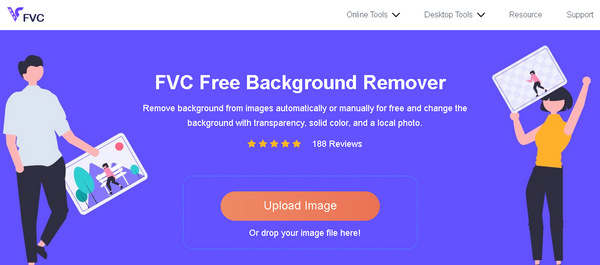
Vaihe 2. Odota prosessin valmistumista. Sen jälkeen voit muokata kuvaasi tarkentamalla reunoja ja siirtämällä kohdetta.
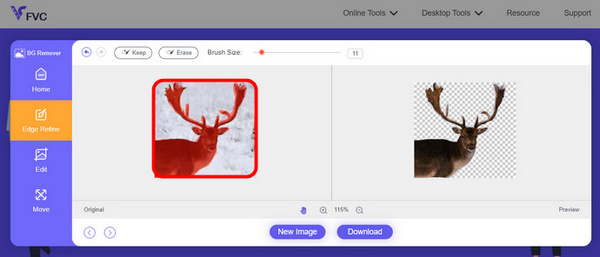
Vaihe 3. Tallenna lopputulos napsauttamalla Download-painiketta.
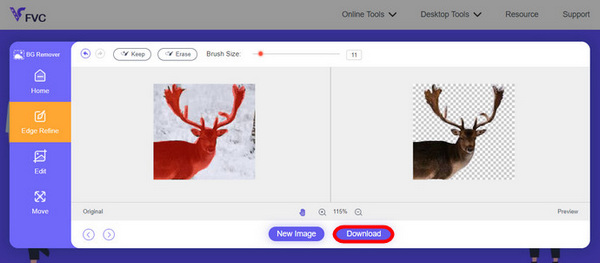
FVC Image Background Remover on todellakin kätevä työkalu kuvan irrottamiseen. Sen lisäksi, että se on ilmainen, työkalu on erittäin helppokäyttöinen, kun haluat lisätä taustan kuvaan. Kuten huomaat, sinun tarvitsee vain seurata muutamaa helppoa vaihetta, ja voit vaivattomasti poistaa kuviesi taustan.
Tapa 2: iPhone iOS 16 -ominaisuuden käyttäminen
iPhone iOS 16 tuo useita uusia ominaisuuksia ja päivityksiä. Yksi niistä on leikattu kuva. Tämän kuvanleikkausominaisuuden avulla käyttäjät voivat eristää valokuvan kohteen ja luoda valokuvaleikkauksia suoraan iPhoneen.

Vaihe 1. Avaa kuva Kuvat-sovelluksessasi.
Vaihe 2. Paina pitkään kuvan kohdetta, kunnes sen ympärille ilmestyy kiiltävä valkoinen ääriviiva.
Vaihe 3. Kopioi ja liitä kuva muistiinpanoihin, viestisovellukseen tai tekstiviestiin. Voit myös lähettää sen suoraan AirDropilla toiseen iPhone-laitteeseen.
Tämä valokuvan leikkausominaisuus on käytettävissä vain iOS 16:ssa ja uudemmissa iPhone XS:ssä, iPhone XR:ssä ja uudemmissa.
Osa 3. Usein kysyttyä kuvan leikkaamisesta Photoshopissa
Kuinka leikata joku pois kuvasta ja laittaa hänet toiseen Photoshopissa?
Jos haluat leikata jonkun irti kuvasta Photoshopissa ja sijoittaa hänet toiseen kuvaan, toimi näin:
1. Käytä Lasso- tai Pen-työkalua hahmotellaksesi henkilön tarkasti.
2. Napsauta hiiren oikeaa painiketta ja valitse Layer via Copy kopioidaksesi valitun alueen omaksi tasokseen.
3. Avaa kohdekuva, luo uusi taso ja liitä kopioitu taso siihen.
4. Säädä kokoa ja sijaintia tarpeen mukaan ja viimeistele reunat saumattoman lopputuloksen saamiseksi.
Kuinka leikkaat jotain Photoshopissa ja teet siitä läpinäkyvän?
Jos haluat leikata jonkin kohteen irti Photoshopissa ja tehdä siitä läpinäkyvän:
1. Käytä Pen-työkalua tai Magic Wand -työkalua kohteen valitsemiseen.
2. Paina Delete poistaaksesi valitun alueen.
3. Tallenna kuva PNG-muodossa.
4. Varmista, että poistettu alue näkyy ruudukkomaisena kuviona, mikä osoittaa läpinäkyvyyden.
Kuinka vähennät muotoa Photoshopissa?
Jos haluat vähentää (subtract) muodon Photoshopissa:
1. Luo kaksi muotoa Shape-työkalulla tai jollakin valintatyökalulla.
2. Varmista, että molemmat muodot ovat eri tasoilla.
3. Valitse ylin taso, siirry Path Operations -kohtaan työkalupalkissa ja valitse Subtract Front Shape.
4. Ylempi muoto vähennetään alemmasta muodosta, jolloin syntyy uusi muoto, josta tuo alue on poistettu.
Voinko leikata monimutkaisia esineitä hienoilla yksityiskohdilla Photoshopissa?
Kyllä, Photoshop tarjoaa edistyneitä työkaluja, kuten kynätyökalun monimutkaisten kohteiden tarkkaan valintaan. Lähennä tarkkuutta, luo kiinnityspisteitä kohteen ympärille ja tarkenna reittiä yksityiskohtaisia leikkauksia varten.
Mitä eroa on Taso leikkaamalla ja Taso kopioimalla, kun kuvaa leikataan Photoshopissa?
Taso leikkaamalla poistaa valitun alueen ja asettaa sen uudelle tasolle. Taso kopioimalla kopioidaan valitun alueen uudelle tasolle jättäen alkuperäisen ennalleen. Valitse sen mukaan, haluatko säilyttää alkuperäisen vai et leikkausprosessin aikana.
Johtopäätös
Helppoa, eikö? Nyt kun tiedät, miten kuva leikataan irti Photoshopissa, voit viedä taitosi seuraavalle tasolle ja tutkia muita Photoshopin ominaisuuksia. Lisäksi voit kokeilla muita kuvan irrottamismenetelmiä verkossa käyttämällä FVC Online Background Remover -työkalua tai iPhone-laitettasi. Kuvien irrottaminen on nyt helpompaa kuin koskaan, joten älä hukkaa tätä mahdollisuutta, vaan kehitä luovuuttasi seuraamalla tätä opasta.
-
 Vesileiman poistaminen valokuvasta Photoshopissa [Vaiheet]
 Photoshop on yksi suosituimmista muokkaustyökaluista. Hanki ilmainen opetusohjelma täältä Photoshopin avulla vesileiman poistamiseksi valokuvista. Löydä myös vaihtoehtoisia tapoja.
-
 Rajaaminen Photoshopissa: Aloittelijan opas [2025]
 Tutustu kuvien rajaamiseen Photoshopissa tämän helposti seurattavan oppaan avulla. Opi myös valitsemaan alueita, säätämään kuvasuhteita ja paljon muuta valokuvien rajaamista varten.
-
 Värin vaihtaminen Photoshopissa | 2025 kattava opas
 Haluatko viedä luovuutesi uudelle tasolle oppimalla vaihtamaan taustaväriä Photoshopissa? Tässä artikkelissa on kaikki mitä sinun tarvitsee tietää. Lue se nyt!
