


 Video Converter Ultimate
 Näytön tallennin
 Videon korjaus
Syyt ja ratkaisut videokoodekille, jota ei tueta
Oletko koskaan joutunut tilanteeseen, jossa yritit toistaa videota mediasoittimellasi tai televisiossasi, mutta ruutuun ilmestyi virheilmoitus “videokoodekkia ei tueta”? Älä ihmettele, vaikka virhe tulisi myös muilla videoilla, esimerkiksi itse tallentamillasi. Tosiasia on, että vaikka olisit jo käynnistänyt laitteen uudelleen tai yrittänyt toistaa videon uudestaan, se ei silti välttämättä toistu. Mitä tämä videovirhe siis tarkalleen ottaen tarkoittaa, miksi se ilmenee ja onko siihen järkeviä ratkaisuja? Yleisesti ottaen videon ei-tuettujen koodekkien ongelma on jo hyvin yleinen. Onneksi tämä artikkeli pyrkii selittämään virheen taustalla olevat syyt ja esittelemään ratkaisuja. Kun otat annetut ratkaisut käyttöön, voit onnistuneesti korjata ”koodekkia ei tueta” -ongelman ja varmistaa sujuvan ja miellyttävän videotoistokokemuksen.

Osa 1. Mitä ja miksi virhe ei tueta videokoodekkia?
Mikä on videokoodekkia ei tueta -virhe
Virhe, joka ilmoittaa videon pakkauksenhallinnan virheen, on ongelma videon kompressorissa. Koodekit, jotka ovat lyhenne sanoista kompressori-dekompressori, ovat tekniikoita, jotka vastaavat ääni- ja videodatan koodaamisesta ja dekoodauksesta. Tästä syystä ongelma, kun et voi toistaa videokoodekkia, jota ei tueta, ilmenee yleensä, kun laite tai mediasoitin kohtaa videotiedoston, jonka koodekki ei ole yhteensopiva soittimen tai laitteen kanssa.
Miksi videokoodekkia ei tueta -virhe
Jos haluat tietää tarkemmin, miksi virhe ilmenee, jatka tämän osion lukemista. Kuten jo mainittiin, tällainen virhe ilmenee, kun videosoitin tai alusta kohtaa videotiedoston, joka on koodattu koodekilla, jota laite ei pysty tulkitsemaan. Toisin sanoen, jos laitteestasi tai mediasoittimestasi puuttuvat tarvittavat komponentit videotiedoston purkamiseen. Lisäksi eroavaisuudet koodekkituen välillä johtuvat tyypillisesti ohjelmistoeroista, lisensointirajoituksista tai laiteohjelmistosta. Esimerkiksi jos videotiedosto on koodattu H.265- tai HEVC-koodekilla, se ei välttämättä ole yhteensopiva mediasoittimen tai sovelluksen kanssa, joka on suunniteltu käsittelemään vain H.264:ää tai vanhempia koodekkeja.
Sen lisäksi, että soitin ei tue koodekkivideota, myös puuttuva äänikoodekki voi olla yksi virheen syistä.
Osa 2. Tuemattoman videokoodekin korjaaminen
Ratkaisu 1. Käytä vaihtoehtoista mediasoitinta
Jos sinulla on vaikeuksia toistaa videotiedostojasi tietyllä videosoittimella, paras ja nopein ratkaisu on kokeilla videoita vaihtoehtoisella mediasoittimella. Löydät useita erinomaisia videosoittimia, kuten VLC:n, Windows Media Playerin, QuickTimen ja monia muita. Kukin mediasoitin kykenee käsittelemään laajaa valikoimaa yleisiä videoformaatteja ja koodekkeja sujuvasti. Sinun on kuitenkin hyvä tiedostaa, että saatat kohdata ei-tuettu videoformaatti -virheitä, vaikka käyttäisit uutta soitinta. Käytännössä kuitenkin eri mediasoittimien kokeileminen voi auttaa korjaamaan tilanteen, jossa videokoodekkia ei tueta.
Ratkaisu 2. Päivitä nykyinen mediasoitin
Jos olet uskollinen nykyiselle mediasoittimellesi etkä halua vaihtaa sitä, päivitä se ainakin uusimpaan versioon. Mediasoittimien päivitykset sisältävät usein parannetun yhteensopivuuden useiden videokoodekkien kanssa. Tässä on ohjeita tiettyjen tietokoneesi mediasoittimien päivittämiseen.
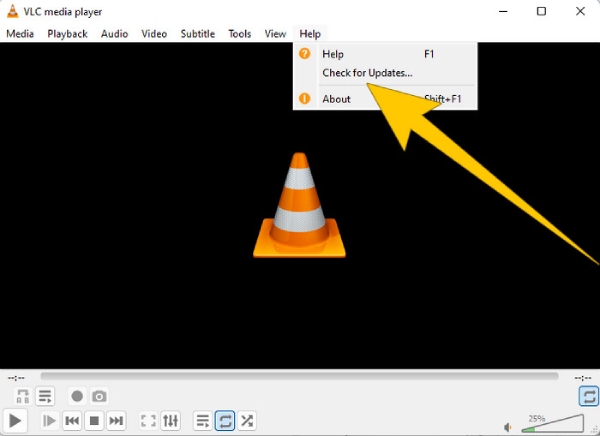
VLC Media Playerille
Vaihe 1. Avaa mediasoittimesi.
Vaihe 2. Siirry Ohje-valikkovälilehdelle.
Vaihe 3. Valitse Tarkista päivitykset.
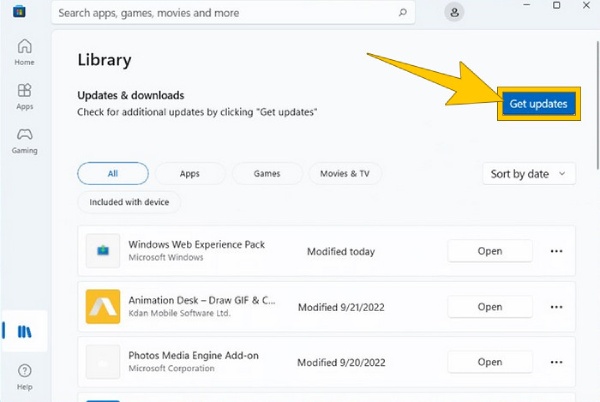
Windows Media Playerille
Vaihe 1. Siirry Microsoft Storeen.
Vaihe 2. Avaa Kirjasto nähdäksesi sovellusluettelosi.
Vaihe 3. Napsauta sitten Hae päivitykset -painiketta aloittaaksesi sovellustesi päivitysten asennuksen, mukaan lukien Windows Media Playerin.
Ratkaisu 3. Muunna video toiseen muotoon
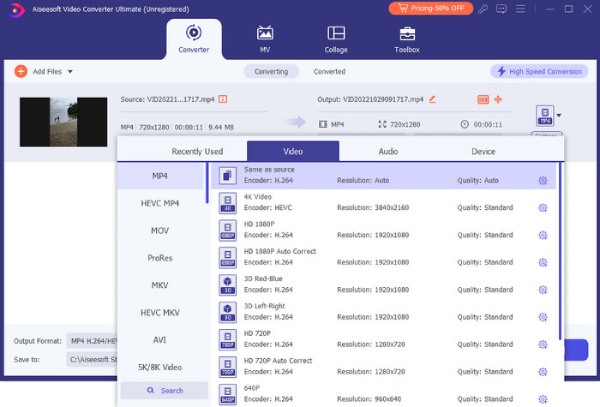
Jos videokoodekkia ei tueta esimerkiksi Samsung-laitteella, ongelma voi johtua yhteensopimattomasta videotiedostoformaatista. Tällaisissa tapauksissa videotiedoston muuntaminen sellaiseen formaattiin, jota Samsung tai juuri sinun laitteesi tukee, voi olla käytännöllinen ratkaisu. Jos siis etsit parasta videomuunninta avuksesi, suosittelemme lämpimästi FVC Video Converter Ultimatea. Syynä tähän ovat sen erinomaiset ominaisuudet: erittäin nopea muunnosnopeus myös useille videoille yhtä aikaa sekä lukuisat muokkaustyökalut ja formaattivaihtoehdot.
Ilmainen latausWindows 7 tai uudempiSuojattu lataus
Ilmainen latausMacOS 10.7 tai uudempiSuojattu lataus
Ratkaisu 4. Korjaa ei-tuettu videotiedosto
Jos tiedoston muuntaminen ei tunnu sinulle sopivalta, harkitse videon korjaamista. On nimittäin otettava huomioon, että jos videotiedosto ei toistu lainkaan, se saattaa olla vioittunut. Tällaisissa tapauksissa kannattaa käyttää videonkorjaustyökalua, kuten FVC Video Repairia ongelman ratkaisemiseksi. Tämä korjaustyökalu voi korjata videotiedostosi sekunneissa prosessin käynnistämisen jälkeen. Se antaa sinun ladata ja korjata tiedoston vaivattomasti. Tämän videonkorjaustyökalun toimintatapa tekee siitä poikkeuksellisen miellyttävän käyttää. Lisäksi se tarjoaa esikatselutoiminnon, jonka avulla voit tarkistaa videotiedoston ennen sen tallentamista korjauksen jälkeen. Kuinka korjaat koodekkiongelman FVC Video Repairin avulla? Seuraa alla olevia ohjeita.
Vaihe 1. Asenna työkalu maksutta napsauttamalla alla olevaa Lataa-painiketta.
Ilmainen latausWindows 7 tai uudempiSuojattu lataus
Ilmainen latausMacOS 10.7 tai uudempiSuojattu lataus
Vaihe 2. Käynnistä ohjelma ja aloita prosessi napsauttamalla käyttöliittymässä näkyviä Lisää-painikkeita. Napsauta punaista painiketta ladataksesi vioittuneen videon. Käytä violettia painiketta ladataksesi näytevideon.
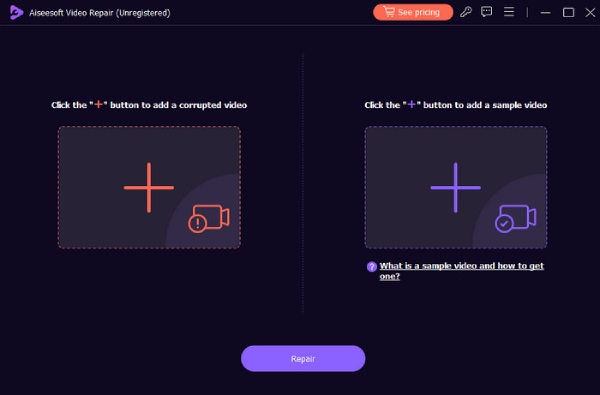
Vaihe 3. Kun videot ovat latautuneet, paina Korjaa-painiketta.
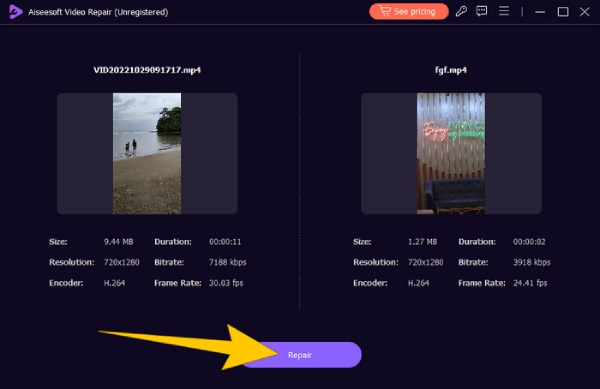
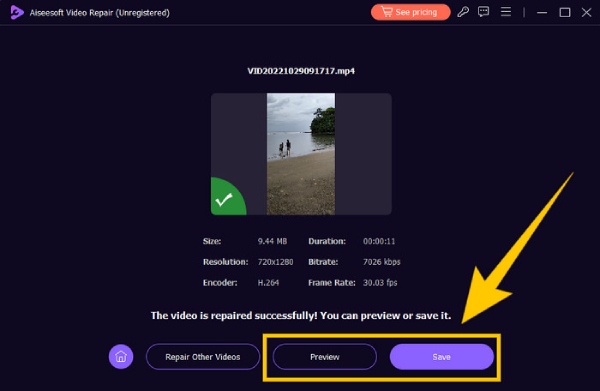
Vaihe 4. Tämän jälkeen voit halutessasi napsauttaa Esikatselu-painiketta tarkistaaksesi korjatun videon. Muussa tapauksessa napsauta Tallenna-painiketta viedäksesi lopputuloksen.
Osa 3. Usein kysyttyä videokoodekkivirheestä
Kuinka korjaan videotiedoston, jota ei tueta?
Korjaa videotiedosto varmasti muuttamalla ei-tuettu muoto yhteensopivaksi videonmuunnintyökalulla. Tai käytä sen sijaan videonkorjaustyökalua.
Kuinka voin muuntaa videokoodekkeja?
Jos haluat muuntaa videokoodekin, voit muuntaa videon muunnintyökalun avulla muotoon, joka käyttää eri koodekkia.
Miten löydän videon koodekin?
Tarkista videotiedoston ominaisuuksista, mitä koodekkia se käyttää. Löydät monia ilmaisia koodekkeja Windows-soittimeesi, kuten MKV-koodekin Windows Media Playerille.
Johtopäätös
Videovirheiden, kuten “Videokoodekkia ei tueta”, käsittely on varsin turhauttavaa. Yllä esitettyjen ratkaisujen ansiosta voit kuitenkin kohdata ongelman pää pystyssä. Olemme tuoneet esiin neljä yleistä korjaustapaa, erityisesti toistokelvottoman videon korjaamisen FVC Video Repair -työkalun avulla.
-
 Mikä on 0xc10100bf -virhe videossa ja kuinka korjaan sen
 Eikö videosi toistu virheen 0xc10100bf vuoksi, ja etsit tapoja korjata se? Tässä artikkelissa opit, mikä se on ja kuinka korjata se.
-
 EaseUS Video Repair – perusteellinen katsaus vuonna 2025
 Tutustu kattavaan EaseUS Video Repairin katsaukseen. Opi kuinka tämä monipuolinen ohjelmisto voi auttaa sinua korjaamaan vioittuneet videot nopeasti ja helposti.
-
 Korjausvideon Master Review: Tässä on kaikki mitä sinun tarvitsee tietää
 Korjaa videosi nyt Repair Video Masterilla! Tässä kattavassa katsauksessa opit myös sen ominaisuuksista, eduista ja pikaoppaasta niiden käyttöön.
