


 Video Converter Ultimate
 Näytön tallennin
 Videon korjaus
 Suojattu lataus
Taustakuvan poistaminen PPT:stä: Työpöytä ja verkko
PowerPoint-sivuja tehdessämme meidän on usein luotava useita eri tyyleissä olevia malleja ja lisättävä niihin valmiita kuvakkeita tai kuvia. Monilla materiaalikuvilla on kuitenkin taustaväri. Jos sivulla on liikaa eri värejä, se näyttää sekavalta. Kaikki elementit on pinottu satunnaisesti eivätkä ne muodosta täydellistä kokonaisuutta.
Joten meidän on suhtauduttava siihen vakavasti ja suoritettava PPT-taustakuvan poistaminen. PowerPointissa itsessään on kaksi tapaa toteuttaa tämä toiminto. Mutta jos haluat käyttää vieläkin parempaa taustanpoistopalvelua, voit kokeilla artikkelissa suositeltuja parhaita verkkotyökaluja. Emme jaarittele enempää, vaan katsotaan heti, miten se tehdään.

Osa 1. Taustan poistaminen PPT:stä
Voit käsitellä kuvia PowerPointissa manuaalisesti luodessasi PowerPoint-tiedostoja. Sen käyttöliittymässä on kaksi työkalua, jotka auttavat sinua poistamaan kuvan taustan. Katsotaanpa seuraavaksi, miten se tehdään näissä kahdessa tilanteessa.
Poista tausta Aseta läpinäkyvä väri -toiminnolla
Ensimmäinen on lisätä kuviin läpinäkyvä väriefekti. Tämä menetelmä sopii erittäin hyvin yksivärisille kuville, ja vaikutus on välitön.
Näin poistat valkoisen taustan kuvasta PPT:ssä läpinäkyvän värin ominaisuudella.
Vaihe 1. Avaa PPT-tiedostosi. Siirry kuvaan, jota haluat muokata. Valitse kuva ja napsauta työkalupalkista Muotoile.
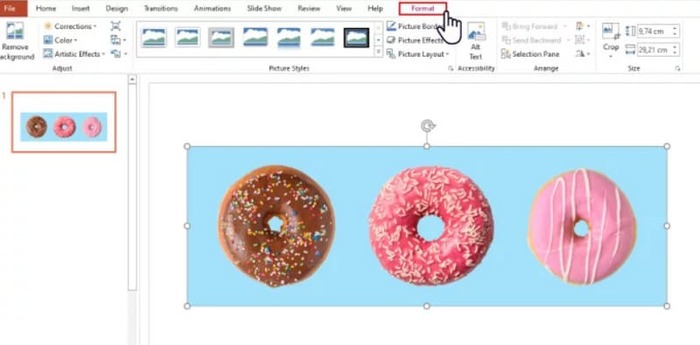
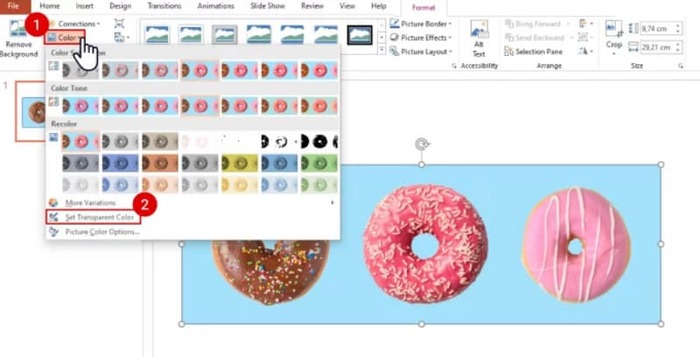
Vaihe 2. Etsi vasemmasta yläkulmasta Väri. Laajenna valikko ja valitse Määritä läpinäkyvä väri.
Vaihe 3. Osoittimesi muuttuu kynäksi. Vie se kuvan päälle ja napsauta. Kuvasi taustaväristä tulee läpinäkyvä.
Huomaa, että tämä menetelmä ei toimi kuvissa, joissa on varjoja taustalla. Jos kuvan objektit ovat väriltään liian lähellä taustaa, läpinäkyvyystoiminto saattaa poistaa sekä taustan että objektit.
Poista tausta taustan poistotoiminnolla
Näet PowerPoint-sivun vasemmassa yläkulmassa Poista tausta -painikkeen. Napsauta sitä, niin PowerPoint-sivun taustan poistotoiminto tunnistaa taustan automaattisesti ja korostaa poistettavan osan.
Näin poistat taustakuvan PPT-diasta Poista tausta -toiminnolla.
Vaihe 1. Kun olet lisännyt kuvan diaan, valitse se.
Vaihe 2. Napsauta Kuvamuotoile > Poista tausta.
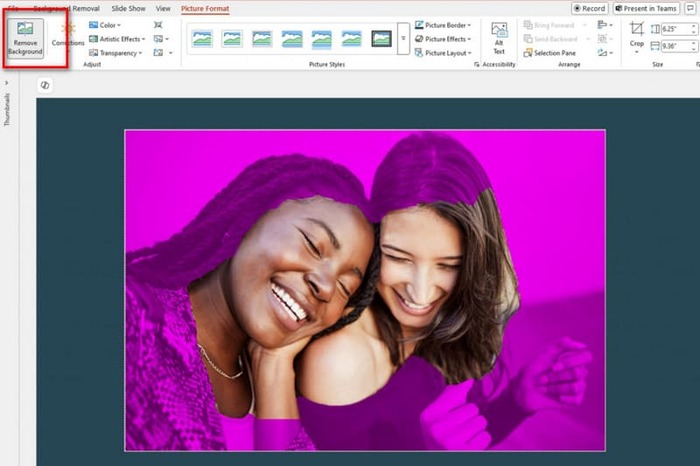
Vaihe 3. Alusta suorittaa toiminnon ja tunnistaa taustan automaattisesti. Tausta korostetaan violetilla. Voit myös valita Merkitse säilytettävät alueet tai Merkitse poistettavat alueet rajauksen manuaalista säätöä varten.
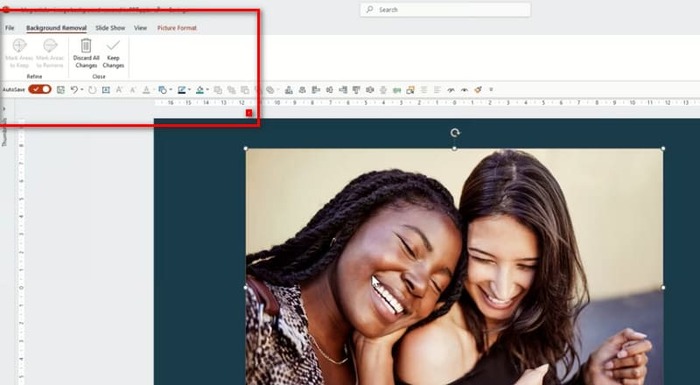
Valitettavasti sekä tällä toiminnolla että läpinäkyvyystehosteita koskevalla toiminnolla on yhteinen ongelma. Molemmat ovat hyvin huonoja taustan tunnistamisessa ja saattavat pyyhkiä myös kuvan keskeiset kohteet. Ja vaikka yrittäisit säätää sitä manuaalisesti, PowerPoint noudattaa silti omaa logiikkaansa sitä suorittaessaan. Jos kuvasi tausta on tumma tai ei yksivärinen, kannattaa etsiä jokin toinen, innovatiivisempi työkalu taustan poistamiseen tai taustan lisäämiseen kuvaan.
Osa 2. Kuinka poistaa valkoinen tausta kuvasta verkossa ja ladata se PowerPointiin
Ilmainen: FVC-taustanpoistaja
Yllä olevasta näemme, että vaikka PowerPointin tarjoamat työkalut ovat helppokäyttöisiä, niillä ei voi käsitellä monimutkaisella taustalla varustettuja kuvia. Jos sinulla on tällaisia tehtäviä, suosittelemme avuksi FVC Free Background Remover -työkalua. Se ei maksa mitään. Sinun tarvitsee vain ladata kuva alustalle PNG-, JPG- tai JPEG-muodossa, ja FVC Free Background Remover -työkalua voi käyttää jopa diakuvan taustan vaihtamiseen. Lataa haluamasi uusi tausta tai valitse yksivärinen tausta.
Näin poistat taustagrafiikan PPT:stä FVC Free Background Removerilla.
Vaihe 1. Avaa FVC Free Background Remover selaimessasi. Napsauta Lataa kuva lisätäksesi kuvan diaan.
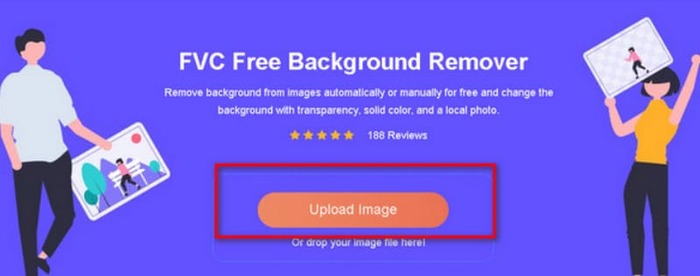
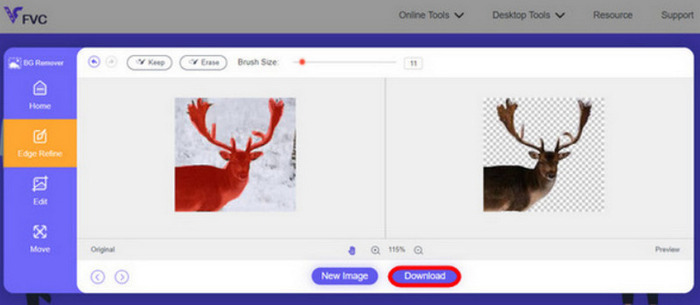
Vaihe 2. FVC Free Background Remover lataa kuvan ja poistaa taustan automaattisesti. Voit muokata kuvaa ja mukauttaa asetuksia, kun prosessi on valmis.
Vaihe 3. Napsauta lopuksi Lataa tallentaaksesi muokatun videon.
Yllä oleva PPT:n menetelmä kuvan taustan poistamiseen koskee pääasiassa staattisia kuvia. Jos kuvassasi on vesileimoja, logoja jne., selvitä, miten voit poistaa vesileimat valokuvista parhaan mahdollisen esityksen saavuttamiseksi.
Osa 3. Usein kysytyt kysymykset PPT:n taustakuvan poistamisesta
Miten poistat valkoisen taustan kuvasta PPT:ssä?
PowerPointissa on taustan poisto- ja läpinäkyväväritehosteominaisuudet avuksesi. On kuitenkin mahdollista, että ne tuhoavat näytön eheyden. Voit käyttää kuvan käsittelyyn FVC Free Background Remover -ohjelmaa.
Miksi PowerPointissa ei ole läpinäkyvää väriä?
Sinun on ensin varmistettava, että olet valinnut kohdekuvan. Jos kuvaa ei ole valittu, et voi lisätä siihen läpinäkyvää väritehostetta.
Mitä minun pitäisi tehdä, jos Poista tausta -työkalu ei toimi?
Tarkista ensin, onko kuvamuotosi yhteensopiva PowerPointin kanssa, eli JPG, JPEG tai PNG. Jos ei, muunna muoto ensin. Tämä ongelma voi johtua myös siitä, että PowerPointisi ei ole uusin versio. Päivitä se ensin ja avaa sitten toiminto uudelleen.
Johtopäätös
Vaikka PowerPointissa on toimintoja, joilla PPT:ssä voidaan poistaa kuvan tausta, ne ovat liian yksinkertaisia. On myös hyvin todennäköistä, että ne vahingoittavat dian muita elementtejä. Jos kuvasi tausta on yksinkertainen tai valkoinen, PowerPointin omat työkalut saattavat riittää. Mutta jos kuvassa on runsaasti yksityiskohtia, suosittelemme käyttämään ammattilaistyökalua, kuten FVC Free Background Removeria. Se on helppokäyttöinen eikä vaadi lisäohjelmistojen lataamista.
-
 Vaiheittainen opas kuvan taustan muuttamiseen neljällä tavalla
 Etsitkö työkaluja valokuvien taustan vaihtamiseen? Tässä artikkelissa opit erilaisista kuvankäsittelytyökaluista, joiden avulla voit vaihtaa kuvien taustoja helposti.
-
 GIF-taustan poisto tehokkailla ja hyödyllisillä työkaluilla
 Taustan poistaminen ilman oikeaa työkalua voi olla turhauttavaa. Katso tästä viestistä sovellussuosituksia GIF-taustan läpinäkymiseksi.
-
 Taustan poistaminen kuvasta GIMP:n avulla
 Aloita GIMP:n käyttö ja vaiheittainen prosessi taustan poistamiseksi kuvista. Löydä tehokkaita tapoja luoda läpinäkyviä kuvia GIMPillä jo tänään!
