


 Video Converter Ultimate
 Näytön tallennin
 Videon korjaus
 Suojattu lataus
Leikkaa WMA-tiedostoja: Ultimate Guide Windows- ja Mac-käyttäjille
Äänitiedostojen muokkaaminen on hauskaa, kunnes sinun täytyy käsitellä pitkiä WMA‑raitoja, joita on lähes mahdoton lyhentää. Olitpa sitten podcastaaja, muusikko tai vain joku, joka tykkää näperrellä äänen parissa, WMA‑tiedostojen leikkaaminen voi tuntua hankalalta ilman oikeita työkaluja ja osaamista. Tämä artikkeli pyrkii yksinkertaistamaan prosessin sekä Windows‑ että Mac‑käyttäjille tarjoamalla vaiheittaiset ohjeet ja parhaat käytettävissä olevat työkalut, jotta äänenmuokkaus sujuisi sinulta helpommin ja tehokkaammin. Lue tämä artikkeli loppuun saadaksesi lisätietoja.

Osa 1: Paras tapa leikata WMA-tiedosto Windowsissa/Macissa
Paras ja tehokkain tapa leikata WMA‑tiedostoja sekä Windowsissa että Macissa on käyttää FVC:n valitsemaa Video Converter Ultimate ‑ohjelmaa. Tämä monipuolinen video‑ ja äänimuunnin toimii erityisen hyvin WMA‑muotojen kanssa, etenkin niitä leikattaessa. Työkalussa on erityinen ominaisuus, jonka avulla äänitiedostojen lyhentäminen käy helposti. Tämä on erityisen hyödyllistä niille, joiden täytyy leikata joko tarpeettoman pitkiä WMA‑tiedostoja tai poistaa niistä ei‑toivottuja osia tai jaksoja. Lisäksi tämän työkalun avulla voit joko valita manuaalisesti WMA‑tiedoston osan, jonka haluat leikata, tai vaihtoehtoisesti trimmata sen automaattisesti käyttämällä sen Fast Slip ‑toimintoa.
Vaihe 1. Lataa ja asenna Video Converter Ultimate ensin Mac‑ tai Windows‑tietokoneellesi.
Ilmainen latausWindows 7 tai uudempiTurvallinen lataus
Ilmainen latausMacOS 10.7 tai uudempiTurvallinen lataus
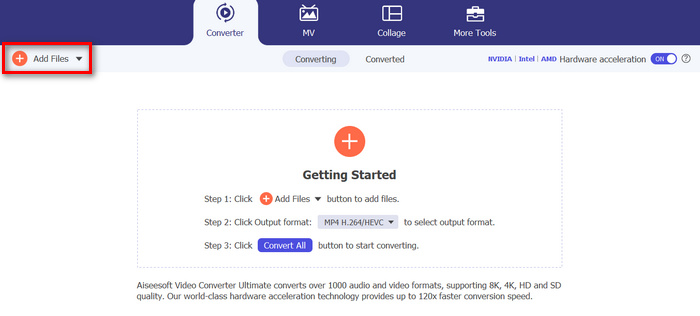
Vaihe 2. Tuodaksesi leikattavat WMA‑tiedostot klikkaa Add Files ‑painiketta.
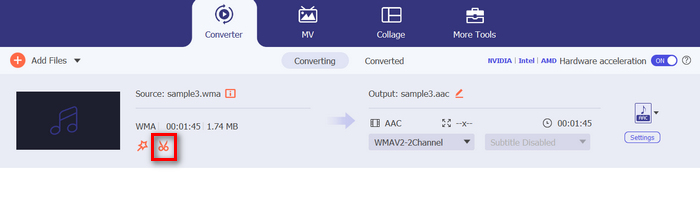
Vaihe 3. Napsauta sen jälkeen Cut-painiketta.
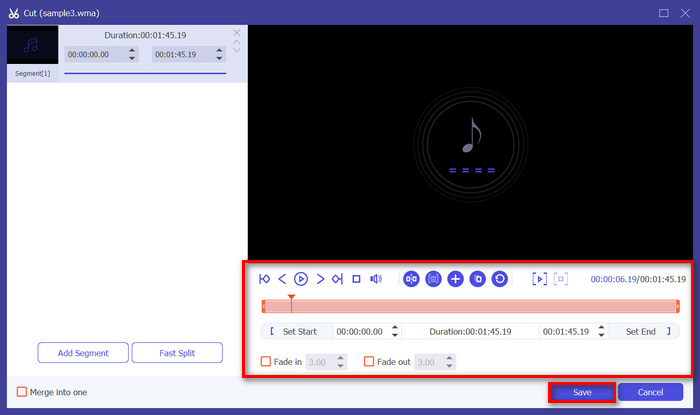
Vaihe 4. WMA‑tiedostojen leikkaamiseksi voit tehdä sen manuaalisesti säätämällä tai siirtämällä helposti leikkeen alku‑ ja loppupalkkia vetämällä ja liu’uttamalla niitä vasemmalta oikealle tai kirjoittamalla sen osan alku‑ ja loppuajan, jonka haluat WMA‑tiedostosta trimmata.
Tämä prosessi katkaisee automaattisesti osan äänestä riippuen ajankohdasta, jolloin haluat aloittaa ja lopettaa trimmauksen.
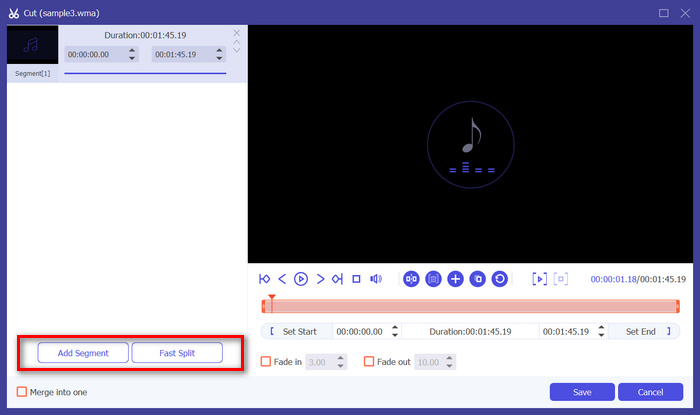
Vaihe 5. Jos haluat sen sijaan leikata tiedoston käyttämällä Fast Slip ‑trimmertoimintoa, sinun tarvitsee vain klikata Fast Slip ‑painiketta Add Segment ‑painikkeen vieressä. Valitse sitten tila, jonka mukaan haluat jakaa segmentin. Jos valitset jaon keskimääräisen pituuden mukaan, ilmoita vain segmenttien lukumäärä, mutta jos haluat jakaa ajan mukaan, ilmoita aika. Tämän jälkeen klikkaa Save ‑painiketta.
Vaihe 6. Lopuksi, viedäksesi trimmatun WMA‑tiedoston, klikkaa Convert All ‑painiketta.
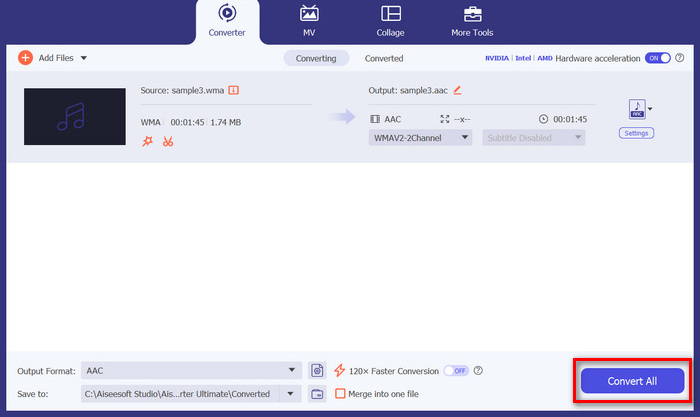
Mitä tulee WMA-tiedostojen leikkaamiseen, tämä FVC:n valitsema Video Converter Ultimate on todellakin pakollinen ratkaisu. Sen yksinkertainen ja käyttäjäystävällinen käyttöliittymä varmistaa, että voit leikata WMA-tiedostoja vaivattomasti ja tarkasti, ja sen erilaiset trimmausvaihtoehdot antavat sinulle joustavuutta, kuinka haluat leikata äänitiedostoja helposti.
Osa 2: Leikkaa WMA-tiedosto verkossa ilmaiseksi
Audio Trimmer on ilmainen työkalu, jonka avulla käyttäjät voivat leikata äänitiedostoja lennossa. Tämä tukee laajaa valikoimaa suosittuja ääniformaatteja, mukaan lukien WMA, mikä tekee tästä työkalusta yhden parhaista vaihtoehdoista, jos haluat leikata WMA-tiedostoja verkossa.
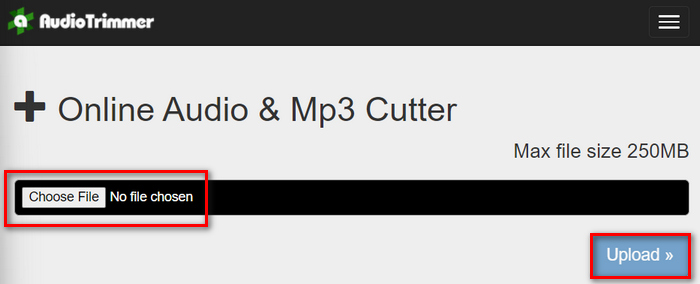
Vaihe 1. Tuodaksesi leikattavat WMA‑tiedostot klikkaa Choose File ‑painiketta ja sen jälkeen Upload ‑painiketta.
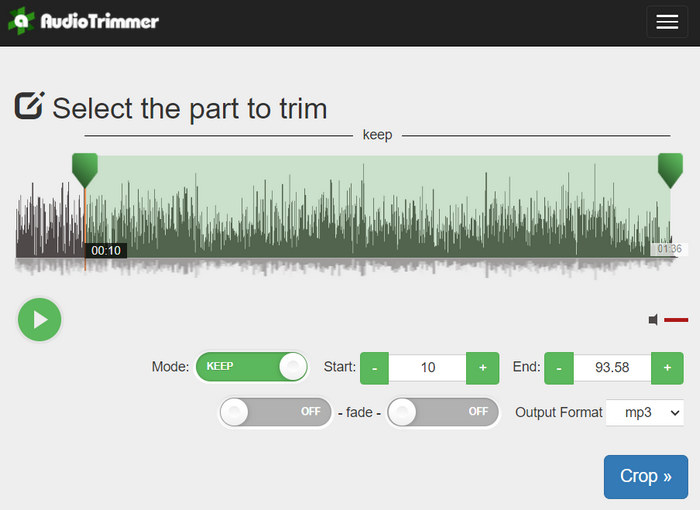
Vaihe 2. Liu’uta nyt palkkia alaspäin ja valitse se osa ääniraidasta, jonka haluat trimmata. Kun olet valmis, klikkaa Crop ‑painiketta.
Vaihe 3. Lopuksi, tallentaaksesi trimmatun WMA‑tiedoston, klikkaa vain Download ‑painiketta.
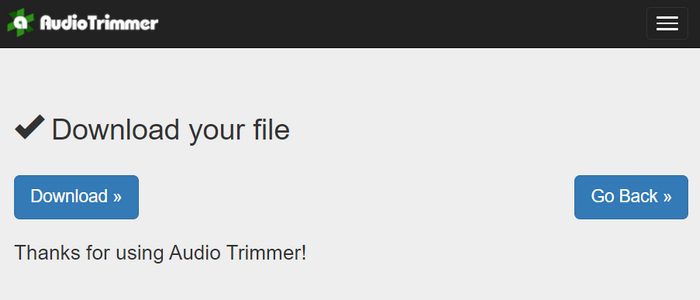
Siinä kaikki – voit nyt katsoa leikkeesi WMA‑soittimella tarkistaaksesi, leikkasitko ne oikein. Sen yksinkertaisen ja erittäin intuitiivisen käyttöliittymän ansiosta WMA‑tiedostojen leikkaaminen vaatii vain kolme vaihetta. Vaikka työkalu on erittäin helppokäyttöinen äänitiedostojen trimmaamiseen, kaikki käyttäjät eivät voi hyödyntää tätä ilmaista verkkotyökalua, sillä se rajoittuu käsittelemään alle 250 Mt:n tiedostoja.
Osa 3: Leikkaa WMA VLC Media Playerilla
VLC Media Player on laajalti käytetty avoimen lähdekoodin mediasoitin monipuolisuutensa vuoksi. Tämä työkalu tukee monia erilaisia ääni- ja videomuotoja, mukaan lukien WMA-tiedostoja. Median toisto-, suoratoisto- ja tallennusominaisuuksien lisäksi tätä työkalua voidaan käyttää myös WMA-tiedostojen leikkaamiseen. Tämän avulla käyttäjät voivat helposti leikata osia tallentamalla reaaliajassa ilman, että sinun tarvitsee muuttaa toistoaikaa manuaalisesti.
Vaihe 1. Avaa VLC Media Player. Vedä ja pudota vain se WMA‑tiedosto, jota haluat trimmata.
Vaihe 2. Ääni alkaa toistua automaattisesti. Pysäytä se hetkeksi, klikkaa sitten View‑painiketta ja valitse Advanced Controls. Näet nyt neljä uutta painiketta toistokuvakkeen yläpuolella.
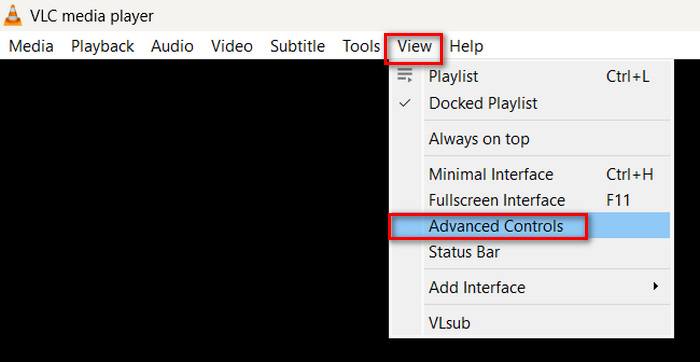
Vaihe 3. Vedä aikajanan osoitin siihen kohtaan, josta haluat leikkeen alkavan. Säädä nyt palkki siihen kohtaan, josta haluat aloittaa WMA‑tiedoston trimmaamisen. Kun olet valmis, toista äänitiedosto ja klikkaa Record ‑painiketta.
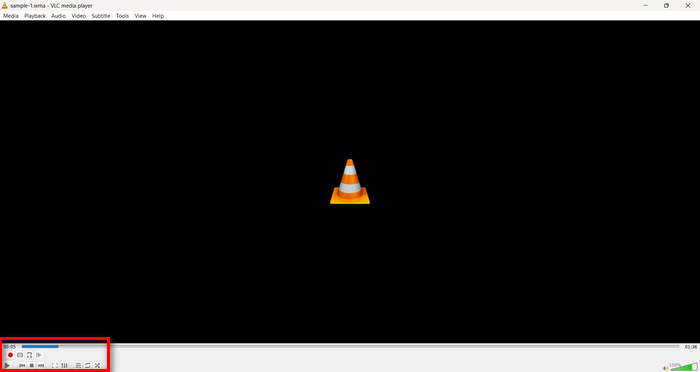
Vaihe 4. Kun saavut sen kohdan loppuun, jonka haluat tallentaa, klikkaa Record ‑painiketta uudelleen lopettaaksesi tallennuksen.
Vältä aikajanan vetämistä toiston ajan muuttamiseksi tallennuksen aikana, sillä VLC:n on tallennettava jakso reaaliajassa. Jos pidät tästä työkalusta, älä unohda tutustua myös VLC‑vaihtoehtoihin täällä.
Osa 4: Usein kysyttyä WMA:n leikkaamisesta
Kuinka voin leikata osan äänitiedostosta?
Voit leikata osan äänitiedostosta käyttämällä työkaluja, kuten Video Converter Ultimate. Sinun tarvitsee vain tuoda WMA-tiedosto, napsauttaa Leikkaa-painiketta ja säätää aloitus- ja lopetusaikaa.
Onko WMA parempi kuin MP3?
WMA tarjoaa usein parempaa äänenlaatua alhaisilla bittinopeuksilla verrattuna MP3:een, mikä johtaa pienempiin tiedostokokoihin säilyttäen kuitenkin hyvän äänenlaadun. MP3:ta taas tuetaan yleisemmin eri laitteilla ja alustoilla. Valinta WMA:n ja MP3:n välillä riippuu tarpeistasi äänenlaadun ja yhteensopivuuden suhteen. Voit myös muuntaa WMA:n MP3‑muotoon käyttämällä WMA–MP3‑muunnostyökaluja ja tehdä sen nopeasti.
Kuinka leikata äänitiedostoja Windows Media Playerissa?
Jos haluat leikata äänitiedostoja Windows Media Playerissa, sinun on käytettävä SolveigMM WMP Trimmer Plugin Home Edition -laajennusta. Tämän laajennuksen avulla käyttäjät voivat helposti leikata äänitiedostoja suoraan Windows Media Playerin käyttöliittymästä, mikä tarjoaa kätevän ratkaisun äänenmuokkaustehtäviin.
Johtopäätös
WMA‑tiedostojen leikkaamisen ei tarvitse olla stressaavaa. Käytitpä sitten ohjelmistoa, kuten Video Converter Ultimatea, verkkotyökalua, kuten Audio Trimmeriä, tai monipuolista VLC Media Playeria, tarjolla on tehokkaita menetelmiä sekä Windows‑ että Mac‑käyttäjille. Valitse tapa, joka sopii sinulle parhaiten, ja aloita äänitiedostojesi muokkaaminen vaivattomasti. Haluatko helpottaa äänenmuokkaustasi? Kokeile jotakin näistä menetelmistä jo tänään!
-
 2 tapaa muuntaa FLV WMA-ääneksi [ilmainen ja verkossa]
 Haluatko poimia WMA-äänen FLV-videosta? Tässä on 2 ilmaista WMA-äänierotinta FLV: n (Flash Video) muuntamiseksi WMA: ksi (Windows Media Audio) nopealla muunnosnopeudella Mac OS X: ssä ja Windows 10/8/7: ssä.
-
 Suosituimmat WMA-metadataeditorit, joita sinun ei pitäisi missata [2024]
 Miksi en voi muokata WMA-tunnisteita? Tämä ongelma on yleinen käyttäjille' kyselyitä. Mutta tänään annamme sinulle WMA-metaeditorit, joita voit käyttää vuonna 2024.
-
 8 tapaa muuntaa MP4 MP3-ääneksi (erämuunnos ja suuri koko)
 Jos haluat purkaa MP3-äänen MP4-videosta, voit tarkistaa tämän artikkelin ja saada 8 ratkaisua. On online- ja offline-tapoja muuntaa MP4 MP3: ksi puhelimellasi tai tietokoneellasi helposti.
