


 Video Converter Ultimate
 Näytön tallennin
 Videon korjaus
 Suojattu lataus
Kuinka asetat Spotify-kappaleen soittoääneksi - täydellinen opas
Spotify tarjoaa käyttäjille kaikkialla maailmassa laajan kirjaston musiikkia, podcasteja ja muuta äänisisältöä. Miljoonia kappaleita on kuunneltavissa pyynnöstä. Jos haluat asettaa jonkin näistä kauniista kappaleista älypuhelimesi soittoääneksi, sinun täytyy ensin ladata valittu äänitiedosto laitteellesi. Hyvä puoli on se, ettei tämä menettely ole monimutkainen. Tässä artikkelissa jaamme koko prosessin siitä, kuinka tehdä Spotify‑kappaleesta soittoääni, kolmeen osaan ja käymme jokaisen osan läpi yksityiskohtaisesti. Soittoääniä valmistellessasi saatat joutua leikkaamaan vain osan ääniraidasta. Tätä silmällä pitäen suosittelemme myös yhtä ammattimaisimmista audio- ja videoeditointityökaluista. Lisäksi vastaamme joihinkin usein kysyttyihin kysymyksiin soittoäänen asettamisesta.

Osa 1. Lataa Spotify-kappale soittoäänelle
Voitko käyttää Spotifyta soittoääniin? Vastaus on kyllä, tietysti. Ennen kuin jatkat virallisesti, sinun on tiedettävä, että et voi tällä hetkellä ladata musiikkia suoraan laitteellesi Spotifyn kautta ja asettaa niitä soittoääniksi. Siksi tarvitsemme joidenkin työkalujen apua. Kyselymme mukaan Spotify Downloader on melko hyvä valinta. Sinun tarvitsee vain avata sen virallinen verkkosivusto selaimessasi, kopioida linkki suosikkimusiikkiisi ja liittää se vastaavaan osioon. Näin voit ladata tiedoston suoraan tietokoneellesi. Jos sinulla on ongelmia sen kanssa, selitämme vaiheet seuraavassa osiossa.
Tässä on mitä sinun tulee tehdä ladataksesi Spotify-kappaleita soittoääniä varten Spotify Downloaderilla.
Vaihe 1. Siirry selaimellasi viralliselle Spotify Downloader ‑sivustolle.
Vaihe 2. Avaa Spotify‑sovellus puhelimessasi. Etsi sitten ääni, jonka haluat ladata.
Vaihe 3. Napauta kolmen pisteen kuvaketta ja valitse Jaa > Kopioi linkki.
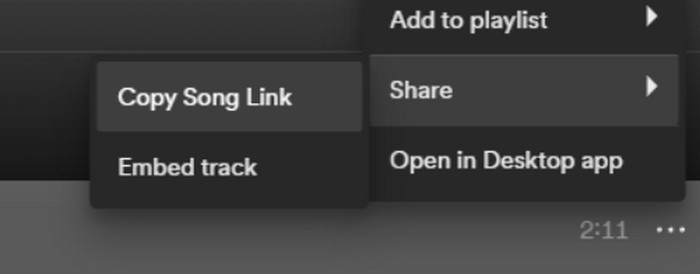
Vaihe 4. Siirry nyt Spotify Downloader ‑sivulle. Liitä kopioitu linkki ja napsauta Lähetä.
Vaihe 5. Kun prosessi on valmis, napsauta Lataa.

Osa 2. Tee Spotify-kappaleesta soittoääni
Kun olet ladannut suosikkimusiikkisi laitteellesi, voit aloittaa sen muokkaamisen. Voimme muokata kappaleen huippukohtaa tai kappaleen suosikkikohtaasi ja tehdä Spotify-kappaleesta soittoäänesi. On huomattava, että iPhone- ja Android-puhelimet tukevat erilaisia soittoäänimuotoja. Tällä hetkellä iPhone tukee vain M4R-muodossa olevia soittoääniä, kun taas Android-puhelimet tukevat tällä hetkellä MP3-, M4A-, WAV- ja OGG-muotoisia soittoääniä. Jos huomaat, että äänitiedostomuotosi ei täytä yllä olevia vaatimuksia, voit käyttää ammattimaista muotomuunninta apunasi.
Tässä tapauksessa suosittelemme kokeilemaan monitoimista äänenmuokkaustyökalua, FVC:n valitsemaa Video Converter Ultimate ‑ohjelmaa, jotta saat yhden pysähdyksen ratkaisun kappaleiden muokkaamiseen. Ydintoimintona olevan formaatinmuunnoksen lisäksi se tukee myös äänen pituuden muokkaamista, äänenvoimakkuuden ja ääniraidan säätämistä sekä häivytyksen (fade in) ja uloshäivytyksen (fade out) lisäämistä soittoääniisi. Tiedostojen käsittelyssä odotusaika on hyvin pieni tai sitä ei juuri ole lainkaan. Ohjelma auttaa sinua muuttamaan äänitiedostojesi parametreja erittäin tehokkaasti.
Ilmainen latausWindows 7 tai uudempiTurvallinen lataus
Ilmainen latausMacOS 10.7 tai uudempiTurvallinen lataus
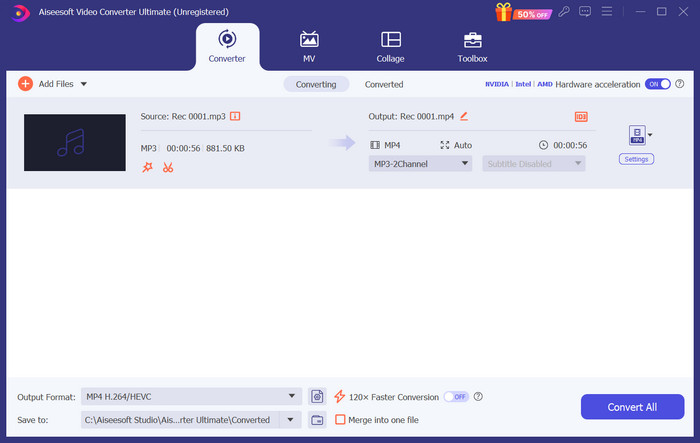
Täällä opetamme sinua luomaan soittoäänen Spotifysta FVC Video Converter Ultimate -sovelluksella.
Vaihe 1. Lataa ja asenna FVC Video Converter Ultimate tietokoneellesi. Varmista, että olet tallentanut suosikkikappaleesi laitteellesi.
Vaihe 2. Avaa tämä ohjelmisto työpöydälläsi ja napsauta Lisää tiedostoja ladataksesi Spotify‑kappaleen tälle alustalle.
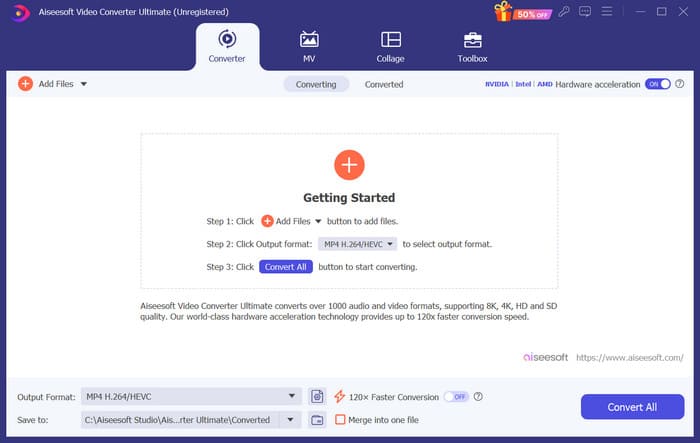
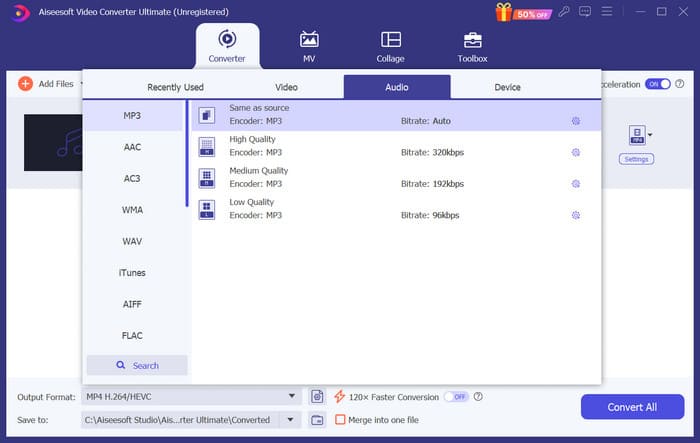
Vaihe 3. Muuttaaksesi soittoäänesi tiedostomuotoa avaa valikko Tulostusmuoto-kohdan vierestä. Sen jälkeen voit valita haluamasi kohdeformaatin kaikista Ääni‑osion vaihtoehdoista.
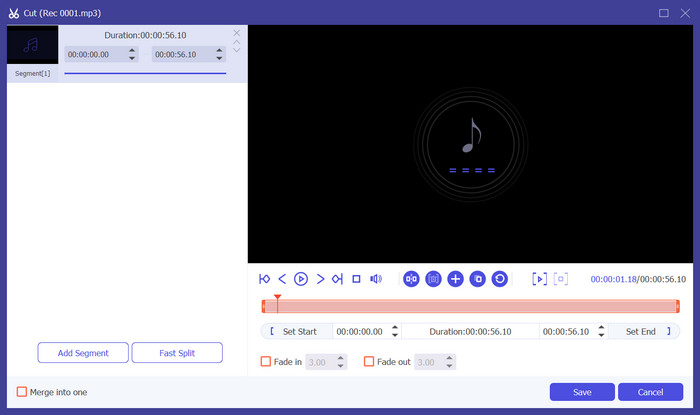
Vaihe 4. Valitaksesi osan kappaleesta puhelimesi soittoääneksi napsauta Leikkaa. Siirryt tällöin rajausnäkymään. Vedä liukusäädintä valitaksesi osan, jonka haluat pitää. Tässä ikkunassa voit myös lisätä soittoääneesi fade in‑ ja fade out ‑efektit.
Vaihe 5. Muuttaaksesi tiedoston äänenvoimakkuutta tai ääniraitaa napsauta Muokkaa. Uudella sivulla voit jopa esikatsella muokkauksen tulosta suoraan. Säilyttääksesi muutokset napsauta OK.
Vaihe 6. Kun olet saanut soittoäänen asetukset valmiiksi, napsauta Muunna kaikki viedäksesi tiedoston.
Osa 3. Aseta Spotify-kappale soittoääneksi
Nyt kun uusi soittoäänemme on valmis ja muokattu sopivan pituiseksi, meidän on otettava viimeinen askel: asetettava Spotify-kappale soittoääneksi puhelimeesi saapuville puheluille. Ottaen huomioon, että eri laitteet toimivat eri tavalla, opastamme sinua määrittämään sen laitteellesi sekä iPhone- että Android-puhelimista.
Android
Tässä osiossa opastamme sinua määrittämään Spotify-kappaleet soittoääniksi Android-puhelimellasi. Käytämme esimerkkinä Samsung-puhelinta. Ennen kuin aloitamme, sinun tulee siirtää Spotify-kappaleesi puhelimeesi. USB-kaapelin tai Bluetoothin kautta tapahtuva muunnos ovat molemmat reittejä, joihin voidaan viitata.
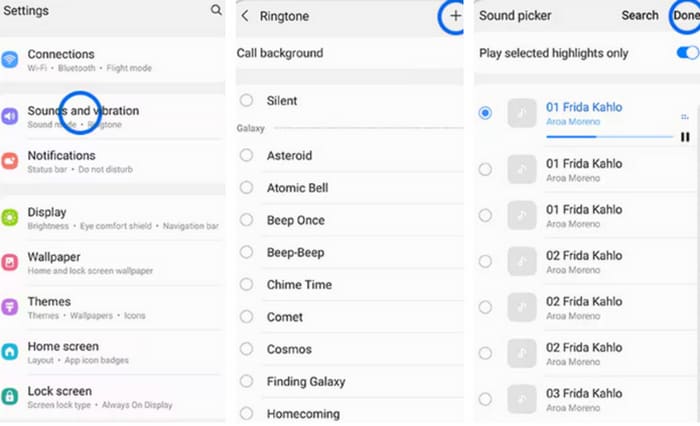
Vaihe 1. Avaa puhelimesi Asetukset ja napauta Äänet ja värinä > Puhelimen soittoääni > Omat äänet.
Vaihe 2. Napauta Lisää ja valitse muokattu Spotify‑kappale kaikista matkapuhelimesi tiedostoista.
Vaihe 3. Tallenna muutos napauttamalla Valmis. Olet nyt onnistuneesti lisännyt Spotify‑kappaleen Samsung‑puhelimesi soittoääneksi.
iPhone
Jos haluat tehdä soittoäänen iPhonellesi, saatat tarvita kolmannen osapuolen työkaluja. Suosituin työkalu on GarageBand, ja selitämme seuraavaksi, miten asetat Spotify‑kappaleen iPhonen soittoääneksi.
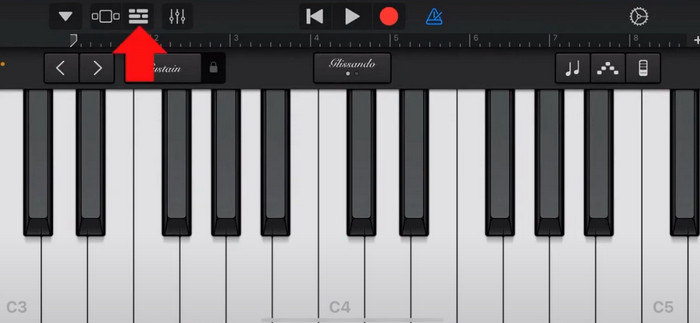
Vaihe 1. Lataa ja käynnistä GarageBand iPhonessasi. Valitse Projekti.
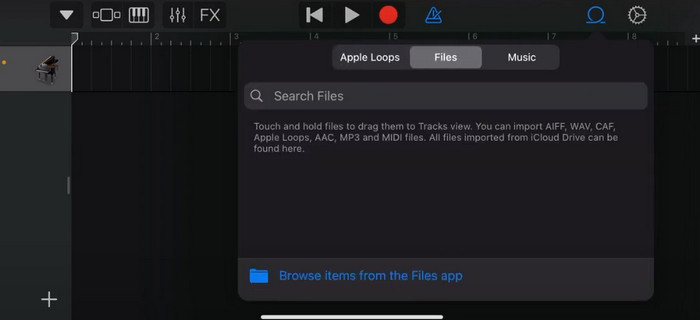
Vaihe 2. Tämän jälkeen valitse Loop > Tiedostot. Valitaksesi Spotify‑kappaleesi valitse Selaa kohteita Tiedostot‑sovelluksesta.
Vaihe 3. Aseta leikattu Spotify‑tiedosto aikajanalle.
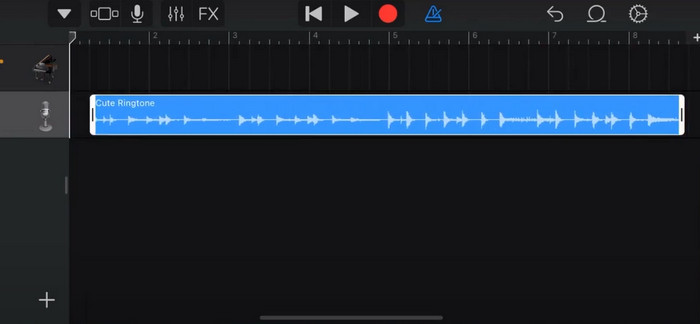
Vaihe 4. Poista metronomi käytöstä. Napauta sitten alanuolikuvaketta ja valitse Omat kappaleet.
Vaihe 5. Pidä kappaleleikkeestä painettuna ja napauta Jaa.
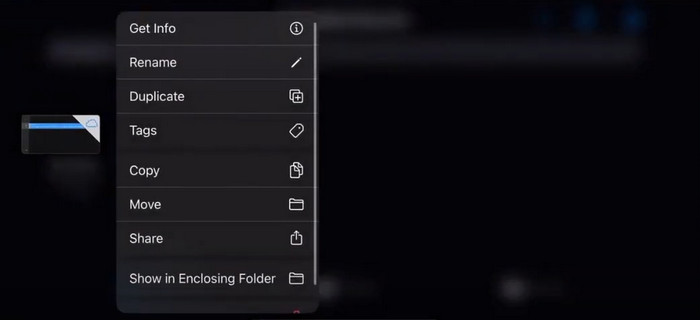
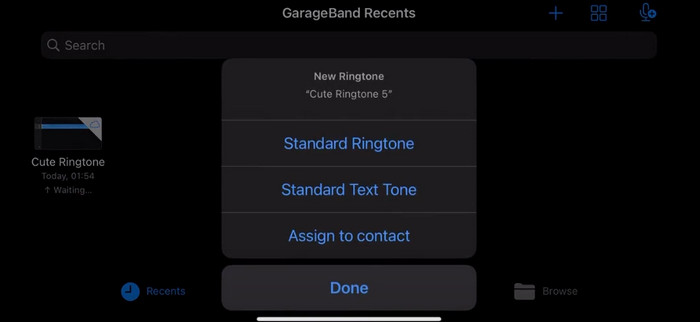
Vaihe 6. Valitse Soittoääni > Vie. Napauta Käytä ääntä nimellä > Vakiokaiutonsävel (Standard Ringtone).
Osa 4. Usein kysyttyä Spotify-kappaleen tekemisestä soittoääneksi
Voinko käyttää Spotify-kappaletta suoraan soittoäänenä?
Spotify ei salli käyttäjien käyttää kappaletta suoraan sovelluksesta soittoäänenä mobiililaitteella. On kuitenkin olemassa vaihtoehtoisia menetelmiä, joilla voit asettaa Spotify-kappaleen soittoääneksi. Voit ostaa haluamasi kappaleen digitaalisesta musiikkikaupasta, kuten iTunesista tai Google Play Musiikista. Saatavilla on kolmannen osapuolen työkaluja, joiden avulla voit muuntaa Spotify-kappaleita MP3-tiedostoiksi.
Kuinka voin tehdä mukautetun soittoäänen iPhonelleni ilman iTunesia?
Jos haluat luoda mukautetun soittoäänen iPhonellesi ilman iTunesia, voit käyttää GarageBandia, iOS-laitteille saatavilla olevaa musiikkisovellusta. Tämän menetelmän avulla voit mukauttaa soittoääntäsi laitteesi suosikkiäänileikkeilläsi.
Kuinka muuntaa Spotify iPhone-soittoääneksi ilman tietokonetta?
Spotify-kappaleen muuntaminen suoraan iPhone-soittoääneksi ilman tietokonetta on vaikeaa. Voit kuitenkin löytää vaihtoehtoisia menetelmiä samanlaisen tuloksen saavuttamiseksi. Voit esimerkiksi käyttää soittoäänien luontisovellusta tai valita GarageBandin.
Johtopäätös
Yllä olemme antaneet sinulle kattavan yleiskatsauksen siitä, miten asetat Spotify‑kappaleen soittoääneksi saapuviin puheluihin. Olemme käyneet läpi kaikki vaiheet ja tarjonneet käyttöösi huippuluokan äänenmuokkaustyökalun, FVC:n suosittelemansa Video Converter Ultimaten, jonka avulla voit personoida kappaleesi. Halutessasi tämä työkalu auttaa sinua myös helposti tekemään videosta soittoäänen. Uskomme, että löydät siitä tarvitsemasi ohjeet.
-
 Paras esittely, kuinka muuntaa WAV soittoääneksi nopeasti
 Haluatko muuntaa WAV:n soittoääneksi vaivattomasti? Käyttäjäystävälliset työkalumme tekevät työn valmiiksi! Nauti korkealaatuisesta äänen muuntamisesta hetkessä – ei teknistä päänsärkyä. Kokeile niitä jo tänään!
-
 Kuinka tehdä äänimuistiosta soittoääni iPhonessa ja Androidissa
 Jos haluat muuttaa äänimuistion soittoääneksi, lue tämä artikkeli. Olitpa iPhone- tai Android-käyttäjä, löydät ratkaisut sisällöstämme.
-
 5 MP3-leikkuria minkä tahansa äänen leikkaamiseen helposti [2024 päivitetty]
 Tarvitsetko MP3-leikkurin äänen trimmaamiseen? Siinä tapauksessa lue tämä artikkeli, koska tarjoamme työkalut, joihin voit luottaa helpon äänen leikkaamiseen.
