


 Video Converter Ultimate
 Näytön tallennin
 Videon korjaus
 Suojattu lataus
Kolme parasta tapaa muuntaa FLV MOV: ksi
Joidenkin ei-tuettujen formaattien tai muiden syiden takia sinun täytyy muuntaa FLV MOV-muotoon, erityisesti silloin kun käytät Macia.
Sinun on hyvä tietää, että QuickTime Player ja iMovie eivät tue FLV‑tiedostoja alkuperäisesti. Et siis voi avata tai muokata FLV‑tiedostoja suoraan Macilla. Riippumatta syystä, tämä artikkeli näyttää sinulle, kuinka muuntaa FLV MOV-muotoon.

Onneksi tarjolla on paljon videomuuntimia, mukaan lukien monet ilmaiset verkkotyökalut, joiden avulla voit helposti vaihtaa FLV‑tiedostosi MOV‑muotoon. Tässä artikkelissa esitellään 3 erinomaista FLV–MOV‑muunninta. Kun olet ladannut FLV‑videoita videonjakosivustoilta, voit käyttää niitä videon muuntamiseen FLV:stä MOV:iin.
Osa 1. Muunna FLV MOV Online Free -sovellukseksi
Kuten edellä mainittiin, markkinoilla on tarjolla suuri määrä ilmaisia FLV–MOV‑verkkotyökaluja. Jos et tiedä, mitä niistä käyttäisit, suosittelemme lämpimästi suosittua FVC Free Online Video Converter ‑muunninta FLV:n muuntamiseen QuickTime MOV ‑muotoon.
Vaihe 1: Avaa selaimesi ja siirry tämän verkossa toimivan FLV–MOV‑muuntimen sivulle. Voit käyttää sitä millä tahansa selaimella, kuten Chromella, IE:llä, Safarilla tai Firefoxilla.
Lataa työpöytäversio muuntaaksesi tiedostoja erissä.
Vaihe 2: Napsauta Add Files to Convert ‑painiketta asentaaksesi nopeasti käynnistysohjelman FLV‑muunnosta varten. Tämän jälkeen avautuu ponnahdusikkuna, josta voit selata ja ladata FLV‑tiedostosi.

Vaihe 3: Kun olet siirtynyt päämuunnosikkunaan, näet luettelon suosituista videoformaateista, kuten MP4, MOV, AVI, FLV, M4V, MKV, VOB, MPG, WMV ja monia muita. Valitse tästä MOV tulostusmuodoksi.
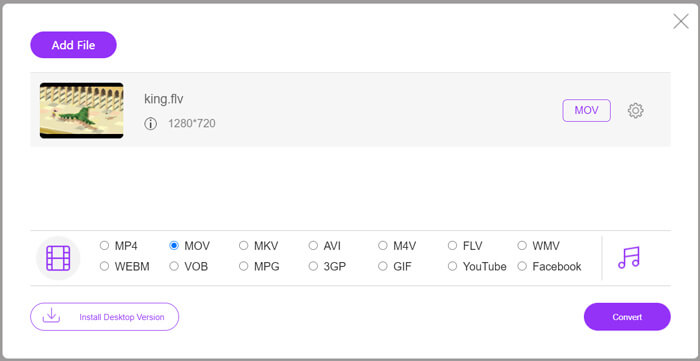
Vaihe 4: Ennen lopullista FLV–MOV‑muunnosta voit napsauttaa Settings-kuvaketta mukauttaaksesi lisää video‑ ja ääniasetuksia, kuten videon resoluutiota, enkooderia, bittinopeutta, kuvanopeutta, äänenvoimakkuutta, äänikanavia ja muita. Tämän jälkeen voit napsauttaa Convert‑painiketta aloittaaksesi FLV:n muuntamisen MOV‑muotoon verkossa.
Osa 2. Vaihda FLV:ksi MOV VLC:llä
VLC on avoimen lähdekoodin mediasoitin, joka sisältää myös joitakin perusmuunnostoimintoja. Jos sinulla on VLC Media Player asennettuna Macille tai Windows‑tietokoneellesi, voit käyttää sitä FLV‑tiedostojesi muuntamiseen.
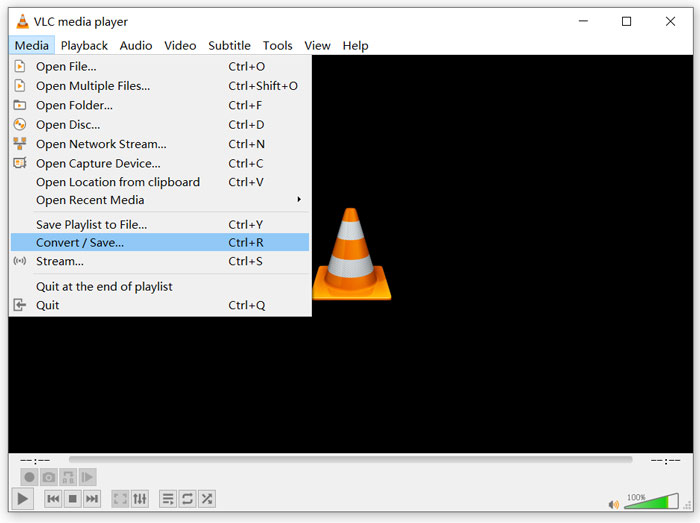
Vaihe 1: Avaa VLC Media Player tietokoneellasi ja napsauta Media-valikkoa. Valitse avautuvasta pudotusvalikosta Convert/Save. Jos käytät VLC:tä Macilla, sinun tulee napsauttaa Tiedosto‑valikkoa ja valita sieltä Convert/Stream.
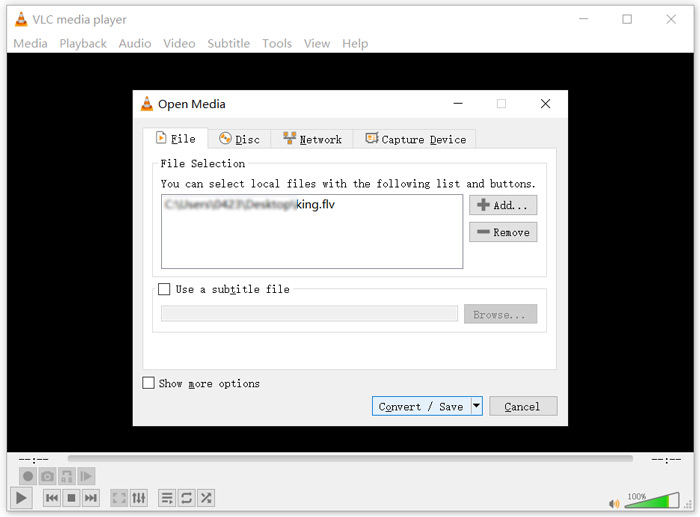
Vaihe 2: Nyt olet Open Media ‑ikkunassa. Napsauta täällä Add-painiketta tuodaksesi muunnettavan FLV‑tiedoston. Napsauta sitten Convert/Save jatkaaksesi.
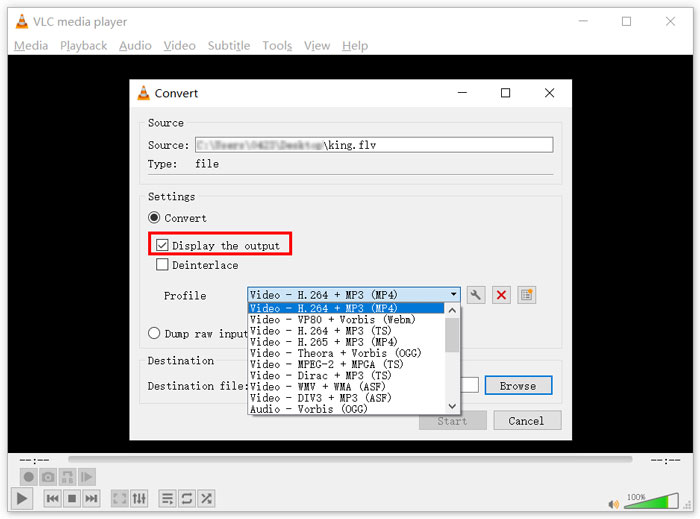
Vaihe 3: Valitse Profile-pudotusvalikosta sopiva tulostusmuoto. Tässä voit muuntaa FLV:n MP4-muotoon, TS:ksi, OGG:ksi, WebM:ksi, YouTube HD:ksi, MP3:ksi, FLAC:ksi ja muiksi formaateiksi. Ruksaa ruutu Display the output ‑vaihtoehdon edestä. Napsauta Browse-painiketta valitaksesi sopivan kohdekansion muunnetulle FLV‑tiedostolle. Tässä vaiheessa voit antaa lähtevälle videolle .mov-tiedostopäätteen.
Vaihe 4: Kun kaikki nämä vaiheet on suoritettu, napsauta Start-painiketta aloittaaksesi FLV‑muunnoksen.
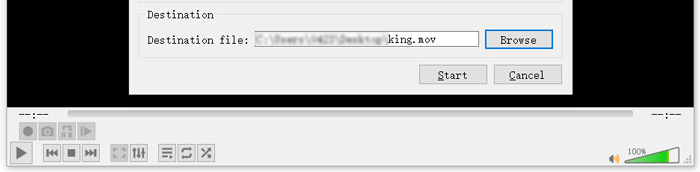
VLC Media Player alkaa automaattisesti toistaa tulostusvideota. Näet Converting file ‑ilmoituksen VLC‑ikkunan yläosassa. Älä sulje VLC:tä kokonaan ennen kuin muunto on valmis.
Osa 3. Paras tapa muuntaa FLV MOV: ksi ilman laadun menetystä
Kun haluat muuntaa FLV:n MOV‑muotoon, voit turvautua myös ammattimaisempaan ratkaisuun. Suosittelemme vahvasti monipuolista FLV–MOV‑muunnosohjelmistoa, Video Converter Ultimate ‑ohjelmaa. Verrattuna ilmaiseen FLV–MOV‑verkkotyökaluun ja VLC:hen se tarjoaa enemmän toimintoja ja tukee useampia formaatteja. Vielä tärkeämpää on, että se voi muuntaa FLV:n MOV‑muotoon säilyttäen alkuperäisen laadun.
- 1. Muunna kaikki videot, kuten MKV, AVI, MP4, WMV, FLV, MOViksi menettämättä laatua.
- 2. Muunna 8K / 5K / 4K, 1080p / 720p HD- ja SD-videot yli 500 muotoon, kuten MOV, MP4, AVI, MP3 ja muiksi.
- 3. Muokkaa videota kuten leikkaa, kierrä, rajaa, yhdistä jne. Ja lisää suodattimia ja tehosteita sekä paranna laatua.
- 4. Työkalupakki voi pakata FLV: tä, muokata FLV: n metatietoja, luoda GIF-tiedostoja FLV: stä ja paljon muuta.
Ilmainen latausWindows 7 tai uudempiTurvallinen lataus
Ilmainen latausMacOS 10.7 tai uudempiTurvallinen lataus
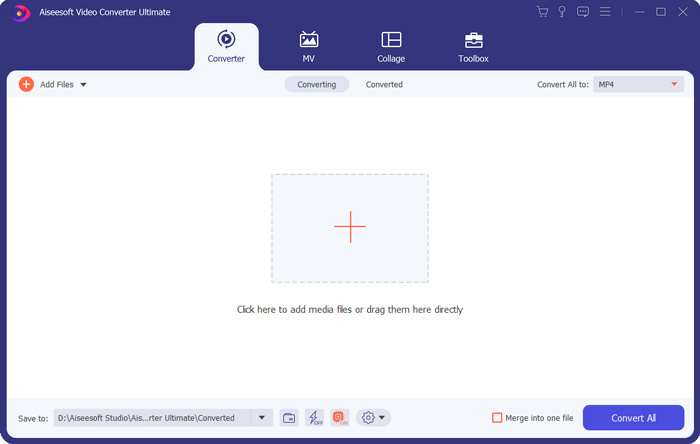
Vaihe 1: Asenna ja käynnistä tämä FLV–MOV‑muunnin ilmaiseksi Macilla tai Windows‑tietokoneellasi. Varmista, että käytät Converter-toimintoa. Napsauta sitten isoa plus-kuvaketta lisätäksesi FLV‑tiedosto(ja)si.
Vaihe 2: Napsauta tuodun FLV‑tiedoston oikealla puolella olevaa format-kuvaketta. Aseta MOV pudotusvalikosta tulostusmuodoksi.
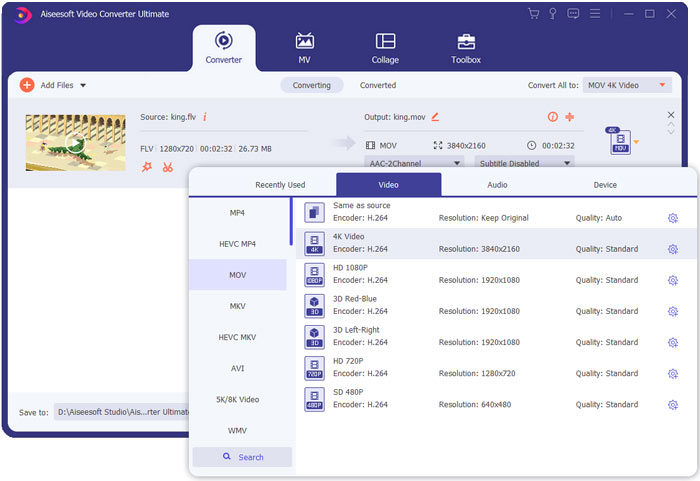
Vaihe 3: Kuten edellä näkyy, tämä FLV‑muunnin on varustettu monilla muokkaustoiminnoilla. Ennen FLV–MOV‑muunnosta voit siis muokata videota, lisätä suodattimia ja tehosteita tai mukauttaa muita asetuksia tarpeidesi mukaan. Tämän jälkeen voit napsauttaa Convert All ‑painiketta aloittaaksesi muunnosprosessin.
FLV vs. MOV
Adobe Flash Player käytti FLV:tä videosisällön, kuten elokuvien ja TV-ohjelmien, toimittamiseen. Nykyään Adobe ei enää kehitä soitinta ja suosittelee käyttäjiä poistamaan sen asennuksen turvallisuussyistä. Voit kuitenkin käyttää FLV-muotoa monissa muissa kuin Adobe-/Macromedia-ohjelmissa.
MOV-muotoa voidaan käyttää elokuvan, TV-ohjelman, lyhyen videoleikkeen tai kotielokuvan tallentamiseen. Se on itse asiassa tallennettu QuickTime-tiedostomuotoon (QTFF), jonka Apple esitteli vuonna 1991. MOV-tiedostoja käytetään usein, kun ihmiset haluavat tallentaa videon korkealaatuisina.
Osa 4. UKK FLV: n muuntamisesta MOV: ksi
FLV vs MOV, Mikä on ero FLV: n ja MOV: n välillä?
FLV (Flash Video File) on Adobe Systemsin kehittämä Flash-yhteensopiva videotiedosto. Se sisältää lyhyen otsakkeen sekä lomitetut video‑, ääni‑ ja metatietopakettit. FLV on alun perin suunniteltu videovirtojen upottamiseen Adobe‑sovelluksiin. FLV‑tiedosto sisältää yleensä 640x360‑resoluution videovirran ja 44,1 kHz:n, 2 kanavan AAC‑äänivirran.
MOV on Apple‑laitteiden ja niihin liittyvien ohjelmistojen, kuten QuickTime Playerin ja iMovien, oletusvideoformaatti. Se on International Organization for Standardizationin määrittelemän MPEG‑4‑tiedostomuodon perusta. MOV‑tiedostoon voidaan tallentaa videoita, ääniä, tekstejä, tekstityksiä, kuvia ja muita tietoja.
Apple‑laitteet, kuten Mac, iPhone, iPad ja iPod touch, eivät tue FLV‑muotoa. Lisäksi FLV tarjoaa MOV‑formaattiin verrattuna heikomman kuvanlaadun.
Voiko iMovie muokata FLV: tä?
Ei. Kuten voit oppia ylhäältä, Apple-laitteet ja ohjelmistot eivät tue FLV: tä. Mac- ja iOS-laitteiden oletusvideotoimittajana iMovie ei myöskään ole yhteensopiva FLV-tiedostojen kanssa.
Voiko Windows Media Player avata MOV-tiedostoja?
Useimmat Windows Media Player -versiot eivät tue MOV-muotoa. Mutta uusin Windows Media Player 12.0 voi avata MOV-tiedostoja.
Johtopäätös
Tässä artikkelissa esitellään 3 helppoa tapaa muuntaa FLV MOV-muotoon. Kun FLV‑tiedostojasi ei voi toistaa tai muokata, voit käyttää suositeltuja muuntimia niiden muuttamiseen MOV‑ tai MP4‑muotoon.
-
 Kuinka muuntaa FLV-videosi MP3-äänitiedostoiksi työpöydällä ja verkossa
 Kuinka muuntaa FLV MP3-tiedostoksi? Sinun tarvitsee vain lukea tämä artikkeli huolellisesti, löytää suosikkimenetelmäsi ja seurata vaiheittaista opasta saadaksesi haluamasi.
-
 10 parasta FLV-videosoitinta Windows 10/8/7: lle, Macille, iOS: lle ja Androidille, joita sinun on kokeiltava (uusin 2021)
 FLV-soittimen avulla voit helposti käyttää FLV-tiedostojasi Windows-, Mac-, Android- ja iOS-laitteilla. Katso parhaat FLV-tiedostosoittimet, jotka voit ladata juuri nyt.
-
 Kuinka muuntaa MP4 vapaasti FLV Online / Mac / Windows
 Tämä viesti on yksityiskohtainen opas MP4-FLV-muunnokseen. Voit vaihtaa 3 parasta ilmaista muunninta vaihtaaksesi MP4: n FLV: ksi verkossa, Windows- tai Mac-tietokoneella helposti.

