


 Video Converter Ultimate
 Näytön tallennin
 Videon korjaus
 Suojattu lataus
2 helppoa tapaa toistaa MKV-tiedostoja iPadilla
Voinko toistaa MKV‑tiedostoja iPadilla?
Et voi toistaa MKV‑tiedostoja suoraan iPadilla, käytitpä sitten iPad Prota, iPad Airia, iPad minitä tai iPad 2/4/6/8 ‑mallia. MKV on eräänlainen suosittu multimediasäiliömuoto, mutta sitä eivät tue kaikki Applen tuotteet, mukaan lukien iPad, iPhone, iPod ja Mac. Miten siis toistaa MKV iPadilla?

Voit käyttää kolmannen osapuolen sovellusta MKV‑tiedostojen toistamiseen iPadilla. Vaihtoehtoisesti voit muuntaa MKV‑tiedostot iPadin tukemaan muotoon, kuten MP4 tai MOV. Tässä artikkelissa jaamme 2 tehokasta tapaa, joilla voit toistaa MKV‑tiedostoja iPad Prolla, Airilla, minillä ja muilla malleilla.
Osa 1. Kuinka toistaa MKV-tiedostoja suoraan iPadilla VLC: llä
Kuten edellä mainittiin, et voi toistaa MKV‑tiedostoja suoraan iPad Prolla, Airilla, minillä tai iPad 8/6/4/2 ‑malleilla. App Storesta löytyy kuitenkin joitakin kolmannen osapuolen MKV‑soitinsovelluksia, joiden avulla voit toistaa MKV‑tiedostoja iPadilla, iPhonella tai iPod touchilla. Voit turvautua suosittuun mediasoittimeen, VLC, toistaaksesi mitä tahansa videoita, myös MKV‑tiedostoja, iOS‑laitteellasi.
VLC Media Player on erittäin suosittu mediasoitin, joka tukee kaikkia yleisimmin käytettyjä videoformaatteja, kuten MKV, MOV, MP4, AVI, FLV ja monia muita. Sen avulla voit toistaa mediatiedostoja Windows-, Mac- ja Linux‑tietokoneilla. Lisäksi VLC tarjoaa iOS‑sovelluksen, jonka avulla voit toistaa MKV‑tiedostoja iPadilla ja iPhonella.
Vaihe 1. Siirry iPadillasi App Storeen ja etsi VLC. Ensimmäisenä hakutuloksena näkyy yleensä VLC for Mobile. Napauta sitä ja napauta sitten Hae asentaaksesi sen ilmaiseksi iPadiisi. Tämä VLC‑sovellus on yhteensopiva iPadin, iPhonen, iPod touchin ja Apple TV:n kanssa.
Vaihe 2. Napauta VLC‑kuvaketta avataksesi sovelluksen. Nyt voit synkronoida MKV‑tiedostosi iTunesin, Wi‑Fi‑jaon tai pilvipalvelujen kautta. Tämän jälkeen näet ne Video-osiossa. Voit myös tarkistaa MKV‑tiedostosi Tiedostot-sovelluksesta. Valitse iPadilla toistettava MKV‑tiedosto ja napauta sitten Jaa-painiketta.
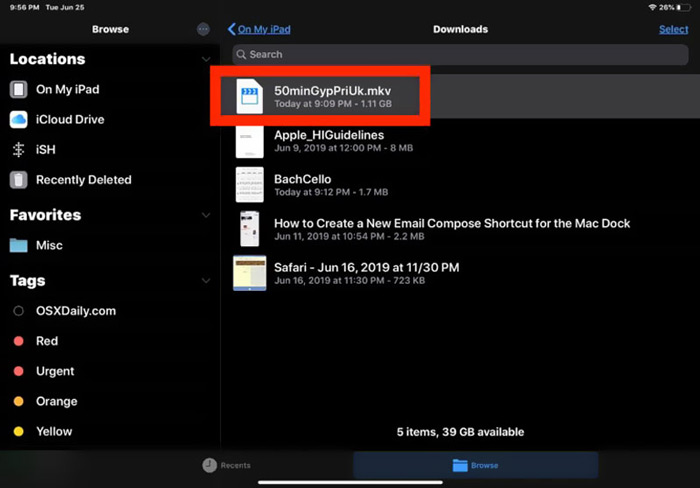
Vaihe 3. Valitse avautuvasta luettelosta Avaa VLC:ssä tai Kopioi VLC:hen. Sen jälkeen voit toistaa MKV‑tiedoston iPadilla tällä VLC‑sovelluksella.
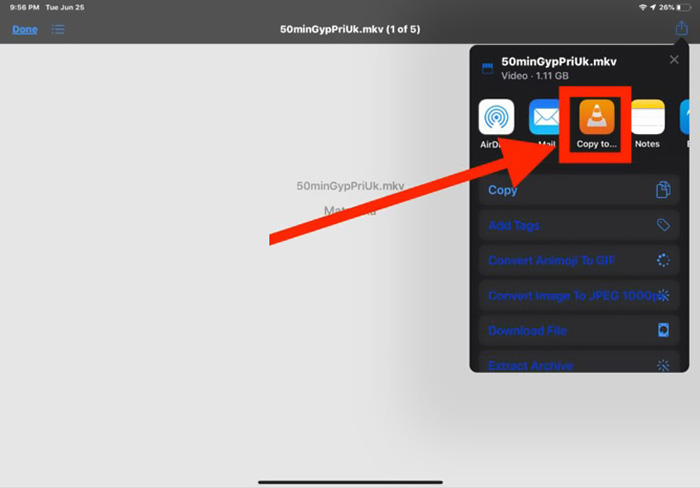
MKV‑tiedostojen lisäksi voit käyttää VLC:tä myös muiden mediatiedostojen helppoon toistamiseen. Toki tarjolla on myös muita MKV‑soittimia, kuten KMPlayer ja muut, jotka voivat auttaa sinua katsomaan MKV‑tiedostoja iPadilla.
Osa 2. Kuinka muuntaa MKV MP4: ksi toistoa varten iPadilla
Kun haluat toistaa MKV‑tiedostoja iPadilla, voit myös valita MKV‑tiedostojen muuntamisen iPadin tukemaan videoformaattiin, kuten MP4 tai MOV. Tätä varten voit käyttää ammattilaistason MKV‑muunnosohjelmaa, Free Online Video Converter.
Tämä MKV - iPad -muunnin tukee erittäin usein kaikkia usein käytettyjä video- ja äänimuotoja. Sen avulla voit muuntaa MKV: n iPad-tuettuun muotoon, mukaan lukien MOV ja MP4, ilman laadun heikkenemistä. Seuraava opas näyttää, kuinka sitä voidaan käyttää MKV: n muuntamiseen iPadiksi.
Vaihe 1. Avaa selaimesi, kuten Chrome, IE, Firefox tai Safari, ja siirry tämän Free Online Video Converter ‑palvelun sivustolle. Kun olet siellä, napsauta Add Files to Convert ‑painiketta ja sitten download-painiketta asentaaksesi nopeasti pienikokoisen FVC Launcher ‑apuohjelman MKV‑muunnosta varten.

Vaihe 2. Näytölle avautuu Open File ‑ponnahdusikkuna, jossa voit selata ja tuoda MKV‑tiedostosi. Sen jälkeen sinut ohjataan päämuunnosikkunaan. Siellä näet luettelon monista suosituista videoformaateista, kuten MP4, MKV, MOV, AVI, FLV, WMV, VOB, WEBM ja muista. Valitse tässä vaiheessa MP4 tai MOV tulostusmuodoksi.
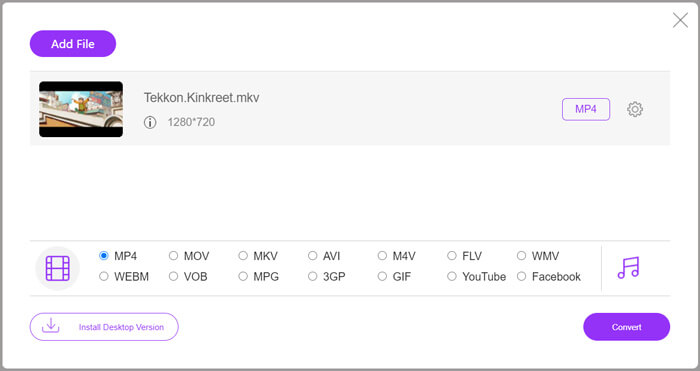
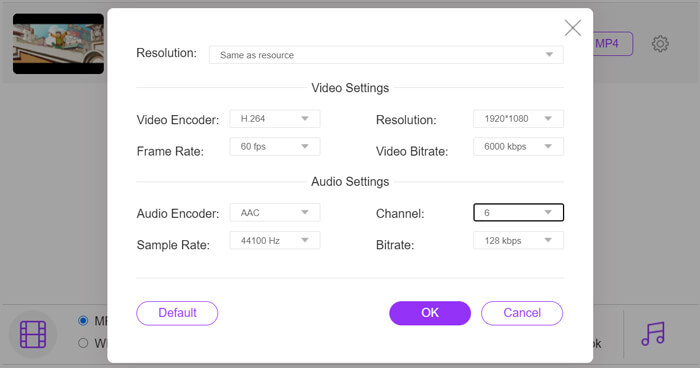
Vaihe 3. Ennen muuntamista voit napsauttaa tulostusmuodon vieressä olevaa Settings-kuvaketta mukauttaaksesi erilaisia video‑ ja ääniasetuksia. Voit säätää videon resoluutiota, enkooderia, kuvanopeutta, bittinopeutta, äänikanavaa, näytteenottotaajuutta ja paljon muuta. Napsauta OK-painiketta tallentaaksesi muutokset.
Vaihe 4. Kun kaikki nämä vaiheet on tehty, voit napsauttaa Convert-painiketta aloittaaksesi MKV:n muuntamisen MP4:ksi. Tulostetiedosto säilyttää alkuperäisen kuvan- ja äänenlaadun. Tämän jälkeen voit siirtää sen iPadiin toistettavaksi.
Osa 3. MKV-tiedostojen toistamisen usein kysytyt kysymykset iPadilla
Kysymys 1. Voiko iMovie muokata MKV-tiedostoja?
Ei. Kuten edellä mainitsimme, kaikki Apple-laitteet ja niihin liittyvät ohjelmistot eivät voi tukea MKV-muotoa. IPadin, iPhonen ja Macin oletustoimittajana iMovie ei pysty avaamaan ja muokkaamaan MKV-tiedostoja.
Kysymys 2. Voiko VLC muuntaa MKV: n MP4: ksi?
Joo. VLC Media Player pystyy muuntamaan MKV-tiedoston. Voit avata VLC: n, napsauttaa Media-valikkoa ja käyttää Muunna / Tallenna-ominaisuutta. Voit ladata MKV-tiedoston napsauttamalla Avaa media -ikkunassa Lisää-painiketta. Napsauta Muunna-painiketta ja valitse sitten MP4 kohdemuodoksi. Tämän jälkeen voit valita sopivan kohdekansion ja nimetä tulostetiedoston uudelleen. Sitten voit napsauttaa Käynnistä-painiketta, jolloin videomuunto MKV: stä MP4: ksi VLC: llä.
Kysymys 3. Voiko Windows 10 toistaa MKV-tiedostoja?
Et voi luottaa oletussoittimeen, Windows Media Playeriin MKV-tiedostojen toistamiseen Windows 10 -tietokoneella. Kun haluat avata MKV-tiedostoja, sinun on luotettava johonkin kolmannen osapuolen mediasoittimeen, kuten VLC, PotPlayer ja paljon muuta.
Johtopäätös
Tämän artikkelin luettuasi saat 2 hyödyllistä vinkkiä siihen, miten toistaa MKV‑tiedostoja iPadilla. Haluatpa sitten katsoa MKV‑tiedostoja suoraan iPadilla tai muuntaa ne iPadin tukemaan formaattiin, löydät sopivan työkalun. Jos sinulla on lisää kysymyksiä MKV‑tiedostojen toistamisesta iPadilla, voit jättää meille viestin.
-
 M2TS - iPad - ilmaisia tapoja toistaa M2TS-videotiedostoja iPadillasi
 Lue ja hanki paras tapa muuntaa M2TS iPadiksi. Tässä ovat online- ja offline-M2TS-tiedostomuuntimet iPad M2TS -toistoa varten. Lukekaa vain ja valitse haluamasi ratkaisu.
-
 MKV MOV: ksi - Kuinka muuntaa MKV MOV: ksi
 Kuinka muuntaa MKV MOV: ksi Macissa? Voiko iMovie lukea MKV: tä? Mitä MOV-muoto tarkoittaa? Tämä viesti kertoo 2 yksinkertaista tapaa auttaa muuntaa MKV MOV: ksi ilmaisilla online- ja ammattimaisilla videomuuntimilla.
-
 Opetusohjelma - 4 ilmaista tapaa yhdistää iPhonen videot uuteen
 Lue ja hanki neljä helppoa tapaa yhdistää videoita iPhoneen. Kaikki iPhone-mallit ja iOS-versiot ovat tuettuja. Voit yhdistää vähintään kaksi iPhonen videota uudeksi videoksi nopeasti.
