


 Video Converter Ultimate
 Näytön tallennin
 Videon korjaus
 Suojattu lataus
3 ratkaisua Windows Media Playerin DVD-levyjen toistamatta jättämiseen
Windows computers come with a default DVD player a Windows Media Player. Do you have a disc ready to enjoy? However, many users have responded to a common malfunction: they encounter a blank screen when playing a video or are prompted to say that the file type is not supported. There are various reasons for the Windows Media Player not playing DVDs problem.
Selitämme yksityiskohtaisesti, miksi tällainen toimintahäiriö ilmenee, ja tarjoamme tässä erityisen ratkaisun. Voit myös tunnistaa parhaan soittimen täältä. Noudata oppaamme vaihe vaiheelta ja nauti sujuvimmasta DVD-toistokokemuksesta.

Osa 1. Toistaako Windows Media Player DVD-levyä?
Will Windows Media Player play a DVD? Yes, but not all.
After encountering the problem of not being able to play, don't hurry yet. Let's see what the possible triggers are.
Miksi jotkut DVD-levyt eivät välttämättä toimi Windows Media Playerissa
• Windows Media Player Does Not Support DVDs
Kaikki Windows-järjestelmien Windows Media Playerit eivät tue DVD-levyjen lukemista. Jos käytät Windows Vistaa tai Windows 7:ää, sinun ei tarvitse huolehtia tästä. Windows Media Player Windows 8:ssa, Windows 10:ssä ja Windows 11:ssä ei kuitenkaan tue DVD-levyjen lukemista. Windows Media Player Windows 8:ssa, Windows 10:ssä ja Windows 11:ssä ei kuitenkaan tällä hetkellä tue DVD-levyjen toistamista, ja saatat joutua lataamaan erityisen DVD-soittimen App Storesta.
• Lack of Compatible DVD Decoder
Eikö DVD näy Windows Media Playerissa? Jotkut käyttäjät saavat viestin, joka ilmoittaa, että yhteensopivaa DVD-dekooderia ei ole asennettu heidän laitteeseensa. Tässä tapauksessa sinun on noudatettava vinkkejä oikean koodekin hankkimiseksi. Jos ongelma jatkuu asennuksen jälkeen, yritä poistaa asennus ja asentaa se uudelleen.
• There Is A Digital Copy Protection Issue
Saatat myös todennäköisesti törmätä toisenlaiseen ponnahdusikkunaan, joka ilmoittaa, että DVD-aseman, dekooderin ja digitaalisen kopiosuojauksen välillä on ongelma. Tämä voi myös viitata siihen, että DVD-asemasi on vanhentunut.
• Insufficient Memory
Jos tietokoneellasi on liian monta ohjelmaa käynnissä taustalla, se voi aiheuttaa sen, ettei DVD-levyä toisteta Windows Media Playerissa. Voit tarkistaa käynnissä olevat ohjelmat Tehtävienhallinnassa.
• Your Disc Is Corrupted
Jos levyssäsi on tahroja tai naarmuja, DVD-asema ei pysty lukemaan sisältöä oikein.
Osa 2. DVD-levyn toistaminen Windows Media Playerissa Windows 7:ssä
How do you play a DVD on Windows Media Player?
As we can already understand from the above, Windows Media Player on Windows 7 is capable of playing DVDs. You don't need to do much extra work. There are detailed step-by-step instructions in this section.
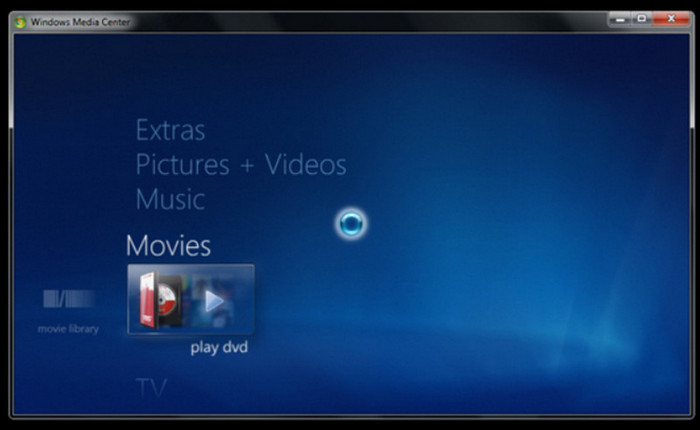
Step 1. Make sure you have a CD drive, and link it to your computer. Link the disc you want to play.
Step 2. Close the CD drive. Now, the inserted DVD will be playing automatically.
Step 3. If the DVD does not play, go to Windows Media Player. Find Player Library and click the disc or chapter you want to watch.
Osa 3. DVD ei toistu Windows Media Playerissa Windows 8/10:ssä
Ratkaisu 1: DVD-koodekin käyttö
Windows 8 ja 10 eivät tue DVD-levyjen toistoa, mutta ne ovat silti yhteensopivia DVD-levyjen kanssa. Levyjen toistamiseksi näissä kahdessa järjestelmässä sinun on ladattava kolmannen osapuolen koodekki.
Here is how to get a decoder for DVD on Windows Media Player. Follow the steps and try to play DVDs on Windows Media Player.
Step 1. Go to the bottom left corner. Click Start and enter troubleshooter in the search box. Then, choose Troubleshooter > View All > Windows Media Player.
Step 2. A window will pop out to ask you to install a Windows Media Player decoder. Follow the on-screen guide and finish the installation.
Step 3. Launch the CD drive on your computer. Insert the disc and close the CD drive. Windows Media Player will start playing the DVD video.If it is not, open Windows Media Player and choose Player Library. Select the DVD you want to play.
Ratkaisu 2: Soittimen vaihtoehdon käyttö: Aiseesoft Blu-Ray -soitin
Although Windows Media Player on Windows 8 and 10 do not support playing DVDs by default, they can still read them. So you can look for a more specialized DVD disc player, such as Aiseesoft Blu-Ray Player.
Aiseesoft Blu-Ray -soitin tukee DVD-levyjen, Blu-ray-levyjen, Blu-ray-kansioiden, ISO-kuvatiedostojen ja niin edelleen toistamista. Se voi toistaa HD-videomateriaalia 1080p-, 720p- ja jopa 4K UHD -tarkkuudella. Sitä voidaan käyttää myös video- tai äänitiedostojen toistamiseen tavallisissa muodoissa, kuten MP4, MPG, WMV, MKV, AVI, FLV jne.
Aiseesoft Blu-Ray Player also allows you to customize video playlists. No matter which way you look at it, it is the best alternative to Windows Media Player, your best assistant for playing CDs.
Ilmainen latausWindows 7 tai uudempiTurvallinen lataus
Ilmainen latausMacOS 10.7 tai uudempiTurvallinen lataus
Näin toistat DVD-levysi Aiseesoft Blu-Ray -soittimella.
Step 1. Download and install Aiseesoft Blu-Ray Player on your Windows computer. Insert your DVD disc into the drive.
Step 2. Enter the main interface of Aiseesoft Blu-Ray Player. Click Open Disc and select the DVD you want to play.
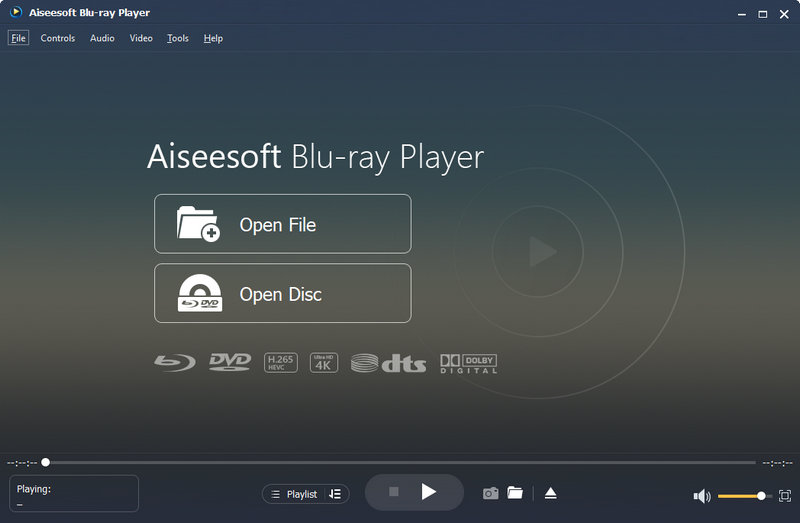
Step 3. When the DVD is loaded, the video will be displayed. You can do the playback, audio, and subtitle settings in the menu interface.
Ratkaisu 3: DVD-toistolaajennusten ja -lisäosien käyttö
Voit myös lisätä laitteeseesi laajennuksia tai lisäosia DVD-toistoa varten.
App Play Kaupassa on saatavilla Windows 10:lle erillinen Windows DVD Player -sovellus. Voit käyttää sitä DVD-levyjen toistamiseen, vaikka se on ilmainen vain rajoitetun ajan.
Windows 8.1:ssä valittavissa olevia laajennuksia ovat Pure Player X, DVD Media Player, Movie Video Player, Coole VLLC Media Player ja Fast Player for DVD.
Windows XP- tai Vista-käyttäjille kannattaa harkita SRS Audio Enhancementsia tai DFX:ää.
Osa 4. Usein kysytyt kysymykset Windows Media Playerista, joka ei toista DVD-levyjä
Milloin Windows Media Player lopetti DVD-levyjen toistamisen?
Windows 8:sta alkaen Microsoft poisti DVD-koodekin; Windows 10:ssä ominaisuus poistettiin kokonaan. Voit kuitenkin ladata sen manuaalisesti ohjelmistokaupasta DVD-levyjen toistamiseksi normaalisti.
Toistaako Windows Media Player DVD-levyjä?
Windows Media Player Windows 7:ssä voi toistaa DVD-levyjä, mutta Windows 8 ja sitä uudemmat versiot eivät tue sitä. Saatat joutua lataamaan lisää laajennuksia.
Mikä on paras ilmainen DVD-soitin Windows 11:lle?
Suosittelemme kokeilemaan Aiseesoft Blu-Ray -soitinta. Se tukee DVD-, Blu-ray- ja tavallisten videotiedostojen lukemista. Se on helppokäyttöinen ja sen suorituskyky on erinomainen.
Johtopäätös
Windows Media Player not playing DVDs issue happens a lot. The reason could be the lack of the necessary codecs. You can either get the codecs again from the Microsoft App Store or install a plug-in that can play DVDs. The best way to do it once and for all is to use a professional tool like Aiseesoft Blu-ray Player. It has high playback quality and good compatibility.
-
 DVD:n kopiointi AVI-muotoon: 3 parasta DVD-kopiointiohjelmistoa [ Arvostelu ]
 Haluatko kopioida DVD-levysi AVI:ksi toiston ja tallennuksen helpottamiseksi? Lue yksityiskohtainen arvostelumme parhaista DVD-AVI-muuntimista löytääksesi sinulle täydellisen työkalun.
-
 Android DVD-soitin – DVD-videoiden toistaminen Android-puhelimissa
 Kuinka toistaa DVD -tiedostoja Android -matkapuhelimissa? Onko Android -DVD -soittimia? Tässä artikkelissa opit kolmesta tavasta toistaa DVD -videoita Android -matkapuhelimissa ulkoisen ohjaimen kanssa tai ilman.
-
 Kaikki mitä sinun tarvitsee tietää DVD-soittimen muodoista
 Tämä on opas, joka tarjoaa tietoa DVD-soittimen muodosta, mukaan lukien tiedostojen avaaminen DVD-soittimen muodossa ja muuntaminen muihin muotoihin.
