


 Video Converter Ultimate
 Näytön tallennin
 Videon korjaus
 Suojattu lataus
Kuinka muuntaa OGG-musiikkitiedostosi MP3: ksi työpöydällä ja verkossa
“I downloaded some music files from websites and transferred them to my iPhone, but they cannot be opened at all, how to convert OGG to MP3?” After entering the streaming era, there are some new media formats for streaming including OGG. Therefore, chances are that you download some video or audio files online and they are saved in OGG files. This guide tells you four verified methods to help you turn OGG files into MP3 format on desktop or online.
Osa 1: Mitä OGG ja MP3 ovat
OGG on multimediatiedostosäiliömuoto suoratoistoa ja korkealaatuista sisältöä varten. Se voi pitää video- ja äänidataa tai sisältää ääniraidan ja artistitietoja. Nykyään monet mediasoittimet voivat purkaa ja avata OGG-tiedostoja, kuten VLC, MPlayer ja paljon muuta. Lisäksi useimmat suuret selaimet voivat suoratoistaa OGG-tiedostoja verkossa.
MP3 on pitkäaikainen äänimuoto. MP3 ja OGG ovat samanlaisia monilta osin. MP3: n suurin etu on korkea yhteensopivuus. Lähes kaikki digitaaliset laitteet ja mediasoittimet tukevat MP3-tiedostoja. Siksi haluat muuntaa OGG: n MP3-tiedostoksi toistamalla niitä mobiililaitteilla.
Osa 2: Paras tapa muuntaa OGG MP3: ksi
There are a lot of video and audio converter software available to OGG to MP3. However, most of them are only able to perform destructive conversion. In fact, you do not need to spend lots of money to purchase professional software since FVC OGG to MP3 Converter can meet your need without asking a penny.
Main Features of the Best OGG to MP3 Converter
- 1. Muunna OGG-tiedostot MP3-muotoon ilmaiseksi.
- 2. Eräprosessoi useita OGG-tiedostoja samanaikaisesti.
- 3. Käytä edistynyttä tekniikkaa äänenlaadun suojaamiseksi.
Lyhyesti sanottuna, se on paras vaihtoehto erän muuntaa OGG-tiedostot MP3-tiedostoiksi Windowsissa ja Macissa.
Free DownloadFor Windows 7 or laterSecure Download
Free DownloadFor MacOS 10.7 or laterSecure Download
Kuinka muuttaa OGG MP3-työpöydälle
Vaihe 1: Lisää OGG-tiedostoja
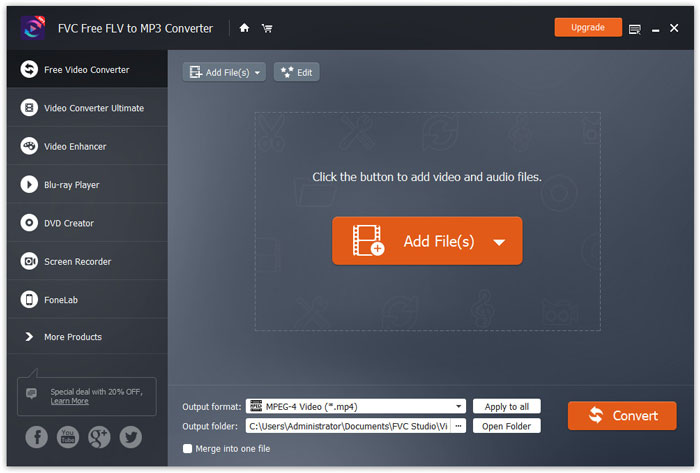
Launch the best OGG to MP3 converter after you installed it to your PC. There is another version for Mac. Click the Add File(s) button to activate the open-file dialog. Find and select the OGG files you wish to convert, and click Open. Alternatively, drag and drop the media files into the main interface.
Vaihe 2: Valitse lähtömuodoksi MP3
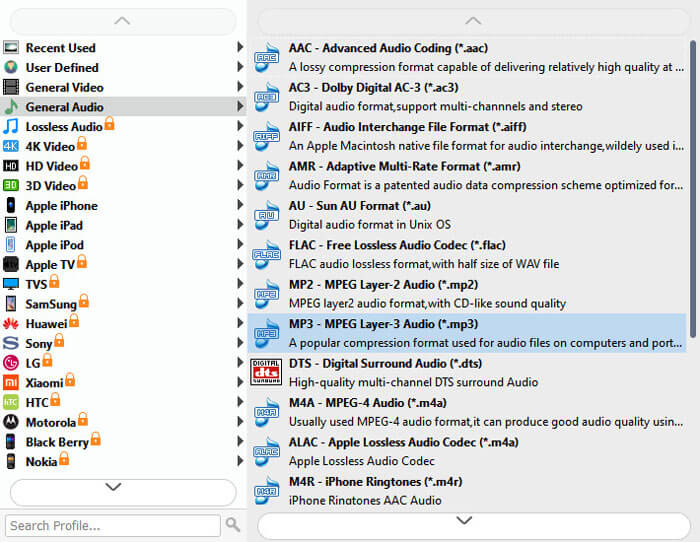
Then go to the bottom. Expand the drop-down list next to Output format and choose MP3 in the General Audio tab. If you wish to enjoy the music on mobile, choose the device model on the list directly.
To edit OGG files, click the Edit menu to open the media editor window.
Vaihe 3: Erämuunnos OGG
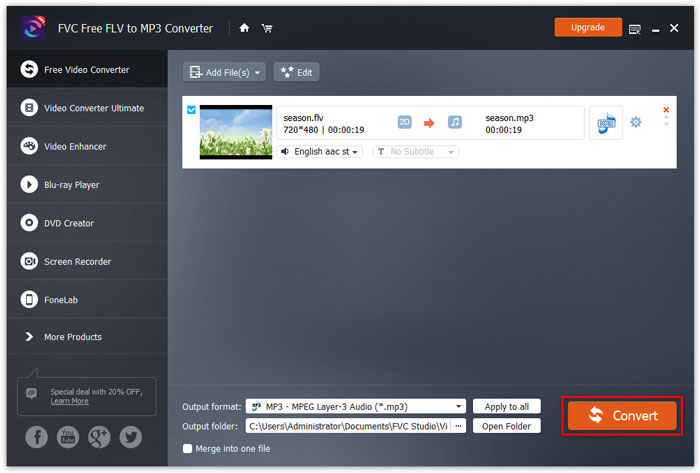
Next, click the Open Folder button at the bottom and select a location to store the output. Finally, click on the Convert button at the bottom right side to start turning OGG into MP3 immediately.
Not only converting audio to MP3, this software also supports video to MP3 conversion like MTS, WMV, MOV, MP4, etc.
Osa 3: Kuinka muuntaa OGG MP3: ksi ilmaiseksi
Tapa 1: Kuinka muuntaa OGG MP3: ksi VLC: llä
Vaikka VLC: tä käytetään ensisijaisesti mediasoittimena, voit tehdä OGG-tiedostoja MP3: ksi sen avulla. Avoimen lähdekoodin projektina kaikki voivat käyttää VLC: tä ilmaiseksi.
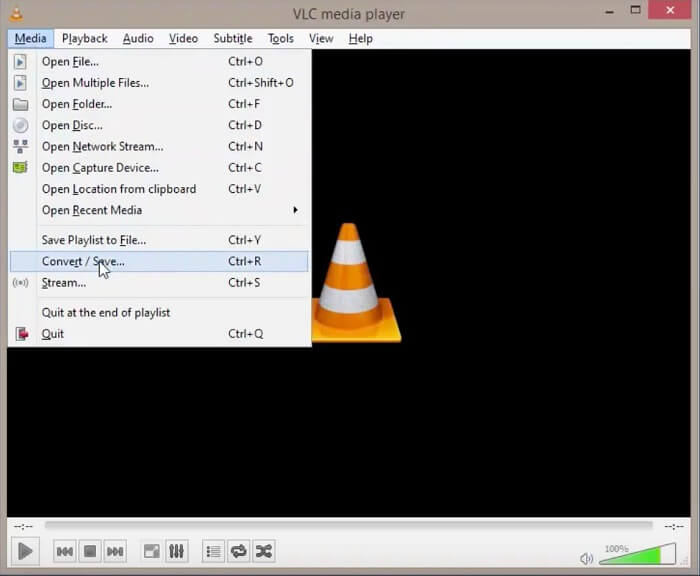
Step 1: Run your VLC, and select Convert/Save from the Media menu.
Step 2: On the Open Media dialog, click the Add button and add all desired OGG into VLC. After loading, click the Convert/Save button.
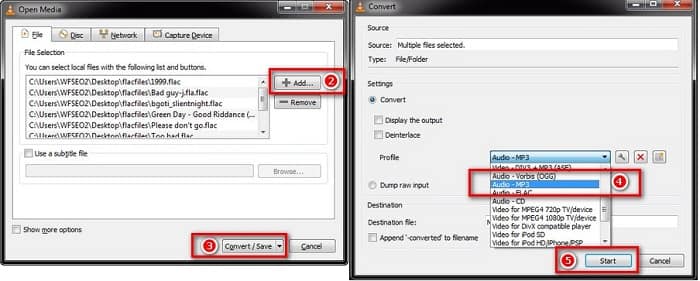
Step 3: Unfold the Profile drop-down option and choose MP3 or relative option. Hit the Start button to initiate changing OGG files into MP3.
Lähdön laatu ei ehkä ole hyvä, koska VLC voi tehdä vain tuhoavan muunnoksen.
Tapa 2: Kuinka muuttaa OGG MP3: ksi iTunesissa
Apple julkaisi iTunesin iOS- ja Mac-käyttäjille mediatiedostojen hallitsemiseksi. Voit kuitenkin ladata sen ilmaiseksi, vaikka sinulla ei olisi Apple-laitetta. Lisäksi se pystyy tekemään MP3-tiedostoja OGG: stä ja muista multimediamuodoista.
Step 1: Start iTunes and update it to the latest version. Make sure to add the source OGG files into iTunes library.
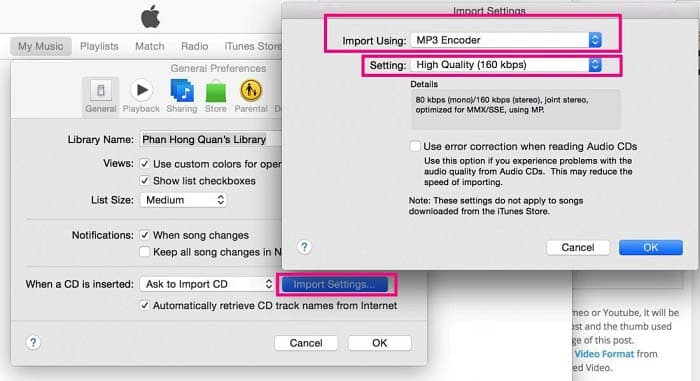
Step 2: Go to the Edit menu and select Preferences on PC or iTunes and Preferences on Mac. Then click the Import Settings button and then choose MP3 Encoder from the Import Using option. Click OK to confirm it.
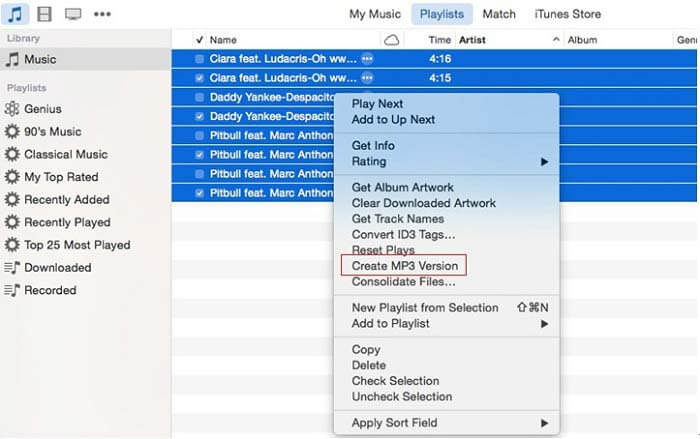
Step 3: Now, go to Library and select all OGG files. Right-click on one selected file and choose Create MP3 Version. The MP3 results will be saved to iTunes library.
Osa 4: Kuinka muuttaa OGG MP3 Online -palveluun
If you don’t like to install much software to your computer, then you definitely need to try this online audio converting tool, FVC Free Audio Converter. As a powerful web-based audio converter, it allows you to convert audio files from one format into another with no limit. You can even use it to extract sound from video while maintaining the original quality. Here are the steps to convert OGG to MP3 with this audio converter.
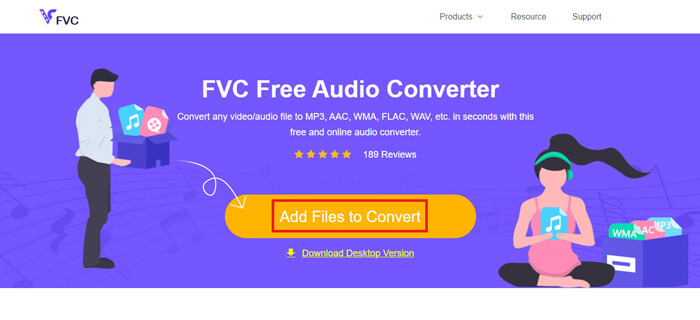
Step 1: Visit the website of FVC Free Audio Converter in your browser. Then click on the Add Files to Convert button to upload your OGG file. There will be no sign-up required.
Lataa työpöytäversio muuntaaksesi tiedostoja erissä.
Step 2: After file uploading, please choose MP3 from the output format list and then hit the Convert button to begin turning OGG to MP3 online.
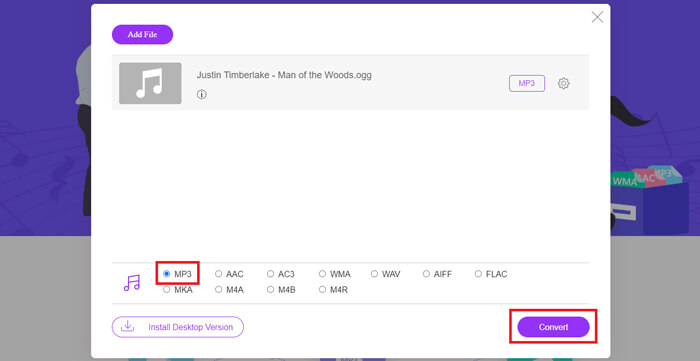
Step 3: When it is done, the folder that you use to save the MP3 file will open automatically. Now you can transmit it to your mobile device.
OGG vs. MP3
OGG-säilömuoto on itse asiassa multimediamuoto. Joten voit käyttää sitä useiden video-, ääni-, teksti- ja metatietojen virtojen tallentamiseen. Ja jokainen virta voidaan pakata eri pakkausmenetelmillä. Nyt OGG-tiedostoja käytetään yleensä Vorbis-pakkauksella pakatun äänidatan tallentamiseen.
MP3-muodon julkaisi vuonna 1993 Moving Picture Experts Group (MPEG). Se oli musiikin tallennuksen standardi, koska se pystyi pakata äänen paljon pienempään kokoon kuin muut pakkaamattomat muodot. Sitä käytetään edelleen laajalti, erityisesti äänen jakelussa verkossa.
Osa 5: OGG: n usein kysytyt kysymykset MP3-tiedostoihin
Kuinka voin muuntaa OGG: n MP3: ksi Audacityllä?
Audacity on avoimen lähdekoodin äänieditori. Se voi lisätä OGG-tiedoston ääniraitaan ja muokata sitä helposti. Oletusarvon mukaan Audacity vie ääniprojektit WAV-muodossa tietokoneelle, koska siitä puuttuu MP3-kooderi. Joten Audacity ei voi muuntaa OGG: tä MP3: ksi.
Voiko Winamp muuntaa OGG: n MP3: ksi ilmaiseksi?
Winamp on suosittu multimediasoitin. Se tukee lukuisia ääni- ja videoformaatteja. OGG-toistotoimintoa on ilmainen käyttää; Sinun on kuitenkin maksettava pro-versiosta, jos haluat muuntaa OGG: n MP3: ksi.
Voiko Windows Media Player toistaa OGG-tiedostoja?
Windows Media Player ei tue OGG-muotoa. Hyvä uutinen on, että voit asentaa ylimääräisiä koodekkeja tietokoneellesi ja tehdä Windows Media Playerista yhteensopivan OGG: n kanssa. Vaihtoehtoisesti voit muuntaa OGG: n WMP: n tukemiksi äänimuodoiksi.
Johtopäätös
Tässä oppaassa on jaettu neljä 100%-toimintatapaa OGG-tiedostojen muuntamiseksi MP3-tiedostoiksi Windowsissa ja Macissa. Monet ihmiset kopioivat musiikkia OGG-muodossa, osittain siksi, että se voi tallentaa metatietoja. Se ei kuitenkaan ole ystävällinen digitaalisille laitteille ja matkapuhelimille. Online-äänimuunnin on kätevä käyttää. Freeware voi täyttää perustarpeesi. Toisaalta FVC OGG to MP3 Converter on ammattimaisin tapa tehdä työ ilman laadun heikkenemistä. Lisää kysymyksiä? Jätä viesti alla.
-
 5 helppoa tapaa muuntaa TS AVI / MKV / MOV / WMV: ksi Windows / Macissa
 Haluatko muuntaa TS-tiedostot nopeasti AVI / MKV / MOV / WMV-tiedostoiksi? Tässä artikkelissa esitetään online- ja offline-videomuuntimet täydellisellä oppaalla. Ehkä saat parhaan ilmaisen TS-muuntimen täältä.
-
 Kuinka muuntaa TS-tiedosto MP3-, AIFF-, ALAC-, FLAC- ja muiksi äänimuodoiksi Windows / Macissa
 Kuinka muuntaa TS-tiedosto MP3-tiedostoksi ilmaiseksi? Tästä oppaasta löydät 10 helppoa tapaa poimia ääntä TS-tiedostosta TS: llä ääniohjelmistoon ja online-muunnostyökaluihin.
-
 Kuinka muuntaa MTS-tiedostot MP4: ksi
 Etkö tiedä, miten muuntaa MTS-tiedosto MP4: ksi? Tästä oppaasta löydät 6 ilmaista ja helppoa tapaa vaihtaa MTS-muoto MP4: ksi Windowsissa tai Macissa ilman laadun heikkenemistä.

