


 Video Converter Ultimate
 Näytön tallennin
 Videon korjaus
 Suojattu lataus
Suosituimmat 4 tapaa muuntaa MP4 MOV: ksi
MP4 on yksi suosituimmista videoformaateista, jota tukee laajasti useimmat soitinohjelmat, editorit ja laitteet. Joissakin tilanteissa sinun täytyy kuitenkin silti muuntaa MP4 MOV-muotoon. Tiedätkö, miten muuttaa MP4 MOV-muotoon?

Kun haet Googlesta, miten muuntaa MP4 MOV-muotoon, näet monia videomuuntimia, jotka voivat auttaa sinua videon muunnoksessa, mukaan lukien joitakin ilmaisia online-muunnostyökaluja. Tässä artikkelissa kerromme 4 ilmaista tapaa, joilla voit helposti muuntaa MP4:n MOV:ksi.
Osa 1. Kuinka muuntaa MP4 ilmaiseksi MOV: ksi Mac / PC: ssä ilman laadun heikkenemistä
Vaikka markkinoilla on tarjolla suuri määrä MP4–MOV-muunnosohjelmistoja, monet niistä heikentävät kuvan ja äänen laatua muunnoksen aikana. Jos haluat muuntaa MP4:n MOV-muotoon ilman laadun heikkenemistä, sinun kannattaa valita Free Video Converter.
Free Video Converter on erityisesti suunniteltu käsittelemään kaikenlaisia video- ja äänimuunnoksia. Se tukee voimakkaasti melkein kaikkia video- ja äänimuotoja, mukaan lukien MP4, MOV, MKV, FLV, AVI, WMV, MP3, AAC, FLAC ja paljon muuta. Sen avulla voit muuntaa MP4: n MOV: ksi Mac- tai Windows PC -käyttöjärjestelmässä säilyttäen alkuperäisen laadun.
Ilmainen latausWindows 7 tai uudempiTurvallinen lataus
Ilmainen latausMacOS 10.7 tai uudempiTurvallinen lataus
Vaihe 1. Kaksoisnapsauta yllä olevaa latauspainiketta ja seuraa ohjeita asentaaksesi ja käynnistääksesi tämän ilmaisen MP4–MOV-muuntimen Macilla tai PC:llä. Varmista, että lataat käyttöjärjestelmääsi vastaavan version.
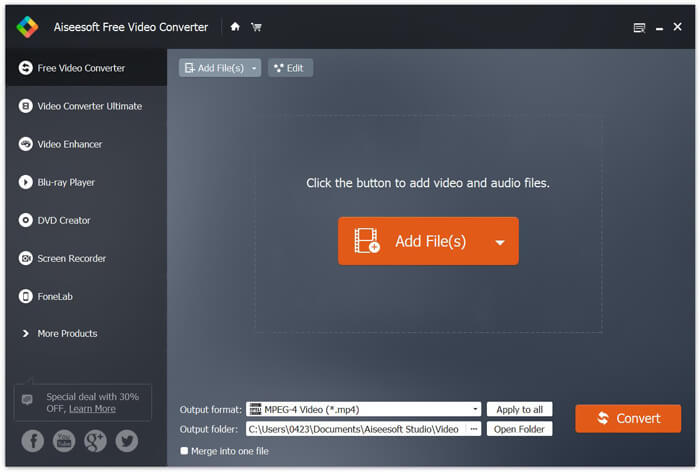
Vaihe 2. Kun olet siirtynyt pääikkunaan, napsauta Lisää tiedosto(ja) tuodaksesi muunnettavaksi haluamasi MP4-tiedosto(t). Tässä ilmaisessa MP4–MOV-muuntimessa on erämuunnostoiminto, jonka avulla voit muuntaa yhden tai useamman MP4-tiedoston kerralla.
Vaihe 3. Napsauta Ulostuloformaatti ja valitse pudotusvalikosta MOV kohdeformaatiksi. Nyt voit yksinkertaisesti napsauttaa Muunna-painiketta aloittaaksesi muunnoksen MP4:stä MOV-muotoon.
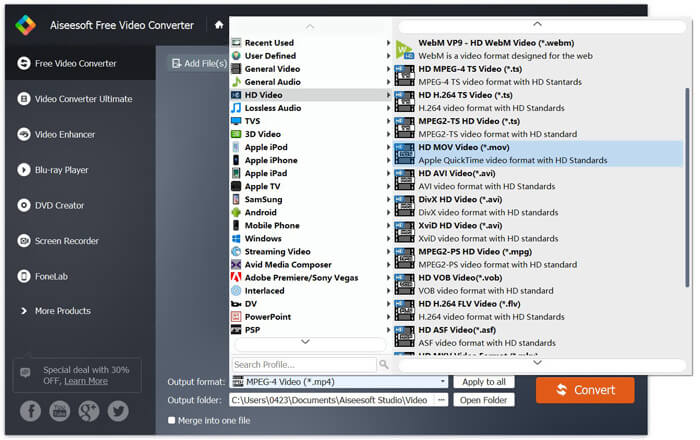
Vain muutama sekunti myöhemmin alkuperäinen MP4 muunnetaan MOV-muotoon. MOV: n lisäksi voit muuntaa MP4: n korkealaatuisiksi MKV: ksi, FLV: ksi, AVI: ksi jne. Tämä ilmainen videomuunnin sisältää myös joitain muokkauksen perusominaisuuksia. Ennen lopullista MP4: n muuntamista MOV: ksi voit käyttää niitä MP4-videoidesi muokkaamiseen.
Osa 2. Kuinka muuttaa MP4 MOV Free: ksi Online Video Converter -ohjelmalla
Kuten edellä mainittiin, markkinoilla on monia ilmaisia online-videomuuntimia, jotka voivat auttaa sinua kääntämään MP4: n MOV: ksi. Tässä tässä viestissä esitellään 2 tapaa muuttaa MP4 MOV: ksi verkossa.
1. FVC Free Online Video Converter
Jos haluat muuntaa MP4:n MOV-muotoon ilmaiseksi verkossa, FVC Free Online Video Converter on paras valintasi. Vain 3 yksinkertaisella vaiheella voit suorittaa muunnoksen ja saada häviöttömästi muunnetun tiedoston sekunneissa.
Vaihe 1. Napsauta yllä olevaa linkkiä ja siirry sivulle FVC Free Online Video Converter. Napsauta sitten bannerin keskeltä Add Files to Convert. Lataa ja asenna sen jälkeen FVC launcher tietokoneellesi.
Lataa työpöytäversio muuntaaksesi tiedostoja erissä.

Vaihe 2. Kun olet valinnut ja ladannut videon, jonka haluat muuntaa, sinun tulee valita MOV muunnetun videotiedoston ulostuloformaatiksi.
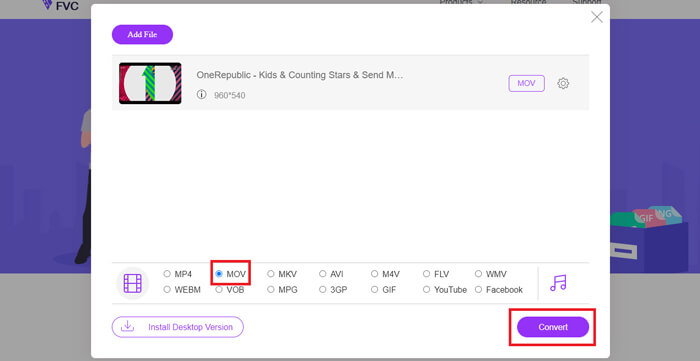
Vaihe 3. Napsauta Convert. Sen jälkeen voit valita, että muunnettu tiedosto tallennetaan työpöydällesi. Tämän jälkeen odota hetki, kunnes saat MOV-videosi.
2. CloudConvert
CloudConvert on erittäin suosittu ja helppokäyttöinen online-videonmuunnostyökalu. Se pystyy muuntamaan yli 200 muotoa, mukaan lukien ääni-, video-, asiakirja-, e-kirja-, arkisto-, kuva-, laskentataulukko- tai esitysmuodot. Lisäksi tämä luottamuksen arvoinen online-muunnin suojaa tietojasi ja yksityisyyttäsi.
Vaihe 1. Avaa selaimesi ja siirry CloudConvertin viralliselle sivustolle. Se on suunniteltu selkeällä käyttöliittymällä, joka tarjoaa miellyttävän muunnoskokemuksen.
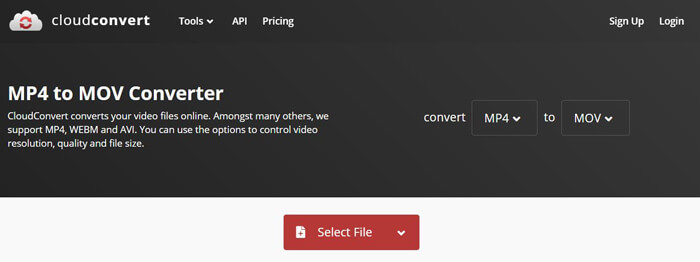
Vaihe 2. Napsauta Select File -painiketta ladataksesi muunnettavan MP4-tiedoston. Voit lisätä tiedoston tietokoneelta, URL-osoitteesta, Google Drivesta, OneDrivesta tai Dropboxista. Tässä vaiheessa voit lisätä myös useampia tiedostoja muunnettavaksi.
Yksi asia, jota sinun pitäisi huolehtia, on, että tämä ilmainen MP4-MOV-muunnin sallii vain muuntaa alle 1 Gt: n videon. Sinun on ostettava paketti suurempien tiedostojen muuntamiseksi.
Vaihe 3. Napsauta Convert-painiketta aloittaaksesi MP4-tiedoston lataamisen ja muuntamisen. Sen jälkeen voit napsauttaa Download-painiketta tallentaaksesi muunnetun MOV-videon tietokoneellesi.

CloudConvertin avulla voit muuntaa MP4: n MOV: ksi verkossa, sinun on käytettävä enemmän aikaa videoiden lataamiseen, muuntamiseen ja lataamiseen, varsinkin kun muunnat suurta tiedostoa.
Osa 3. Kuinka muuntaa MP4 MOV: ksi VLC Media Playerilla
VLC Media Player on suosittu ja avoimen lähdekoodin multimediasoitin. VLC ei ole vain mediasoitin, vaan se voi toimia myös videomuuntimena ja auttaa sinua tekemään erilaisia videomuunnoksia. Jos VLC on asennettuna tietokoneellesi, voit käyttää sitä MP4-tiedoston muuntamiseen MOV-videoksi.
Vaihe 1. Avaa VLC Media Player tietokoneellasi. Jos sinulla ei ole VLC:tä, voit siirtyä sen viralliselle sivustolle ja ladata sen ilmaiseksi.
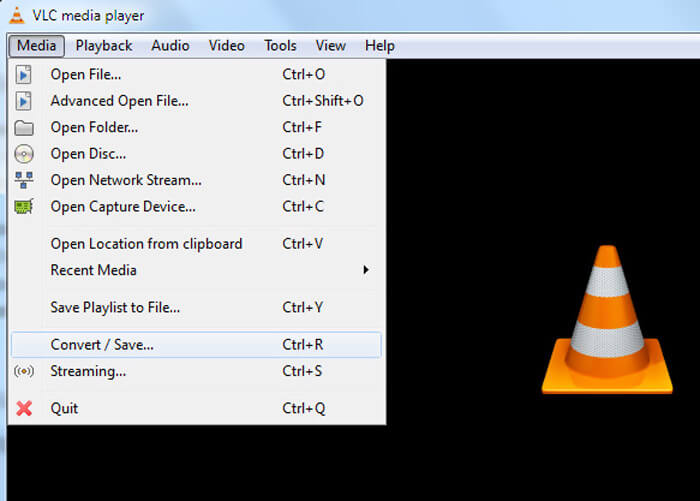
Vaihe 2. Napsauta valikkorivillä Media-painiketta ja valitse pudotusvalikosta Convert/Save-vaihtoehto.
Vaihe 3. Uusi Open Media -ikkuna avautuu. Napsauta tässä File > Add tuodaksesi muunnettavan MP4-tiedoston.
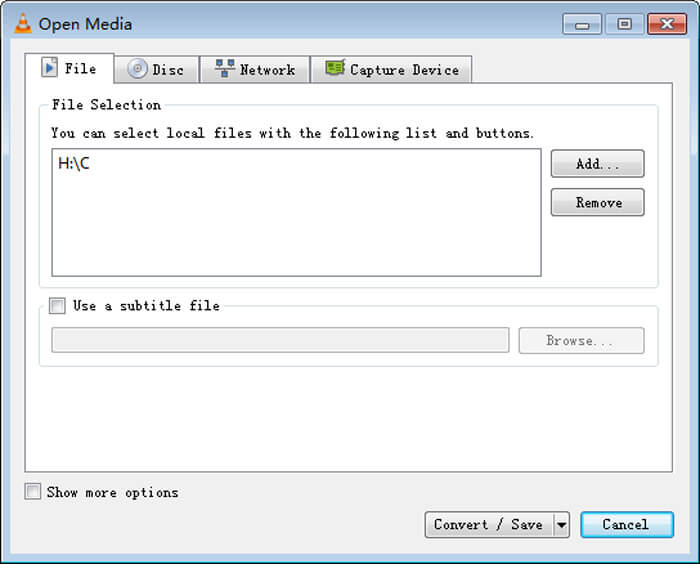
Vaihe 4. Napsauta alareunassa olevaa Convert/Save-painiketta vahvistaaksesi toiminnon. Sen jälkeen sinut ohjataan Convert-ikkunaan, jossa voit valita muunnetun videon kohdekansion ja ulostuloformaatin.
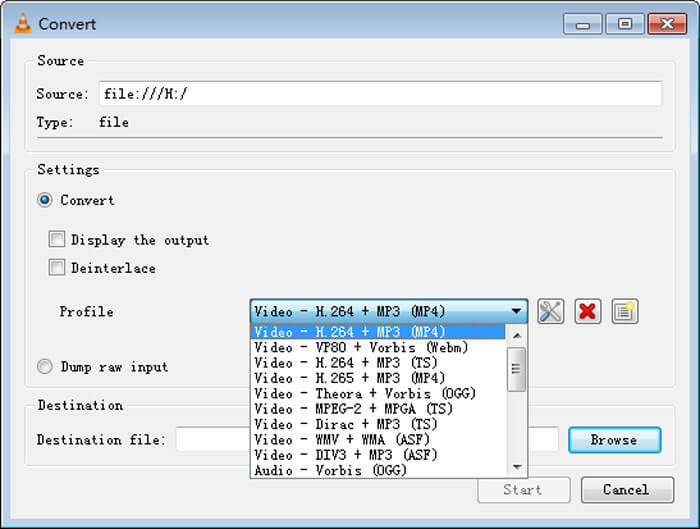
Vaihe 5. Valitse MOV ulostuloformaatiksi Profile-pudotusvalikosta. Napsauta sitten Start aloittaaksesi videomuunnoksen MP4:stä MOV-muotoon VLC:ssä.
MP4 vs. MOV
Moving Picture Experts Groupin (MPEG) vuonna 2001 julkaisema MP4-muoto voi auttaa sinua tallentamaan video-, ääni-, tekstitys- ja kuvatiedot eri raidoille. Se on lyhenne sanoista MPEG-4 Part 14. Lisäksi se on yksi suosituimmista videoiden suoratoistoon ja jakamiseen käytetyistä muodoista.
MOV-muotoa voidaan käyttää elokuvan, TV-ohjelman, lyhyen videoleikkeen tai kotielokuvan tallentamiseen. Se on itse asiassa tallennettu QuickTime-tiedostomuotoon (QTFF), jonka Apple esitteli vuonna 1991. MOV-tiedostoja käytetään usein, kun ihmiset haluavat tallentaa videon korkealaatuisina.
Osa 4. UKK MP4: n muuntamisesta MOV: ksi
Kysymys 1. Voiko QuickTime muuntaa MP4: n MOV: ksi?
Kun sinun on muunnettava MP4 MOV: ksi Macissa, voit kokeilla QuickTimea. Voit avata MP4-videon QuickTime Player -sovelluksella. Napsauta sitten Vie-painiketta ja valitse MOV-muoto. Voit nimetä tiedoston uudelleen, valita sijainnin ja videon tarkkuuden. Sitten voit napsauttaa Vie-painiketta, jos haluat muuntaa MP4: n MOV: ksi Macissa.
Kysymys 2. Mikä on parempi, MOV vai MP4?
MP4 on yksi suosituimmista multimedian tallennusformaateista. Se on digitaalinen säiliötiedosto, pelkkä kääre videon ympärillä, ei itse video. Samoin kuin MP4, myös MOV on digitaalinen säiliötiedosto. MOV koodataan MPEG-4-koodekilla.Suurin ero MOV:n ja MP4:n välillä on se, että MOV:ia käytetään enimmäkseen Mac-ympäristöissä. MOV on suunniteltu erityisesti QuickTimea varten. MP4 on kansainvälinen standardi, jota tukevat useimmat mediasoittimet ja järjestelmät. Yleisesti ottaen MOV-video on usein laadukkaampi ja kooltaan suurempi. MP4-tiedosto on tyypillisesti pakatumpi ja kooltaan pienempi. Siksi ei voi yksinkertaisesti sanoa, että MOV on MP4:ää parempi tai että MP4 olisi parempi kuin MOV.
Kysymys 3. Menettääkö MOV: n muuntaminen MP4: ksi laadun?
Kun haluat muuntaa MOV: n MP4: ksi tai vaihtaa MP4: n MOV: ksi, sinun tulisi valita ammattimainen videomuunnin. Useimmissa tapauksissa et näe laadun heikkenemistä muuntamisen jälkeen.
Kysymys 4. Onko vapaata MP4-MOV-muunninta?
Internetissä on paljon ilmaisia videomuuntimia, joiden avulla voit muuntaa MP4: n MOV: ksi. Suositellun CloudConvertin lisäksi voit luottaa muunnosversioon myös FFmpegiin, HandBrakeen, ZAMZARiin, Convert Filesiin ja muuhun.
-
 Kuinka muuntaa MP4-videotiedostosi animoiduiksi GIF-kuviksi ilman laadun heikkenemistä
 Etsitkö parasta tapaa muuntaa MP4-videosi animoituiksi GIF-tiedostoiksi? Tässä on yksityiskohtainen opas sen tekemiseen Photoshopissa, Windows Movie Makerissa, online-videomuunnoksessa ja muissa.
-
 MOV VS MP4 - kumpi on parempi
 Mikä MOV VS MP4 on parempi? Tämä viesti kertoo eron MP4: n ja MOV: n välillä, jotta saat paremman valinnan videotiedostoihisi.
-
 Kuinka muuntaa MOV MP4: ksi menettämättä laatua
 Haluatko muuntaa MOV (Apple QuickTime Movie) -tiedostot MP4iksi? Tämä viesti jakaa 4 ilmaista tapaa muuntaa MOV-videotiedostosi MP4-muotoon Windows 10/8/7 / XP: ssä ja Mac OS X: ssä.

