


 Video Converter Ultimate
 Näytön tallennin
 Videon korjaus
 Suojattu lataus
Voitko tehdä soittoäänen videosta ja kuinka käyttää sitä
Suosikkisoittoäänien asettaminen on aina ollut suosittu toimenpide monille älypuhelimen käyttäjille. Aina kun kuulet lempimusiikkiasi, puhelimeen vastaamisesta tulee miellyttävämpää. Teknologian kehittymisen myötä soittoäänien valikoima on laajentunut huomattavasti. Nykyään emme ainoastaan voi äänittää omaa ääntämme ja ladata lempikappaleitamme, vaan voimme jopa ottaa videosta äänen talteen ja käyttää sitä saapuvien puhelujen soittoäänenä. Tämä on yksinkertaista, ja saatavilla on monia työkaluja, jotka auttavat siinä. Kuinka valita niiden välillä? Seuraavassa annamme yksityiskohtaisen oppaan siitä, miten voit tehdä videosta soittoäänen. Olitpa sitten Android‑ tai Apple‑käyttäjä, löydät tästä tarvitsemasi ohjeet.

Osa 1. Voitko asettaa videon soittoääneksi
Ennen kuin aloitamme, pohditaan ensin, onko mahdollista asettaa video soittoääneksi. Vastaus on tietysti kyllä. Yleisesti ottaen sinun täytyy poimia ääni videosta ja muuntaa se puhelimesi tukemaan soittoäänimuotoon aloittaaksesi. Voit myös pitää tämän toiminnon ydintä tiedoston muuntamisena videomuodosta äänimuotoon. Ammattimainen äänen ja videon muokkausohjelmisto ja muotomuuntimet voivat auttaa sinua muuttamaan videon soittoääneksi ilmaiseksi. On tärkeää huomata, että eri järjestelmiä käyttävät matkapuhelimet tukevat erilaisia soittoäänimuotoja, ja sinun on varmistettava, että olet etsinyt tiedot laitteesi tukemista äänimuodoista ennen toiminnan aloittamista.
Osa 2. Tee soittoääni videosta
Kun tiedämme, että videosta voi tehdä soittoäänen, meidän on valittava siihen sopiva työkalu. Suosittelemme lämpimästi kokeilemaan FVC:n valitsemaa ohjelmaa Video Converter Ultimate. Se on monipuolinen ääni‑ ja videomuunnin, jonka avulla voit muokata videon ääntä erikseen sekä säätää musiikin voimakkuutta, ääniefektejä, ääniraitaa jne. Voit myös korjata äänen viivettä sen avulla. Ohjelma tukee tällä hetkellä yli sataa formaattia, mikä tarkoittaa, että se voi muuntaa videosi mille tahansa älypuhelimelle sopivaan muotoon ilman yhteensopivuusongelmia. Laitteistokiihdytyksen ansiosta se pystyy muuntamaan tiedostoja jopa 30 kertaa nopeammin. Käsittelyn aikana äänenlaatu ei heikkene, eikä yksityisyyttäsi loukata.
Ilmainen latausWindows 7 tai uudempiTurvallinen lataus
Ilmainen latausMacOS 10.7 tai uudempiTurvallinen lataus
Saatuamme yleiskäsityksen FVC Video Converter Ultimatesta, meidän on ymmärrettävä, kuinka sitä voidaan todella soveltaa videon muuttamiseksi soittoääneksi. Seuraavaksi käsittelemme sinulle yksityiskohtaisia vaiheita sekä iPhone- että Android-puhelimien näkökulmasta.
Tee video soittoääneksi iPhonelle
Aloitetaan ensin siitä, miten teet soittoäänen iPhonellesi. Ensimmäinen asia, joka on hyvä tietää, on se, että iPhone tukee tällä hetkellä M4R‑muotoisia soittoääniä. Sen jälkeen voimme aloittaa toimenpiteet.
Vaihe 1. Lataa tietokoneellesi video, jonka haluat muuntaa. Lataa ja asenna myös FVC Video Converter Ultimate laitteellesi.
Vaihe 2. Muunna video M4R‑muotoon. Aloita valitsemalla ensin Add Files ja lisää video ohjelmaan.
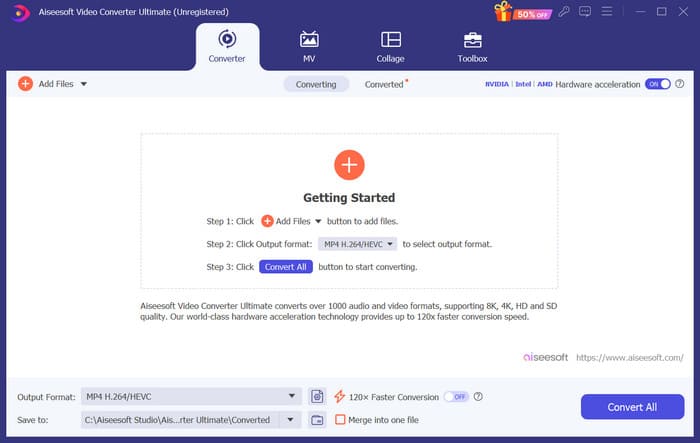
Vaihe 3. Avaa valikko Output Format ‑kohdan vierestä. Täältä löydät tarvitsemasi formaatin.
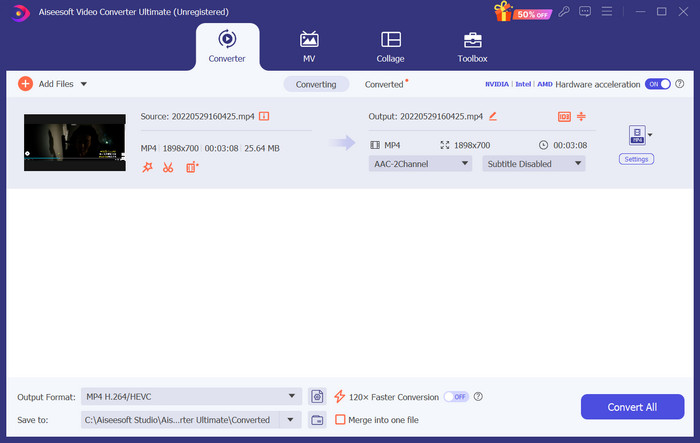
Vaihe 4. Valitse Audio ja etsi vaihtoehdoista M4R.
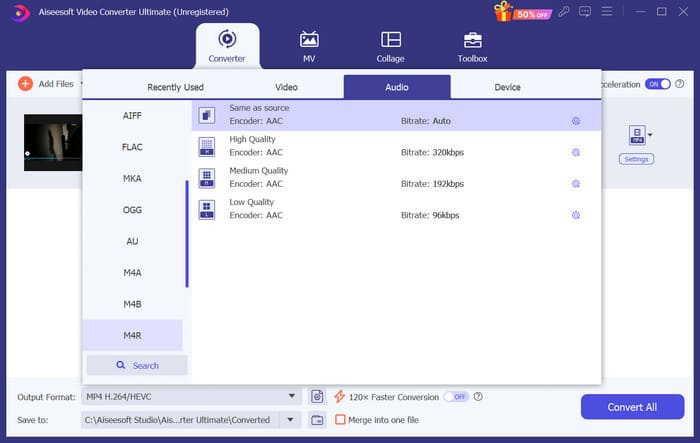
Vaihe 5. Napsauta sitten Convert All viedäksesi M4R‑äänen.
Vaihe 6. Lataa seuraavaksi muunnettu video uudelleen ohjelmaan. Jos haluat leikata äänitiedostoa, napsauta käyttöliittymässä Cut. Jos haluat säätää ääniraitaa tai äänenvoimakkuutta, napsauta Edit.
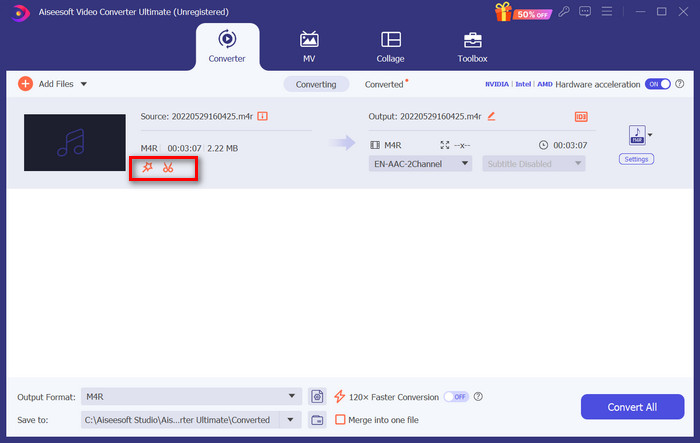
Vaihe 7. Napsauta lopuksi uudelleen Convert All saadaksesi muokatun M4R‑soittoäänesi.
Tee video soittoääneksi Androidille
Jos haluat muuttaa videon Android-matkapuhelimen soittoääneksi, harkitse videotiedostojen muuntamista MP3-, M4A-, WAV- tai OGG-muotoon.
Tässä on mitä sinun on tehtävä videon muuntamiseksi soittoääneksi.
Vaihe 1. Lataa ja asenna FVC Converter Ultimate tietokoneellesi. Valmistele videosi muunnosta varten.
Vaihe 2. Napsauta Add Files ja lataa haluamasi video alustalle.
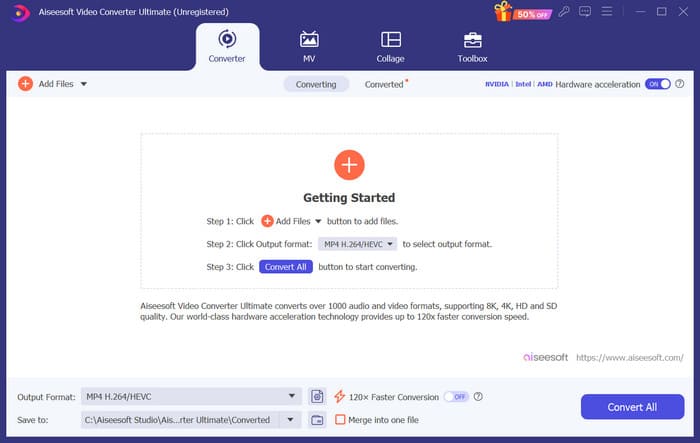
Vaihe 3. Avaa formaattilista Output Format ‑kohdan vierestä.
Vaihe 4. Valitse Audio. Tarpeesi mukaan voit muuntaa videosi MP3‑, M4A‑, WAV‑ tai OGG‑muotoon.
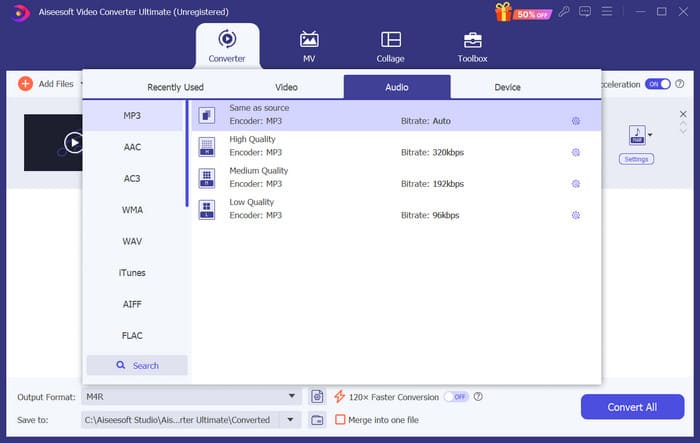
Vaihe 5. Valitse ensin Convert All ladataksesi muunnetun äänitiedoston.
Vaihe 6. Lisää äänitiedosto uudelleen ohjelmaan. Napsauta sitten Cut ja valitse se osa, jonka haluat käyttää soittoäänenä. Edit‑kohdan alta löytyvät toiminnot auttavat myös muokkaamaan tiedostosi ominaisuuksia.
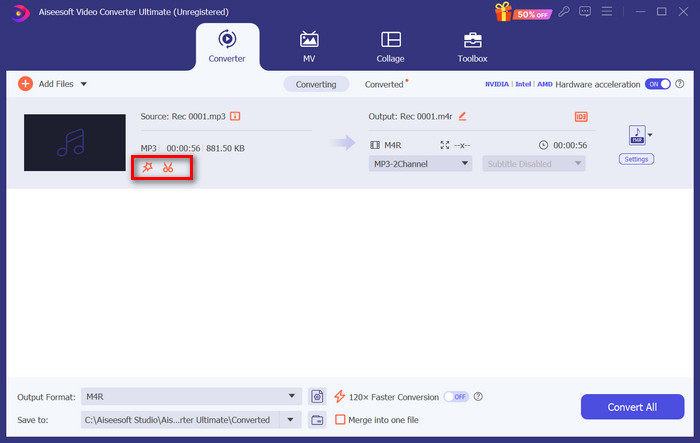
Vaihe 7. Kun muokkaus on valmis, napsauta Convert All.
Osa 3. Aseta muunnettu ääni soittoääneksi
Nyt kun olemme muokaneet äänitiedostoa, meidän on mentävä tarkemmin puhelimen asetuksiin asettaaksemme tämän muunnetun videon soittoääneksi.
Aseta soittoääni iPhonessa
Jos käytät iPhonea, saatat tarvita erillisen työkalun, jolla asetat valitsemasi M4R‑äänen soittoääneksi. GarageBand on tähän hyvä vaihtoehto.
Täällä opetamme sinua tekemään soittoäänen GarageBandilla käyttämällä videon ääntä.
Vaihe 1. Varmista, että muokattu äänitiedosto on iPhonessasi. Avaa sitten GarageBand.
Vaihe 2. Kun GarageBand on käynnistynyt, siirry kohtaan Loop ja valitse Files. Napauta sitten Browse items from the Files app löytääksesi käyttämäsi äänitiedoston.
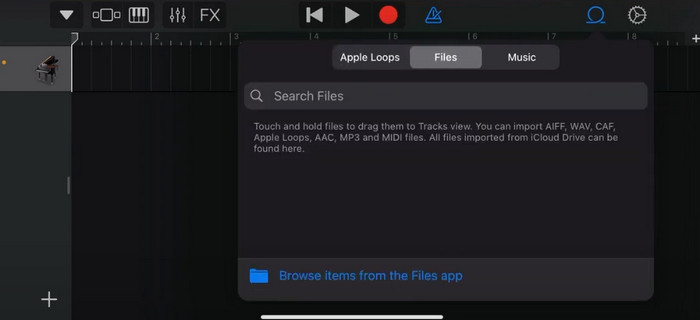
Vaihe 3. Vedä valitsemasi M4R‑äänitiedosto GarageBandin aikajanalle.
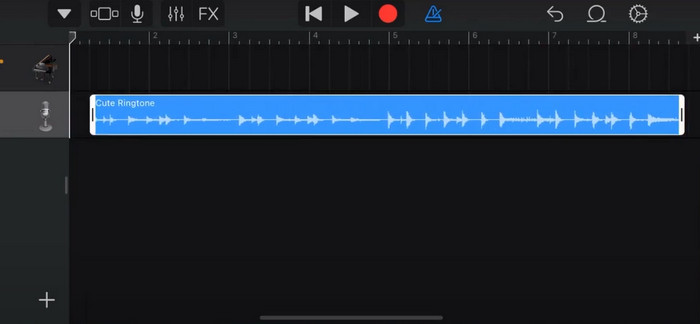
Vaihe 4. Napauta metronomikuvaketta poistaaksesi sen käytöstä. Napauta alaspäin osoittavaa nuolta > My Songs.
Vaihe 5. Paina äänileikettä pitkään ja valitse Share.
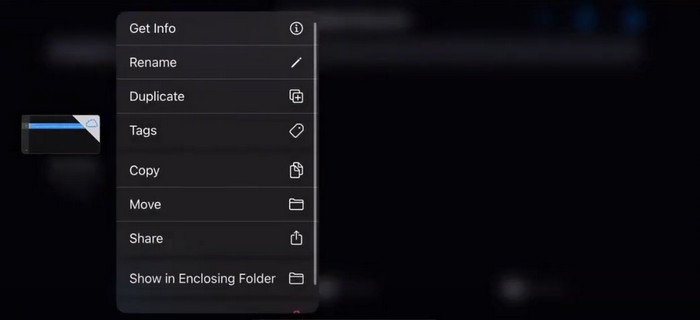
Vaihe 6. Valitse Ringtone > Export. Kun näet ikkunan Use sound as, napauta Standard Ringtone.
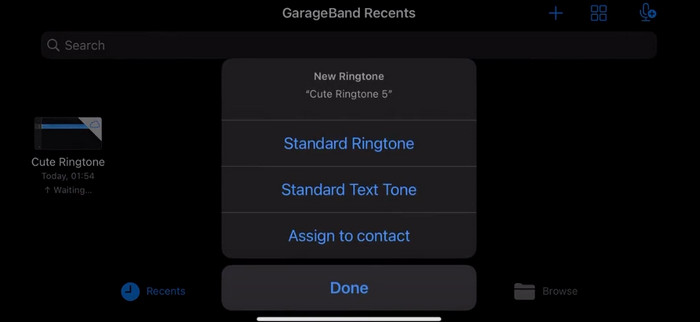
Aseta soittoääni Androidissa
Jos haluat tehdä videoista poimitun äänen soittoääniksi Android-laitteellasi, tee se suoraan Asetukset-sovelluksessa. Tarkat vaiheet ovat hieman helpompia.
Otamme esimerkkinä Samsung-puhelimen ja kerromme, kuinka sitä käytetään yksityiskohtaisesti.
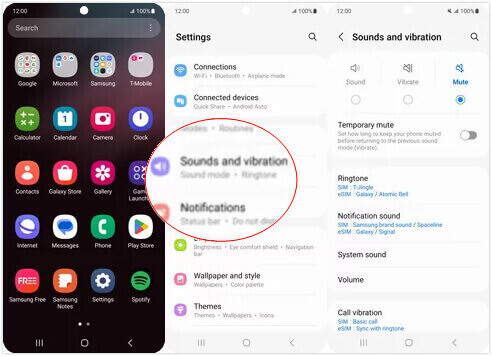
Vaihe 1. Avaa Settings Android‑laitteessasi ja valitse Sounds and vibration.
Vaihe 2. Valitse Sound kohdassa Sound mode. Napauta sitten Notification sound.
Vaihe 3. Valitse aiemmin muuntamasi ja muokkaamasi äänitiedosto. Asetus tulee voimaan, kun palaat edelliselle sivulle.
Osa 4. Usein kysytyt kysymykset videon tekemisestä soittoääneksi
Kuinka lisään soittoääniä Android-puhelimeeni?
Siirry Android-puhelimesi asetuksiin ja etsi Ääni- tai Äänet ja värinä -vaihtoehto. Valitse Puhelimen soittoääni tai Soittoääni valitaksesi mukautetun soittoäänen. Mukautetun soittoäänesi pitäisi nyt näkyä käytettävissä olevien soittoäänien luettelossa. Valitse se asettaaksesi sen soittoääneksi.
Voinko ladata iPhonen soittoäänen Androidille?
Kyllä, voit ladata iPhonen soittoääniä ja käyttää niitä Android‑laitteessa. iPhonen soittoäänet ovat kuitenkin yleensä M4R‑muodossa, jota Android‑järjestelmä ei tue suoraan. Sinun täytyy muuntaa iPhonen soittoääni Androidin tukemaan muotoon, kuten MP3 tai AAC. Esimerkiksi FVC:n valitsema muunnin voi auttaa sinua muuntamaan M4R‑tiedoston MP3‑muotoon.
Miksi puhelimeni ei soi saapuvien puhelujen aikana?
Jos puhelimesi ei soi saapuvien puhelujen aikana, tähän ongelmaan voi olla useita syitä. Varmista, että puhelimesi äänenvoimakkuus on säädetty suuremmaksi eikä mykistetty. Tarkista myös, onko puhelimesi Älä häiritse -tilassa. Tämä tila hiljentää kaikki puhelut ja ilmoitukset. Jos ongelma ei vieläkään ratkea, yritä päivittää järjestelmä käynnistämällä puhelin uudelleen.
Johtopäätös
Tämä on kattava opas siihen, miten voit tehdä videosta soittoäänen. Suosittelemme yhdeksi parhaista työkaluista FVC Video Converter Ultimate ‑ohjelmaa, jonka avulla voit muokata videotiedostosi juuri sellaisiksi kuin haluat. Työkalu on saatavilla sekä iPhone‑ että Android‑puhelimille, joten käytitpä kumpaa järjestelmää tahansa, voit sen avulla luoda juuri sinulle sopivan suosikkisoittoäänen.
-
 3 parasta ratkaisua WAV-tiedostojen pakkaamiseen pienempään kokoon
 Jos etsit myös tapoja pakata WAV-äänitiedostojen kokoa, lue sisältömme. Esittelemme sinulle erilaisia työkaluja kolmesta näkökulmasta.
-
 Yksityiskohtainen äänenpakkausopastus vuonna 2024 (askel askeleelta)
 Tarvitsetko äänen pakkaamisen, mutta tarvitsetko apua selvittääksesi, mistä aloittaa? Tässä viestissä esittelemme parhaat vaihtoehdot kappaleidesi tiedostokoon pienentämiseksi.
-
 Tehokkaat äänikompressorit offline- ja online-käyttäjille
 Onko sinulla ongelmia suurten äänitiedostojen kanssa? Offline- ja online-käyttäjille on saatavana monia äänitiedostopakkauksia. Tarkista ne täältä.
