


 Video Converter Ultimate
 Näytön tallennin
 Videon korjaus
 Suojattu lataus
Kattava opas soittoäänen tekemiseen äänimuistiosta
Monet kehittäjät ovat kuitenkin luoneet soittoäänien tekoon tarkoitettuja ohjelmistoja. Tämä tarkoittaa, että voit vapaasti ottaa pätkiä suosikkikappaleistasi tai nauhoittaa omaa ääntäsi soittoääniksi. Tässä artikkelissa selitämme, miten äänimuistiosta tehdään soittoääni. Toivomme, että löydät etsimäsi vastauksen.

Osa 1. Paras tapa tehdä äänimuistiosta soittoääni
Jos etsit myös monipuolista soittoäänien tekotyökalua, valitse FVC:n suosittelema Video Converter Ultimate, joka on alan kärkeä erittäin kilpaillullakin multimedian editointiohjelmistojen markkinalla. Eri älypuhelinmallit voivat tukea erilaisia soittoääniformaatteja, mutta Video Converter Ultimatella tämä ei ole ongelma. Kuten nimestäkin voi päätellä, sen ydinominaisuus on tiedostojen formaattien muuntaminen. Niinpä riippumatta siitä, missä muodossa tallennat tai lataat äänimuistioita, voit muuntaa ne puhelimesi tukemaan muotoon. Voit jopa käyttää sitä äänen irrottamiseen suoraan videoista, mikä avaa laajat mahdollisuudet erilaisiin soittoääniin. Voit myös muuttaa kohdeäänen voimakkuutta, raitaa, kestoa jne. Video Converter Ultimatella äänimuistion muuttaminen soittoääneksi milloin tahansa ei ole enää pelkkä haave.
Ilmainen latausWindows 7 tai uudempiTurvallinen lataus
Ilmainen latausMacOS 10.7 tai uudempiTurvallinen lataus
Täällä kerromme, kuinka voit muokata tallennettuja tai ladattuja äänimuistioita, jotta voit käyttää niitä soittoäänenä.
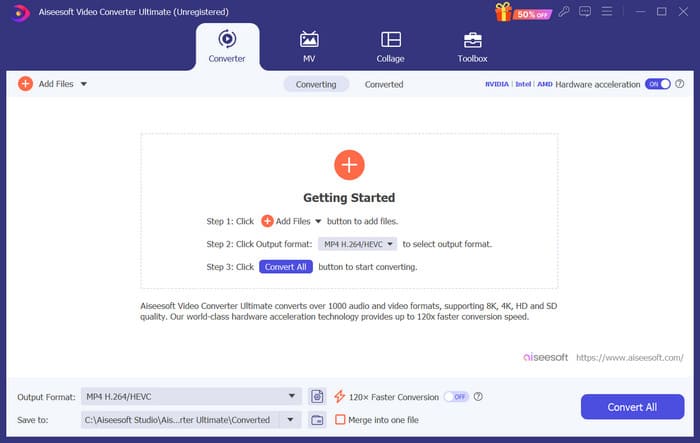
Vaihe 1. Lataa ja asenna Video Converter Ultimate tietokoneellesi. Käynnistä ohjelma sen jälkeen työpöydältäsi.
Vaihe 2. Napsauta Add Files ladataksesi äänen, jota haluat muokata.
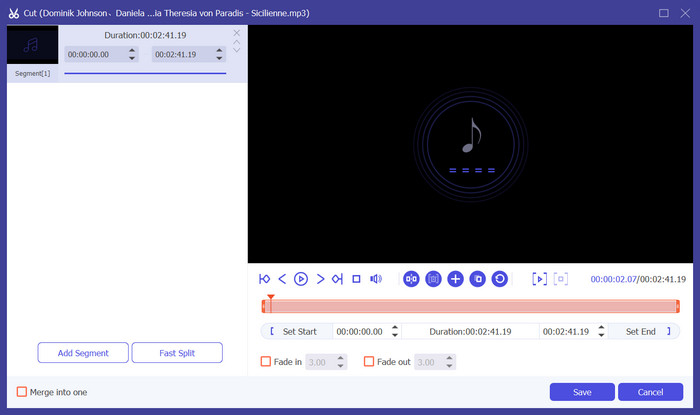
Vaihe 3. Leikataksesi ääntä napsauta Cut. Voit säätää tiedoston kestoa. Kun olet lopettanut leikkaamisen, napsauta Save.
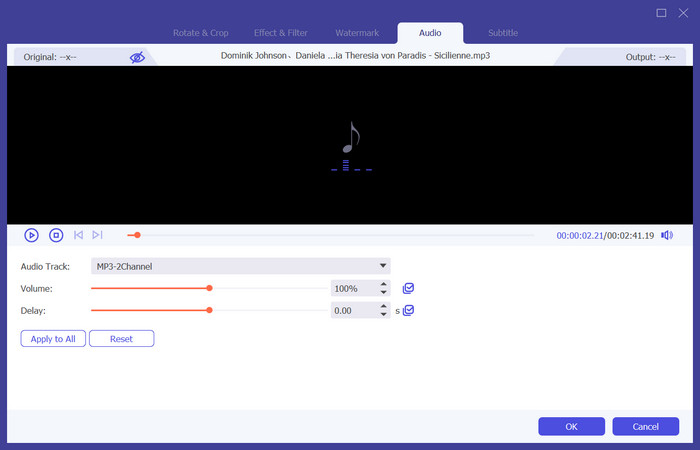
Vaihe 4. Muokataksesi äänimuistion äänenvoimakkuutta ja ääniraitaa napsauta Edit. Ponnahdusikkunassa voit tehdä haluamasi säädöt. Kun olet valmis muokkauksen kanssa, napsauta OK.
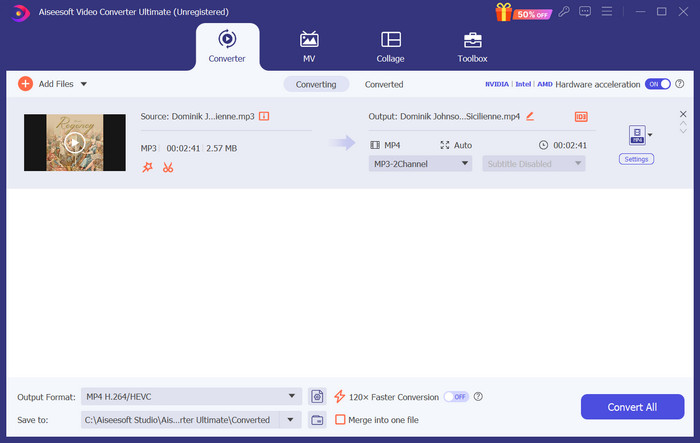
Vaihe 5. Jos sinun täytyy vaihtaa tiedoston formaattia, avaa pudotusvalikko kohdasta Output Format. Täältä voit valita äänellesi lähtöformaatin.
Vaihe 6. Kun haluat viedä muokatun soittoäänen, napsauta Convert All.
Osa 2. Kuinka tehdä äänimuistiosta soittoääni iPhonessa
Suosittelemme GarageBandia, jos haluat tehdä äänimuistion soittoäänen iPhonessasi. Tämä on Applen kehittämä sovellus. Käyttäjät voivat käyttää sitä musiikin luomiseen iOS-laitteillaan. Siinä on monia työkaluja musiikin tuotantoon, äänitykseen, editointiin ja miksaukseen. GarageBand voidaan integroida myös muihin Apple-ohjelmistoihin. Tämä tarkoittaa, että voimme helposti siirtää projekteja GarageBandin ja muiden ohjelmistojen välillä jatkomuokkausta varten. Tämä sovellus on suosittu ammattikäyttäjien ja aloittelijoiden keskuudessa käyttäjäystävällisen käyttöliittymänsä, laajojen ominaisuuksiensa ja saavutettavuuden ansiosta. Kaikki asetukset voidaan tehdä puhelimella ilman minkään muun laitteen apua.
Tässä on mitä sinun on tehtävä muuttaaksesi äänimuistion soittoääneksi.
Vaihe 1. Ennen soittoäänen asettamista sinun on mentävä iPhonesi Voice Memos -sovellukseen ja valittava äänimuistio.
Vaihe 2. Kun olet valinnut halutun äänimuistion, paina kolmen pisteen kuvaketta. Valitse Save to Files ja napauta Save uudelleen vahvistaaksesi toiminnon.
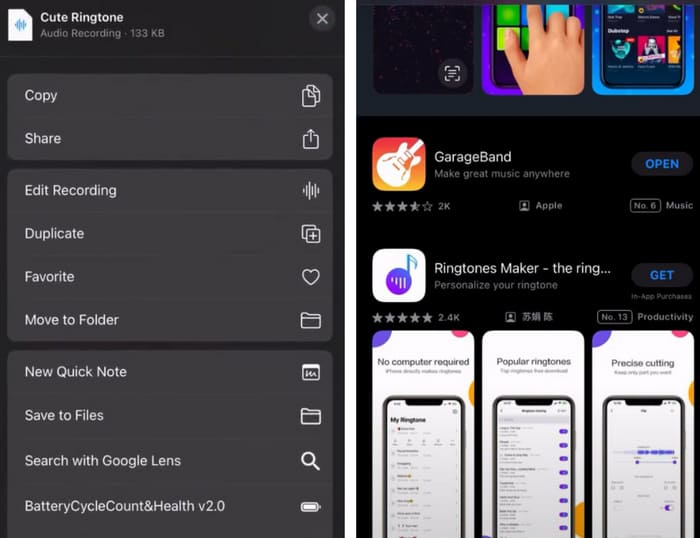
Vaihe 3. Avaa GarageBand iPhonessasi ja napauta Project.
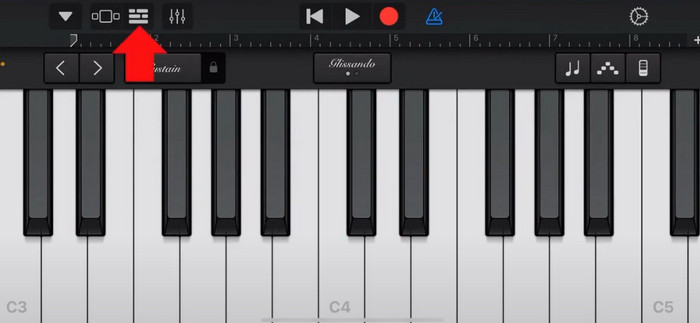
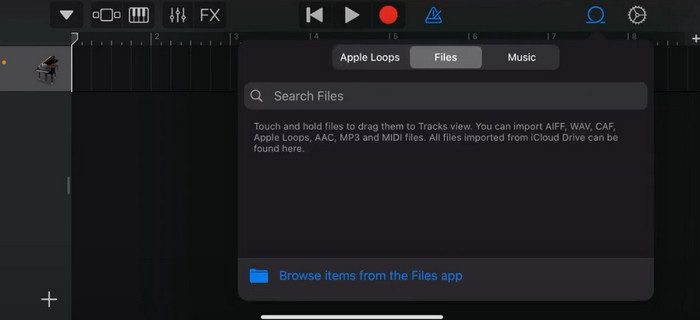
Vaihe 4. Valitse Loop > Files. Tämän jälkeen napauta Browse items from the Files app valitaksesi halutun äänimuistion.
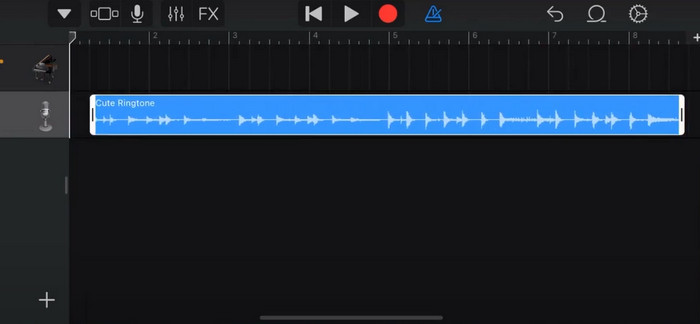
Vaihe 5. Vedä ja pudota tiedosto aikajanalle.
Vaihe 6. Poista Metronome käytöstä ja napauta nuolikuvaketta alaspäin > My Songs.
Vaihe 7. Napauta ja pidä klippiä painettuna ja valitse sitten Share.
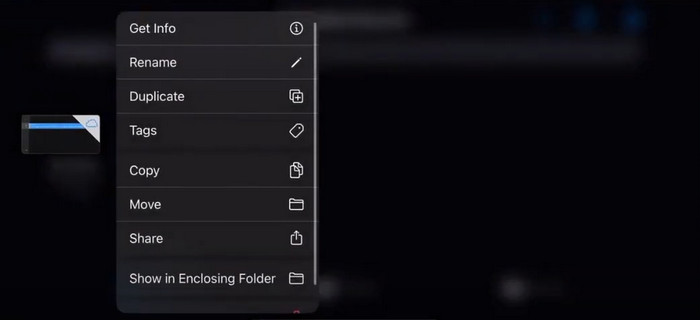
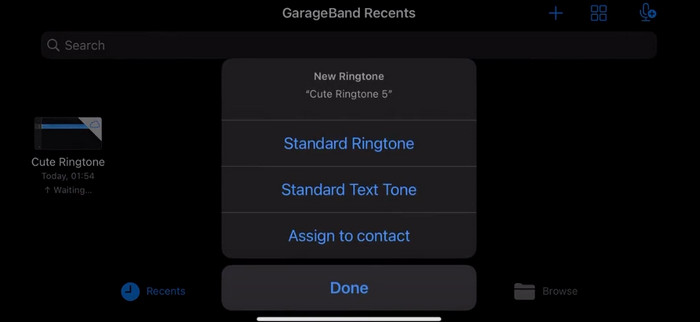
Vaihe 8. Valitse vaihtoehdoista Ringtone ja paina Export. Lopuksi napauta Use sound as > Standard Ringtone. Näin olet onnistuneesti tehnyt soittoäänen äänimuistiosta.
Osa 3. Kuinka tehdä äänitallenteesta soittoääni Androidissa
Jos käytät Android-puhelinta ja haluat muuttaa tallennetun musiikin soittoääneksi, voit tehdä sen suoraan puhelimesi Asetukset-sovelluksesta. Toimenpide on hyvin yksinkertainen, eikä tätä prosessia varten tarvitse ladata mitään ohjelmistoa. Jos kuitenkin haluat muokata tallennettua ääntä, voit valita ammattimaisen äänen ja videon muokkausohjelmiston, kuten FVC:n valitseman Video Converter Ultimaten.
Seuraavaksi kerromme, miten teet ääninauhoituksesta soittoäänen Android-puhelimessa. Tässä osiossa käytämme esimerkkinä Samsung-älypuhelinta. Ennen aloittamista varmista, että olet tallentanut nauhoitetun tiedoston Voice Recorder -sovellukseen.
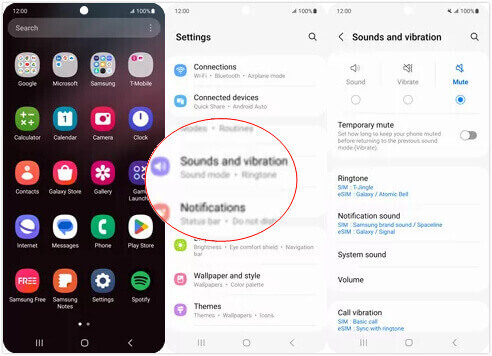
Vaihe 1. Avaa puhelimesi Settings ja valitse Sounds and vibration.
Vaihe 2. Varmista, että Sound on valittuna kohdassa Sound mode. Valitse sitten Notification sound.
Vaihe 3. Valitse tallentamasi musiikkitiedosto. Lopuksi palaa aloitusnäyttöön ottaaksesi asetukset käyttöön.
Osa 4. Usein kysyttyä äänimuistion tekemisestä soittoääneksi
Missä muodossa soittoäänet ovat Androidille?
Android-laitteiden soittoääniä voi olla useissa äänitiedostomuodoissa, mutta yleisimmin tuetut tiedostomuodot ovat MP3, AAC, M4A, OGG ja WAV.
Kuinka voin tallentaa äänimuistion kappaleena iPhonessani?
Avaa Äänimuistiot-sovellus iPhonessasi ja etsi äänimuistio, jonka haluat tallentaa kappaleeksi. Napauta äänimuistiota avataksesi sen ja paina sitten jakamiskuvaketta nähdäksesi käytettävissä olevat jakamisvaihtoehdot. Voit tallentaa äänimuistion Tiedostot-sovellukseen. Tämän jälkeen voit avata iPhonessasi musiikkisovelluksen, joka tukee äänitiedostojen tuontia. Sovellukset, kuten GarageBand tai Music Memos, ovat sopivia.
Kuinka tallentaa ääntä Android Samsungilla?
Äänen nauhoittamiseen Android-käyttöisellä Samsung-laitteella käytä sisäänrakennettua Voice Recorder -sovellusta. Avaa sovellus ja napauta Record aloittaaksesi nauhoituksen. Kun olet lopettanut nauhoituksen, voit tallentaa äänitiedoston ja antaa sille nimen, jotta löydät sen helposti myöhemmin.
Johtopäätös
Tässä artikkelissa vastaamme kysymykseen, miten tehdä äänimuistiosta soittoääni. Tarjoamme sinulle yhden parhaista soittoäänenmuokkaustyökaluista, FVC Video Converter Ultimaten. Olemme listanneet menetelmät, joilla voit muuttaa äänimuistion soittoääneksi sekä iPhonessa että Android-puhelimissa. Lisäksi jokaisesta osiosta löytyy täydelliset vaiheittaiset ohjeet siltä varalta, että kohtaat ongelmia.
-
 3 parasta ratkaisua WAV-tiedostojen pakkaamiseen pienempään kokoon
 Jos etsit myös tapoja pakata WAV-äänitiedostojen kokoa, lue sisältömme. Esittelemme sinulle erilaisia työkaluja kolmesta näkökulmasta.
-
 Yksityiskohtainen äänenpakkausopastus vuonna 2024 (askel askeleelta)
 Tarvitsetko äänen pakkaamisen, mutta tarvitsetko apua selvittääksesi, mistä aloittaa? Tässä viestissä esittelemme parhaat vaihtoehdot kappaleidesi tiedostokoon pienentämiseksi.
-
 Tehokkaat äänikompressorit offline- ja online-käyttäjille
 Onko sinulla ongelmia suurten äänitiedostojen kanssa? Offline- ja online-käyttäjille on saatavana monia äänitiedostopakkauksia. Tarkista ne täältä.
