


 Video Converter Ultimate
 Näytön tallennin
 Videon korjaus
 Suojattu lataus
Yksityiskohtainen opas äänen kääntämiseen Audacityssä [2024]
Ääniraitojen kääntäminen voi lisätä musiikkituotantoihisi ainutlaatuista ulottuvuutta ja väriä luoden kiehtovia äänitehosteita luovaa tarinankerrontaa varten. Tätä tyyliä käytetään laajalti, ja se on tulossa suosituksi, kun on tarkoitus rikastaa ääniprojekteja syvyydellä ja omaperäisyydellä. Joten jos muokkaat ääntä Audacityssä ja haluat lisätä käännettä kääntämällä sitä, olet oikeassa paikassa!
Tässä artikkelissa opastamme sinut läpi yksityiskohtaiset vaiheet äänen kääntämiseen Audacityssä ja jaamme arvokkaita vinkkejä, joiden avulla saat kaiken irti tästä ominaisuudesta. Tämän oppaan loppuun mennessä olet valmis kääntämään ääniraitojasi päinvastaiseksi ja tutkimaan uusia luovia horisontteja helposti. Valmistaudu siis muuttamaan ääniprojektejasi ja löydä käänteisen äänen jännittävä potentiaali!

Osa 1. Kuinka kääntää ääntä Audacityssä
Audacity on ohjelma, joka on suunniteltu antamaan käyttäjille mahdollisuus muokata äänitiedostoja ilman kalliita premium-työkaluja, mikä varmistaa korkealaatuisen tulosteen ilman kustannuksia. Avoimen lähdekoodin työkaluna se on vapaasti kaikkien saatavilla ja tarjoaa pitkän listan ominaisuuksia, joita yleensä löytyy maksullisista ohjelmistoista. Audacity erottuu ominaisuuksiensa joukosta kyvyllään kääntää ääniraitoja. Tämän ominaisuuden avulla käyttäjät voivat olla luovia sen suhteen, miltä he haluavat äänenään kuuluvan. Yleensä toimittajat kääntävät äänen, koska se lisää heidän projekteihinsa ainutlaatuisen tehosteen.
Näin voit kääntää äänen toistusuunnan Audacityssa.
Vaihe 1. Lataa ja asenna Audacity tietokoneellesi.
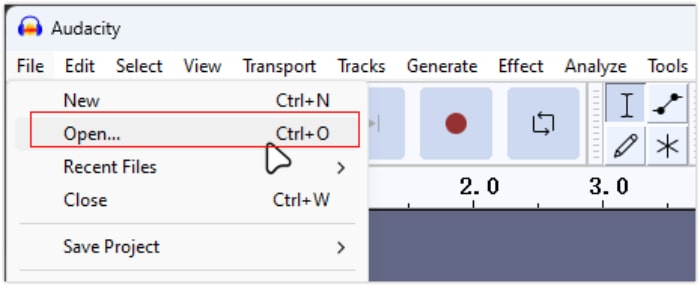
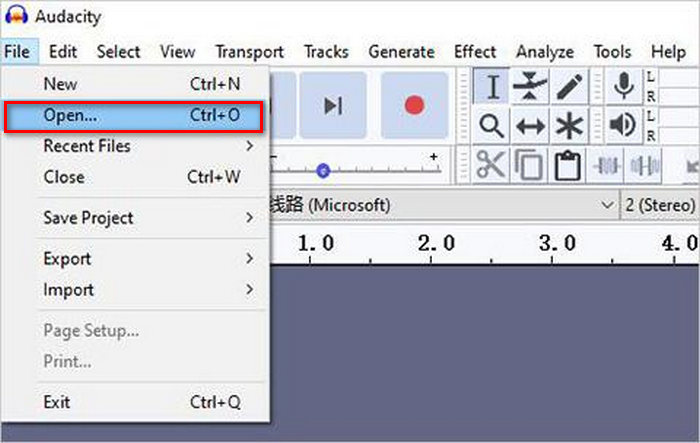
Vaihe 2. Käynnistä työkalu, siirry vasemmassa yläkulmassa olevaan File-valikkoon ja valitse Open. Selaa sen jälkeen tietokoneeltasi käännettävä äänitiedosto ja valitse se tai vedä ja pudota äänitiedosto ohjelmaan.
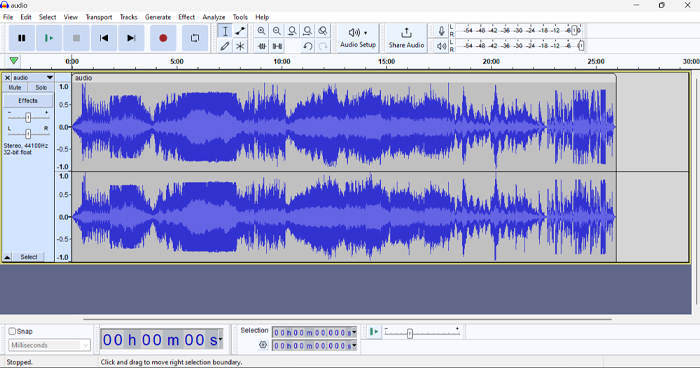
Vaihe 3. Napsauta nyt ääniraitaa, mene Select-välilehdelle ja valitse All valitaksesi koko äänitiedoston.
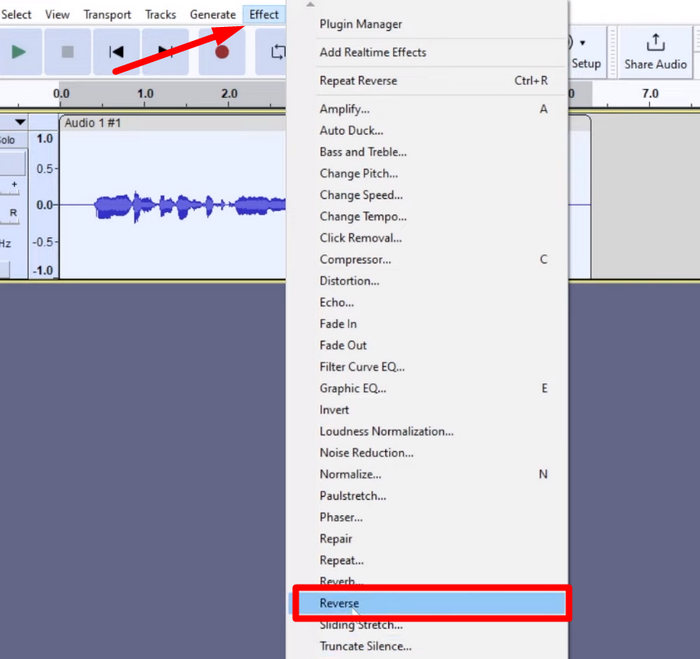
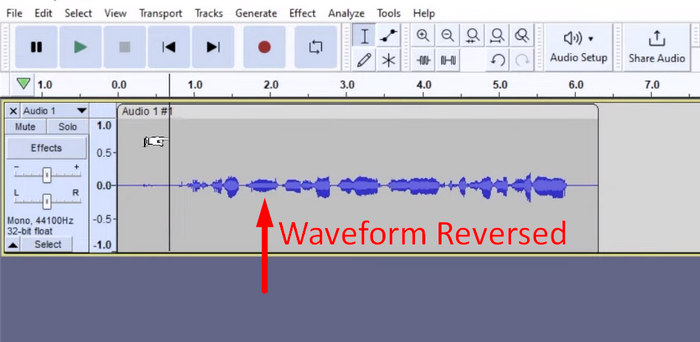
Vaihe 4. Käännä äänen toistussuunta siirtymällä Effect-välilehdelle ja valitsemalla pudotusvalikosta Reverse. Audacity käsittelee ja kääntää valitun äänileikkeen.
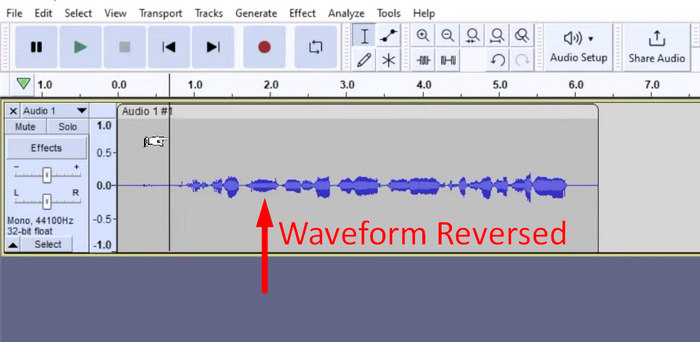
Vaihe 5. Voit esikuunnella käännetyn äänen painamalla välilyöntinäppäintä näppäimistöltäsi. Vaihtoehtoisesti voit käyttää Audacity-ikkunan vasemmassa yläkulmassa olevia toistonhallintapainikkeita ja napsauttaa Play-painiketta.
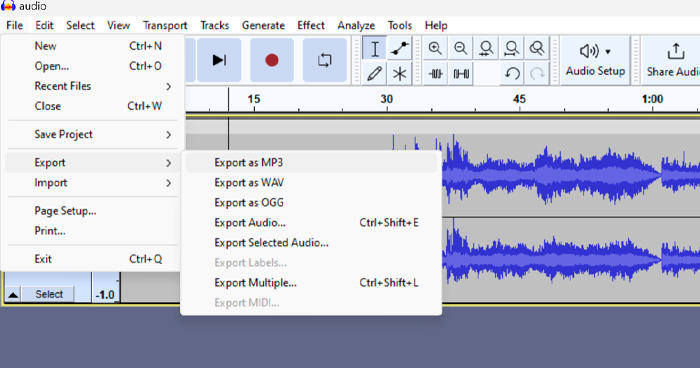
Vaihe 6. Lopuksi, viedäksesi käännetyn äänitiedoston, palaa File-valikkoon ja valitse sen alta Export. Tällöin äänesi tallennetaan uutena tiedostona. Muista samalla valita haluamasi äänitiedostomuoto ennen vientiä.
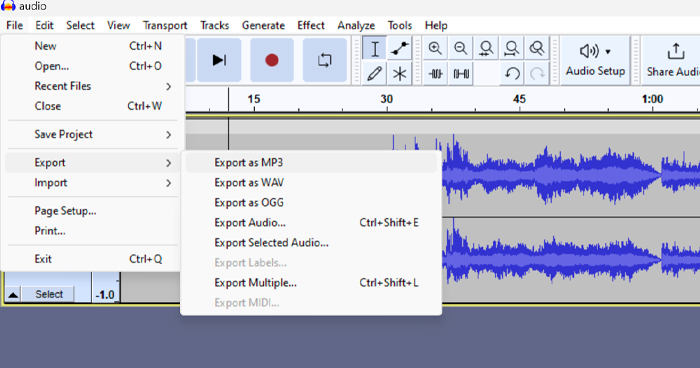
Joidenkin ongelmien vuoksi, jotka liittyvät työn odottamattomaan menettämiseen, tallenna projektisi säännöllisesti muokkauksen aikana, jotta eteneminen ei katoa. Voit tallentaa työsi nopeasti käyttämällä Ctrl + S Windowsissa tai Cmd + S Macissa. Harkitse lisäksi kuvailevien tiedostonimien käyttöä ja tiedostojen järjestämistä erilliseen kansioon, jotta projektisi pysyvät hyvin organisoituina ja helposti saatavilla.
Osa 2. Kuinka kääntää osa äänestä Audacityssä
On tapauksia, joissa käyttäjät halusivat vain kääntää osan äänestä Audacityssä, ehkä siksi, että he haluavat korostaa vain tiettyjä osia tai luoda erillisen tehosteen. Alla olevat vaiheet ovat melkein samat kuin koko kappaleen kääntäminen taaksepäin. Äänen osan valitseminen on kuitenkin hieman hankalaa ja vaatii huomiota vaiheissa sekaannusten välttämiseksi, erityisesti aloittelijoille.
Näin käännät vain osan äänestä Audacityssa.
Vaihe 1. Kun olet työkalun pääkäyttöliittymässä, siirry vasemmassa yläkulmassa olevaan File-valikkoon ja valitse Open. Selaa sen jälkeen tietokoneeltasi käännettävä äänitiedosto ja valitse se tai vedä ja pudota äänitiedosto ohjelmaan.
Vaihe 2. Valitaksesi sen ääniosan, jonka haluat kääntää, käytä Zoom-toimintoa suurentaaksesi aaltomuotoa ja vedä hiirtä valitaksesi juuri sen kohdan tai osan äänestä, jonka haluat kääntää.
Vaihe 3. Käännä äänen toistussuunta siirtymällä Effect-välilehdelle ja valitsemalla pudotusvalikosta Reverse. Audacity käsittelee ja kääntää valitun äänileikkeen.
Vaihe 4. Voit esikuunnella käännetyn äänen painamalla välilyöntinäppäintä näppäimistöltäsi. Vaihtoehtoisesti voit käyttää Audacity-ikkunan vasemmassa yläkulmassa olevia toistonhallintapainikkeita ja napsauttaa Play-painiketta.
Vaihe 5. Lopuksi, viedäksesi käännetyn äänitiedoston, valitse Export File-valikon alta. Valitse Export as ja määritä haluamasi äänitiedostomuoto ennen lopullista vientiä.
Kun valitset tiettyä ääniosaa käännettäväksi Audacityssa, varmista, että suurennat aaltomuotoa riittävästi, jotta näet selvästi, missä kyseinen osa alkaa ja päättyy. Tämä auttaa tekemään tarkat valinnat ja estää ei-toivottujen ääniosien mukaan ottamisen. Lisäksi ennen kääntämistä voit tarvittaessa käyttää Clip Split -työkalua jakaaksesi äänen useampaan osaan, esimerkiksi leikkaamalla MP3-ääntä, jolloin yksittäisten osioiden muokkaaminen ja käsitteleminen erikseen on helpompaa. Tämä lähestymistapa lisää hallittavuutta muokkauksiin ja varmistaa, että käännetystä äänestä tulee saumattomasti halutun efektin mukainen.
Osa 3. Käänteinen ääni/video ja Audacity-vaihtoehto
Jos haluat sillä välin yksinkertaisemman ja helpomman tavan kääntää ääntä tai videota, voit käyttää tätä Audacity-vaihtoehtoa, eli FVC-suosittelemaa ohjelmaa Video Converter Ultimate. Tätä kattavaa video- ja äänityökalua tunnetaan sen tehokkaista muunnosominaisuuksista, mutta sen lisäksi työkalu sopii erinomaisesti käyttäjille, jotka tarvitsevat kätevän tavan kääntää äänen tai videon toistussuuntaa.
Vaihe 1. Lataa ja asenna tietokoneellesi FVC-suosittelema Video Converter Ultimate.
Ilmainen latausWindows 7 tai uudempiTurvallinen lataus
Ilmainen latausMacOS 10.7 tai uudempiTurvallinen lataus
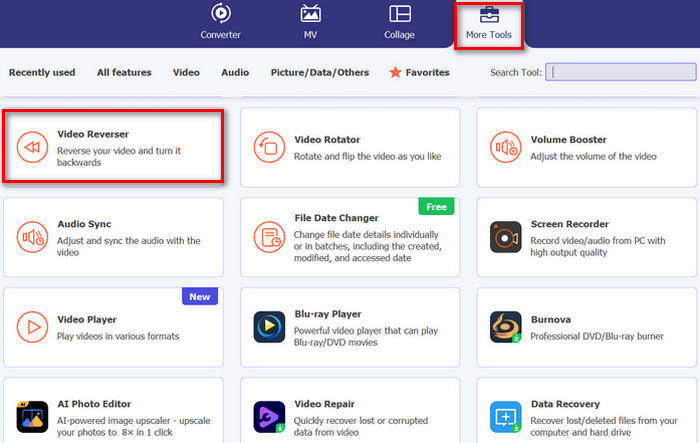
Vaihe 2. Käynnistä työkalu ja siirry Moretools-välilehteen. Valitse sieltä Video Reverser.
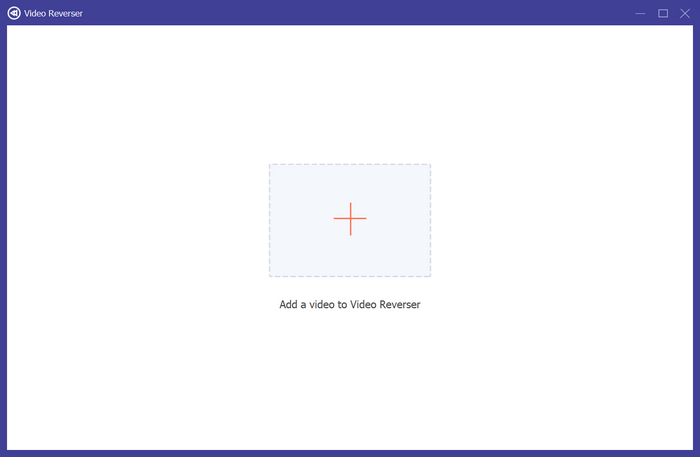
Vaihe 3. Tuo nyt käännettävä ääni tai video napsauttamalla Add a Video to Video Reverser -painiketta.
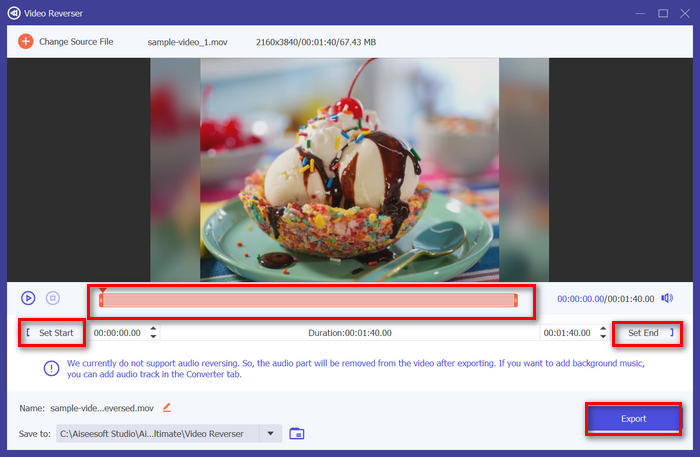
Vaihe 4. Kun olet Video Reverser -käyttöliittymässä, voit kääntää koko raidan siirtymällä suoraan Export-painikkeeseen, jolloin tiedosto käännetään automaattisesti. Jos haluat kääntää vain osan, voit siirtää palkkia ja valita tarkasti sen äänen tai videon osan, jonka haluat kääntää. Vaihtoehtoisesti voit yksinkertaisesti syöttää aloitus- ja lopetusajan sille tiedoston osalle, jonka haluat kääntää. Kun olet valmis, napsauta vain Export-painiketta.
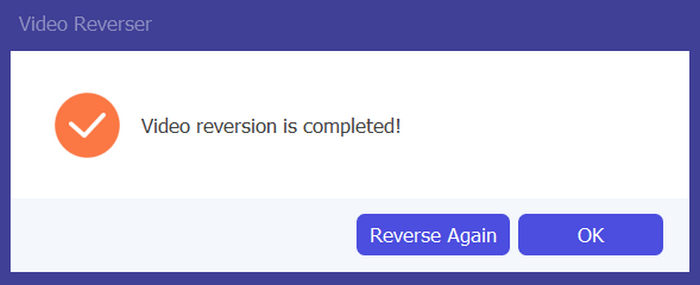
Vaihe 5. Kun vienti on valmis, saat tästä ilmoituksen, ja pääset käsiksi käännettyyn videoosi tietokoneesi kansiossa.
Siinä se on! Helppoa, eikö? Sinun ei tarvitse hämmentyä monimutkaiseen käyttöliittymään. FVC:n valitseman Video Converter Ultimaten avulla kaikki tarvitsemasi on sormiesi ulottuvilla.
Osa 4. Usein kysyttyä äänen kääntämisestä Audacityssä
Kuinka kumota käänteinen äänitehoste Audacityssä?
Jos olet vaihtanut Audacityssä ja haluat kumota sen, voit helposti palauttaa alkuperäisen äänen. Mene vain Muokkaa-valikkoon Audacity-käyttöliittymän vasemmassa yläkulmassa ja valitse Undo Reverse. Lisäksi voit kumota viimeisen toiminnon käyttämällä pikanäppäintä Ctrl + Z (Windows) tai Cmd + Z (Mac). Tämä palauttaa äänen alkuperäiseen tilaan ennen käänteisen tehosteen käyttämistä.
Mitä äänimuotoja Audacity tukee äänen kääntämiseen?
Audacity tukee useita suosittuja ääniformaatteja, kuten WAV, MP3, FLAC, AIFF ja OGG.
Voitko vääristää ääntä Audacityssä?
Kyllä. Voit vääristää ääntä Audacityssä. Audacity tarjoaa useita tehosteita ja työkaluja, joiden avulla voit vääristää ääniraitojasi. Voit lisätä tämän siirtymällä kohtaan Tehoste, napsauttamalla Vääristymä ja modulaatio ja valitsemalla Vääristymä.
Voitko muuntaa äänen Audacityssä?
Kyllä voit. Audacity tukee monia ääniformaatteja. Jos jokin äänitiedostoistasi ei ole yhteensopiva laitteesi kanssa, voit esimerkiksi helposti käyttää Audacitya AIFF-tiedoston muuntamiseen MP3-muotoon.
Johtopäätös
Lopuksi, äänen kääntäminen Audacityssa on helppoa ja tuo ainutlaatuisia efektejä ääni- tai videoprojekteihisi. Seuraa yksityiskohtaisia ohjeita ja aloita ääniraitojesi kääntäminen jo tänään. Jos haluat vieläkin helpomman vaihtoehdon, kokeile FVC-suosittelemaa Video Converter Ultimate -ohjelmaa. Oletko valmis luomaan uutta? Kokeile jotakin näistä menetelmistä heti!
-
 Liity MOV: iin ilmaiseksi - Kuinka yhdistää kaksi MOV-tiedostoa yhdeksi
 Aloittelijoille voi olla vaikeaa liittyä yhteen useisiin MOV-videoleikkeisiin. Joten, onko olemassa yksinkertainen ja nopea tapa yhdistää MOV-tiedostoja? Jos on, niin miten sitä käytetään? Tämä viesti auttaa sinua saamaan nämä vastaukset.
-
 4 tapaa yhdistää videot ilmaiseksi Windows / Mac / Online -palvelussa
 Tässä on 4 nopeaa tapaa yhdistää videot uudeksi videoksi. Ei videotiedoston kokoa tai muodon rajoitusta. Voit liittyä 2, 3, 4 ja jopa useampaan videoleikkeeseen eri muodoissa ja tarkkuudella onnistuneesti.
-
 Konkreettinen opas M4V-tiedostojen liittämiseen Windowsissa ja Macissa ilmaiseksi
 Jos etsit ratkaisua M4V-videotiedostojen yhdistämiseen yhdeksi, älä koskaan missaa tätä kohtaa. Tässä puhumme kahdesta parhaasta tavasta yhdistää M4V-videotiedostot.
