


 Video Converter Ultimate
 Näytön tallennin
 Videon korjaus
 Suojattu lataus
Polta MP4 DVD:lle: Muuta paras videosi DVD:ksi tehokkaasti PC:llä
DVD-levyn käyttäminen videoiden ja tiedostojen tallentamiseen onkin fiksu tapa varmuuskopioida tietosi. Se ei ainoastaan tarjoa luotettavaa tallennusratkaisua, vaan DVD-levyt takaavat myös parempilaatuisen videon ja äänen, kun toistat sisältöäsi. Nämä edut eivät tietenkään rajoitu vain tiettyihin video- tai mediatyyppeihin. Voit myös tallentaa parhaat MP4-muotoiset videosi levylle, erityisesti DVD:lle. Jos siis haluat hyödyntää näitä etuja, mutta et vielä tiedä, mikä on paras MP4–DVD‑poltto-ohjelma käyttöösi, me autamme sinua! Tässä artikkelissa olemme koonneet parhaat Windows- ja Mac-ohjelmisto- sekä laitevaihtoehdot sekä vaiheittaiset oppaat videoidesi polttamiseen DVD-levyille. Aloitetaan siis tutustuminen niihin lukemalla alta lisää.

Osa 1. Polta MP4-tiedostosi DVD-levylle macOS:ssä iMovien avulla iTunesin kautta
iMovie on yksinkertainen videoeditori Mac-tietokoneille, joka sisältyy yleensä ilmaiseksi Mac-laitteiden mukana. Mutta sillä on rajoituksia, etenkin niille, jotka haluavat polttaa projekteja DVD-levyille. iMoviesta puuttuu tämä ominaisuus, ja monet DVD-luontiohjelmat eivät tue iMovie-projekteja, mikä tekee siitä hankalaa. Onneksi tehokkaita menetelmiä on saatavilla, ja yksi niistä on iTunes. Kaikille, jotka eivät tiedä, iTunes tarjoaa DVD-levyjen polttoominaisuuden. Sen avulla voit luoda erityyppisiä levyjä, kuten datalevyjä, video-DVD-levyjä tai ääni-CD-levyjä. On kuitenkin tärkeää huomata, että iTunesin kautta poltetut DVD-levyt eivät välttämättä ole yhteensopivia tavallisten DVD-soittimien kanssa. Tämä tarkoittaa, että iTunesilla luomiasi DVD-levyjä voi toistaa vain tietokoneissa tai laitteissa, joissa on DVD-toisto-ominaisuus. Poltetaan sillä välin MP4 DVD:lle Macilla iMovien avulla!
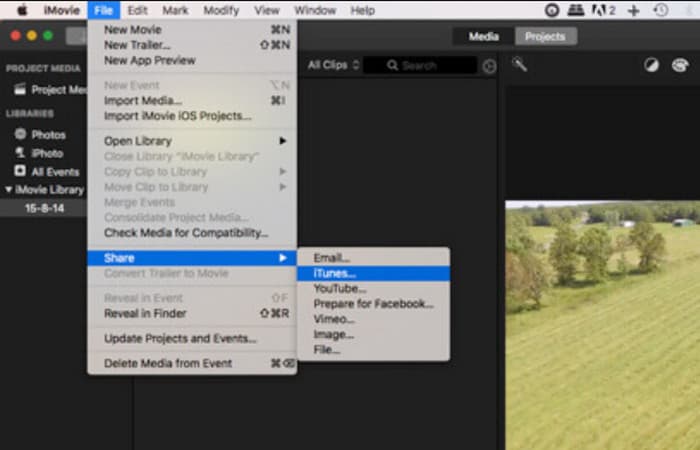
Vaihe 1. Avaa iMovie-sovellus ja lataa siihen MP4-tiedosto, jonka haluat polttaa. Tee tiedostosta yksi projekteistasi. Kun projekti on auki, siirry kohtaan File > Share > iTunes, jotta se näkyy iTunesissa.
Vaihe 2. Siirry iTunesissa kohtaan Movie > Library > Home Videos ja etsi MP4-video, jonka jaoit äsken.
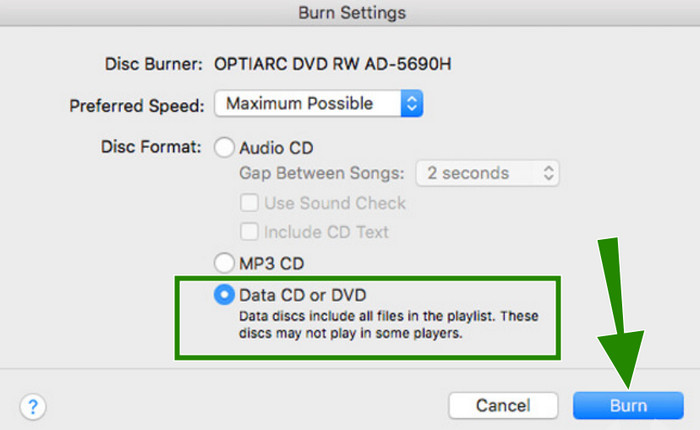
Vaihe 3. Voit nyt asettaa DVD-levyn Macisi levyasemaan ja jatkaa polttoprosessiin. Mene valikkoon File ja valitse Burn Playlist to Disc. Avautuvassa ikkunassa valitse Data CD or DVD ja napsauta sitten Burn-painiketta.
Osa 2. Käytä HandBrakea DVD-levyjen polttamiseen MP4-tiedostoista Windows-/Mac-tietokoneille
Seuraava ohjelma, joka auttaa sinua polttamaan MP4-tiedostoja DVD:lle, on HandBrake. Se on sekin näppärä työkalu. Sitä ei käytetä ainoastaan polttamiseen vaan myös videoiden pakkaamiseen ja muuntamiseen, ja se tukee monia formaatteja, kuten MOV ja AVI MP4:n (MP4) lisäksi. Lisäksi HandBrake voi herättää vanhat videosi henkiin palauttamalla niiden alkuperäisen laadun, jotta voit muistella menneitä paremmalla tarkkuudella. Ohjelmaa voi käyttää vieläpä täysin ilmaiseksi. Voit myös käyttää HandBrakea DVD-levyjen rippaamiseen ja ääniasetusten, kuten äänenvoimakkuuden ja dynamiikan, säätämiseen, ja se hoitaa tekstitykset erinomaisesti. Ohjelma säilyttää olemassa olevat tekstitykset ja antaa sinun lisätä omasi vaivatta! Voit noudattaa alla olevia yksinkertaisia vaiheita käyttääksesi HandBrakea onnistuneesti polttoprosessissa.
Vaihe 1. Avaa tietokoneellesi asennettu HandBrake. Tässä vaiheessa kannattaa myös asettaa tyhjä DVD-levy asemaan.
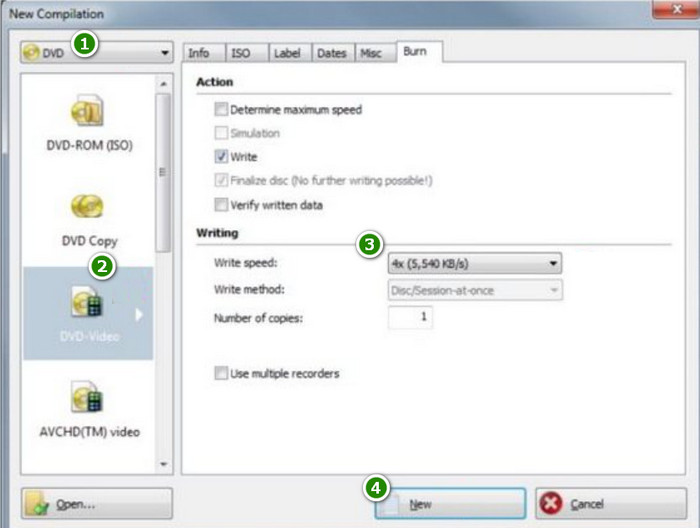
Vaihe 2. Kun ohjelma käynnistyy, mene valikkoon Source ja valitse DVD-Video. Lataa sitten MP4-tiedosto, jonka haluat polttaa.
Vaihe 3. Voit nyt aloittaa polttamisen napsauttamalla New-painiketta.
Osa 3. Polta DVD MP4:stä Freemake Video Converterilla Windows 10/8/7:lle
Jos sinulla on Windows 10-, 8- tai 7-käyttöjärjestelmällä varustettu työpöytä, tämä Freemake Video Converter on pakollinen työkalusi käytettäväksi. Se on ilmainen työkalu, jonka avulla voit muuntaa mediatiedostoja, muokata ja tietysti polttaa MP4-tiedostoja DVD:ksi Windows 10:ssä. Freemake tarjoaa perusmuokkausvaihtoehdot, kuten leikkaamisen ja trimmauksen, ja voit muokata asetuksia tarpeidesi mukaan. . Toisin kuin muut polttotyökalut, Freemake palaa hitaasti ja päivittyy usein, mikä voi olla ärsyttävää. Silti se tekee polttavan työn valmiiksi!
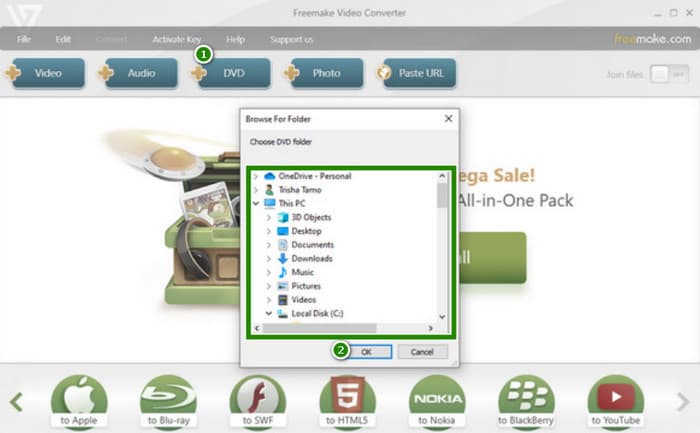
Vaihe 1. Napsauta DVD-välilehteä, kun käynnistät Freemake Video Converterin työpöydälläsi. Valmistele samalla tyhjä DVD-levy ja aseta se asemaan.
Vaihe 2. Kun olet napsauttanut valikkovälilehteä, valitse poltettava MP4-tiedosto ja jatka napsauttamalla OK-painiketta.
Vaihe 3. Tämän jälkeen työkalu tarjoaa sinulle joitakin säädettäviä esiasetuksia, joita voit käyttää. Muussa tapauksessa napsauta Burn-painiketta aloittaaksesi prosessin.
Osa 4. Vinkki: Kuinka katsoa DVD-levyjä verkossa ilmaiseksi
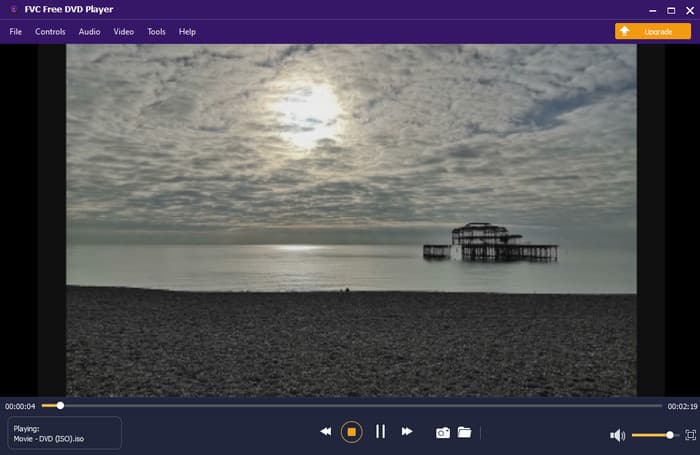
Olet nyt tutustunut erinomisiin DVD-polttimiin PC:lle. Seuraavaksi suosittelemme parasta ilmaista DVD-soitinta, jota voit käyttää PC:lläsi verkossa! FVC Free DVD Player on kätevä työkalu, jonka avulla voit katsoa DVD-levyjä suoraan verkkoselaimessasi lataamatta raskaita mediasoittimia.
Se on paras vaihtoehto suosituille pelaajille, koska se antaa sinulle aivan uuden tason elokuvien katselukokemuksen. Huomattavaa on, että sen yksinkertainen käyttöliittymä sekä ylimääräinen valikon ohjaustuki ja toistoasetukset parantavat varmasti DVD-katselumatkaasi. Lisäksi arvostat varmasti sen tuottamaa korkealaatuista visuaalista ja ääntä.
Sen edistyneen videokoodaustekniikan ansiosta. Lisäksi se tukee huippuluokan ääniformaatteja, kuten DTS-HD ja Dolby TrueHD, mikä varmistaa, että koet upeita äänitehosteita ilman kompromisseja!
Osa 5. Usein kysyttyä DVD-levyn polttamisesta MP4-tiedostoista
Miksi poltan MP4-tiedostoni DVD-levyille?
On useita syitä, miksi saatat polttaa MP4:n DVD-levyille. Yleisimmät niistä on tarkoitettu tiedostojen varmuuskopiointiin levylle ja niiden tekemiseen yhteensopiviksi DVD-soittimen kanssa.
Mitä tarvitsen MP4-tiedostojen polttamiseen DVD-levylle?
DVD-levyjen polttamista varten sinun on valmisteltava tietokone, jossa on levyasema, tyhjä DVD ja polttoohjelmisto.
Kuinka kauan MP4 mahtuu DVD-levylle?
Se riippuu DVD-levyn kapasiteetista ja MP4-tietojen koosta. Muista, että korkearesoluutioiset MP4-tiedostot vievät enemmän tilaa. Normaalille DVD-levylle mahtuu noin 4,7 Gt tietoa.
Johtopäätös
Tämän artikkelin luettuasi osaat nyt oikean tavan polttaa videosi DVD:lle. Kiitos tässä artikkelissa esitellyille MP4–DVD‑poltto-ohjelmille. Voit käyttää vapaasti sekä Macia että pöytätietokonetta tämän tyyppiseen muunnokseen. Ja jos haluat katsoa DVD-levyäsi ilman erillistä laitteisto-DVD-soitinta, voit huoletta käyttää FVC Free DVD Player -soitinta!
-
 DVD-soitinohjelmisto Macille ilmainen lataus 2025
 Kuinka toistaa DVD-levyä Macissa ilman DVD-asemaa? Kuinka ulkoista DVD-soitinta käytetään Macin kanssa? Tämä viesti jakaa 5 ilmaista DVD-soitinta Macille.
-
 2 parasta ratkaisua ratkaista Windows Media Player, joka ei toista DVD-levyjä
 Kun haluat toistaa DVD-videoita Windows Media Playerin kautta, mutta saat vain virheen "Tiedostotyyppiä ei tueta", voit oppia kolme helppoa tapaa korjata Windows Media Player, joka ei toista DVD-levyjä.
-
 [Ratkaistu] VLC ei toista DVD:tä, kuinka korjata se
 Voiko VLC toistaa DVD: tä? Miksi VLC ei toista DVD: täni? Kuinka saan VLC: n toistamaan DVD-levyä Windows 10: ssä? Tämä viesti jakaa 3 vinkkiä korjaamaan VLC, joka ei toista DVD-ongelmaa.
