


 Video Converter Ultimate
 Näytön tallennin
 Videon korjaus
Näkyviä ja hyödyllisiä tapoja muuntaa 3GP FLV:ksi [Todistettu]
Audio- ja videotiedostoja voidaan tallentaa 3GP-muotoon, jota käytetään yleisesti 3G-puhelimissa. Se toimii kuitenkin myös 2G- ja 4G-puhelimissa. Internetissä tämä MP4-pohjainen konttimuoto lähettää ja vastaanottaa multimediatiedostoja. Monet verkkovideo- ja äänistriimauspalvelut käyttävät kuitenkin FLV:tä, Flash-yhteensopivaa videokonttia. Adobe Flash Playerin lisäksi monet muut videosoittimet voivat toistaa FLV-tiedostoja. Jotta 3GP-tiedostoista tehtäisiin helpommin käytettäviä ja pienempiä kooltaan, on olemassa useita yksinkertaisia tapoja muuntaa ne FLV-muotoon. Alla ovat muuntimet, joita kannattaa käyttää, kun haluat muuntaa 3GP:n FLV:ksi.

Osa 1. Erinomaisia menetelmiä 3GP:n muuntamiseksi FLV:ksi [Offline]
Video Converter Ultimate on täydellinen työkalu 3GP-tiedostojen muuntamiseen FLV-muotoon laadusta tinkimättä. Ohjelman SuperSpeed-teknologian avulla käyttäjät voivat muuntaa suuriakin tiedostoja muutamassa minuutissa. Lisäksi sovelluksen avulla voit muokata tiedostoja parhaaksi katsomallasi tavalla: rajata, kiertää ja leikata videoitasi; säätää väriparametreja; muuttaa videon resoluutiota ja bittinopeutta; tai lisää tekstityksiä. Tämä ohjelmisto voi tukea kaikkia suosituimpia laitteita, mukaan lukien iPhone, iPad, Android-pohjaiset laitteet, Xbox ja PlayStation. Nyt tiedät lyhyen johdannon tähän ohjelmistoon, sinun on aika ymmärtää kuinka muuntaa 3GP FLV:ksi tämän ohjelmiston avulla.
Vaihe 1: Lataa ensin ohjelmisto napsauttamalla alla olevaa Ilmainen lataus. Voit ladata sen Windowsille tai Macille. Kun olet ladannut sen, asenna ohjelmisto tietokoneellesi ja käynnistä se napsauttamalla Aloita nyt -painiketta ikkunassa, joka avautuu näytöllesi asennuksen jälkeen.
Ilmainen latausWindows 7 tai uudempiTurvallinen lataus
Ilmainen latausMacOS 10.7 tai uudempiTurvallinen lataus
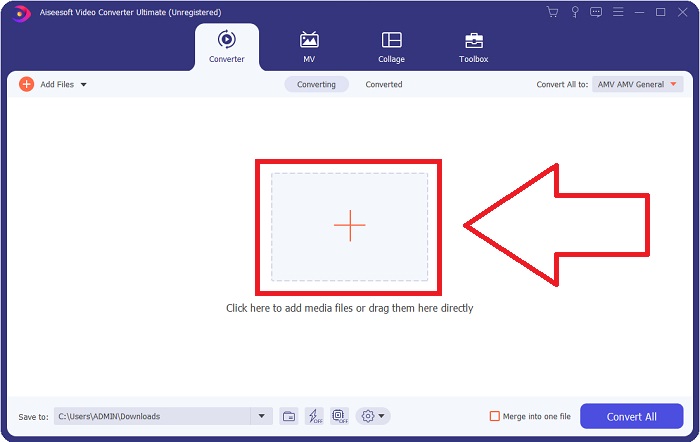
Vaihe 2: Aloittaaksesi muunnoksen sinun on ensin ladattava tiedosto, ja saavutat tämän napsauttamalla + -painiketta ohjelmiston käyttöliittymän keskellä tai vetämällä videosi suoraan tietokoneeltasi ohjelmaan.
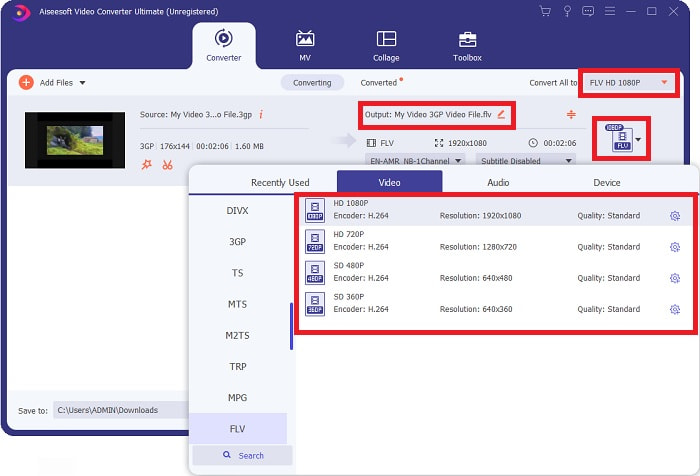
Vaihe 3: Kun olet ladannut tiedoston, voit valita FLV-muodon oikeassa näytönkulmassa sijaitsevasta formaattiluettelosta. Voit valita haluamasi laadun, sillä se näyttää kaikki mahdolliset ominaisuudet, joita voit käyttää.
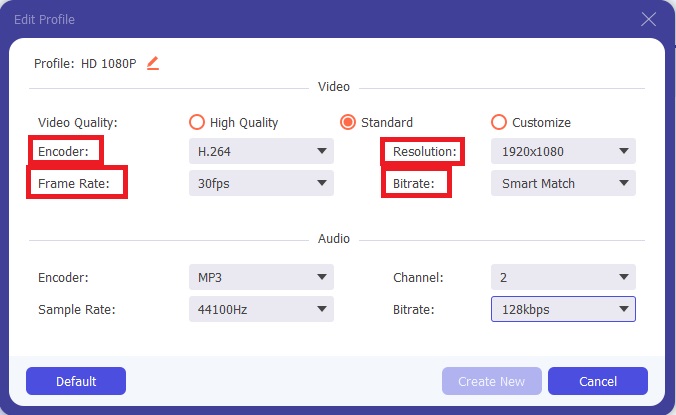
Vaihe 4: Esitettyjen laatuvaihtoehtojen lisäksi voit luoda myös oman laatuprofiilisi, jos haluamaasi laatua ei löydy vaihtoehdoista. Napsauta hammasrataskuvaketta ja säädä kaikkia asetuksia, jotka näet ponnahdusikkunassa. Resoluutio liittyy näytön kuvanlaatuun, kuvanopeus videon toistotaajuuteen, ja bittinopeus siihen, kuinka paljon dataa pakataan tietyssä ajassa. Lopuksi kooderi määrittää, miten videomuoto pakataan ja toimitetaan.
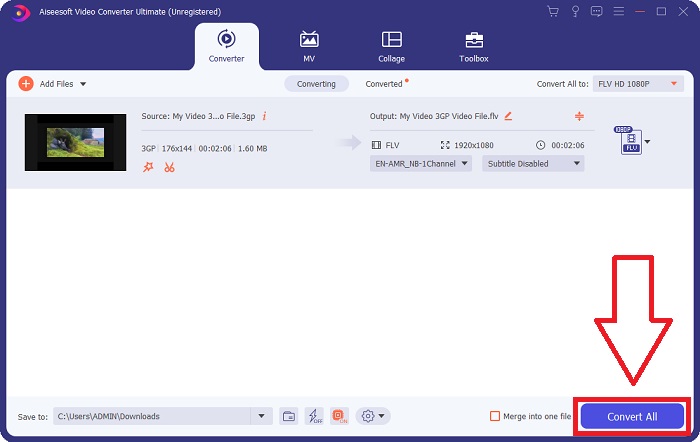
Vaihe 5: Kun olet tehnyt kaikki tarvittavat säädöt videon ulostuloon, voit aloittaa muunnoksen napsauttamalla Muunna kaikki.
Osa 2. Toinen mielenkiintoinen tapa muuntaa 3GP FLV:ksi [Online]
Riittää ohjelmistosta; puhutaan nyt tästä verkkotyökalusta, joka voi varmasti auttaa sinua muuntamaan 3GP:n FLV:ksi. Esittelyssä Free Video Converter Online, joka tukee monia formaatteja, mukaan lukien 3GP ja FLV. Voit muuntaa tiedoston suoraan tietokoneeltasi lataamalla sen palveluun. Jos haluat ladata yli 500 Mt:n kokoisen tiedoston, voit käyttää tätä verkkotyökalua muuntaaksesi 3GP:n FLV:ksi. Käyttäjät voivat muuttaa monia asetuksia ennen muunnoksen aloittamista. Voit esimerkiksi vaihtaa äänikoodekin ja äänenvoimakkuuden. Voit muuttaa myös videon resoluutiota. Nyt kun olet saanut kaiken tämän tiedon, käydään läpi kaikki tarvittavat vaiheet.
Vaihe 1: Tässä on linkki verkkotyökaluun. Napsauta sitä, jotta työkalun etusivu avautuu selaimeesi. Napsauta Lisää tiedostoja muunnettavaksi ladataksesi käynnistysohjelman, jota käytät verkkotyökalun käyttämiseen. Asenna käynnistysohjelma ja aloita tiedoston lataaminen.
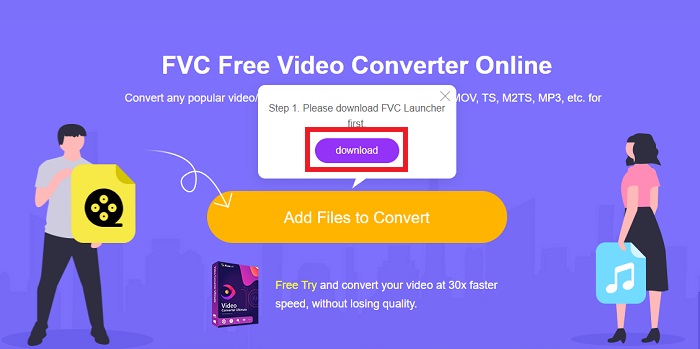
Vaihe 2: Ladata varten napsauta uudelleen Lisää tiedostoja muunnettavaksi. Kun tiedosto on ladattu, voit valita FLV-videomuodon ikkunan alareunassa olevasta videomuotoluettelosta.
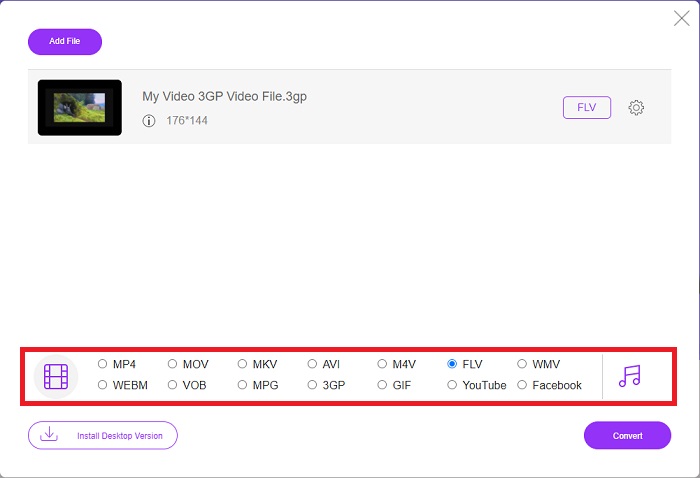
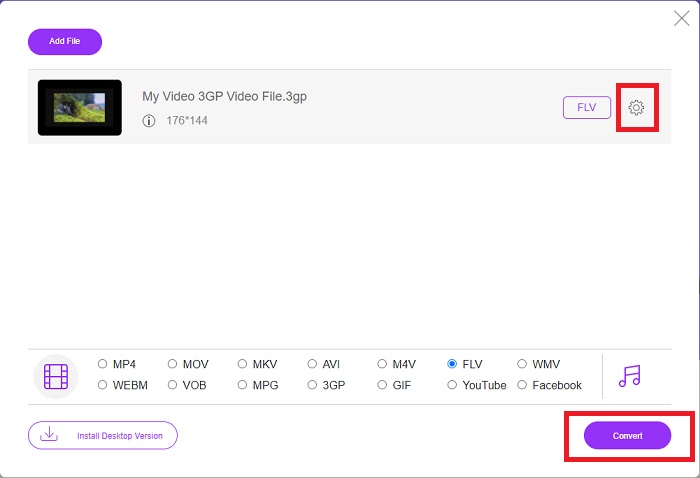
Vaihe 3: Voit myös muokata videosi laatua tai muita ominaisuuksia, kuten resoluutiota, kuvanopeutta tai bittinopeutta, napsauttamalla hammasrataskuvaketta heti valitsemasi videomuodon vieressä ikkunan oikeassa alakulmassa. Kun olet säätänyt kaikki haluamasi asetukset ulostulolle, voit muuntaa tiedoston napsauttamalla Muunna.
Osa 3. Yleiskatsaus: 3GP vs. FLV
Jos olet koskaan halunnut tallentaa ääni- ja videoleikkeen 3GP-muodossa, olet tullut oikeaan paikkaan! (3GPP). ISO-mediatiedostomuoto toimii perustana 3GPP:lle, multimediasäiliömuodolle. H.263- tai H.264-videovirrat ja AMR-WB-, AMR-WB+-, AMR-NB-, HE-AAC v1-, AAC-LC- tai Enhanced aacPlus -äänivirrat ovat kaikki tuettuja. Tyypillisesti 3GP-tiedostot käyttävät 3G-matkapuhelimia videon kaappaamiseen, mutta käyttäjät voivat myös toistaa niitä joissakin 2G- ja 4G-puhelimissa. Vaikka 3GP-tiedostot ovat edelleen käytössä, niiden suosio on laskenut, kun tehokkaammat videomuodot ovat syrjäyttäneet 3GPP-muodon.
Adobe Flash Video (FLV) -säilömuotoon tallennetut videotiedostot ovat kuitenkin FLV-dokumentteja. Ääni- ja videovirrat voivat koodata samalla tavalla kuin tavallinen Flash. SWF-muotoiset ja metatietopaketit sisältävät lyhyen otsikon. Flash Video Exporter -laajennus (saatavilla Adobe Animaten kanssa) tai FLV-tiedostoja tukeva sovellus voi tuottaa Flash Video -sisältöä ja viedä sen FLV-tiedostoina. Adobe Media Encoder voi myös koodata videon QuickTime- tai Windows Media -muodoissa. Nyt kun sinulla on käsitys 3GP:stä ja FLV:stä, tarjoamme vertailukaavion, josta saat tietää tiettyjen asioiden yksityiskohdat.
| Tiedostopääte | 3GP | FLV |
| Tiedostotyyppi | ISO-mediatiedosto | Flash-videotiedosto |
| Kehittäjä | Kolmannen sukupolven kumppanuusprojekti | Adobe System |
| Plussat | Mobiilikäyttäjien on helpompi jakaa ja tallentaa videotiedostoja, koska 3GP-tiedostomuoto pienentää videon kokoa ja äänikomponentteja. Vaikka 3GP:lle suunniteltu tiedostomuoto käyttää 3G-yhteensopivia laitteita, monet 2G- ja 4G-laitteet voivat toistaa tätä muotoa. | Adobe Flash on erinomainen valinta verkkosivustoille, jotka haluavat sisältää animaatioita ja interaktiivisia elementtejä. Pitkällä aikavälillä sillä voi olla huomattava vaikutus. Huippunsa aikana Flash käytti yksinkertaisia pelejä. |
| Haittoja | Vaikka video- ja äänivirrat voidaan pakata yhdeksi tiedostoksi, käyttäjät voivat parantaa käyttökokemusta huomattavasti muihin muotoihin verrattuna, kuten äänenlaatu, näytön resoluutio, toistonopeus jne. | Haittapuolena on tietysti se, että FLV:n suosio on laskenut muutaman viime vuoden aikana. FLV-sisällön luominen vie paljon aikaa ja rahaa. Toinen Flashin haittapuoli on, että sitä ei voi katsella iOS-laitteilla, mikä rajoittaa vakavasti sen kykyä houkutella uusia faneja. |
| Ohjelmat avaavat videomuodon | ◆QuickTime Player ◆Windows Media Player | ◆VLC-mediasoitin ◆Adobe Flash Player |
Osa 4. Usein kysytyt kysymykset 3GP:n muuntamisesta FLV:ksi
Onko 3GP hyvä laatu?
Muuttuva bittinopeus ja kehysnopeus tukevat 3GP:tä, aivan kuten MP4:ssä. 3GP oli suosittu muoto ominaisuuspuhelimissa, kun ne olivat vielä yleisin viestintämuoto. Tarvitsemme videon, joka on pieni, koska avaruus oli ennen luksusta. Laatu on sama kuin perunalaatuiset kamerat, joita meillä oli tuolloin puhelimissa, joten se ei ole järkyttävää.
Miksi 3GP ei pelaa?
Kokeile toistaa 3GP-tiedosto VLC Media Playerilla oletussoittimesi sijaan, jos se ei tue 3GP-koodekkeja. VLC on erinomainen avoimen lähdekoodin videosoitin, koska se pystyy toistamaan käytännössä minkä tahansa videotiedoston. Windowsin ja iOS:n lisäksi VLC on saatavilla myös Linuxille ja Androidille.
Onko FLV sopiva tallennusmuoto?
Adobe Flash Player käyttää FLV-tiedostomuotoa. Yleisesti tuettuna videoformaattina se on yksi käytetyimmistä muodoista. Verkkovideon suoratoistoalustat, kuten YouTube, hyötyvät FLV-muodon käytöstä. Se on erittäin kätevä, koska tiedostokoko pysyy pienenä. Tässä ovat parhaat FLV-tallentimet, joita voit kokeilla.
Johtopäätös
Yleisesti ottaen kaikki sinulle tarjotut muuntimet ovat parhaita ja suosituimpia ohjelmistoja ja online-muuntimia, joita sinun kannattaa harkita. Koska heillä on nämä ammattimaiset ja käyttäjäystävälliset ominaisuudet, et voi verrata näitä kahta muihin ohjelmistoihin ja verkkotyökaluihin. Nauti sen käytöstä, äläkä unohda kirjoittaa arvostelua käytön jälkeen.
-
 4 tehokkainta tapaa muuntaa 3GP AVI-muotoon [2025]
 Voinko muuntaa 3GP-tiedostoni AVI:ksi? No, voit muuntaa sen helposti, jos kokeilet näitä saatavilla olevia työkaluja, kun olemme keränneet kaikki mahdolliset ratkaisut 3GP-AVI-muunnosongelmaasi.
-
 Parhaat tavat muuntaa VOB FLV:ksi [ilmainen ja online mukana]
 Haluatko muuntaa VOB-tiedoston FLV-tiedostoksi? Voit suorittaa tehtävän helposti joko työpöydällä tai verkossa olevilla muuntimilla. Lue tämä opas ja opi muuttamaan VOB FLV: ksi helposti ja nopeasti.
-
 Kolme parasta tapaa muuntaa DAT FLV: ksi työpöydällä ja verkossa
 Haluatko muuntaa DAT: n FLV: ksi, mutta et tiedä miten? Tarkista suositellut DAT-FLV-videomuuntimet ja noudata konkreettisia oppaita työn suorittamiseksi helposti.
