


 Video Converter Ultimate
 Näytön tallennin
 Videon korjaus
 Suojattu lataus
Kuinka muuntaa ja ladata FLV-videotiedostoja YouTubeen
“Juuri latasin videotiedoston .flv-päätteellä, mutta sain varoitusviestin, jossa sanottiin virheellinen tiedostomuoto, miten ladata FLV YouTubeen?” FLV ei ole pelkästään tiedostopääte, vaan myös videokontaineri. Tämä tarkoittaa, että FLV‑videotiedosto voi sisältää erilaisia video- ja äänikoodekkeja, joista osaa YouTube ei tue. Tässä artikkelissa kerrotaan kaikki, mitä sinun tarvitsee tietää, jotta voit ladata FLV‑tiedostoja YouTubeen sujuvasti.

Osa 1: Mitä video- ja äänikoodekkeja YouTube tukee
Googlen mukaan YouTube suosii lähetysmuotoa sekä DVD-yhteensopivia MPEG-2-virtoja .mpg-laajennuksella. YouTuben tukemat koodekit sisältävät:
- MPEG-2
- Äänikoodekki: MPEG Layer II tai Dolby AC-3
- Äänen bittinopeus: 128 kbps tai parempi
- MPEG-4
- Videokoodekki: H.264
- Äänikoodekki: AAC
- Äänen bittinopeus: 128 kbps tai parempi
Lisäksi YouTube tukee vain WAV-kontteja, joissa on MP3- tai PCM-ääni, MOV: ää AAC-äänellä ja FLAC-ääntä. YouTube tukee WMV-, AVI-, MOV-, MP4- ja FLV-tiedostoja oikeilla koodekkeilla.
FLV: n osalta YouTube käyttää videoita, jotka on koodattu Adobe-FLV1-videokoodekilla sekä MP3- ja AAC-äänillä. Jos FLV-videosi sisältää pakkaamatonta ääntä tai ADPCM-ääntä, YouTube ei hyväksy sitä.
Lisäksi FLV: n lataamiseen YouTubeen on enemmän sääntöjä:
- Suosittele kuvataajuutta: 24-60
- Suosittele päätöslauselmaa: 1080p
- Vähimmäiskesto: 33 sekuntia
Osa 2: Helpoin tapa muuntaa FLV YouTubeen
Tapa 1: Muunna FLV YouTubeen työpöydällä
Jos kohtaat virheen ladatessasi FLV‑tiedostoa YouTubeen, ensimmäinen asia on etsiä FLV‑muunnin, kuten FVC Free FLV Converter. Sen avulla voit säätää video- ja äänikoodekkeja sekä muita parametreja, jotta saat FLV‑tiedostosi vastaamaan YouTuben sääntöjä. Lisäksi se hyödyntää laitteistokiihdytystä ja monisäikeistystä suorituskyvyn parantamiseksi.
YouTuben parhaan FLV-muuntimen tärkeimmät ominaisuudet
- 1. Säädä FLV: n video- ja äänikoodekkeja helposti.
- 2. Eräprosessoi rajattomasti FLV-videoita kerralla.
- 3. Suojaa videolaatu automaattisesti muunnoksen aikana.
Ilmainen latausWindows 7 tai uudempiTurvallinen lataus
Ilmainen latausMacOS 10.7 tai uudempiTurvallinen lataus
Kuinka muuntaa FLV for YouTube työpöydälle
Vaihe 1: Lisää FLV‑tiedostot
Käynnistä paras FLV-muunnin, kun olet asentanut sen tietokoneellesi. Napsauta Lisää tiedosto (t) -valikkoa vasemmassa yläkulmassa ja lisää FLV-tiedostot, jotka haluat ladata YouTubeen.

Vaihe 2: Vaihda koodekit
Napsauta pudotusvalikkoa Tulostusmuoto-kohdan vieressä alareunassa avataksesi profiilivalintaikkunan. Kirjoita FLV Hae profiilia -kenttään ja paina näppäimistösi Enter-näppäintä. Valitse sitten FLV‑muoto, jossa on sopivat video- ja äänikoodekit.
Jos FLV‑videosi on liian pitkä, se kannattaa jakaa leikkeitä ja ladata sitten YouTubeen. Voit napsauttaa Muokkaa-valikkoa avataksesi videoeditori‑ikkunan.

Vaihe 3: Muunna FLV YouTubea varten
Siirry seuraavaksi alareunaan ja napsauta Avaa kansio -painiketta. Valitse tietty kansio, johon ulostulovideot tallennetaan. Napsauta lopuksi Muunna-painiketta aloittaaksesi FLV‑tiedostojen muuntamisen YouTubea varten välittömästi.

Tapa 2: Muunna FLV YouTube Online -palveluun
Jos et halua asentaa videomuunninohjelmistoa kiintolevyllesi, FVC Free Online Video Converter on hyvä vaihtoehtoinen ratkaisu. Se on maksuton ilman mitään rajoituksia, kuten vesileimaa. Lisäksi sillä ei ole tiedostokokorajoituksia. Vaiheet ovat seuraavat:
Vaihe 1: Vieraile sivulla https://www.free-videoconverter.net/free-online-video-converter/ selaimessa ja napsauta Add Files to Convert -painiketta käynnistimen lataamiseksi.

Vaihe 2: Napsauta Add File -painiketta ladataksesi useita FLV‑tiedostoja. Paina sitten Gear-kuvaketta avataksesi profiilivalintaikkunan. Täällä voit säätää Video Encoder- ja Audio Encoder -asetuksia. Napsauta OK vahvistaaksesi.

Vaihe 3: Valitse alareunasta YouTuben tukema muoto ja napsauta Convert-painiketta aloittaaksesi FLV‑tiedostojen muuntamisen YouTubea varten. Kun muunnos on valmis, lataa tulostiedostot.
Älä ohita tätä:
Osa 3: Kuinka ladata FLV YouTubeen
Muuntamisen jälkeen voit ladata FLV-tiedostosi YouTubeen tietokoneellasi nyt. Jaamme vaiheet täällä, jotta et eksy.
Vaihe 1: Mene YouTuben etusivulle ja kirjaudu sisään tilillesi.
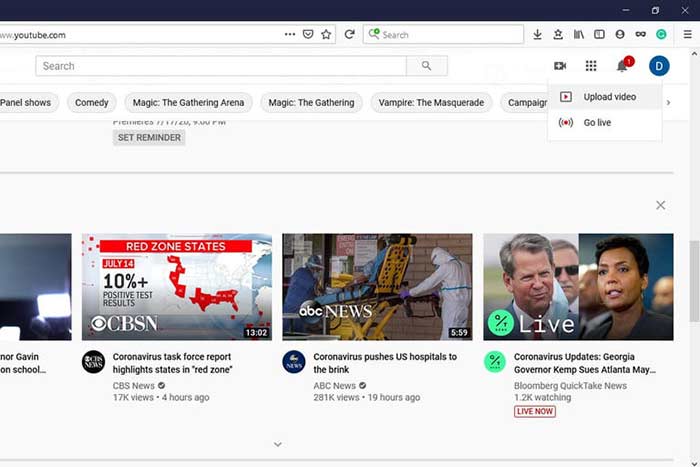
Vaihe 2: Napsauta Camcorder-kuvaketta ja valitse Upload video siirtyäksesi lataussivulle.
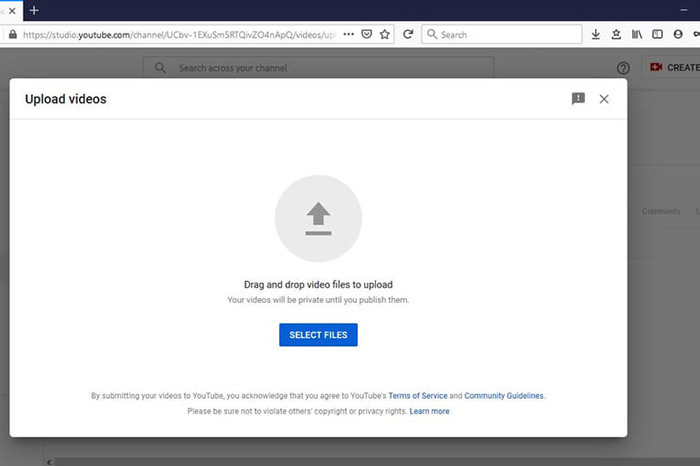
Vaihe 3: Napsauta sivulla olevaa suurta Select Files -painiketta ja avaa YouTubea varten muunnetut FLV‑tiedostot. Voit myös vetää ja pudottaa FLV‑tiedostot sivulle ladataksesi ne.
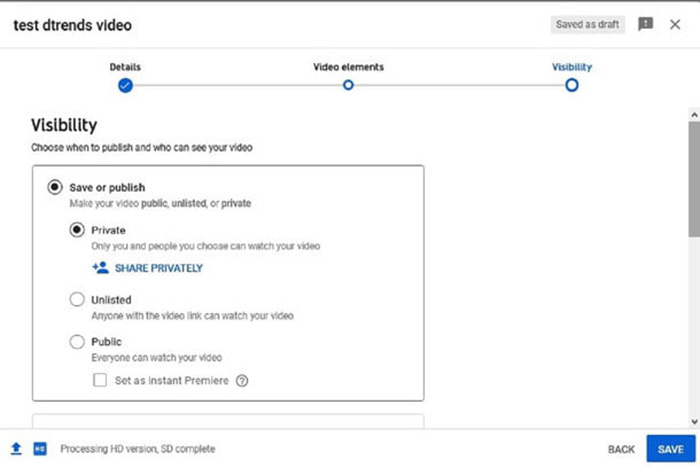
Vaihe 4: Määritä sitten tietosuoja-asetus. Oletuksena se on Public, mutta voit muuttaa sen arvoihin Private, Schedule tai Unlisted.
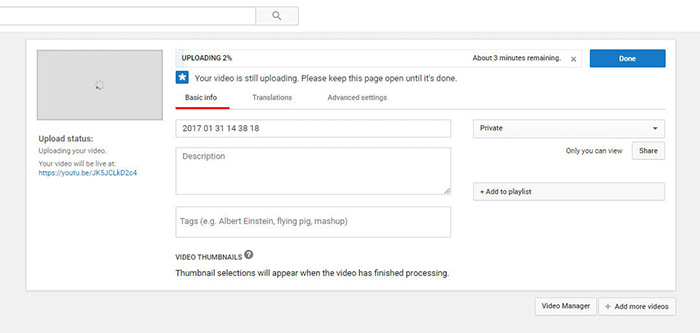
Vaihe 5: Napsauta Save- tai Publish-painiketta asetusten jälkeen. Tämän jälkeen sinut ohjataan Dashboard-sivulle. Täällä näet YouTube-tilillesi ladatut FLV‑tiedostot.
Osa 4: UKK FLV: stä YouTubeen
Voitteko ladata FLV: n YouTubeen?
Kyllä ja ei. YouTube tukee FLV-videomuotoa, mutta videokontina voit ladata vain FLV-tiedostoja, joissa on tuetut video- ja äänikoodekit. muuten se on epäonnistuminen.
Voinko ladata YouTube-videoita FLV-muodossa?
Jos YouTube-video tarjoaa latauspainikkeen, voit napsauttaa sitä ja valita tulostusmuodoksi FLV.
Mikä videomuoto on paras YouTubelle?
MP4 on paras videoformaatti YouTubelle. Google suosittelee MP4: n käyttöä H.256-videokoodekin ja AAC-äänikoodekin kanssa. Tämä johtuu siitä, että se tuottaa korkeaa laatua pienemmällä tiedostokoolla. Lisäksi MOV, WMV, AVI, FLV ja 3GPP tuetaan myös YouTubessa.
Johtopäätös
Tässä oppaassa on kerrottu, mitä videoformaatteja YouTube hyväksyy ja kuinka ladata FLV YouTubeen ilman vikaa. FVC Free FLV Converter voi auttaa muuntamaan FLV: n YouTubeen ja avulla voit säätää video- ja äänikoodekkeja helposti. Se ei edes vaadi teknisiä taitoja, joten aloittelijat voivat hallita nopeasti. Jos kohtaat muita ongelmia ladatessasi videota YouTubeen, jätä viesti tämän viestin alle.
-
 Kuinka muuntaa FLV-videotiedostosi MP4: ksi maksamatta penniäkään
 Tässä oppaassa jaetaan neljä ilmaista tapaa muuntaa FLV-videotiedostosi MP4-muotoon Windows 10/8/7 / XP: ssä ja Mac OS X: ssä, jotta voit nauttia videoista millä tahansa laitteella.
-
 Kuinka muuntaa FLV-videosi MP3-äänitiedostoiksi työpöydällä ja verkossa
 Kuinka muuntaa FLV MP3-tiedostoksi? Sinun tarvitsee vain lukea tämä artikkeli huolellisesti, löytää suosikkimenetelmäsi ja seurata vaiheittaista opasta saadaksesi haluamasi.
-
 3 ilmaista tapaa muuntaa FLV WAV: ksi
 Kuinka muuntaa FLV-tiedosto? Voiko VLC muuntaa YouTube FLV: n WAV: ksi? Tämä viesti kertoo 3 ilmaista tapaa muuntaa FLV WAV: ksi ilman laadun heikkenemistä.
