


 Video Converter Ultimate
 Näytön tallennin
 Videon korjaus
 Suojattu lataus
Opi täydelliset menetelmät URL-osoitteen luomiseen kuvasta
Nowadays, image file formats have become popular. These formats are one of the best ways to share and open images in different browsers and programs. However, there are some instances when you can’t share your images, no matter what extension you use. This situation might be troublesome for other people. But little did we know there was a solution to this type of struggle. If you want to share your photos everywhere and anywhere, the best way is to transcode the image into the URL. This way, you can share the photo to others without the help of any extensions. Fortunately, the article has an exceptional solution for you. Please read this post as we give you the best tutorials on how to turn your images into a link.

Osa 1. Tehokkaat menetelmät kuvan muuttamiseksi linkiksi
Muunna kuva linkiksi i-Converterin avulla
Some image to URL converters online are not working well, so we want to introduce you to i-Converter. It is an online converter you can rely upon to change your image files into a URL link. You can access the online tool on different browsers. It includes Firefox, Chrome, Edge, Explorer, and more. It also has a simple process of converting files. This way, the tool is suitable for you whether you are a skilled user or a beginner. Additionally, it supports various image file formats. You can convert your images to JPEG, BMP, TIFF, PNG, GIF, DOC, and more. Moreover, the i-Converter is free. It means that you can convert your images without purchasing a subscription plan. However, the i-Converter is only exclusive to JPG image files. If your image doesn't have a .jpg file extension, you can't upload it on this online tool. Also, there are times when the tool is not performing well. Since it is an online tool, an internet connection is highly recommended.
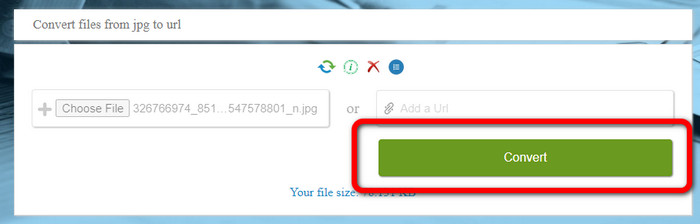
Step 1. Open any browser from your desktop and visit the i-Converter website. When you are already on the main webpage, click the Choose File button. When the computer file appears on the screen, open the image you want to turn into a URL.
Step 2. After uploading the image file you want to convert, click the Convert button. Then, wait for the conversion process. After a few seconds, the tool will give you the link. You can copy the link to the browser to open the image by clicking the Copy Code button.
Kuinka tehdä kuvasta linkki käyttämällä Image to Linkiä
Another online tool you can utilize to convert images to HTML is Image to Link. Compared to the first tool above, the tool supports various input formats like JPG, PNG, and GIF. Also, it offers straightforward methods. After uploading the image, the tool will convert the image automatically. The conversion process is fast so you can get the link quickly. Additionally, Image to Link is available on various web browsers. You can use it on Google, Mozilla, Explorer, and more. All users are capable of operating this tool because of its understandable options. The best thing is that you can convert multiple images at once. This way, converting more files is perfect when using the tool. However, when using the converter, some ads appear on the screen, making it frustrating for users. Also, when converting multiple files, you can only upload up to five images. You also need internet access to use the online image converter.
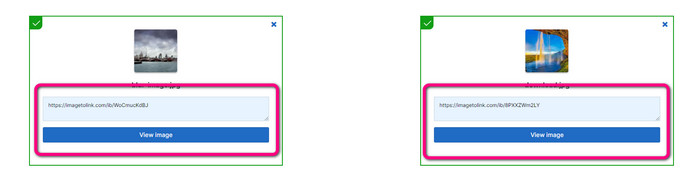
Step 1. Navigate to the Image to Link website from your browser. On the webpage, click the Start Uploading button. Then open the image file you want to convert from your computer file. You can upload up to five images when doing a batch conversion process.
Step 2. After uploading, the tool will automatically turn the image into a link. Afterward, the tool will provide a link that you can use to open the image. To open the image, copy the given link and paste it into your browser.
Osa 2. Kuvien muuttaminen JPG-, PNG- ja GIF-muotoon
Muunna kuvat JPG-, PNG- ja GIF-muotoon FVC Free Image Converterissa
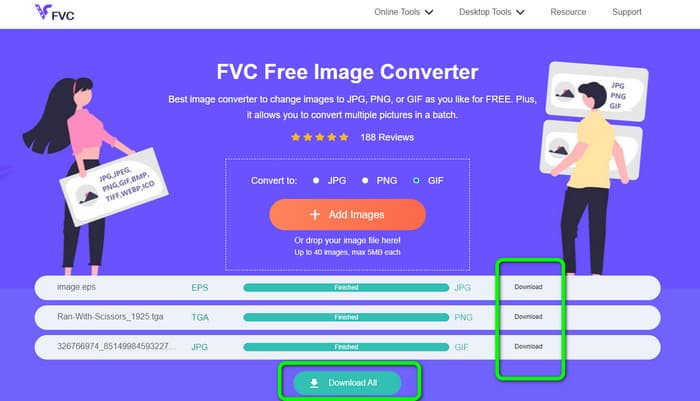
One of the leading online image converters you can use is the FVC Free Image Converter. The tool can transcode your image into various formats like JPG, PNG, and GIF. Also, it supports various input formats, including BMP, SVG, ICO, WebP, and more. You can convert images in just a simple method, which is perfect for users. Additionally, The image converter has great features you can enjoy. It is the batch conversion feature. It allows you to upload multiple images and convert them in a single click. Note that you can convert up to 40 image files. It also offers a fast conversion process wherein you can convert images in a few seconds.
Lisäksi FVC Free Image Converter kaikissa selaimissa, joten voit käyttää sitä kaikkialla, kunhan sinulla on Internet-yhteys. Työkalu takaa myös yksityisyytesi. Muunnosprosessin aikana et koskaan kohtaa ärsyttäviä mainoksia näytölläsi. Kun olet tallentanut muunnetut kuvat, työkalu poistaa tietosi, joten kukaan ei voi nähdä ladattuja ja muunnettuja kuviasi. Alla lueteltujen menetelmien avulla voit muuntaa kuvat vaivattomasti JPG-, PNG- tai GIF-muotoon.
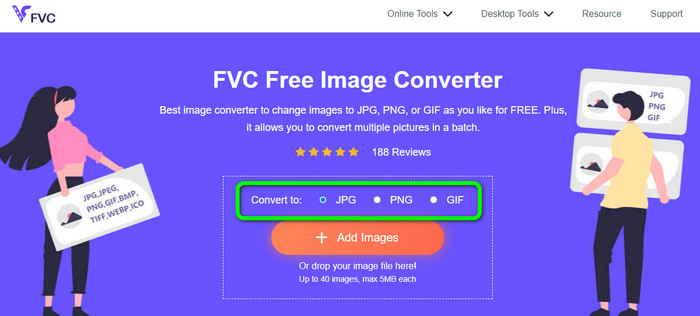
Step 1. Navigate to the official website of FVC Free Image Converter. You can access this online image converter on all browsers. After that, you can click the JPG, PNG, or GIF format from the format option.
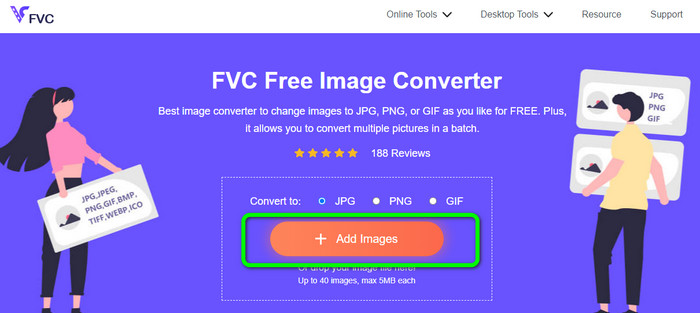
Step 2. Click the Add Images to upload the image file from your computer. You can also drop and drag the file into the box. Since the tool offers a batch conversion process, you can upload multiple files simultaneously.
Step 3. You will see that the image converter will convert the images automatically after the uploading process. When the conversion process is done, click the Download All button to save them in one click. But, if you prefer to save the image manually, click the Download button on the right.
Osa 3. Usein kysyttyä kuvien muuntamisesta linkeiksi
1. Miksi kuvasta tulee linkki?
Voit käyttää kuvaa painikkeena, jos sinulla on verkkosivusto tai blogi. Tällä tavalla käyttäjät pääsevät kotisivullesi tai tietylle sivulle. Lisäksi on mahdollista linkittää kuvia sosiaalisessa mediassa tai sähköpostien allekirjoituksiin. Se on myös loistava tapa mainostaa verkkosivustoasi tai blogiasi ja lisätä liikennettä. Tässä on vain muutamia tärkeimmistä perusteista URL-osoitteen muuntamiseen kuvasta.
2. Mitä hyötyä on kuvan muuttamisesta linkiksi?
Käyttäjien voi olla helpompaa napsauttaa linkkiäsi, jos muunnat kuvan linkiksi. Jos haluat vierailijoiden napsauttavan pientä kuvaa, kuvan tekeminen URL-osoitteeksi antaa heille laajemman napsautettavan alueen. Aineiston jakaminen muiden kanssa saattaa helpottaa uusien tavaroiden tai palveluiden löytämistä.
3. Miten löydän verkkosivustolla olevan kuvan URL-osoitteen?
Napsauta kuvaa hiiren kakkospainikkeella ja valitse Kopioi kuvalinkki saadaksesi verkkosivustolla olevan kuvan URL-osoitteen. Voit sitten avata URL-osoitteen uudelle välilehdelle tallentaaksesi kuvan tai jakaa URL-osoitteen sähköpostitse, sosiaalisessa mediassa tai muilla kanavilla.
Johtopäätös
There you go! Now you have learned the best methods to convert images to links. In addition to that, you discovered the most straightforward ways of converting images to JPG, PNG, and GIF formats. Thus, if you want to change your images to URL links, see the effective methods above. On the other hand, if you want an outstanding image converter to convert images to other formats, use FVC Free Image Converter.
-
 Menetelmät kuvien muuntamiseksi JPG-muotoon verkossa ja offline-tilassa
 Haluatko muuntaa tiedoston jostain syystä JPG-muotoon? Sitten tämä artikkeli on sinua varten. Opetamme sinulle parhaan tavan muuntaa kuvasi JPG-muotoon
-
 Hyödyllisiä menetelmiä kuvien muuntamiseen helposti PNG-muotoon
 Etsitkö parasta tapaa tallentaa kuvasi PNG-muodossa? Tämä opas tarjoaa erinomaisia ratkaisuja kuvien muuntamiseen PNG-muotoon online- ja offline-tilassa
-
 Mikä on JPEG/JPG: Muunna kuvasi JPG-muotoon vaivattomasti
 Oletko kiinnostunut JPEG:n merkityksestä? Meillä on sinulle vastaus. Lisäksi opit muuntamaan eri kuvaformaatteja JPG-tiedostoiksi. Lue postaus nyt.
